Monitoring competitor pricing on Amazon means tracking every seller offer on a product, not just the featured Buy Box. An n8n Amazon price tracker for the lowest price can replace manual catalog checks with a workflow that writes the market minimum straight into your tracking sheet.
This tutorial shows how to build an n8n workflow that:
- Reads Amazon ASINs from Google Sheets
- Retrieves every seller offer through ScrapeHero’s Amazon Offer Listing API
- Keeps only the offers in New condition and sorts them by price
- Writes the lowest price and product name back to Google Sheets
What You’ll Learn
- Why the Buy Box price is not always the lowest price a product is sold at.
- How to process each ASIN one at a time and fetch every seller’s offer for it.
- How to split the
offer_listingsarray so each offer becomes its own item. - How to convert text prices to numbers.
- How to sort the offers and write only the cheapest one.
- How to save the data to a Google Sheet.
- What are the ways to extend the workflow?
Why the Buy Box Does Not Always Show the Lowest Price
You may think that tracking an Amazon product page means tracking the Buy Box. You will be wrong. That’s because the Buy Box (also called the Featured Offer) is not a simple lowest-price display. Amazon awards it based on factors such as Fulfillment by Amazon (FBA) eligibility, shipping speed, seller performance, and price.
That means the Buy Box holder is often not the cheapest seller. Merchant-fulfilled sellers, new stores, and liquidators can list at a price below the Buy Box price and still not win it. These offers appear only in the “Other sellers on Amazon.”
If you track only the featured price, you miss the true market floor.
Collecting these secondary offers by hand across hundreds of ASINs is impractical, and scraping them yourself encounters Amazon web scraping challenges.
ScrapeHero’s Offer Listing API solves this by returning structured JSON with every seller, price, condition, and fulfillment method in a single request. Price is only one part of the picture.
Before You Build an n8n Amazon Price Tracker
Before creating the workflow to find the lowest offer price on Amazon with n8n, prepare the following:
- An n8n account or self-hosted n8n installation.
- A Google Cloud OAuth client ID and client secret.
- A Google Sheets document titled Lowest New Price with a tab named ASINs.
- A ScrapeHero account and API key.
Your ASINs tab should contain these columns:
| ASIN | Name | Lowest New Price |
|---|---|---|
| B08141GQQG | Logitech G733 LIGHTSPEED Headset | 119.00 |
n8n Amazon Price Tracker Workflow
1. Add a Manual Trigger
On your n8n dashboard, click “Create Workflow” to open a new canvas with a big plus sign in the center.
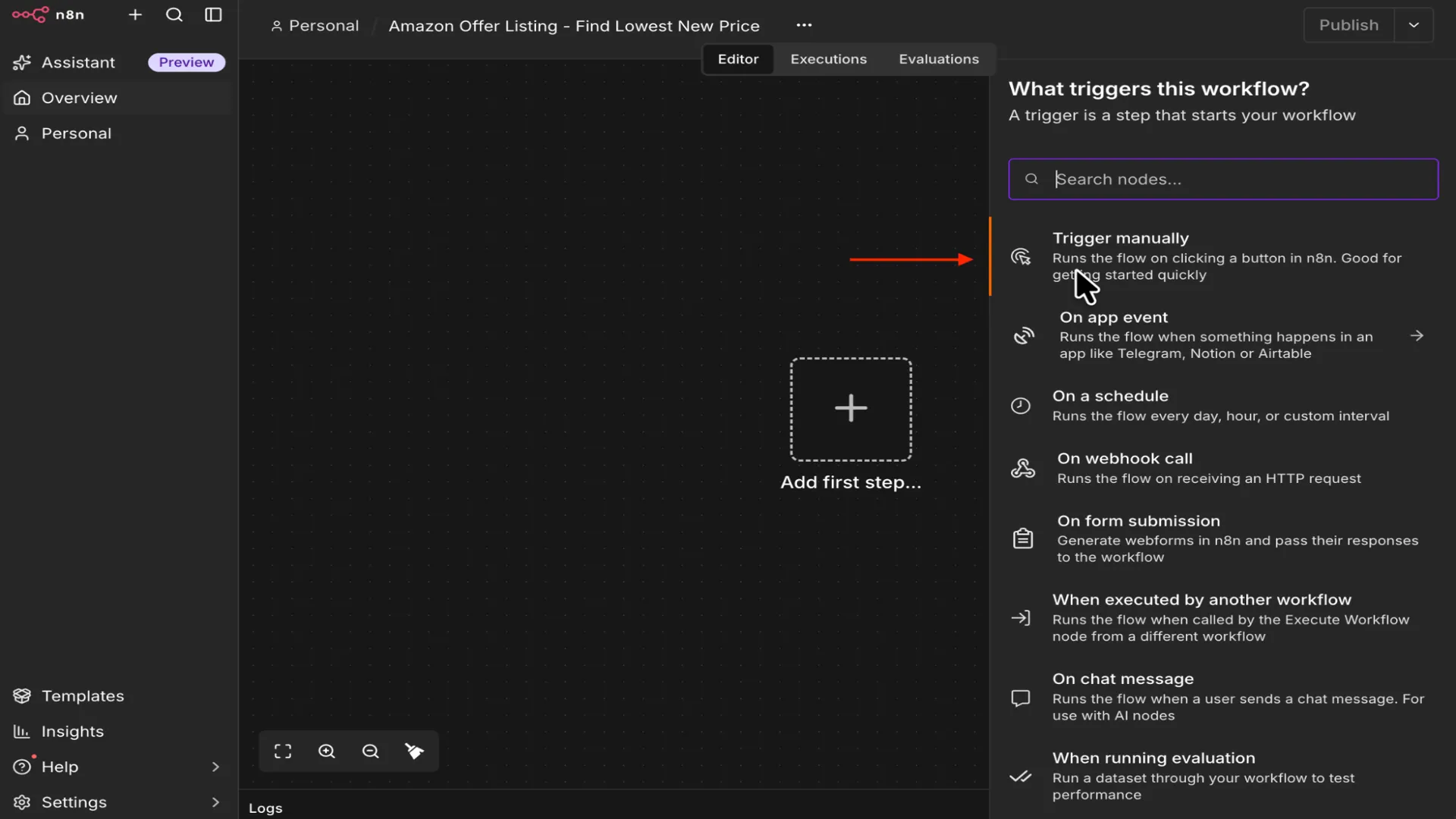
Click the plus icon, search for Manual Trigger, and click it to add it to the workflow. Keep the default configuration. A manual trigger lets you test the workflow on demand. You can replace it with a schedule later.
2. Read ASINs from Google Sheets
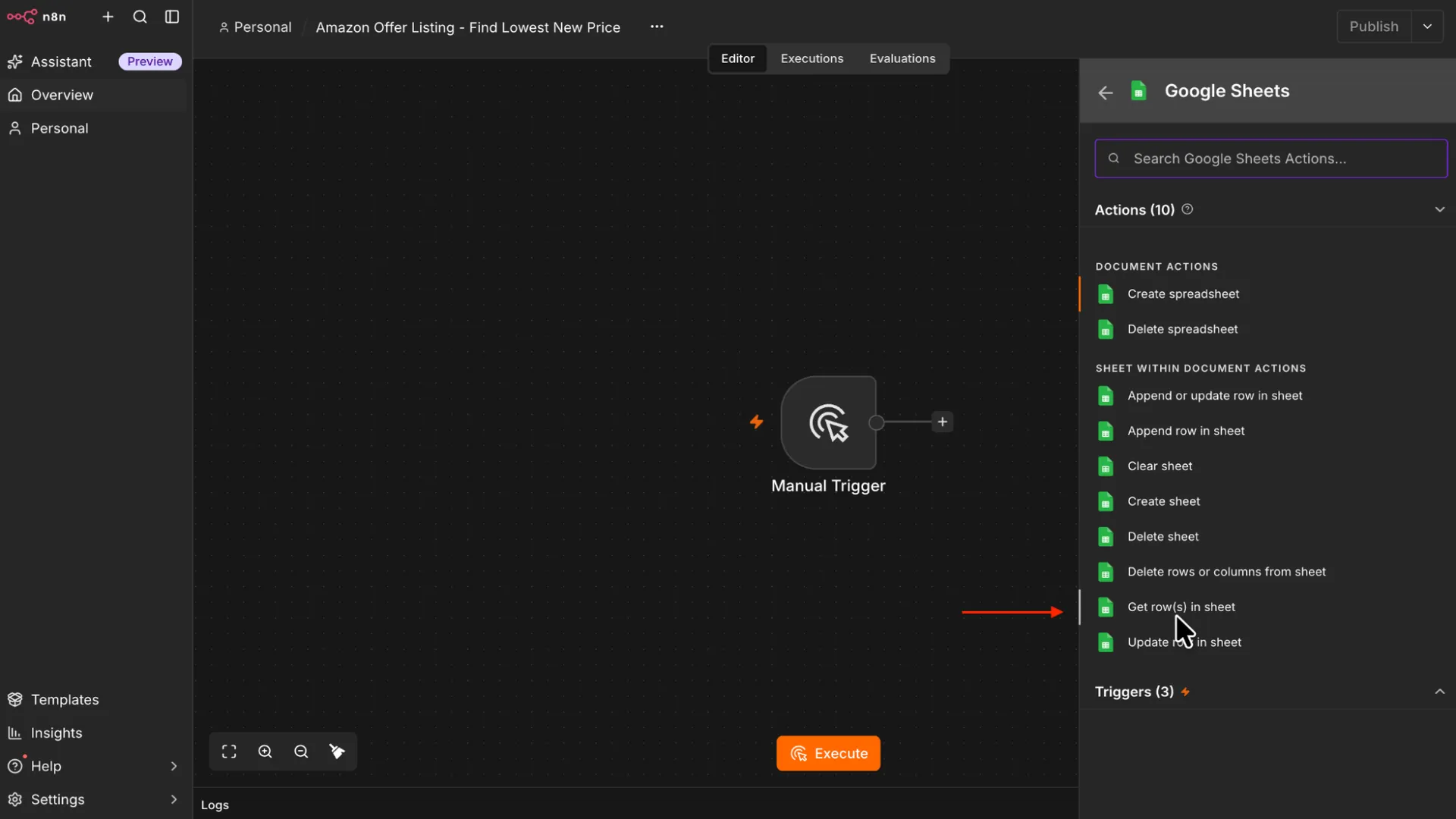
Click the plus icon to the right of the Manual Trigger, search for Google Sheets, and click to add the node. (This is similar to all the other nodes in this tutorial)
For the Sheet action, choose Get Row(s) in Sheet.
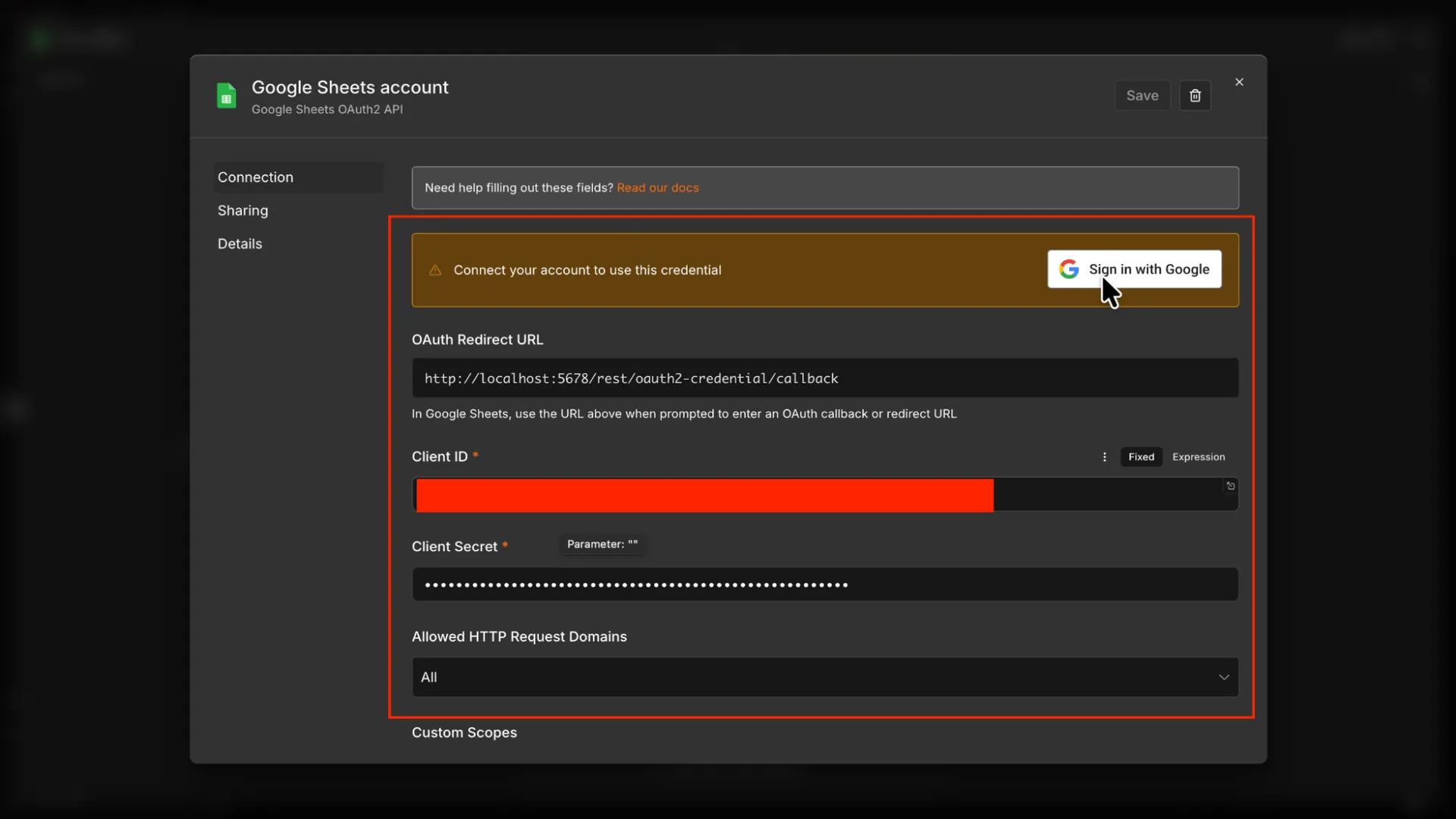
Next, click Connect to Google Sheets. Paste your Google Cloud Client ID and Client Secret, then click Sign in with Google. Complete the authorization process and return to n8n.
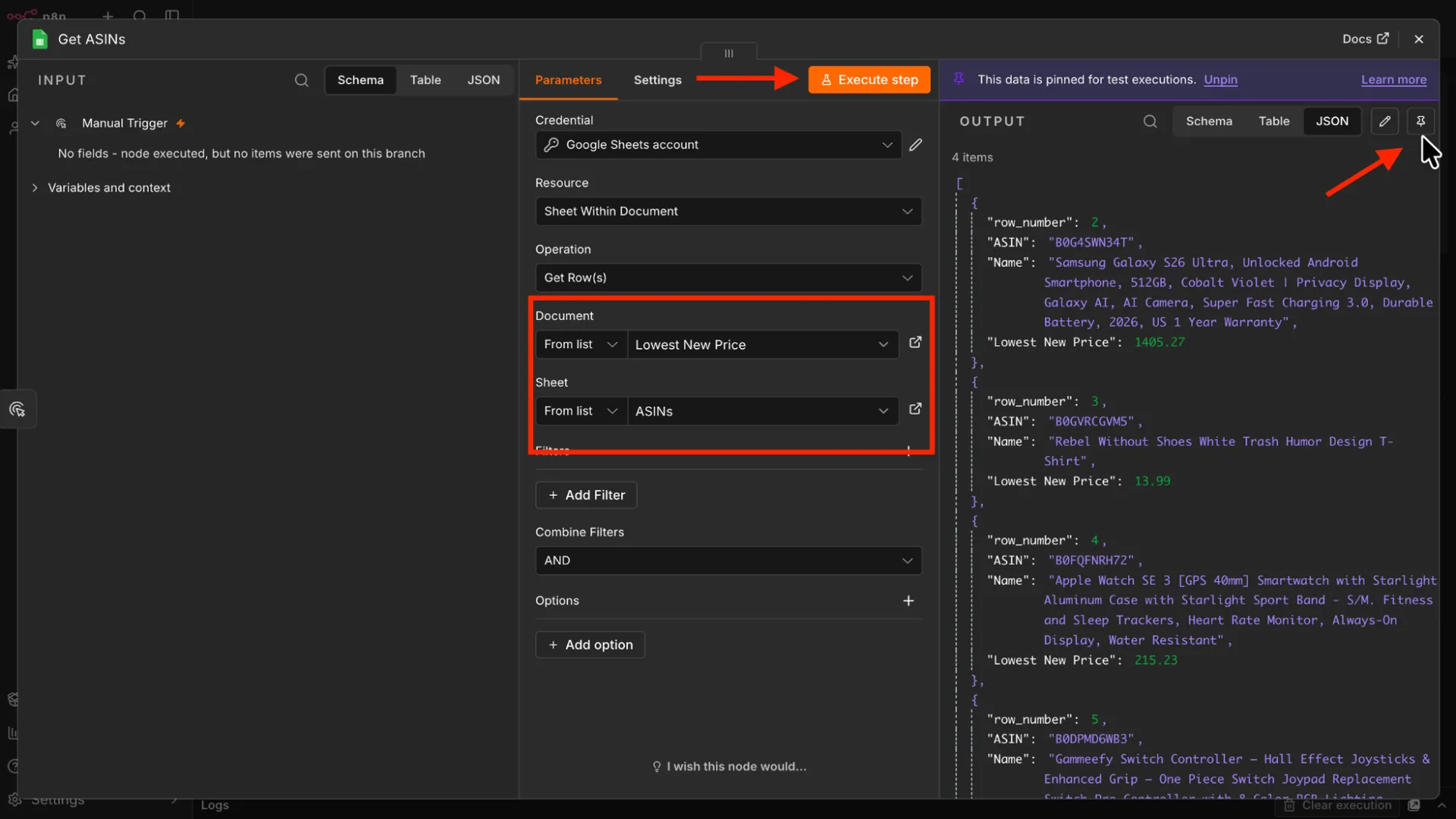
Now select:
- The Lowest New Price document.
- The ASINs tab.
Click Execute Step to confirm that the ASIN rows load.
3. Process Each ASIN Individually
Each ASIN needs its own request to the ScrapeHero API. Processing them one at a time also avoids rate-limit issues with large catalogs.
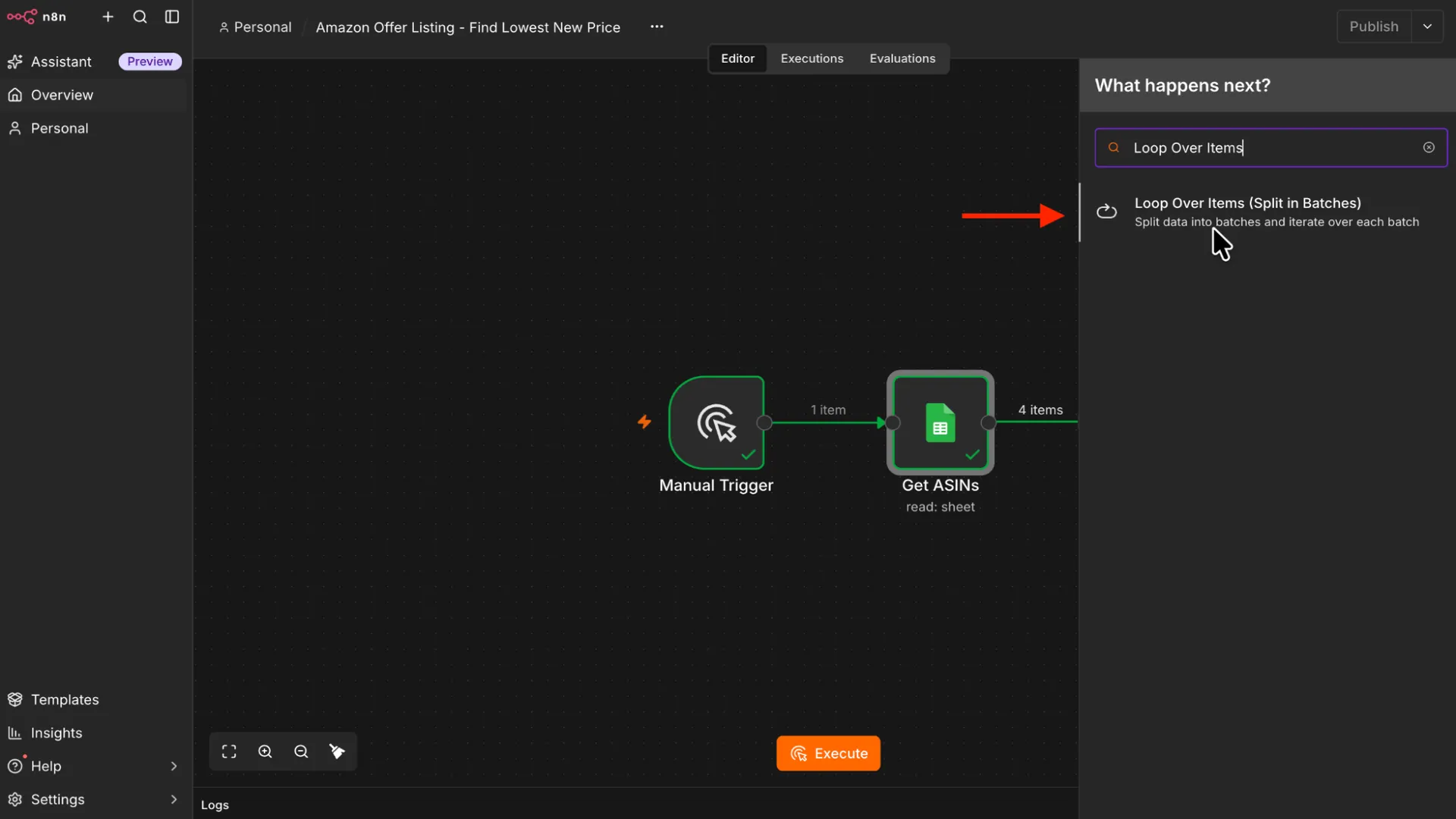
To do so, add a Loop Over Items node. Click the plus icon to the right of the Get ASINs node, search for Loop Over Items, and click it.
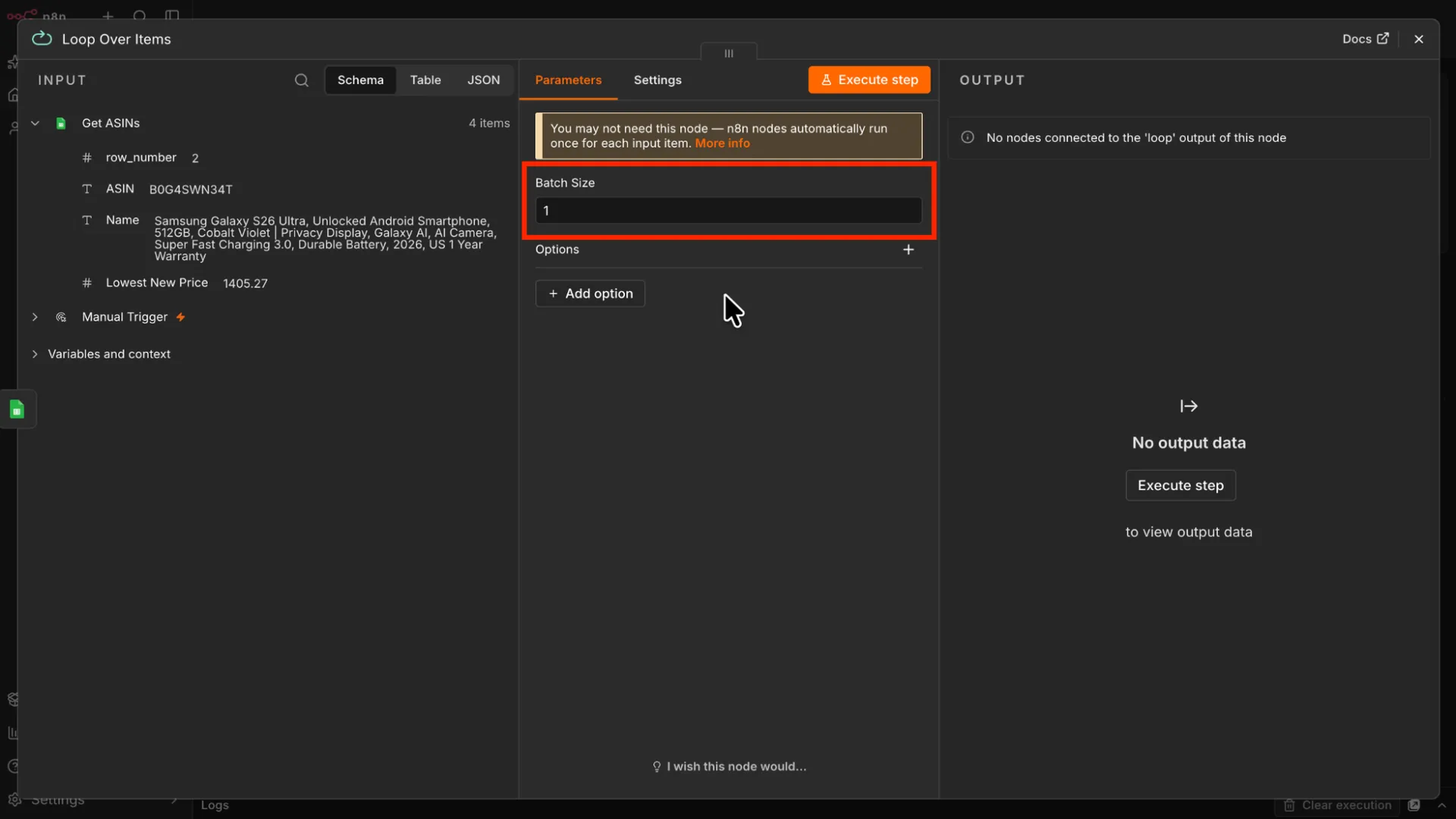
Set the Batch Size to 1.
This node has two outputs. The loop output runs for each item, and the done output runs after all items finish.
4. Add the ScrapeHero Node
Next, add the ScrapeHero node to the loop output of the Loop Over Items node.
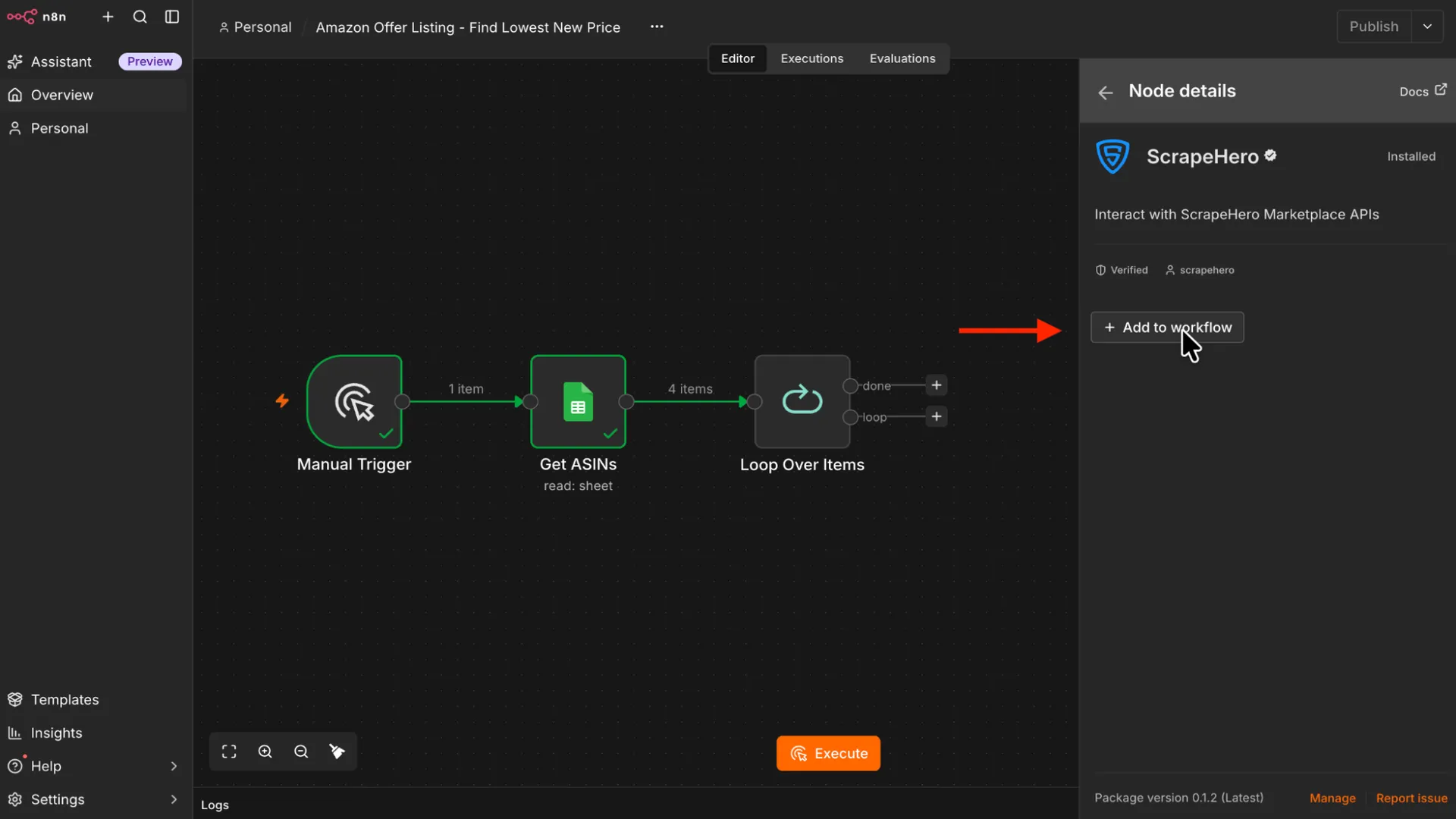
If you are adding the node for the first time, you need to install the ScrapeHero community node first.
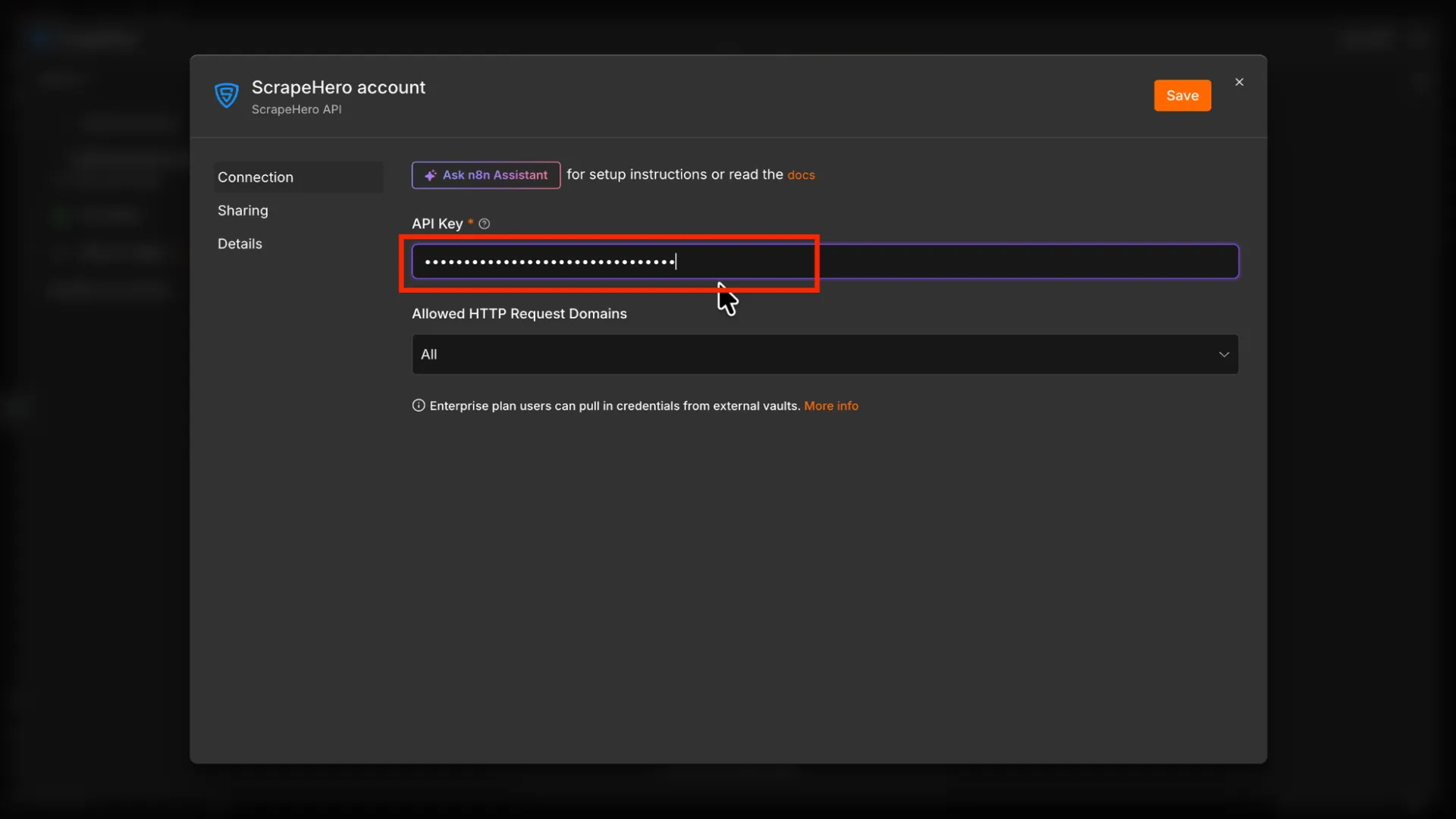
In the configuration window, click Connect ScrapeHero to create the credentials. Then:
- Go to app.scrapehero.com.
- Sign in to your account.
- Click your profile icon.
- Open API Key.
- Copy your API key.
- Return to n8n.
- Paste the key into the ScrapeHero credential field.
- Save the credentials.
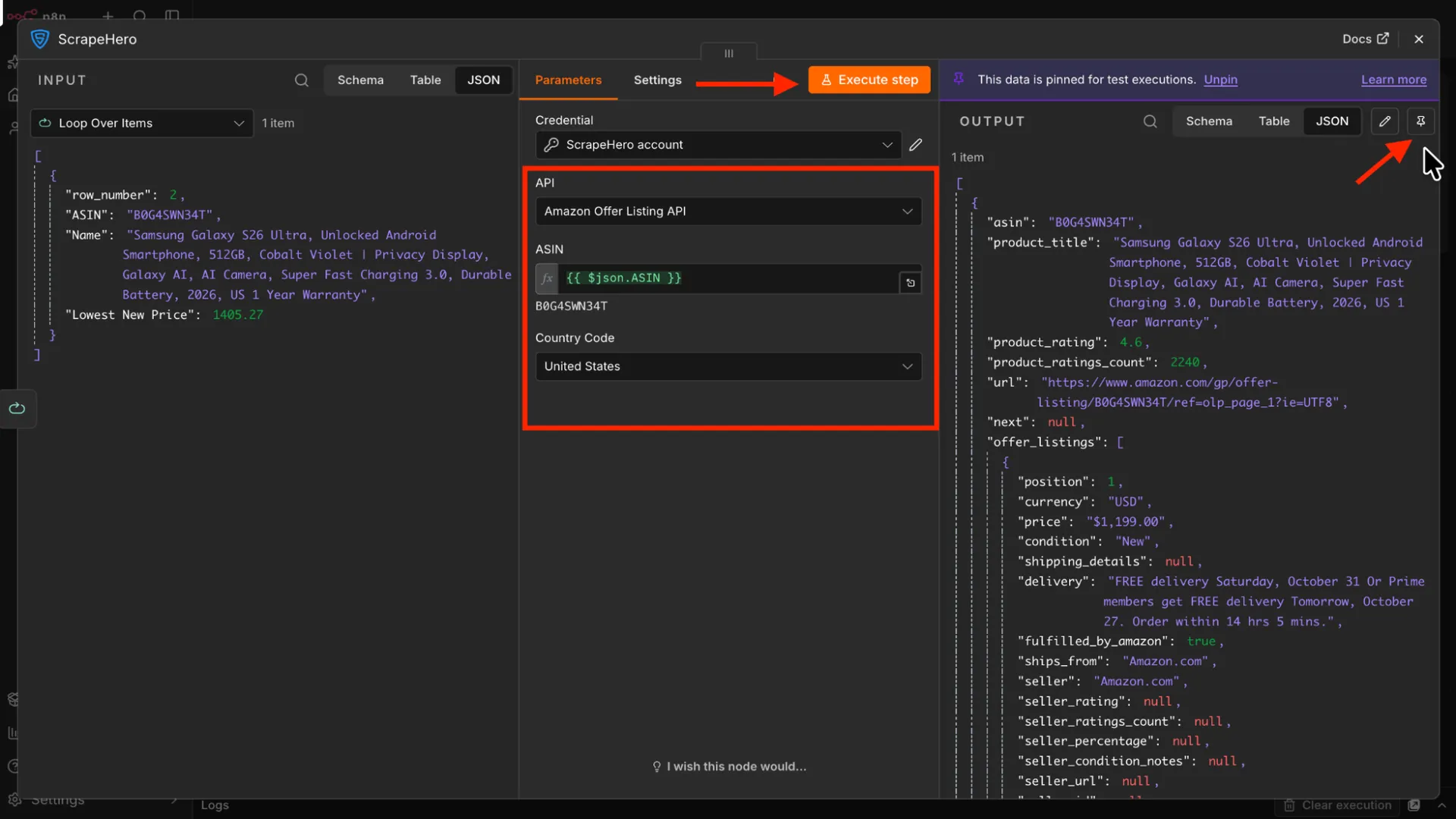
Select Amazon Offer Listing from the API dropdown. This API returns every active seller offer for a product.
Locate the ASIN field, switch to the expression editor, and drag the ASIN value from the Loop Over Items node into it, or enter:
{{ $json.ASIN }}Select the Country Code and click Execute Step to test the request for the first ASIN.
The response includes asin, product_title, product_rating, product_ratings_count, and an array named offer_listings that holds every seller offer.
After the test succeeds, pin the output temporarily. Pinning prevents repeated test executions from making unnecessary API requests while you configure the remaining nodes. To pin the output, click the pin icon at the top right of the output panel. Unpin it before the final test.
Prepare the Offers
5. Split the Offers into Separate Items
The offer_listings field is an array nested inside a single item. To filter and sort individual offers, convert each array element into its own item.
Add a Split Out node after the ScrapeHero node.
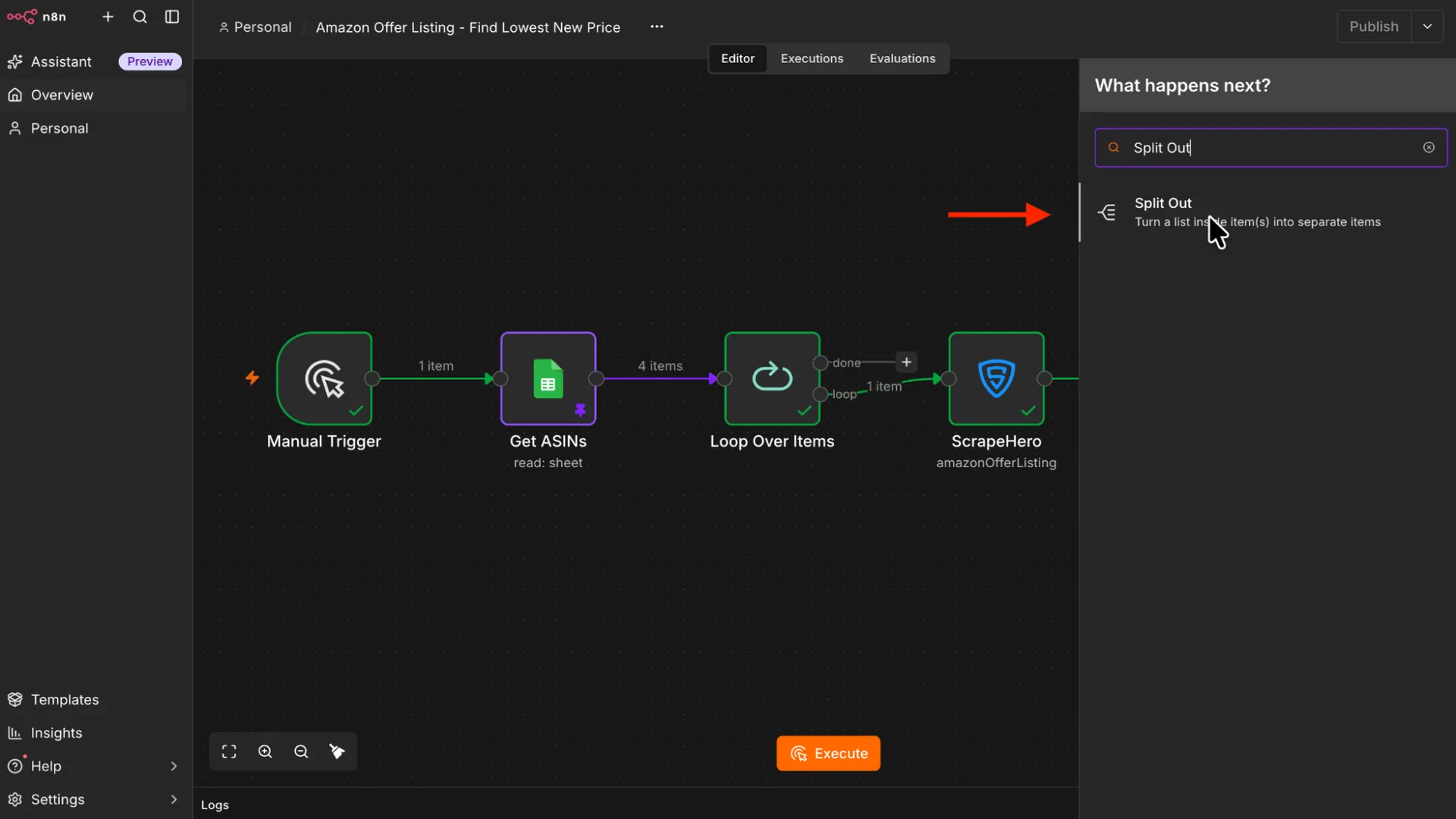
In the Split Out node, inside the Fields To Split Out box, enter:
offer_listings
Click Execute Step. The single product item becomes one item per offer, each containing fields such as price, condition, seller, ships_from, and fulfilled_by_amazon.
6. Keep Only New Offers
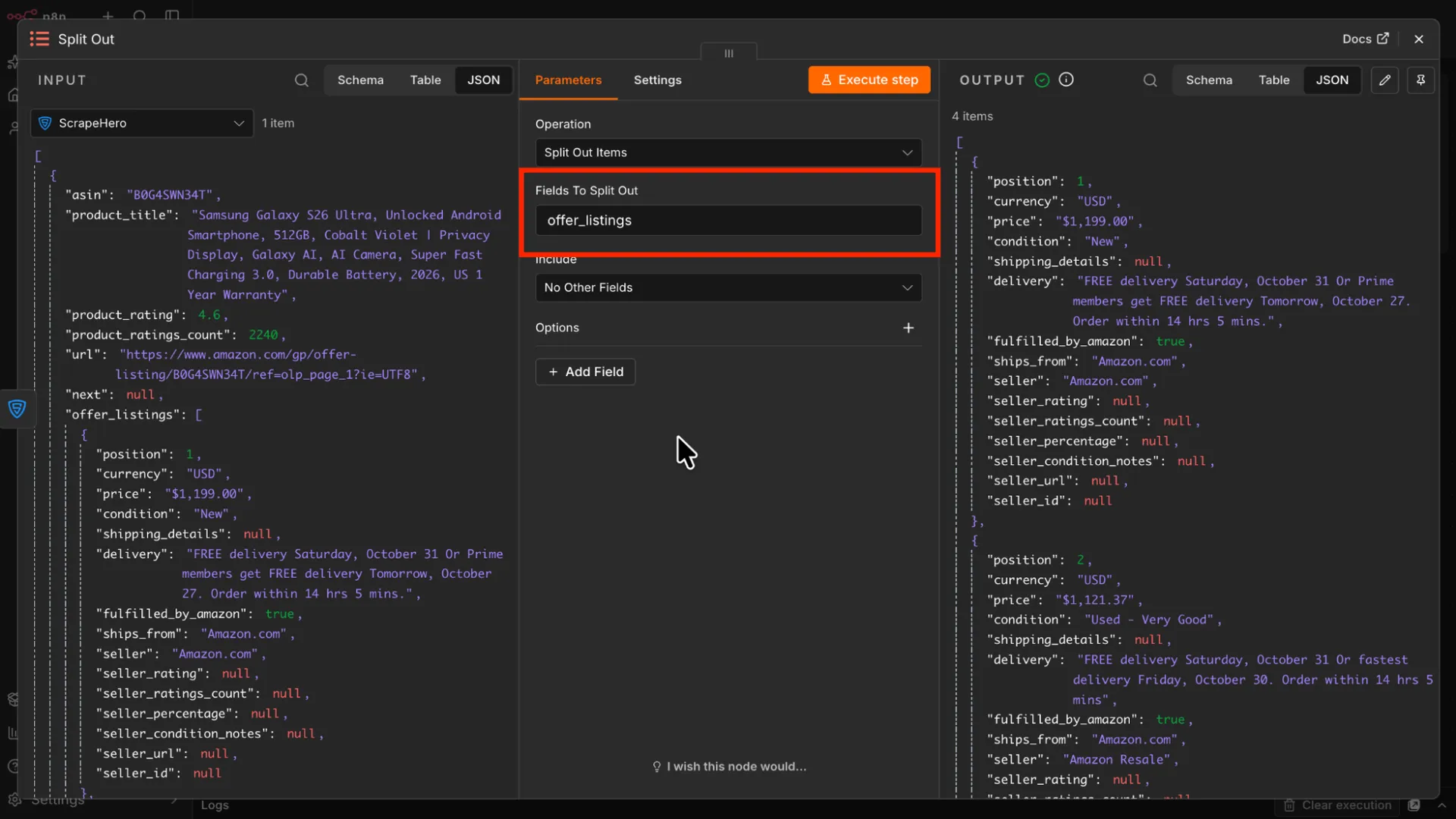
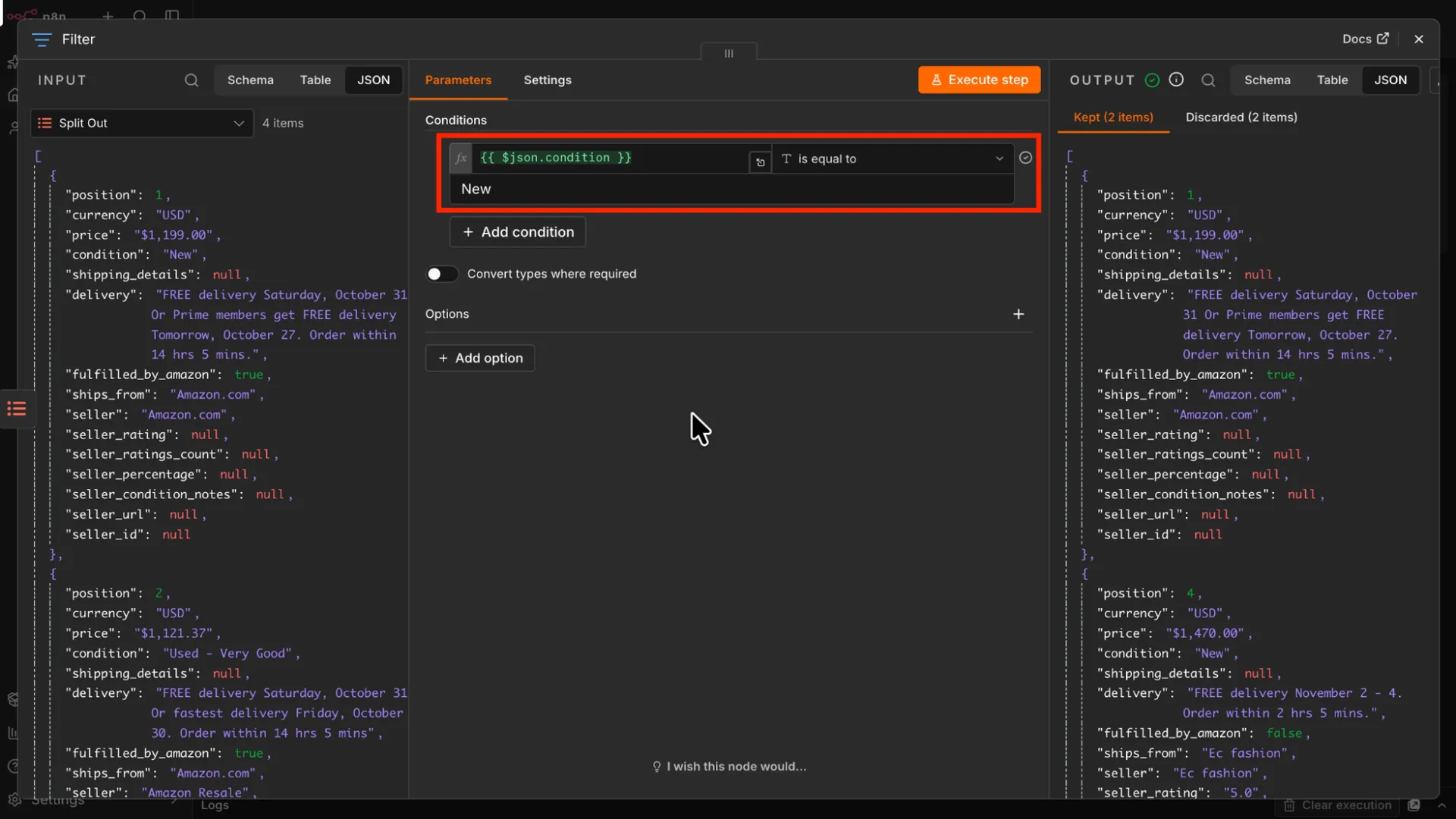
Sellers list products in different conditions, such as New, Used – Like New, Used – Very Good, and Refurbished. If you want the lowest new price, the cheapest offer overall can be misleading. So use a filter node to keep only the new price.
Add a Filter node after the Split Out node.
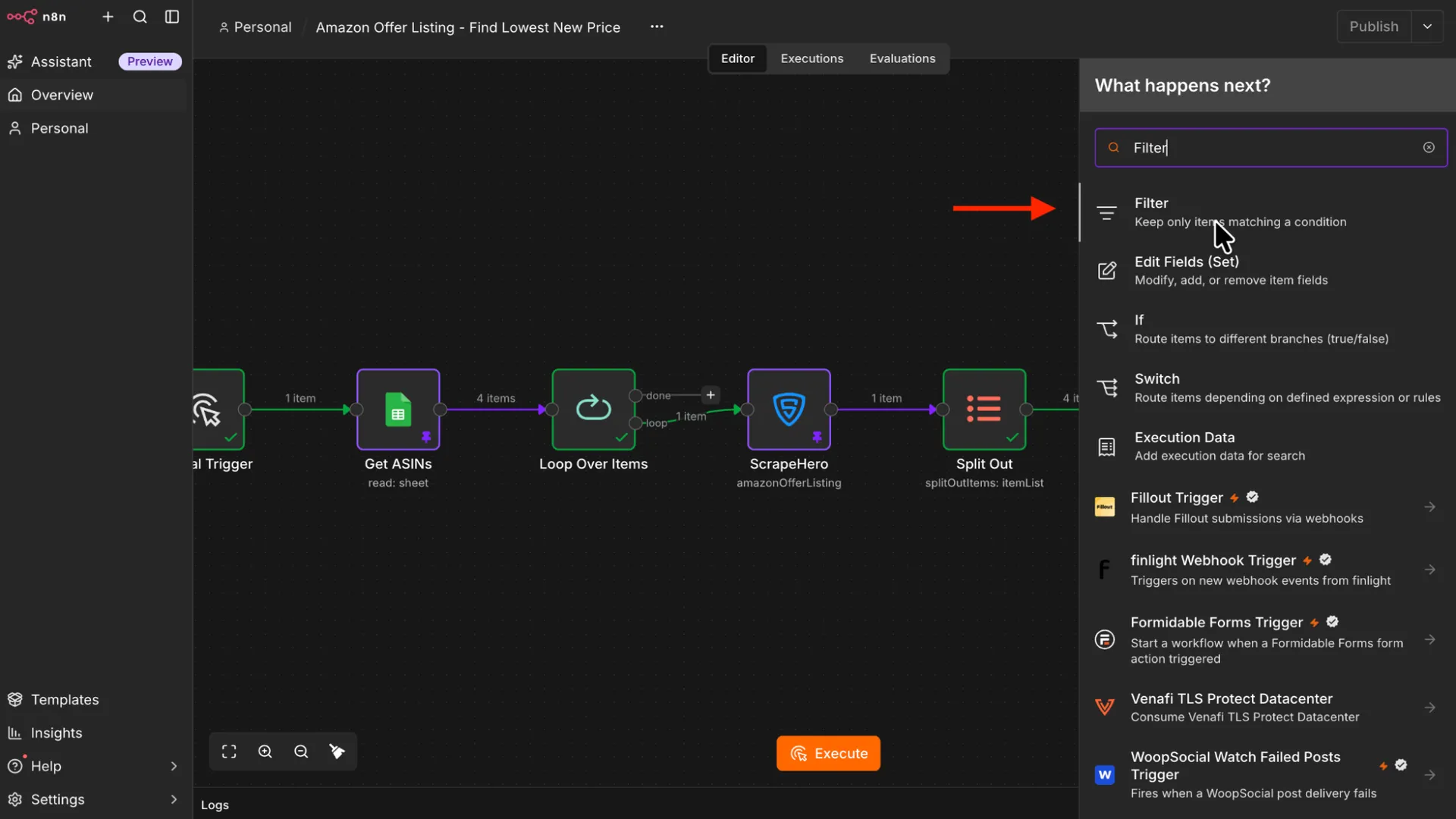
Set one condition in the Filter node:
{{ $json.condition }}is equal toNew
Only new offers continue to the next node.
7. Convert the Price to a Number
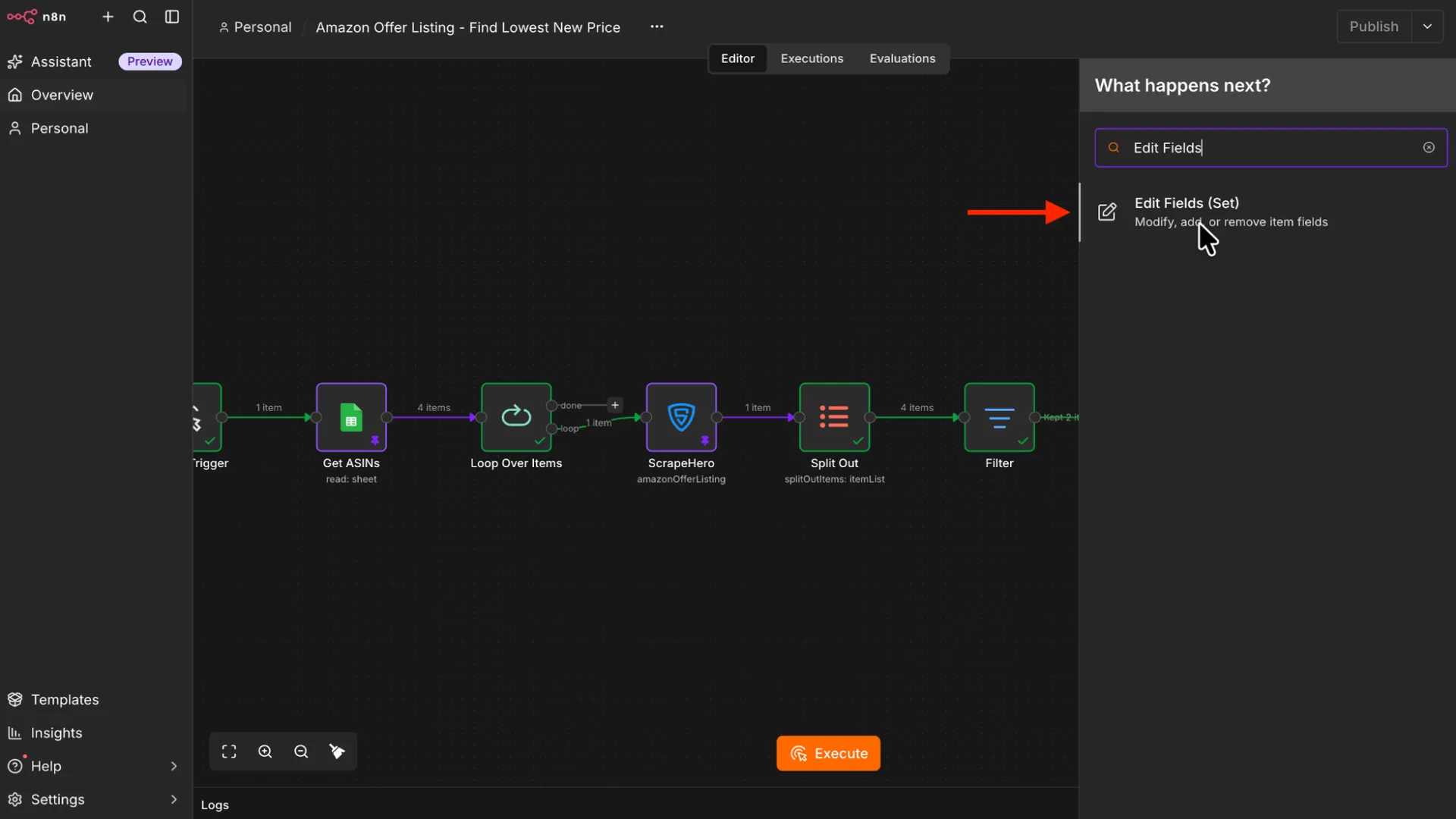
The API returns prices as text with a currency symbol, such as “$119.48”. Add an Edit Fields node after the Filter node to convert the string to a number.
In the Edit Fields node, create a field named Price with the type Number.
Paste this expression into the field:
{{ Number($json.price.replace(/[^0-9.]/g, '')) }}<br /><br /><img loading="lazy" decoding="async" class="alignnone size-full wp-image-57159" src="https://www.scrapehero.com/wp/wp-content/uploads/2026/10/image15-1.webp" alt="Configuring the edit fields node in n8n" width="1920" height="1080" srcset="https://www.scrapehero.com/wp/wp-content/uploads/2026/10/image15-1.webp 1920w, https://www.scrapehero.com/wp/wp-content/uploads/2026/10/image15-1-744x419.webp 744w, https://www.scrapehero.com/wp/wp-content/uploads/2026/10/image15-1-1200x675.webp 1200w, https://www.scrapehero.com/wp/wp-content/uploads/2026/10/image15-1-768x432.webp 768w, https://www.scrapehero.com/wp/wp-content/uploads/2026/10/image15-1-1536x864.webp 1536w, https://www.scrapehero.com/wp/wp-content/uploads/2026/10/image15-1-960x540.webp 960w, https://www.scrapehero.com/wp/wp-content/uploads/2026/10/image15-1-107x60.webp 107w, https://www.scrapehero.com/wp/wp-content/uploads/2026/10/image15-1-900x506.webp 900w, https://www.scrapehero.com/wp/wp-content/uploads/2026/10/image15-1-540x304.webp 540w" sizes="(max-width: 1920px) 100vw, 1920px" />This snippet converts the string to a number after removing the special characters.
The conversion matters because of how text is sorted. Sorted as text, “$119.48” comes before “$64.02” because the character “1” comes before “6”. The workflow would then report $119.48 as the lowest price. As a number, 64.02 correctly sorts below 119.48.
8. Sort the Offers
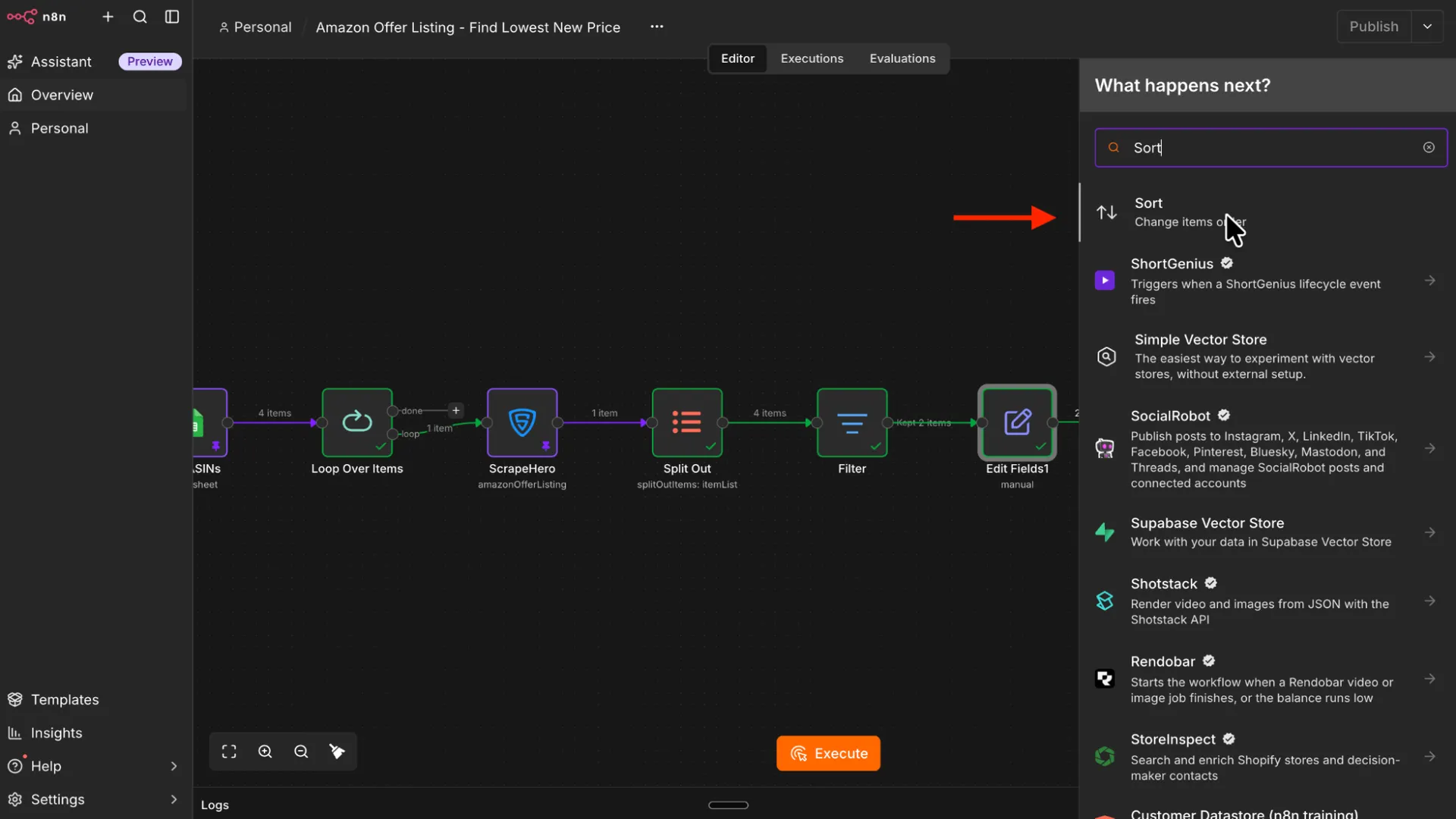
The next step is to sort the prices so that the lowest price comes first. Add a Sort node after Edit Fields1 to do so.
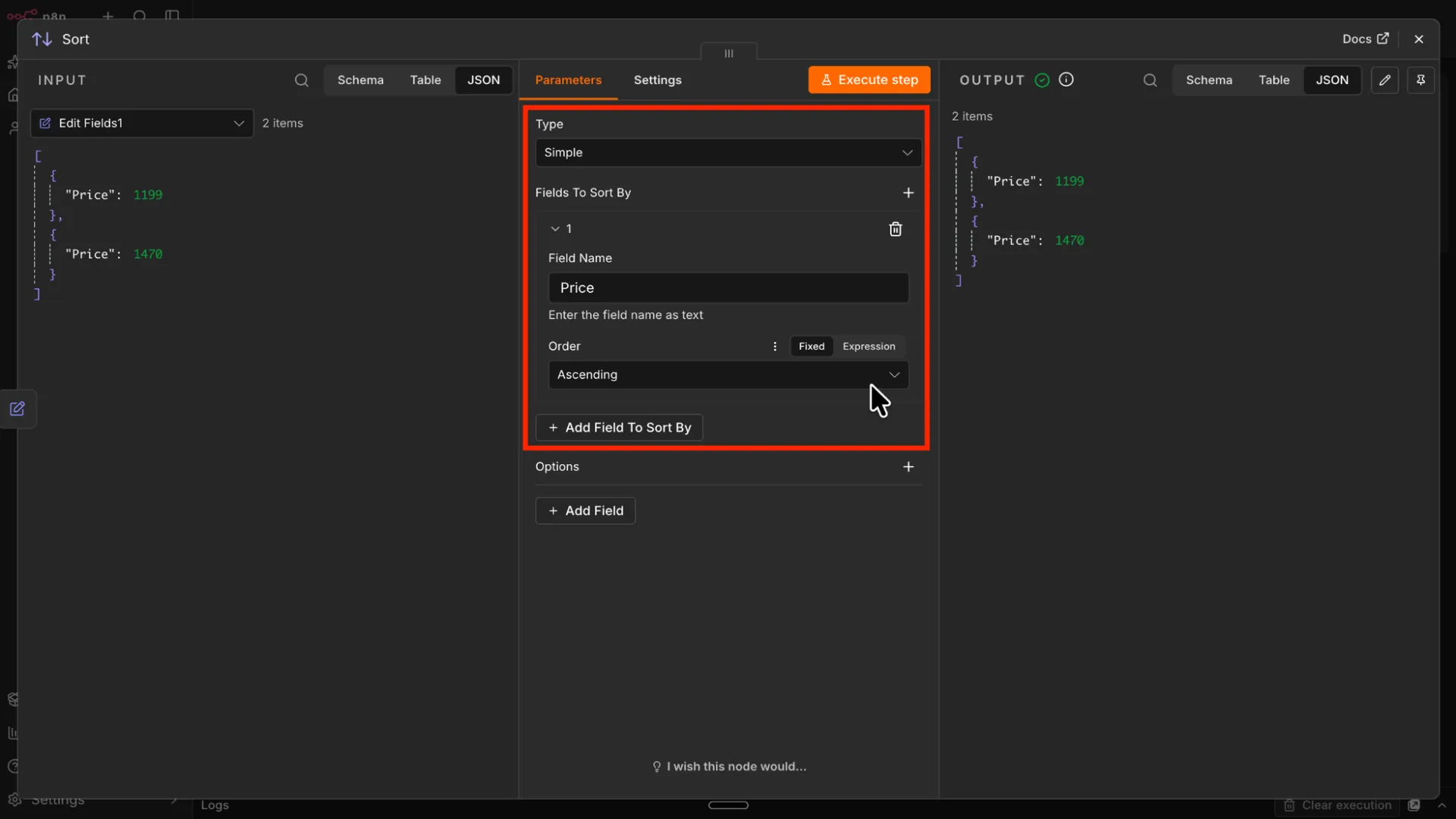
In the Sort node, under Sort Fields, click Add Field and set:
- Field Name:
Price - Order: Ascending
The cheapest offer is now the first item in the list.
Update the Google Sheet
9. Write the Lowest Price to the Sheet
Now that you have all the data, you just have to write it into a Google Sheet. So, add a Google Sheets node after the Sort node. For the action, choose Append or Update Row in Sheet.
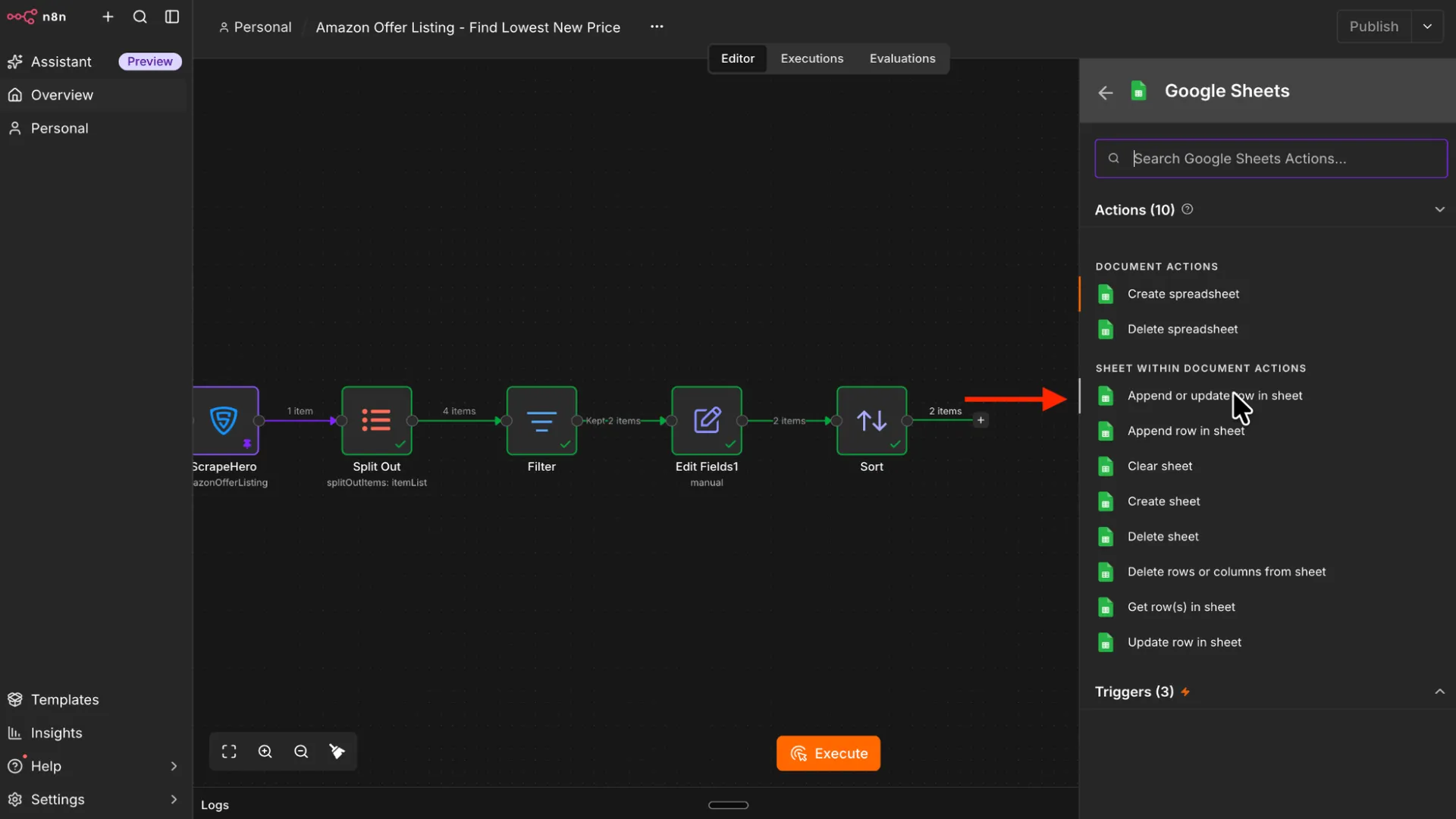
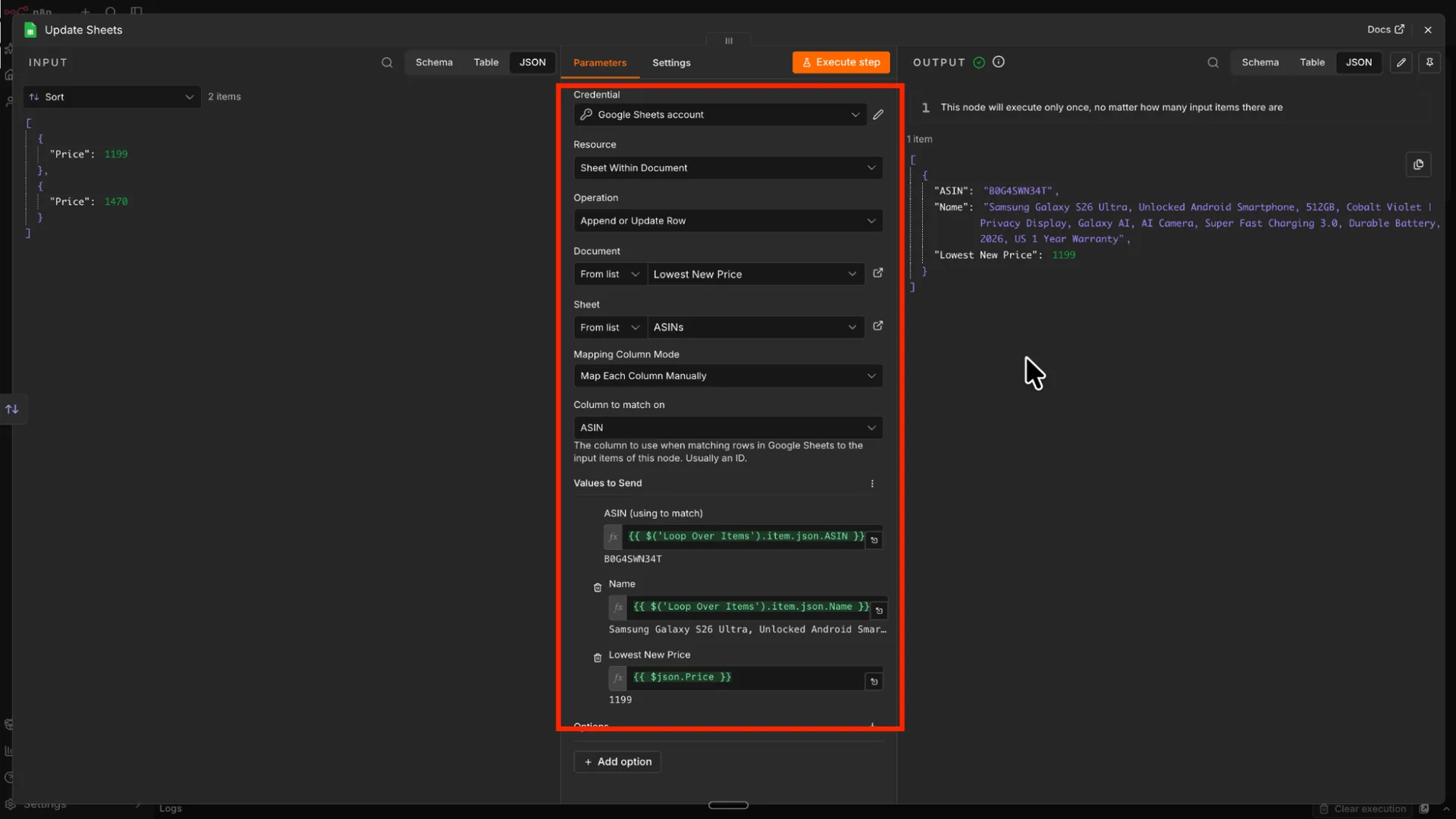
The Google Cloud credentials will already be selected. You only have to select the document and the sheet that you want to update.
Then, set Mapping Column Mode to Map Manually. For the matching column, choose ASIN. This updates the existing row instead of creating a duplicate.
Map the columns as follows:
- ASIN:
{{ $('ScrapeHero').item.json.asin }}- Name:
{{ $('ScrapeHero').item.json.product_title }}- Lowest New Price:
{{ $json.Price }}After the Split Out node, each item holds only offer-level fields, so the ASIN and product name must come from the ScrapeHero node.
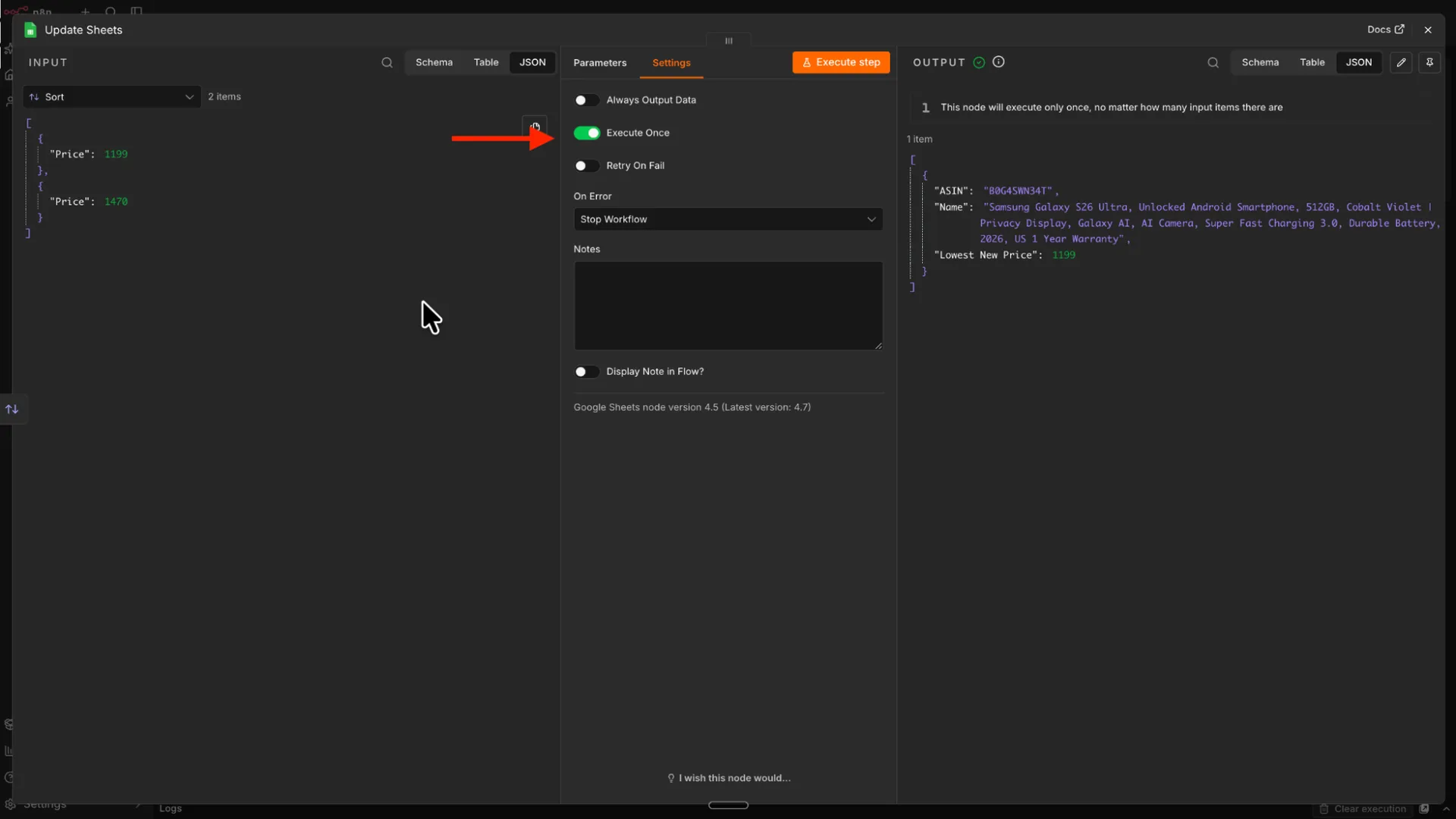
Finally, open the node’s Settings tab and turn on Execute Once. Without it, the node runs for every offer, and the last (and most expensive) item overwrites the row. With it, the node runs only for the first item, which is the lowest price.
Complete the Loop and Test the Workflow
Finally, connect the output of the Update Sheets node back to the Loop Over Items node. This tells the loop to continue with the next ASIN.
Unpin all the pinned outputs and click Execute Workflow at the bottom of the canvas.
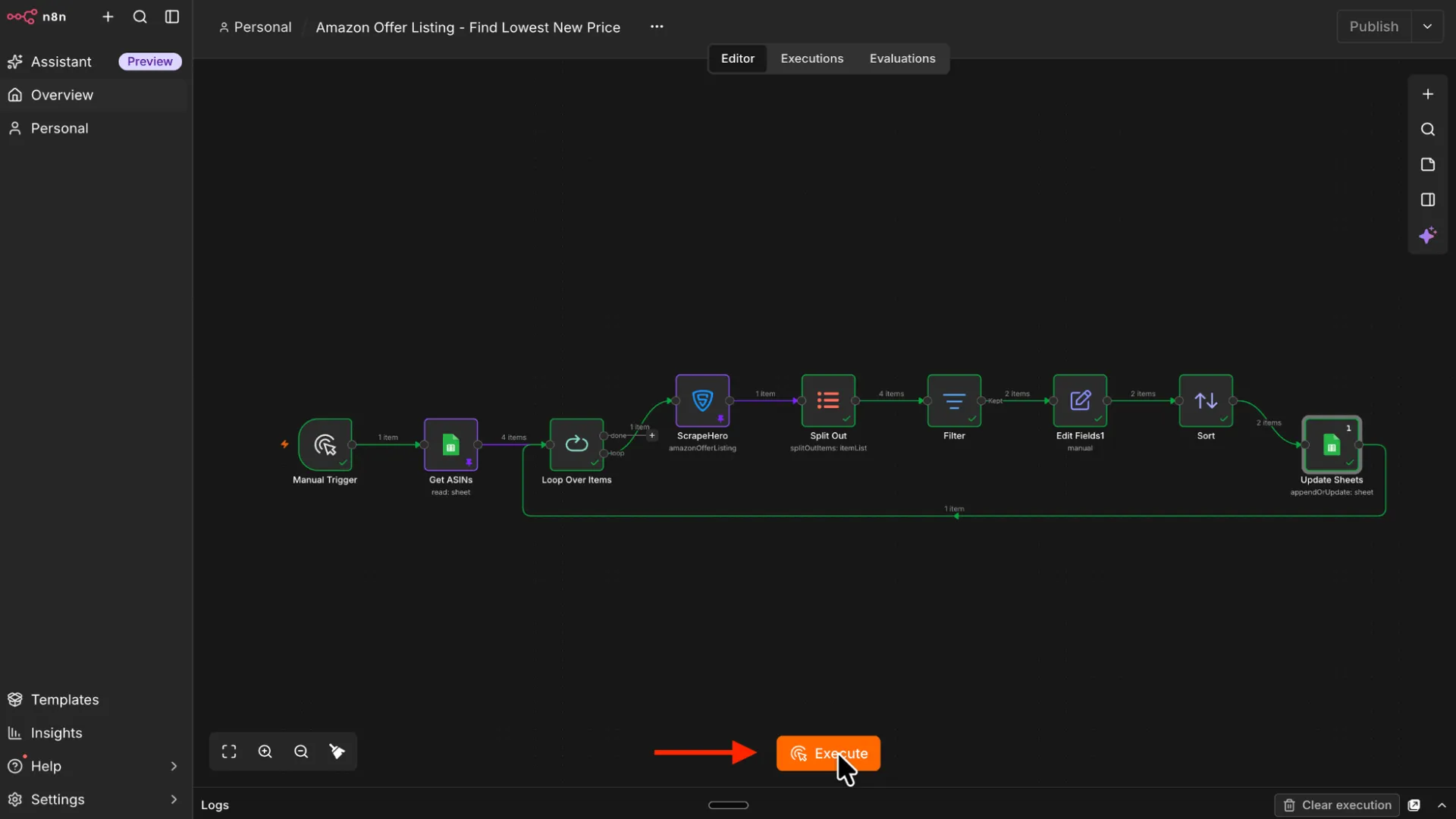
For each ASIN, n8n will:
- Fetch every seller offer through ScrapeHero.
- Split the offers into separate items.
- Remove offers that are not in New condition.
- Convert prices to numbers and sort them in ascending order.
- Update the matching row with the product name and the lowest price.
- Move on to the next ASIN.
Open your Google Sheet and confirm that the Name column shows the full product title and the Lowest New Price column shows the lowest price.
What This Unlocks for Your Business
Tracking every seller offer instead of only the Buy Box helps you:
- Reprice against the real market. See which merchant-fulfilled sellers undercut the Buy Box, so you can set repricing limits based on actual competition.
- Enforce MAP policies. Perform Amazon seller price comparison and spot resellers and liquidators who list your products below your Minimum Advertised Price.
- Find sourcing opportunities. Spot secondary-seller discounts that create arbitrage and wholesale margin opportunities.
- Track discounting trends. Record prices over time and get Amazon price change alerts to anticipate competitors’ clearance cycles and promotions.
- Catch Buy Box risk early. See when a competitor drops their price before the featured offer changes, so your team has time to respond.
Prefer not to handle API integration? Check out the ScrapeHero Cloud Amazon scrapers instead.
Next Steps
You can extend this Automated Amazon price tracking workflow with:
- Price drop alerts: Add an If node after the Sort node that checks whether the lowest price is below your threshold, for example
{{ $json.Price < 100 }}. Connect the true branch to a Slack or Gmail node. - Scheduled runs: Replace the Manual Trigger with a Schedule Trigger and run the workflow every morning. Choose the interval based on how fast prices change in your category and how many API credits you want to use.
- Seller filters: Add a condition in the Filter node to keep only sellers you trust, such as
{{ $json.fulfilled_by_amazon === true }}, or use the seller rating if the response includes it. - Margin calculation: Add a
Costcolumn to your sheet and calculate the spread in the Edit Fields node. This shows whether you can profitably undercut the lowest market offer.
{{ ($json.Price - $('Get ASINs').item.json.Cost).toFixed(2) }}Wrapping Up
Tracking the lowest Amazon offer price doesn’t have to be a manual, error-prone process. You can use ScrapeHero’s Amazon Offer Listing API to build an automated Amazon price-tracking pipeline with n8n.
The ScrapeHero API, accessed via the ScrapeHero node, handles data extraction. You just have to focus on building the workflow that improves your business.
Sign up for a ScrapeHero API key to build your price-tracking workflow. Do you want additional data points? Tell us your requirements, and we will build a custom API just for you.
ScrapeHero is your #1 web scraping service provider for fully outsourcing data extraction. Our fully managed scraping services handle proxy rotation, anti-bot measures, data validation, and delivery to your data warehouse. Contact ScrapeHero today to get started.
Frequently Asked Questions
Use the Amazon offer listing page (/gp/offer-listing/ASIN), which lists all sellers for a product. The standard product page shows only the Buy Box winner. ScrapeHero’s Amazon Offer Listing API returns every seller offer as JSON, so you can sort and compare them in n8n.
Yes. You can use the ScrapeHero community node in n8n to get Amazon search results, product details, and offer listings. The node sends the request to the ScrapeHero API, so you don’t have to manage proxies or browsers yourself, as you would with a plain HTTP Request node.
It depends on how quickly prices change in your category. Fast-moving categories need more frequent runs. For stable catalogs, a daily run is usually enough and uses fewer API credits. Use the Schedule Trigger to set the interval.