
You need to automate Google Maps data collection with n8n because manually searching Google Maps and copying results into a spreadsheet is slow and error-prone. In this tutorial, you’ll build an n8n workflow that reads search queries from a Google Sheet, retrieves Google Maps search results through ScrapeHero’s API, creates a dedicated worksheet for each query, and keeps the results updated over time.
The workflow uses:
- n8n for workflow automation, pagination, looping, and conditional logic.
- Google Sheets to store queries and maintain one results sheet per search query.
- ScrapeHero’s Google Maps Search API to retrieve structured business-listing data.
- Place ID as the unique identifier for appending new listings or updating existing ones.
ScrapeHero’s Google Maps scraper API for n8n returns listing data in a structured JSON response, including fields such as placeid, address, latitude, longitude, phone, website, url, rating, and reviews.
What the Workflow Does
The workflow allows you to use a Google Maps scraper with n8n. It accepts one or more search queries from a Google Sheet named Queries. For each query, it calls ScrapeHero’s Google Maps Search API, handles pagination, creates a new Google Sheets worksheet named after the query, and writes each business listing into that worksheet. All using n8n nodes.
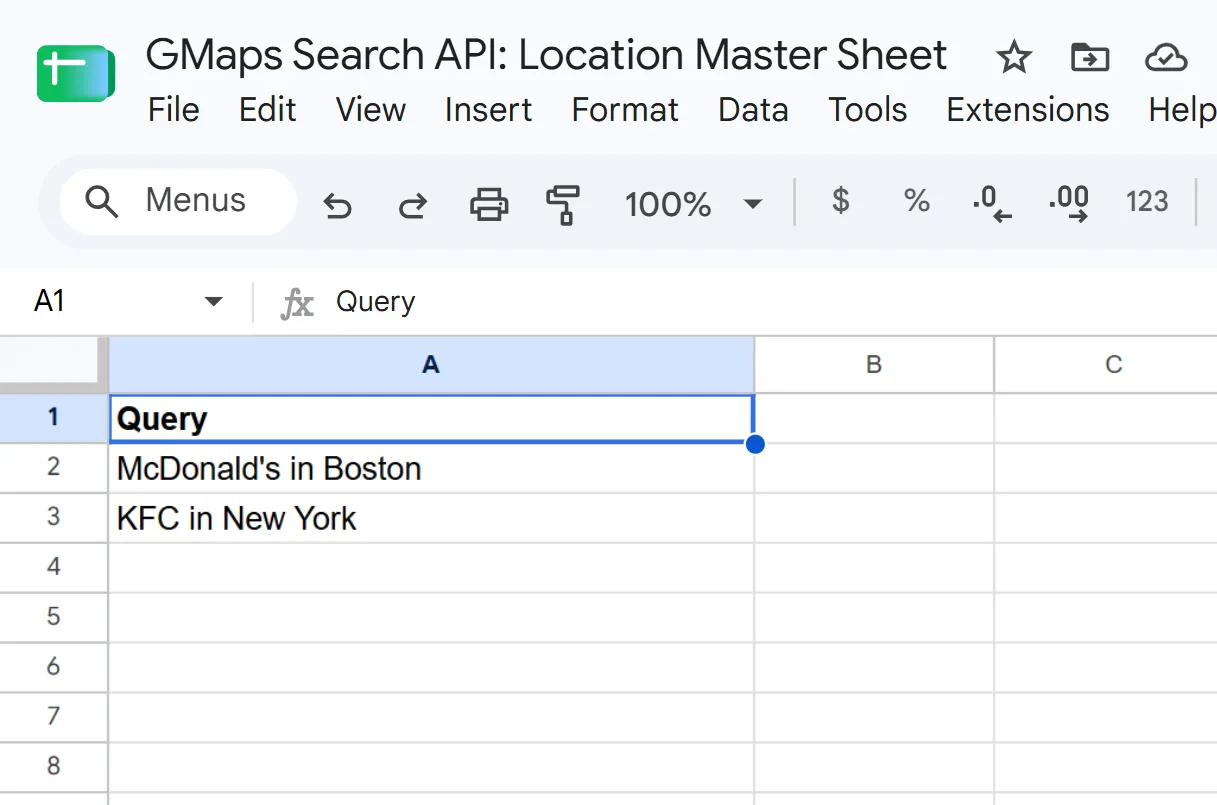
For example, if your Queries sheet contains:
| Query |
|---|
| plumbers in Boston |
| dentists in New York |
The workflow creates and maintains two worksheets:
- plumbers in Boston
- dentists in New York
On the first run, listings are appended to the newly created sheet. On subsequent runs, the workflow updates existing rows based on Place ID, so updated ratings, review counts, phone numbers, or websites do not create duplicate records.
Before You Automate Google Maps Data Collection with n8n
Prepare the following:
- An n8n cloud account or self-hosted n8n instance.
- A Google account with access to Google Sheets.
- A Google Cloud OAuth2 credential.
- A ScrapeHero account and API key.
- A Google Spreadsheet containing your Google Maps search terms.
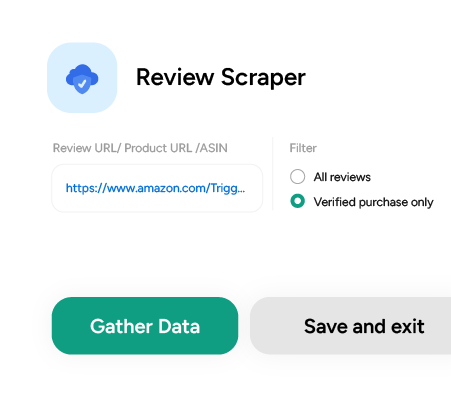
The workflow reads each query, retrieves matching Google Maps listings, and writes the results to a separate worksheet named after the query.
Google Maps Scraping with n8n Overview
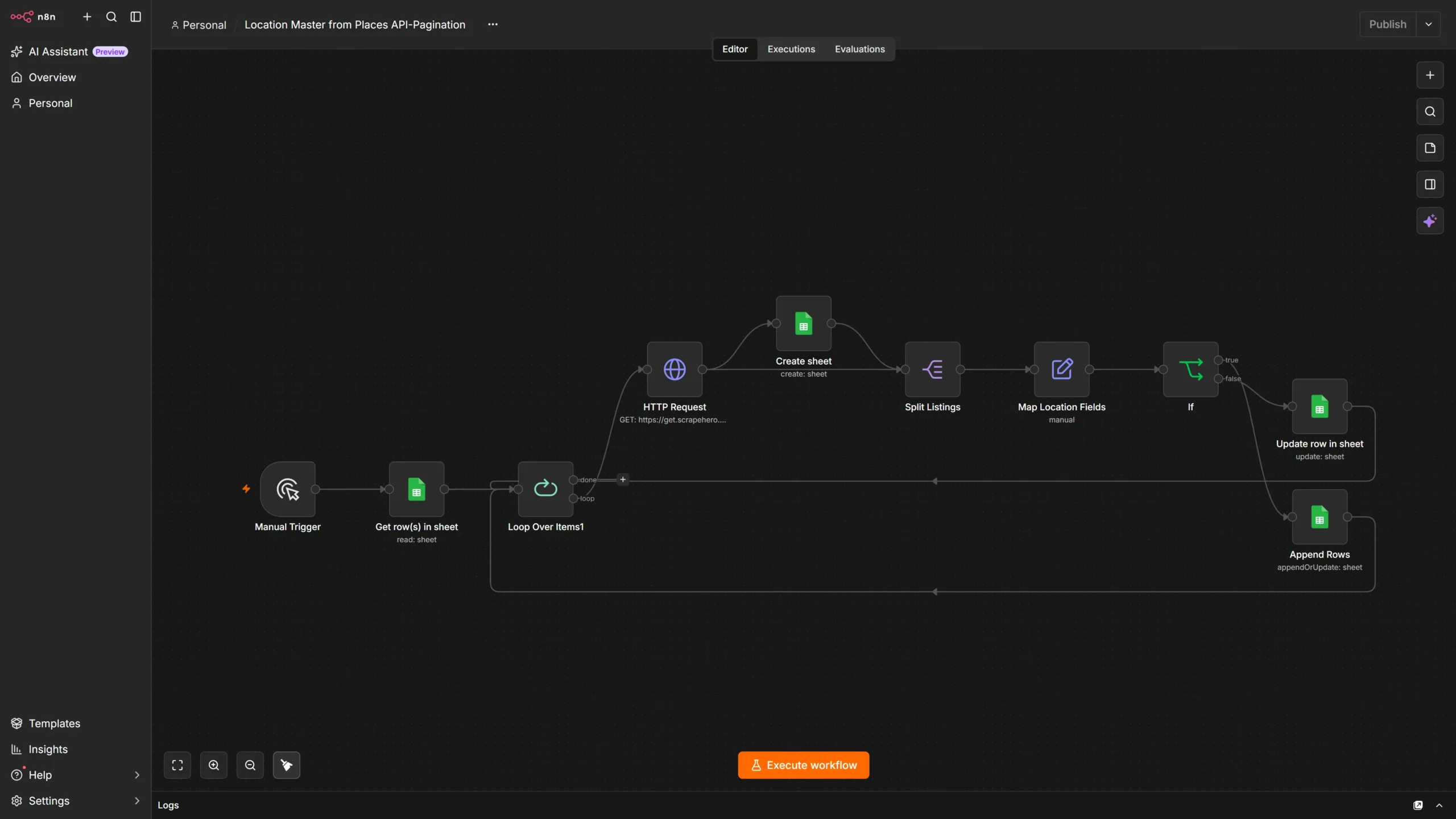
The completed workflow follows this structure:
- Manual Trigger
- Get row(s) in sheet: Queries
- Loop Over Items
- HTTP Request: ScrapeHero Google Maps Search API
- Split Listings: listing_data
- Map Location Fields
- If node to check did “Create sheet” produce output?
- True → Append Rows
- False → Update row in sheet
- Back to Loop Over Items
The Create sheet node runs alongside the listing-processing branch. If it successfully creates a worksheet, the workflow knows the query is being run for the first time and appends rows. If it does not produce output, the worksheet already exists, so the workflow updates existing rows by Place ID.
Build the Workflow to Automate Google Maps Data Collection with n8n
1. Add a Manual Trigger
Create a new workflow in n8n.
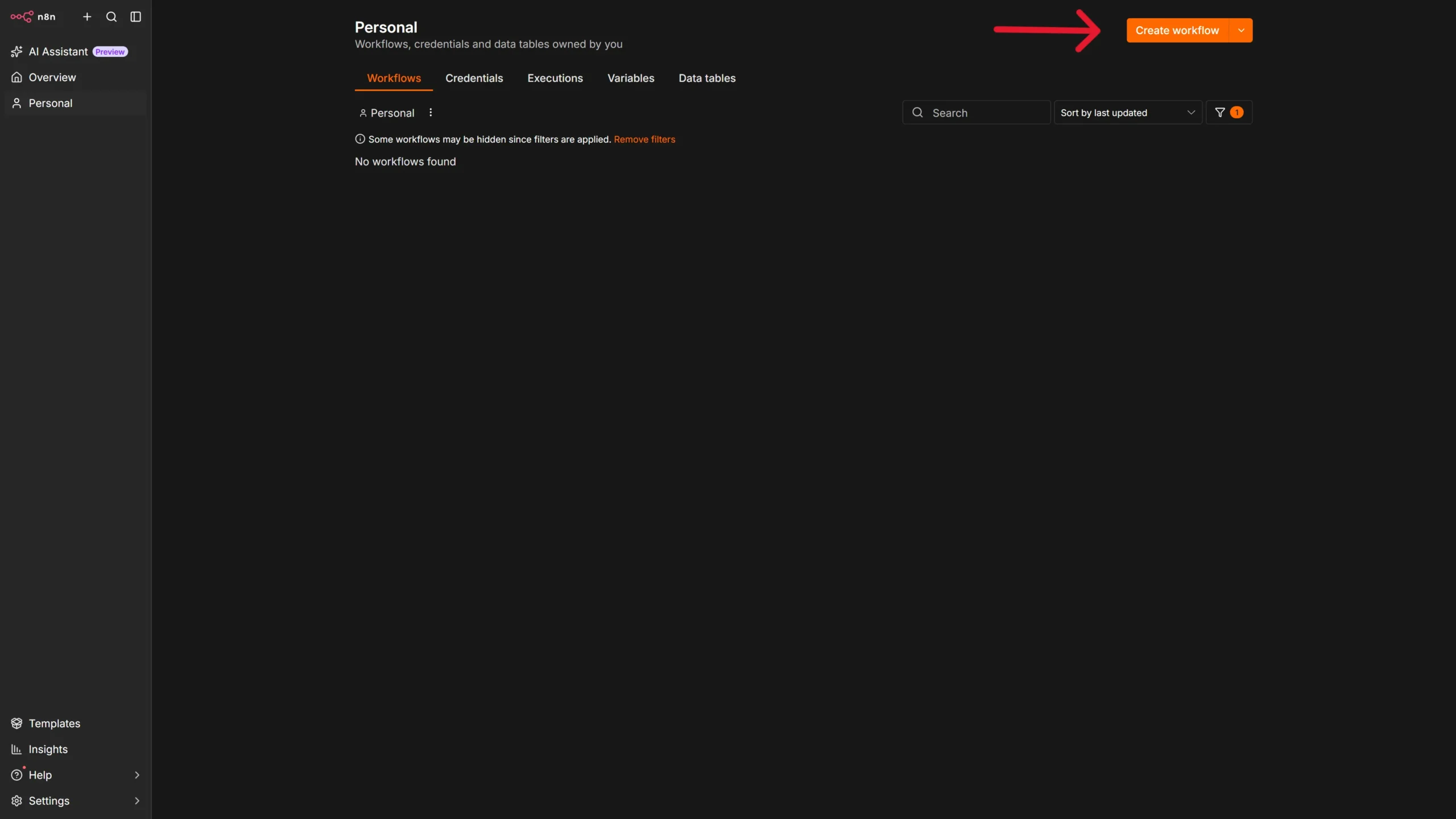
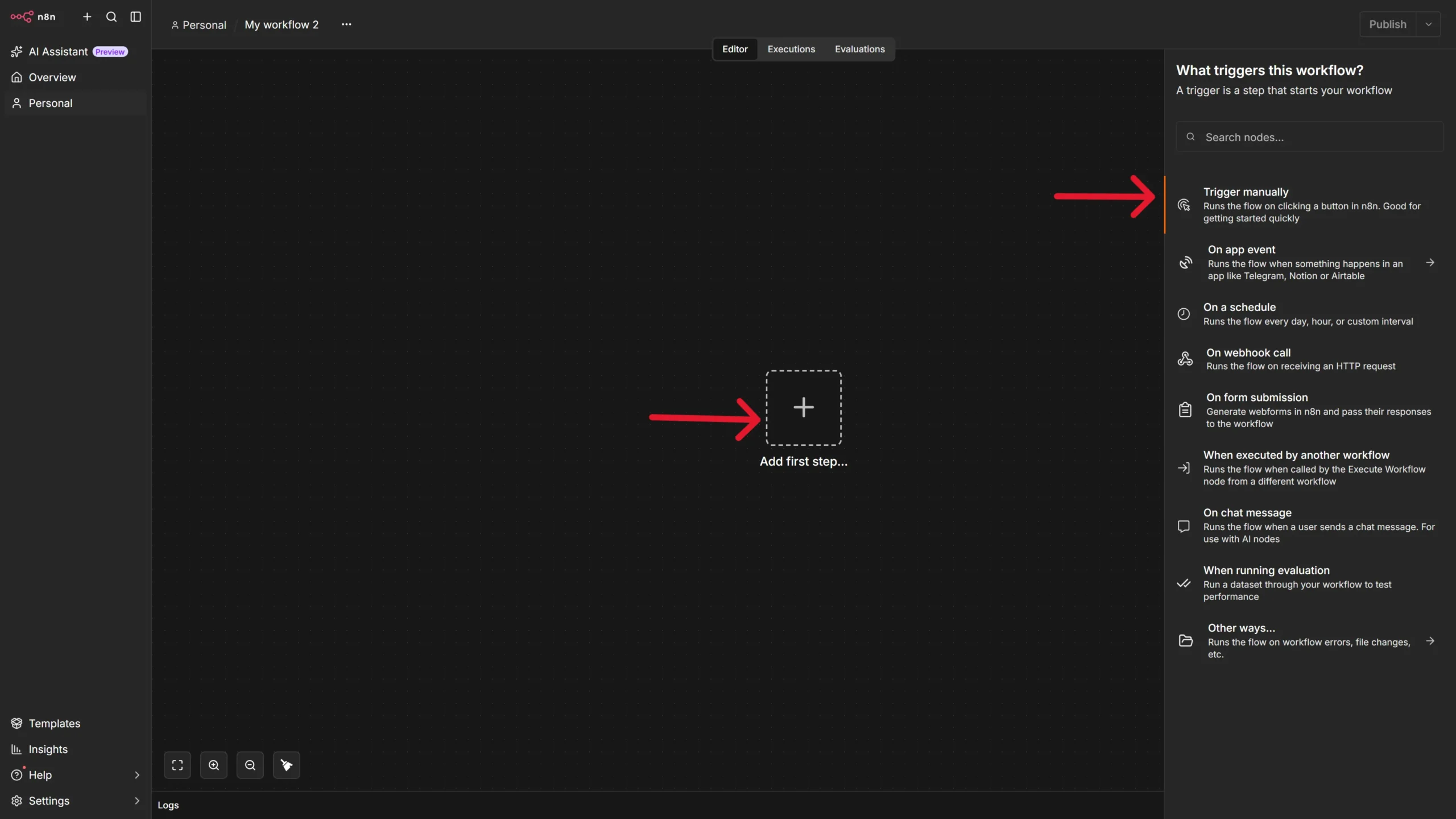
Click the plus icon, and select “Trigger manually” in the right pane that pops up. This node lets you start the workflow manually whenever you want to refresh your Google Maps data.
2. Read Queries from Google Sheets
Connect a Google Sheets node with Get row(s) in the sheet as the Sheet action.
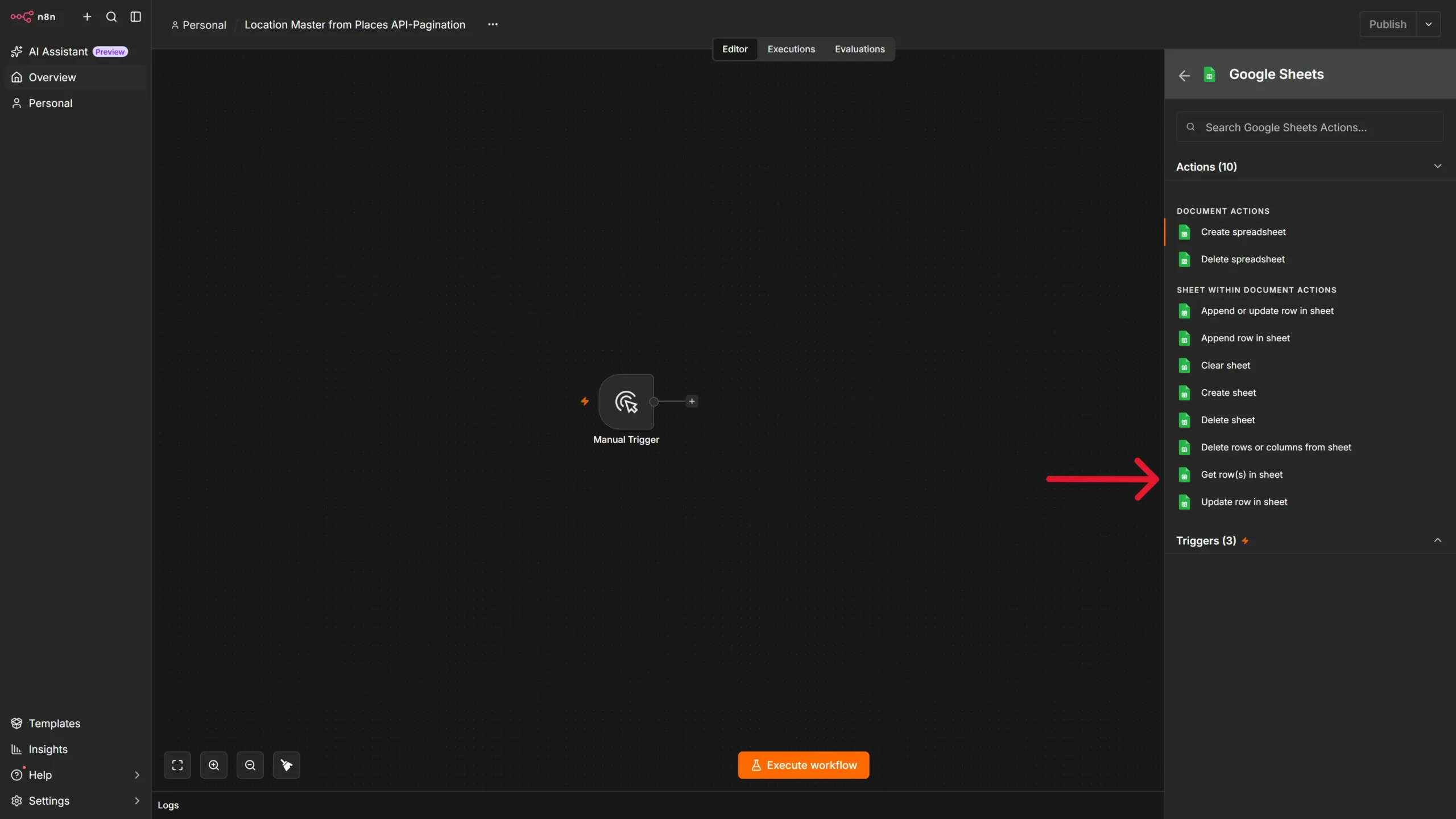
Configure it as follows:
- Document: Select your Google Spreadsheet, for example, GMaps Search API: Location Master Sheet.
- Sheet: Select your sheet inside the spreadsheet, for example, Queries.
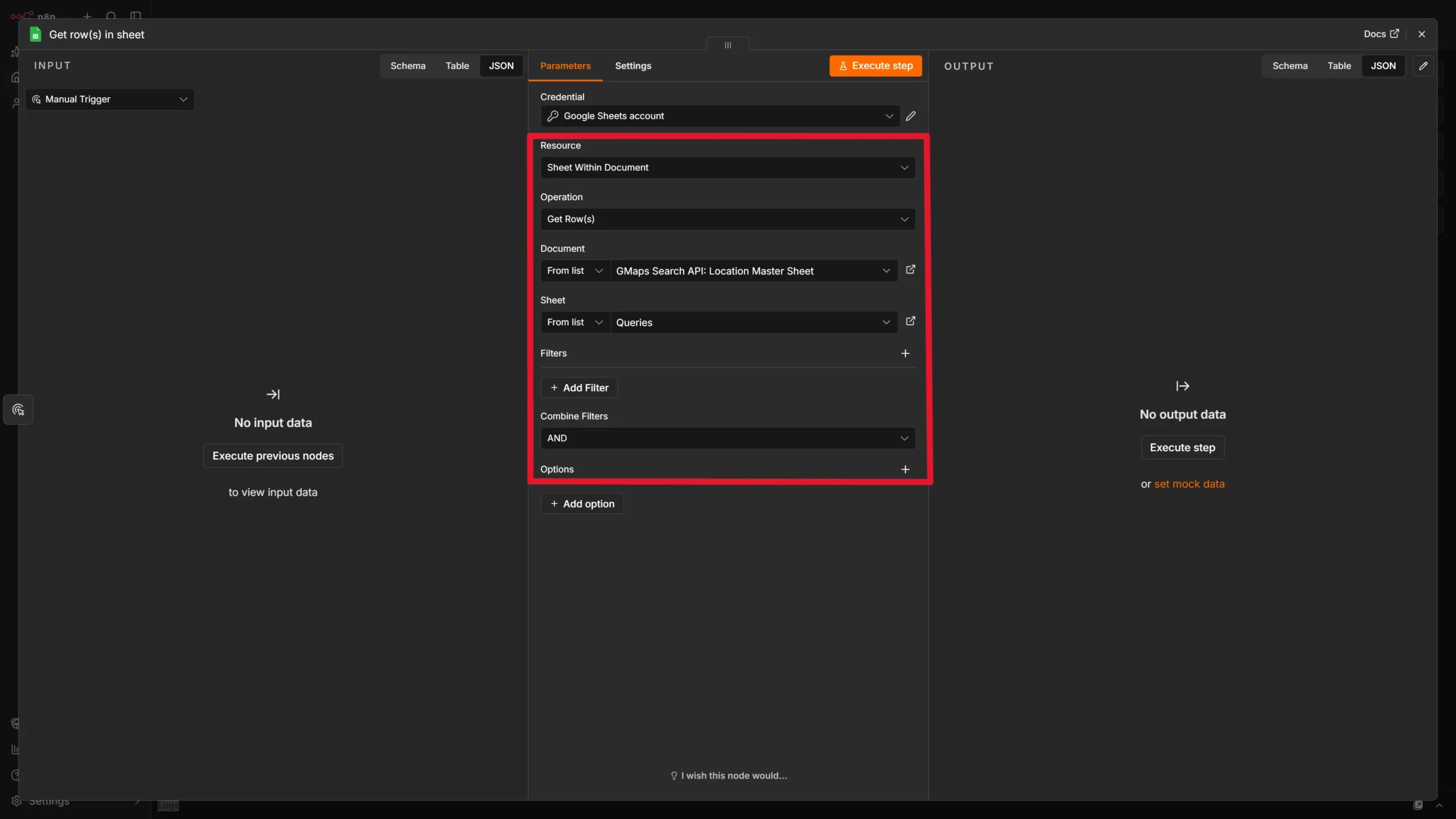
This node retrieves every row in the Queries worksheet. Each row should contain a Query value that the workflow will pass to ScrapeHero.
3. Add a Loop Over Items node
Connect a Loop Over Items node to the Get row(s) in sheet node.
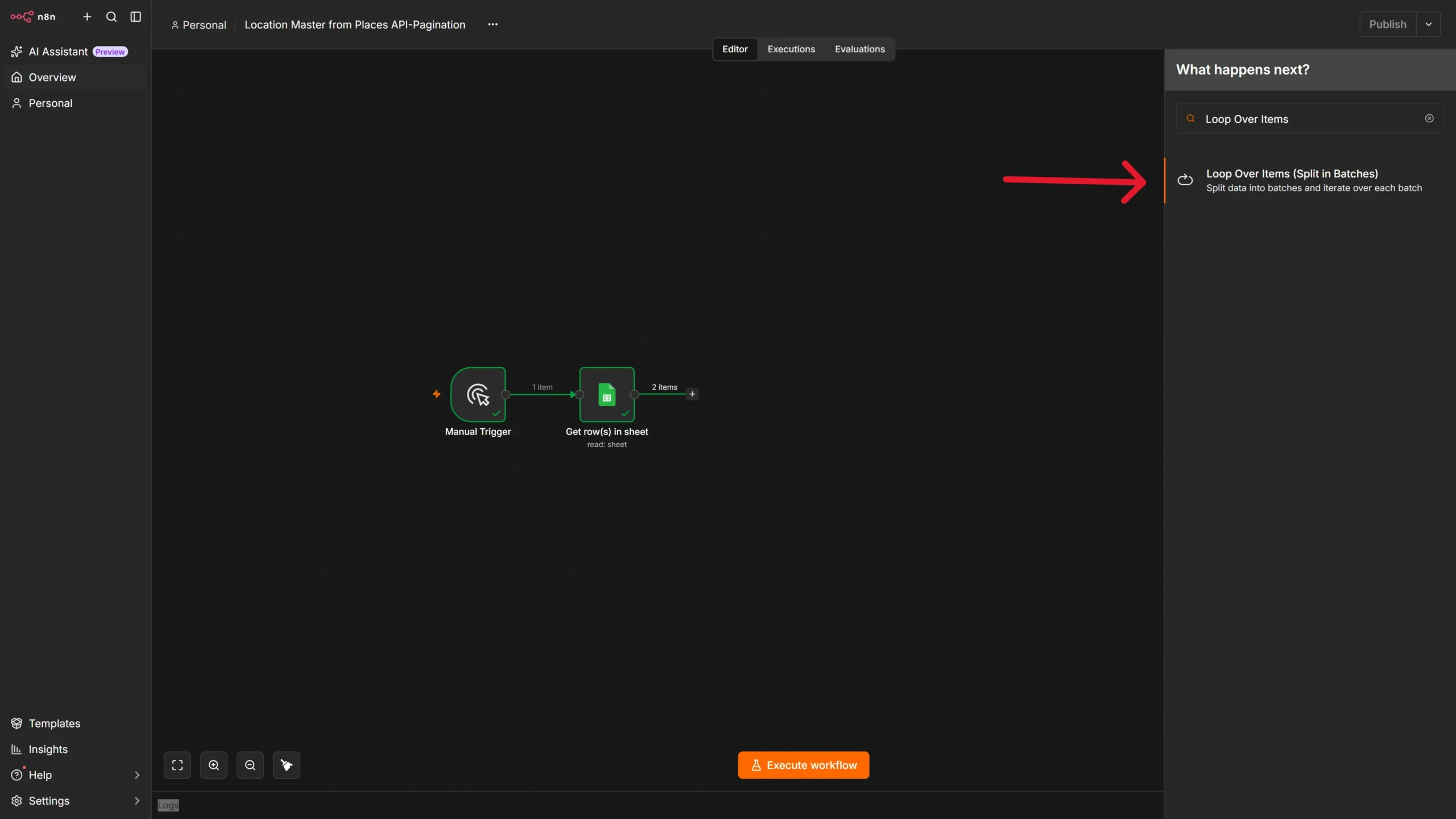
This node processes one query at a time. It is important because each query needs its own API request, its own worksheet, and its own append-or-update logic.
4. Call ScrapeHero’s Google Maps Search API
Connect an HTTP Request node on the loop branch of the Loop Over Items node.
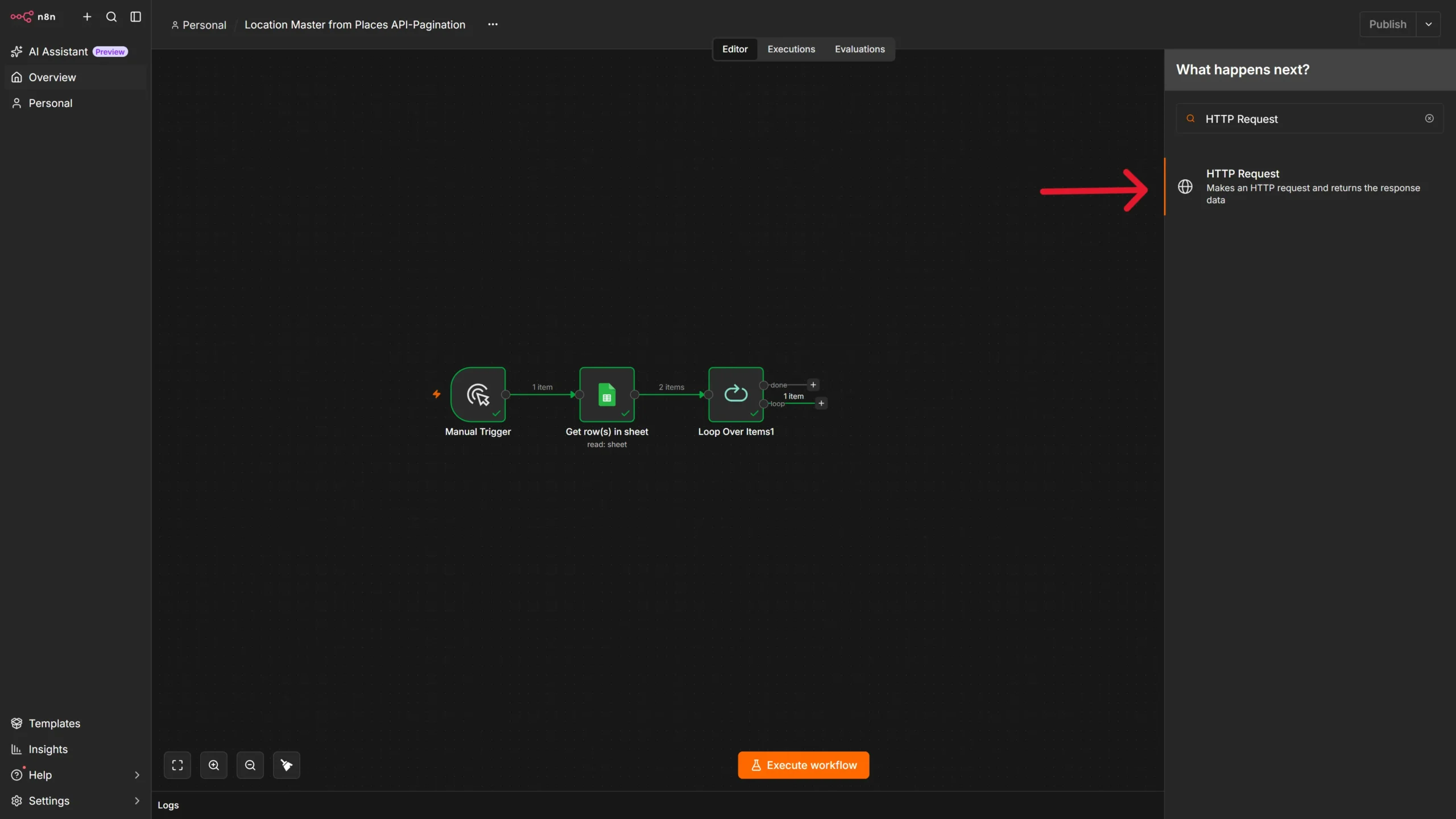
Configure it as follows:
- Method: GET
- URL: https://get.scrapehero.com/api/google-map/search-results/
- Authentication: Generic Credential Type → Query Auth
- Query Parameter:
- Name: input
- Value: {{ $json.Query }}
The input parameter receives the current query from the Queries sheet. For example, if the current row contains plumbers in New York, the API request searches Google Maps for that term.
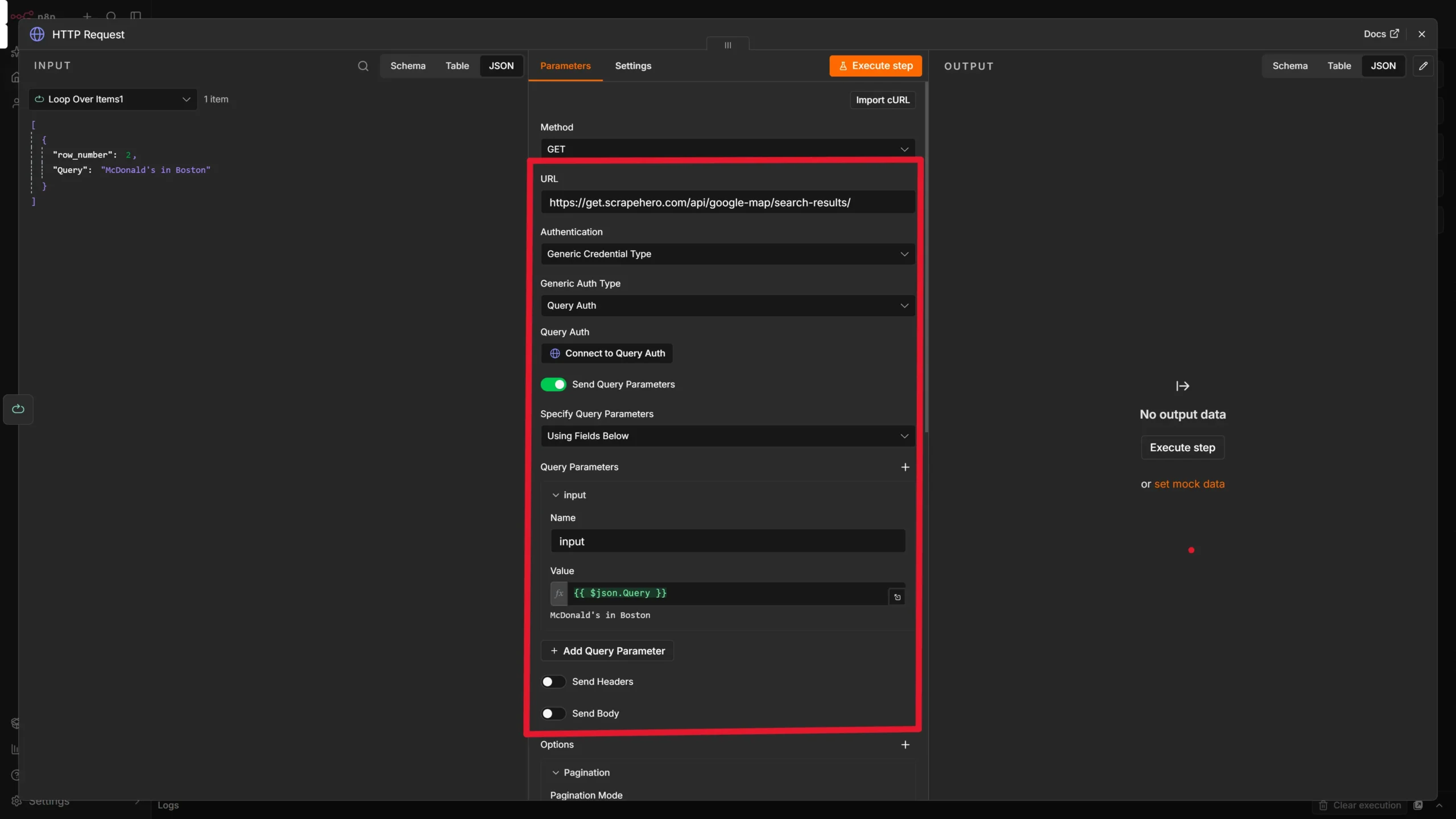
Configure ScrapeHero authentication
- Under Query Auth, click Connect to Query Auth
- Add your ScrapeHero API key using the key and value required by ScrapeHero’s API documentation.
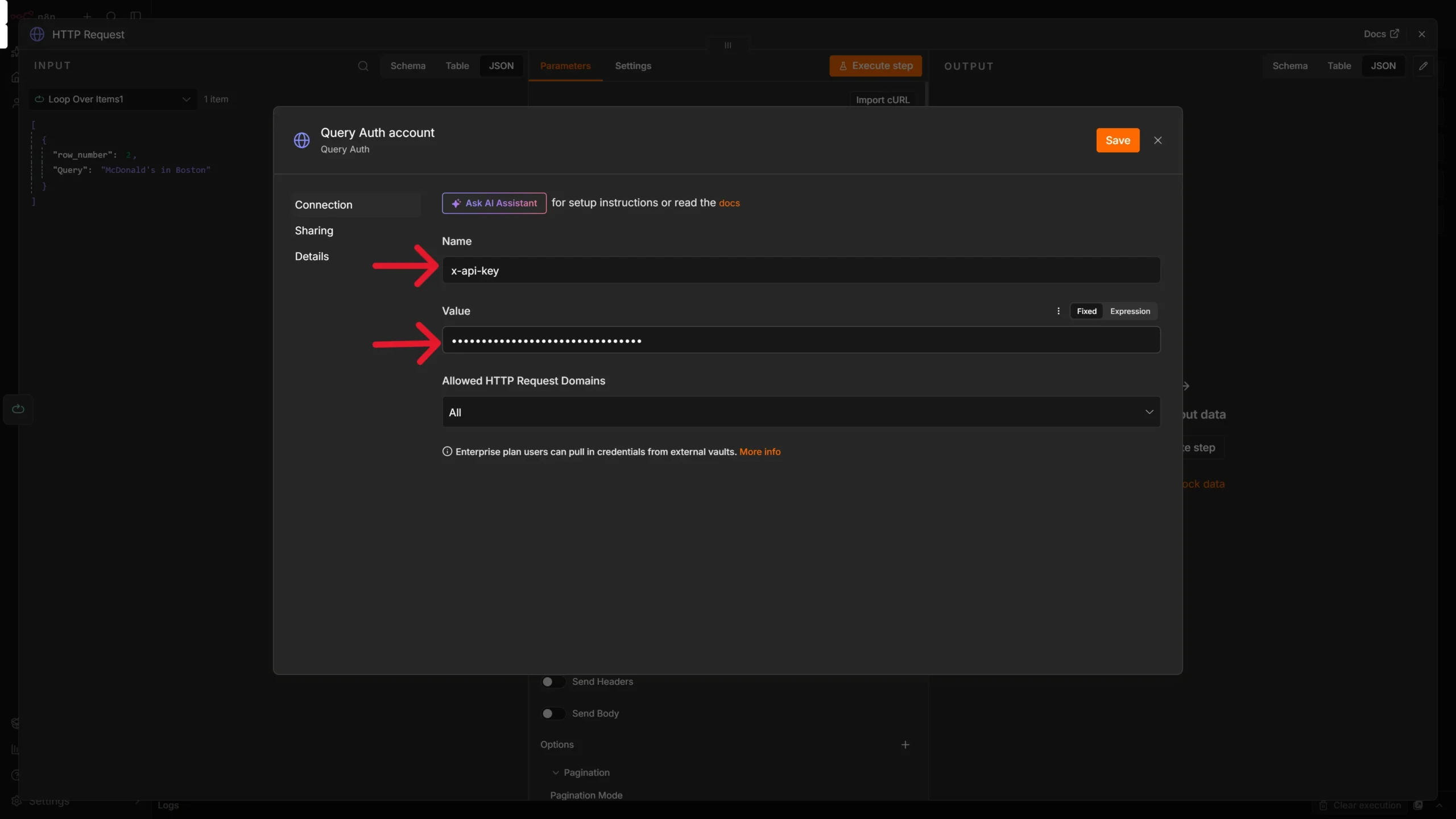
Storing the API key in an n8n credential keeps it out of the workflow canvas and makes it easier to rotate later.
5. Configure Pagination
Google Maps search results can span multiple pages. Configure pagination inside the HTTP Request node so n8n retrieves additional pages automatically.
In the HTTP Request node, open Options → Pagination and configure:
- Pagination Mode: Update a Parameter in Each Request.
- Parameter to Update:
- Type: Query
- Name: input
- Value: {{ $response.body.next_page_url }}
- Pagination Complete When: Receive Specific Status Code(s).
- Status Codes When Complete: 400
- Limit Pages Fetched: Enabled.
- Max Requests: 4
- Interval Between Requests: 1000 ms
This setup tells n8n to use the next_page_url returned by ScrapeHero for the following request. The workflow stops when the API returns status code 400, fetches at most four pages per query, and waits one second between requests to avoid sending requests too quickly.
6. Create a Worksheet for the Query
Add a Google Sheets node named Create Sheet.
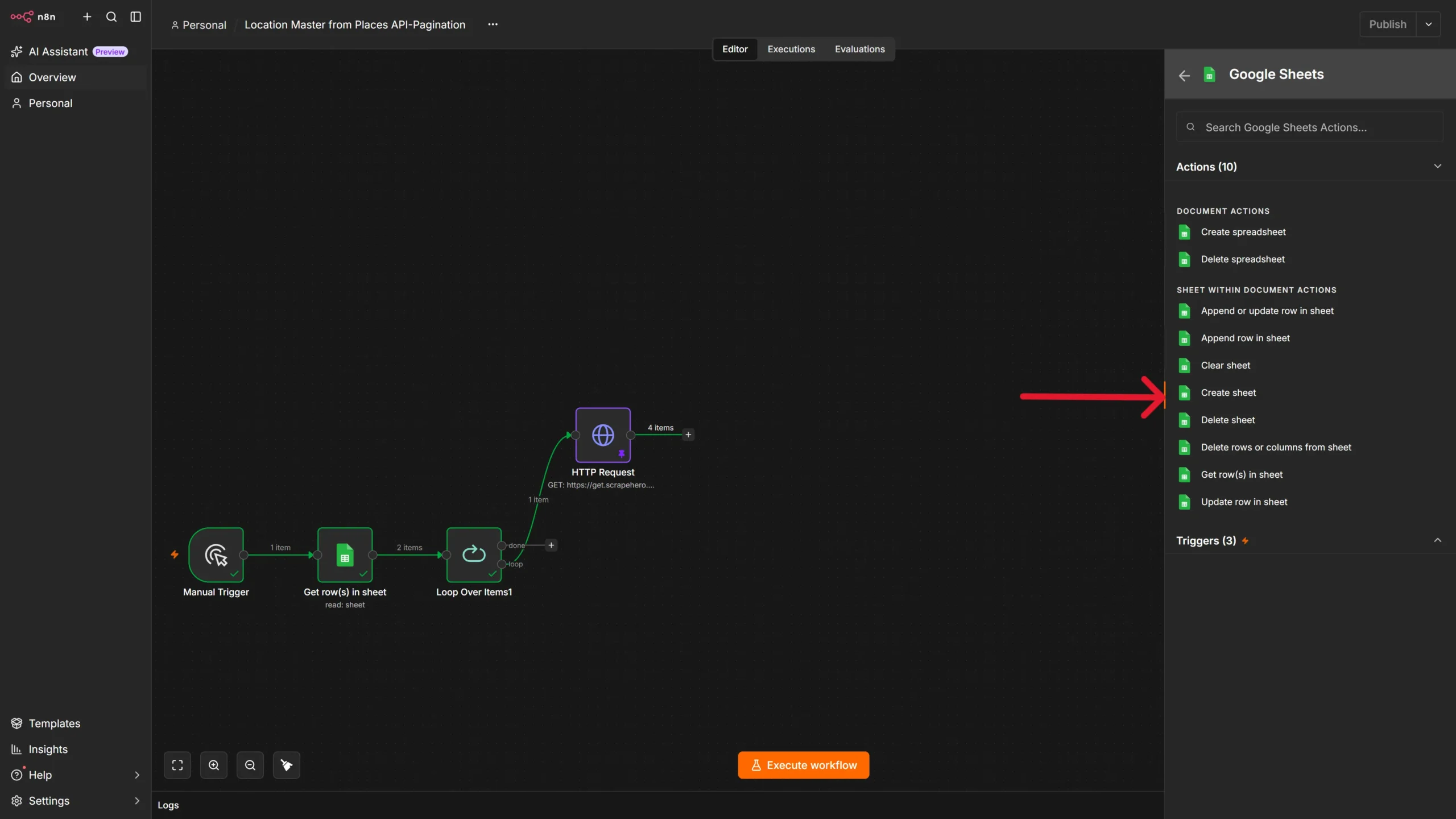
Configure it as follows:
- Operation: Create Sheet.
- Document: Select the same Google Spreadsheet used for the Queries worksheet.
- Title: {{ $(‘Loop Over Items1’).item.json.Query }}
This creates a worksheet named after the current query. For example, a query of plumbers in New York creates a worksheet called plumbers in New York.
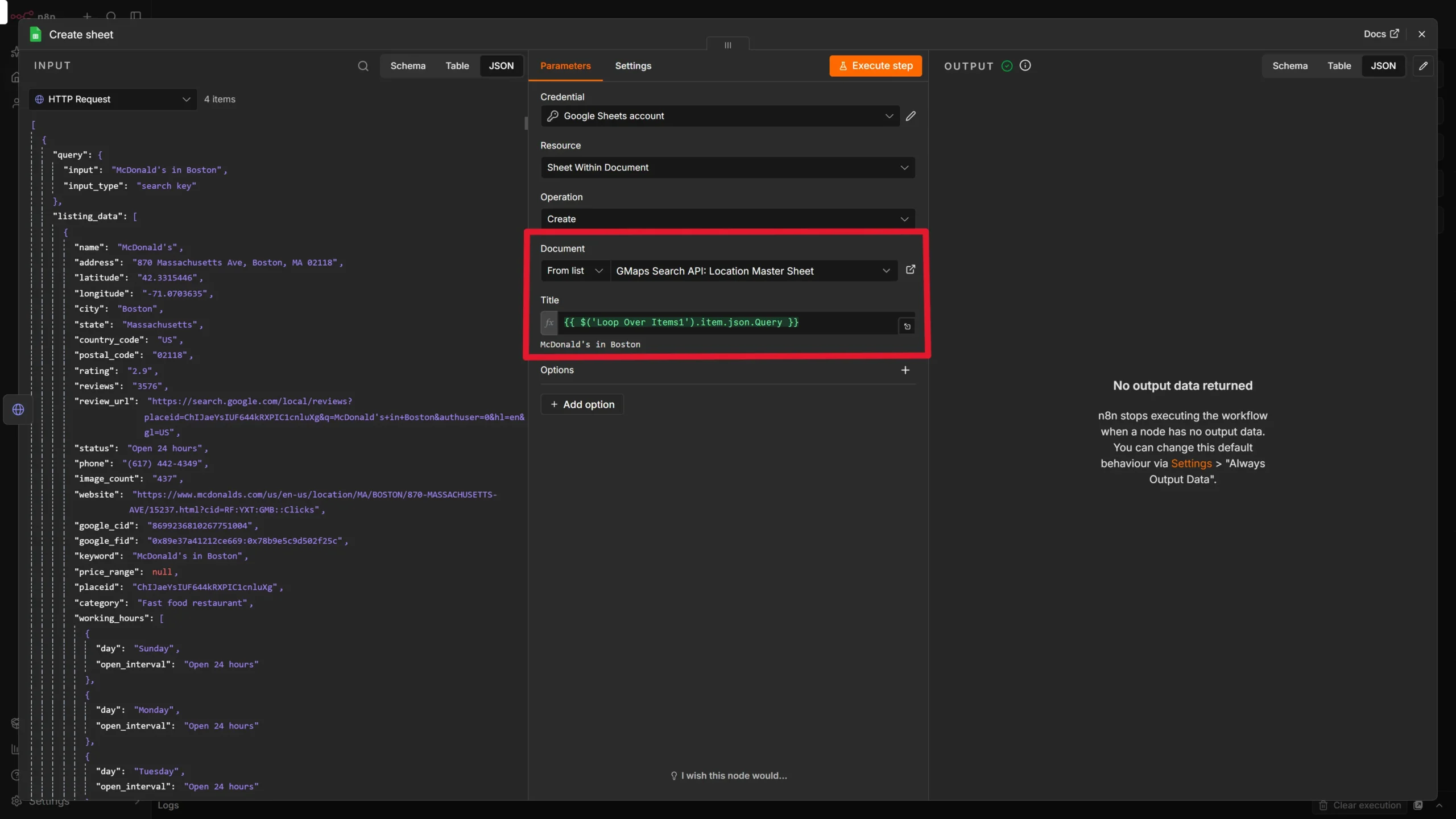
Connect the HTTP Request node to this Create sheet node as well as to the Split Listings node. The Create sheet node acts as the workflow’s signal for whether this is a first run or a refresh run.
7. Split the Listings into Individual Items
Add a Split Out node named Split Listings.
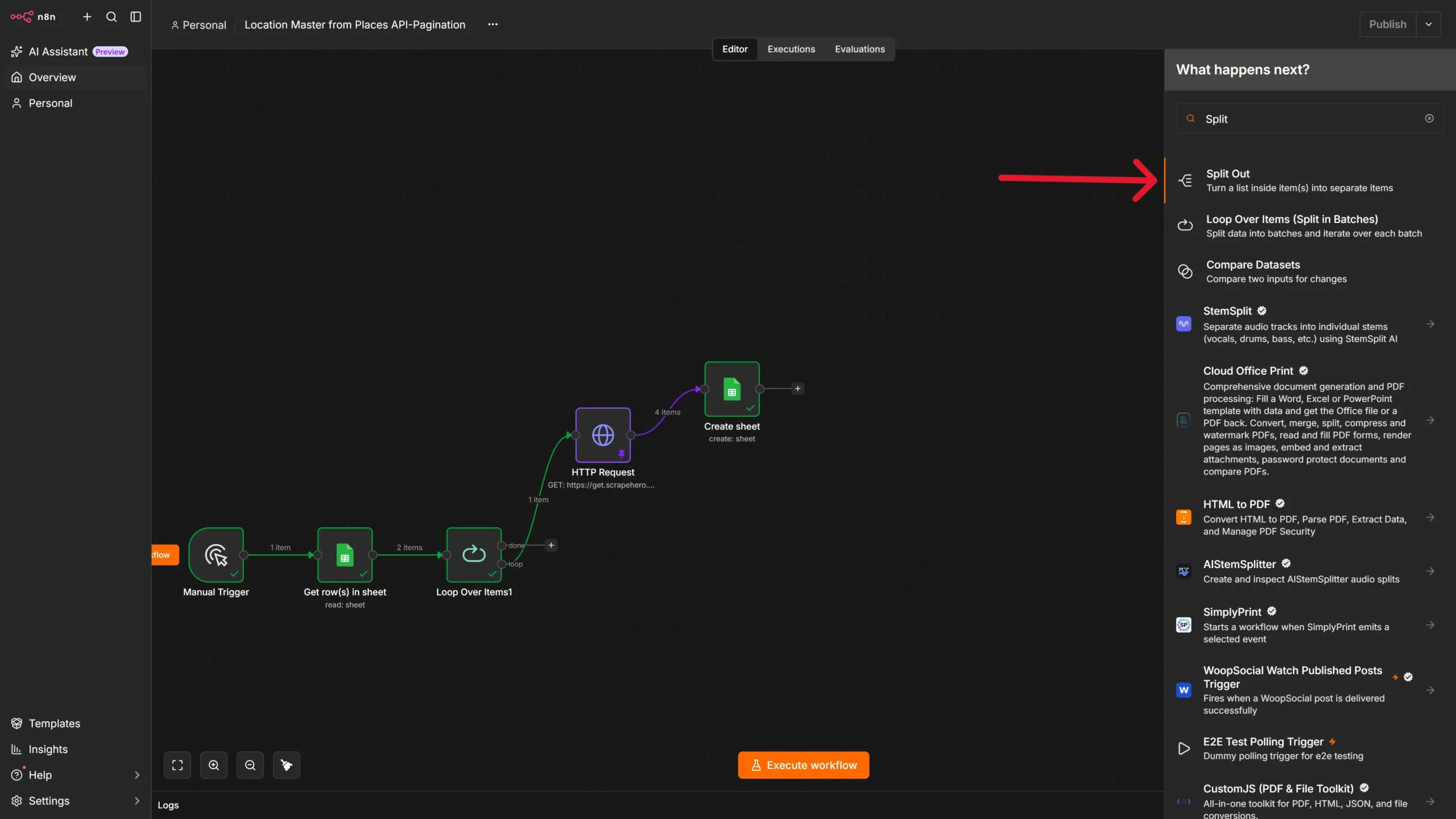
Configure:
- Field to Split Out: listing_data
ScrapeHero’s response contains a listing_data array. The Split Out node converts that array into separate n8n items, allowing the workflow to process one business listing at a time.
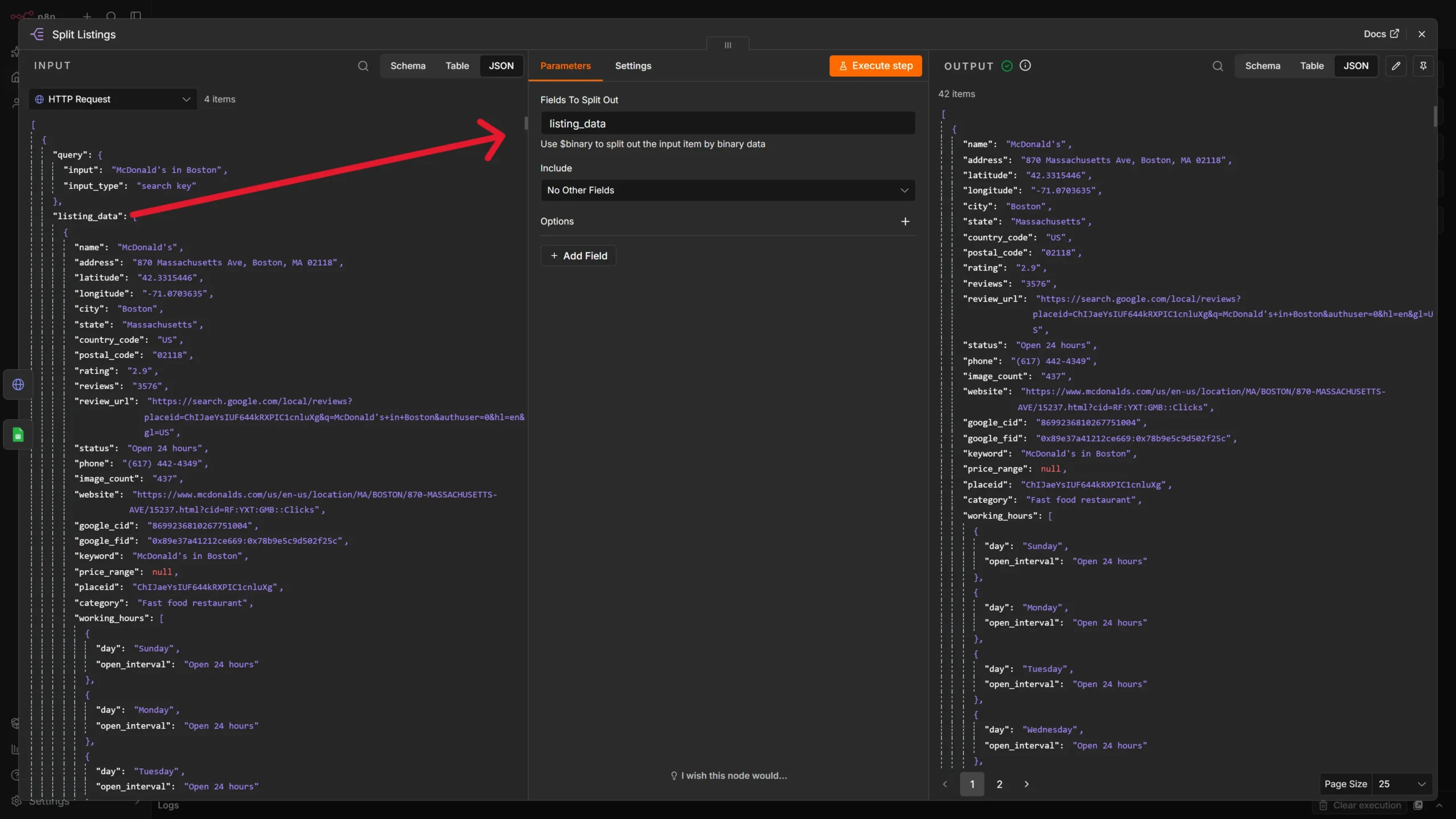
Connect the HTTP Request node to Split Listings, and connect Create sheet to Split Listings as well.
8. Keep Only the Essential Fields
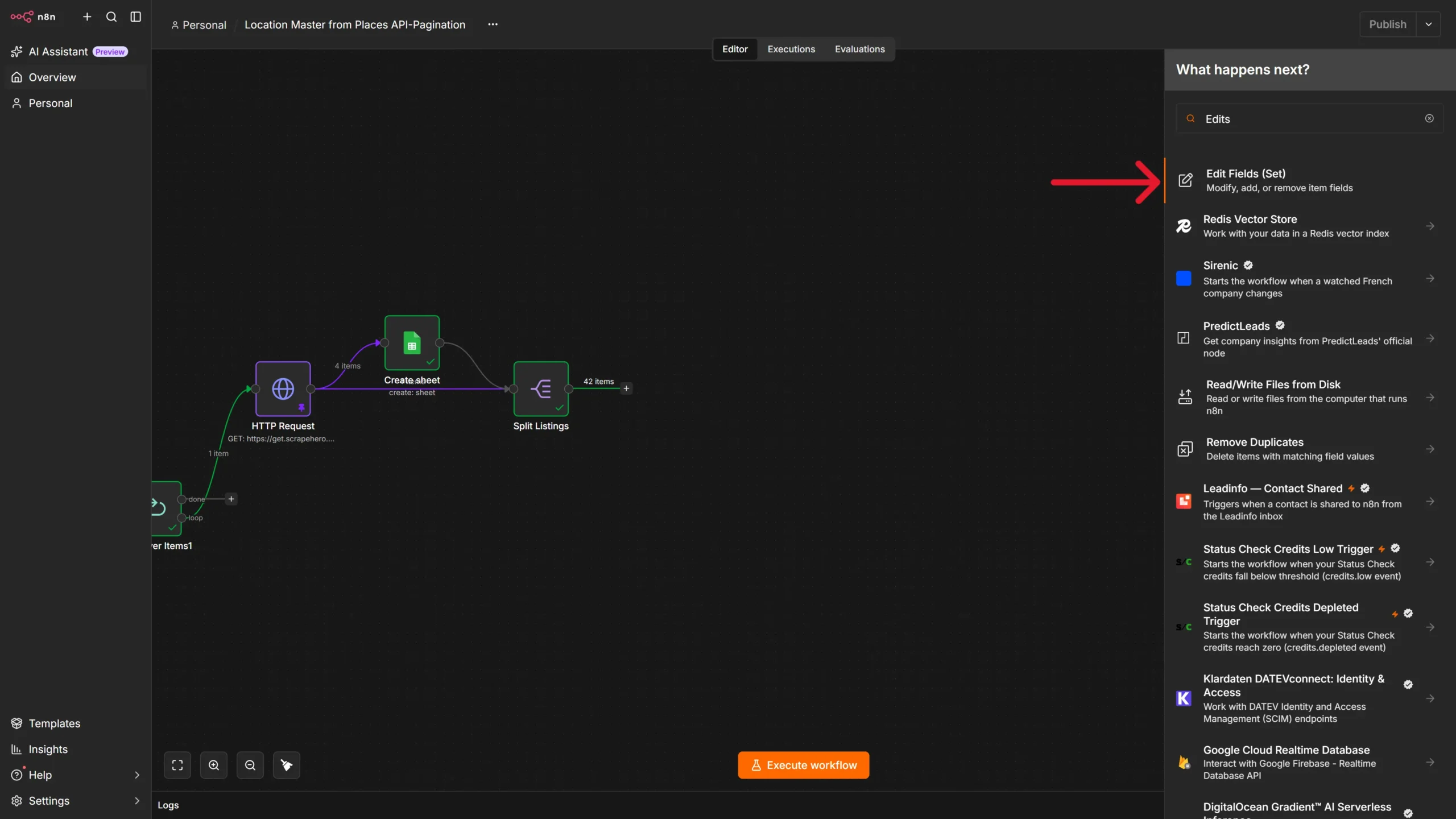
Add an Edit Fields node after the Split Out node.
This node allows you to select the necessary fields from the ScrapeHero node’s output. Drag and drop them from the output of the Split node into the designated area.
- Place ID
- Address
- Latitude
- Longitude
- Phone
- Website
- Google Map URL
- Rating
- Rating Count
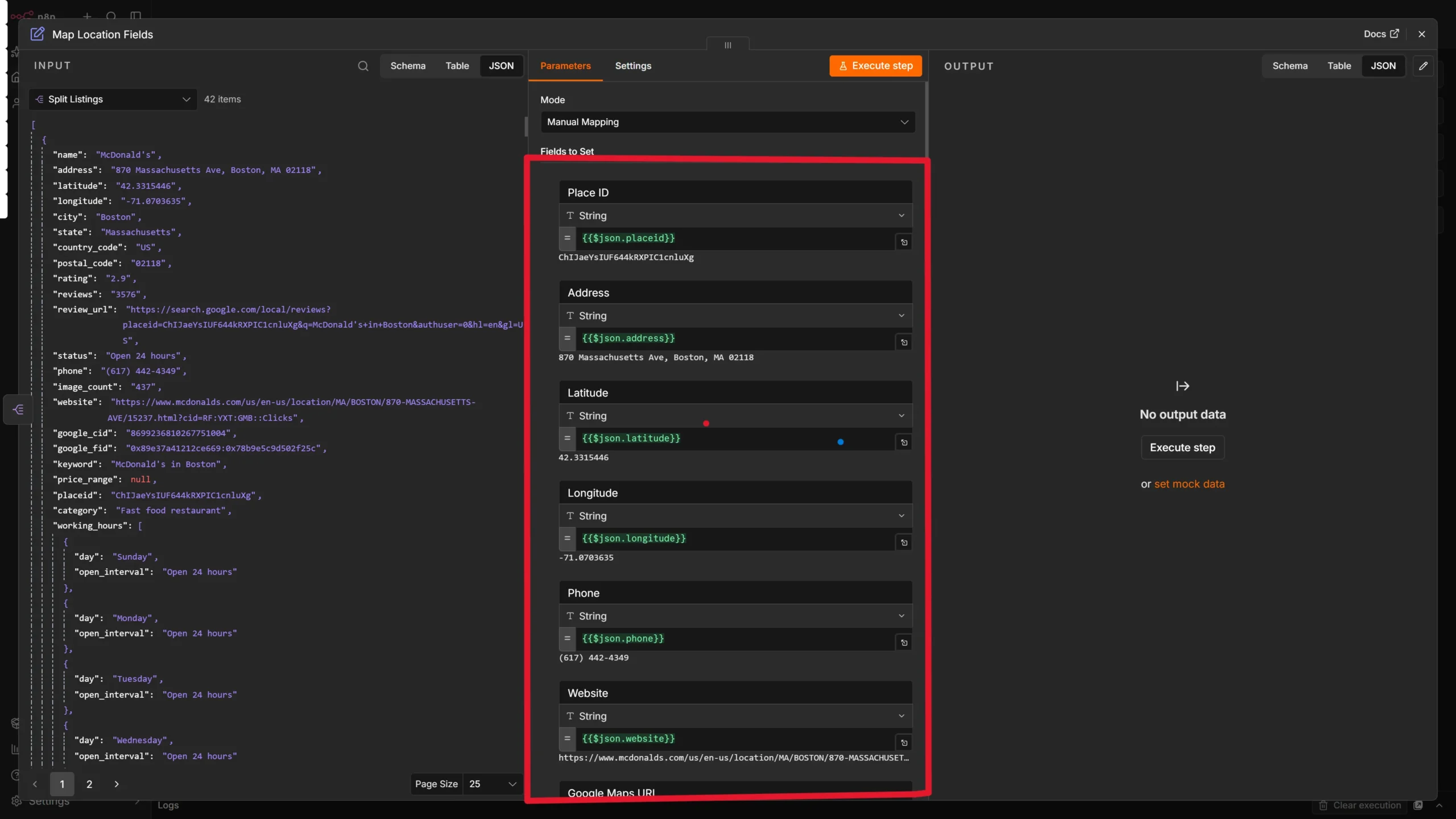
The Place ID column is important because it identifies each Google Maps listing and prevents duplicate rows.
9. Check Whether the Worksheet is New
Add an If node named If after the Edit fields node.
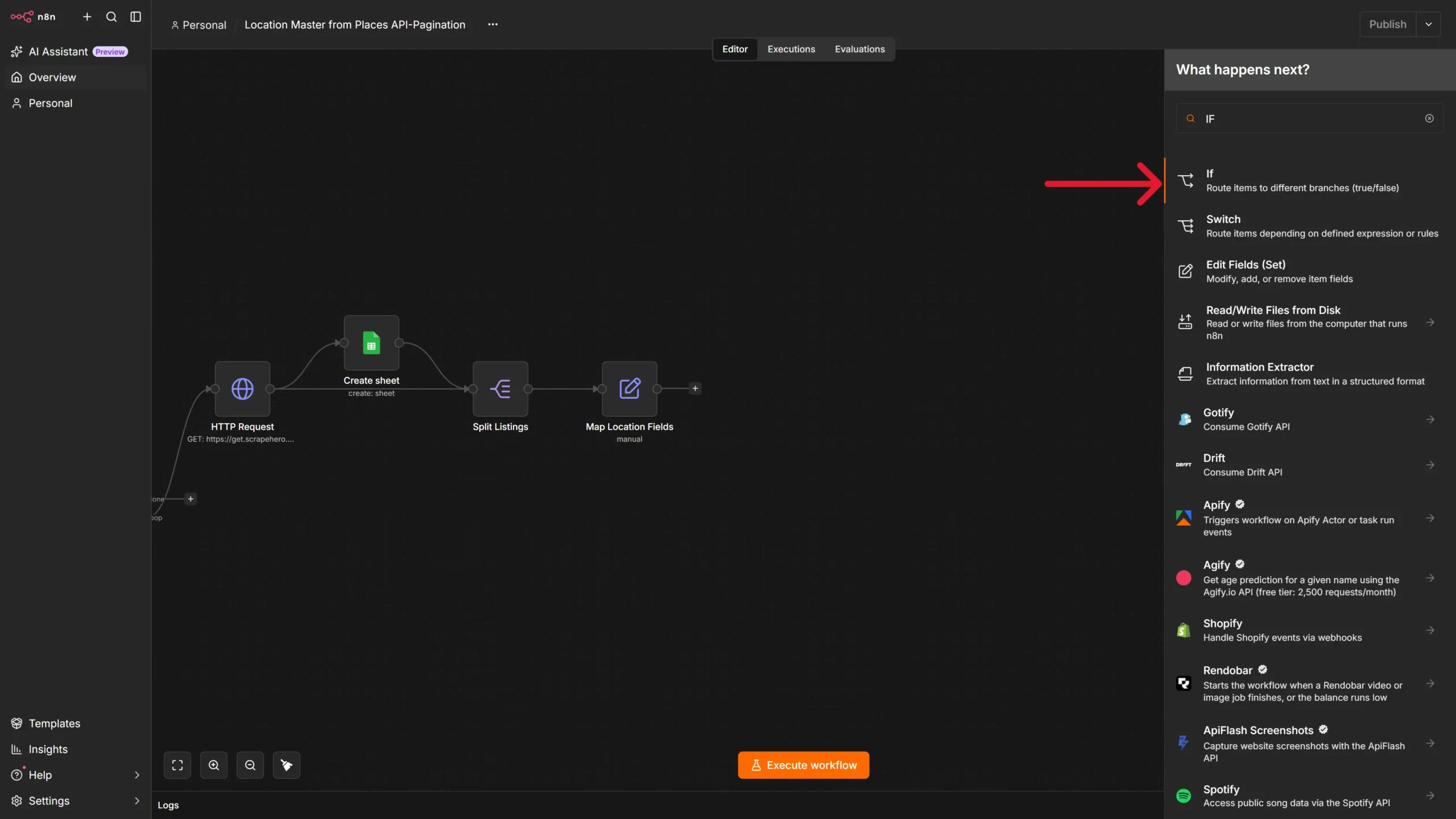
Configure the condition as:
{{ $(‘Create sheet’).all().length > 0 }}
Set the condition to check whether the value is true.
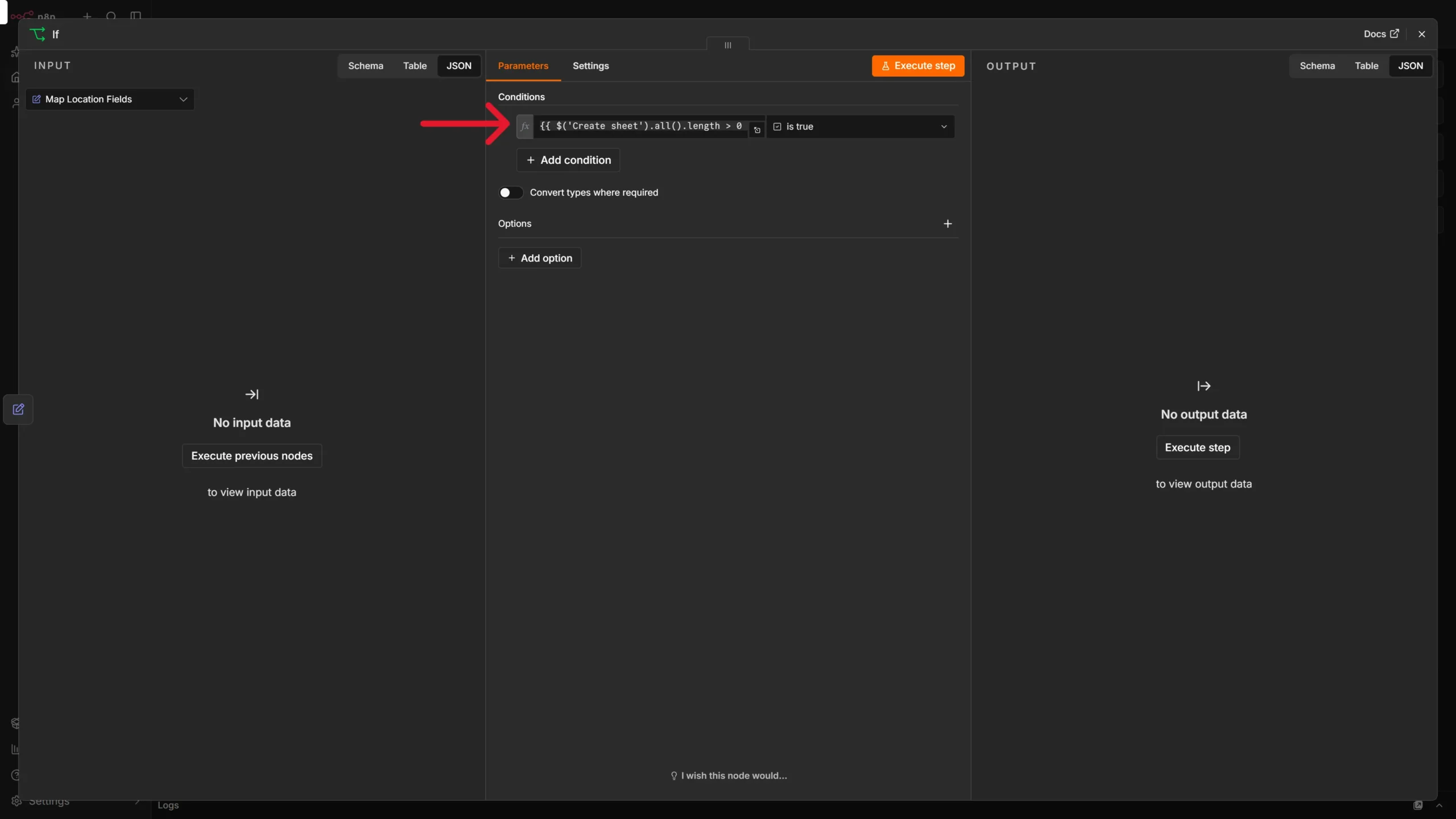
This expression checks whether or not the Create sheet node returns an output. If it did, the worksheet was newly created and the listings should be appended. If it did not, the worksheet already existed and the listings should be updated.
10. Append Rows for a New Query
On the true branch of the If node, add a Google Sheets node named Append Rows.
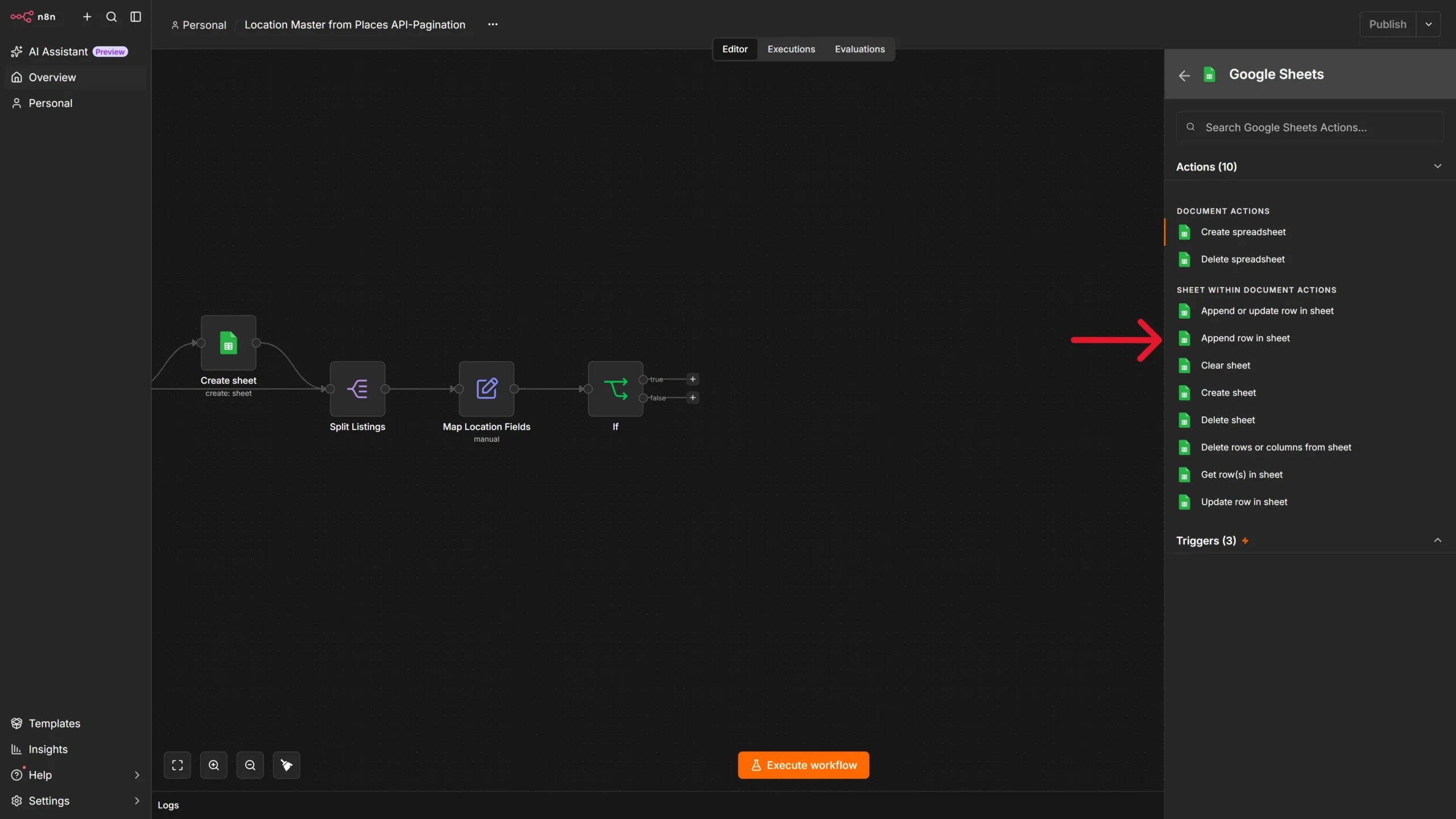
Configure it as follows:
- Operation: Append or Update Row.
- Document: Select the same Google Spreadsheet.
- Sheet: {{ $(‘HTTP Request’).item.json.query.input }}
- Mapping Column Mode: Map Automatically.
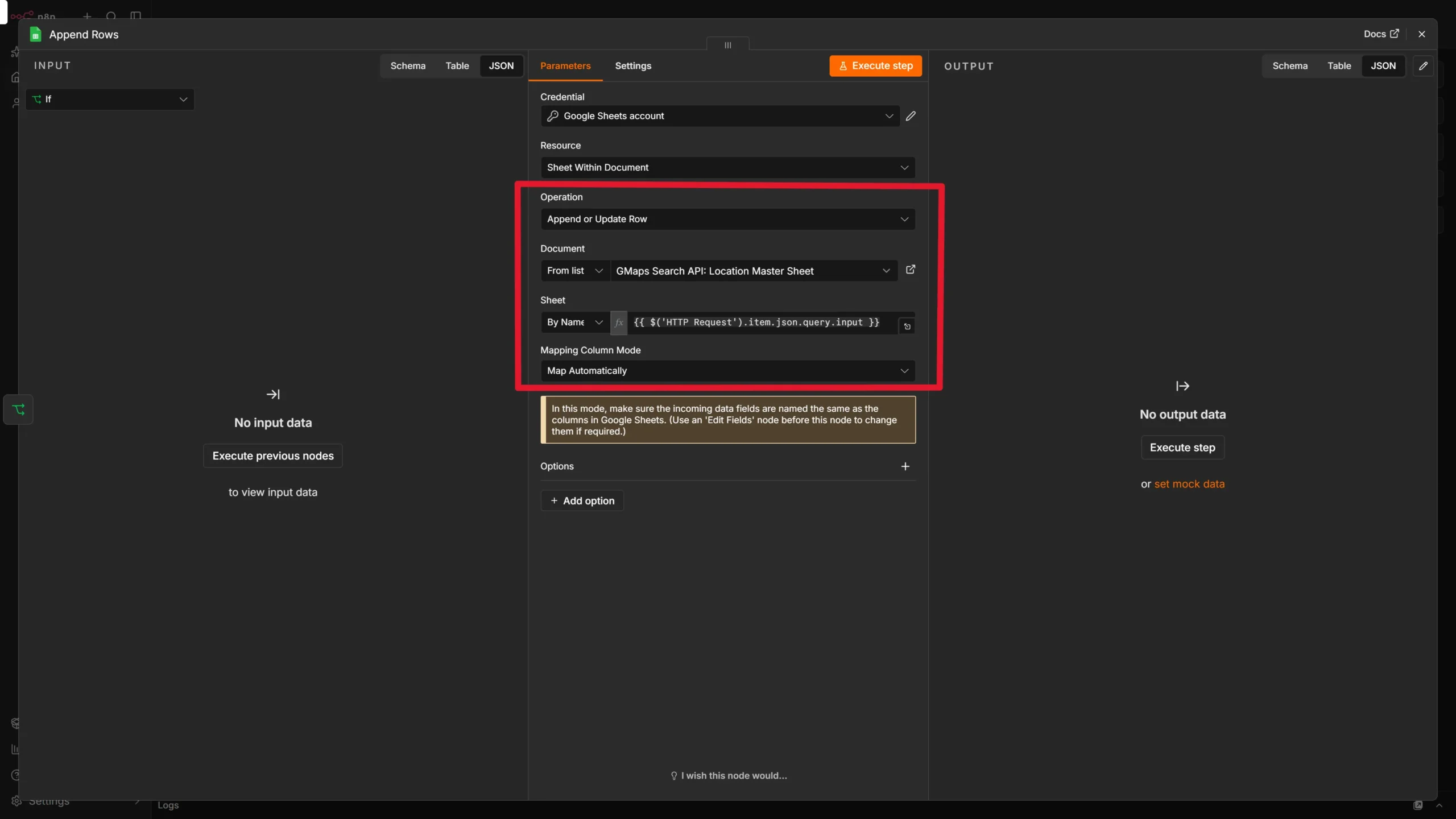
Because this branch runs when the query worksheet has just been created, the listings are appended as new rows.
11. Update Rows for an Existing Query
On the false branch of the If node, add a Google Sheets node named Update row in sheet.
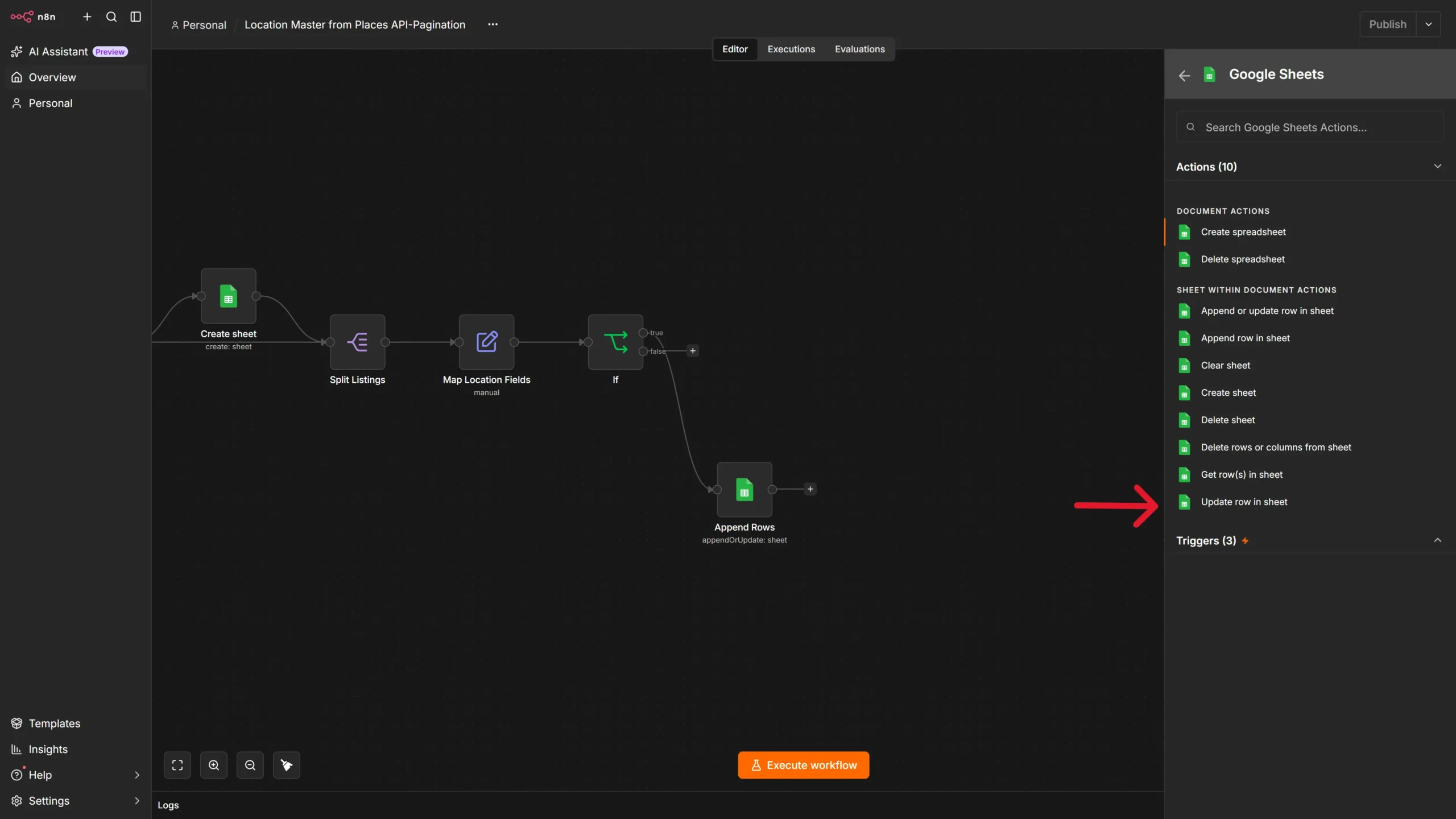
Configure it as follows:
- Operation: Update Row.
- Document: Select the same Google Spreadsheet.
- Sheet: {{ $(‘HTTP Request’).item.json.query.input }}
- Mapping Column Mode: Define Below.
- Matching Column: Place ID.
Map the following fields:
- Place ID
- Address
- Latitude
- Longitude
- Phone
- Website
- Google Maps URL
- Rating
- Review Count
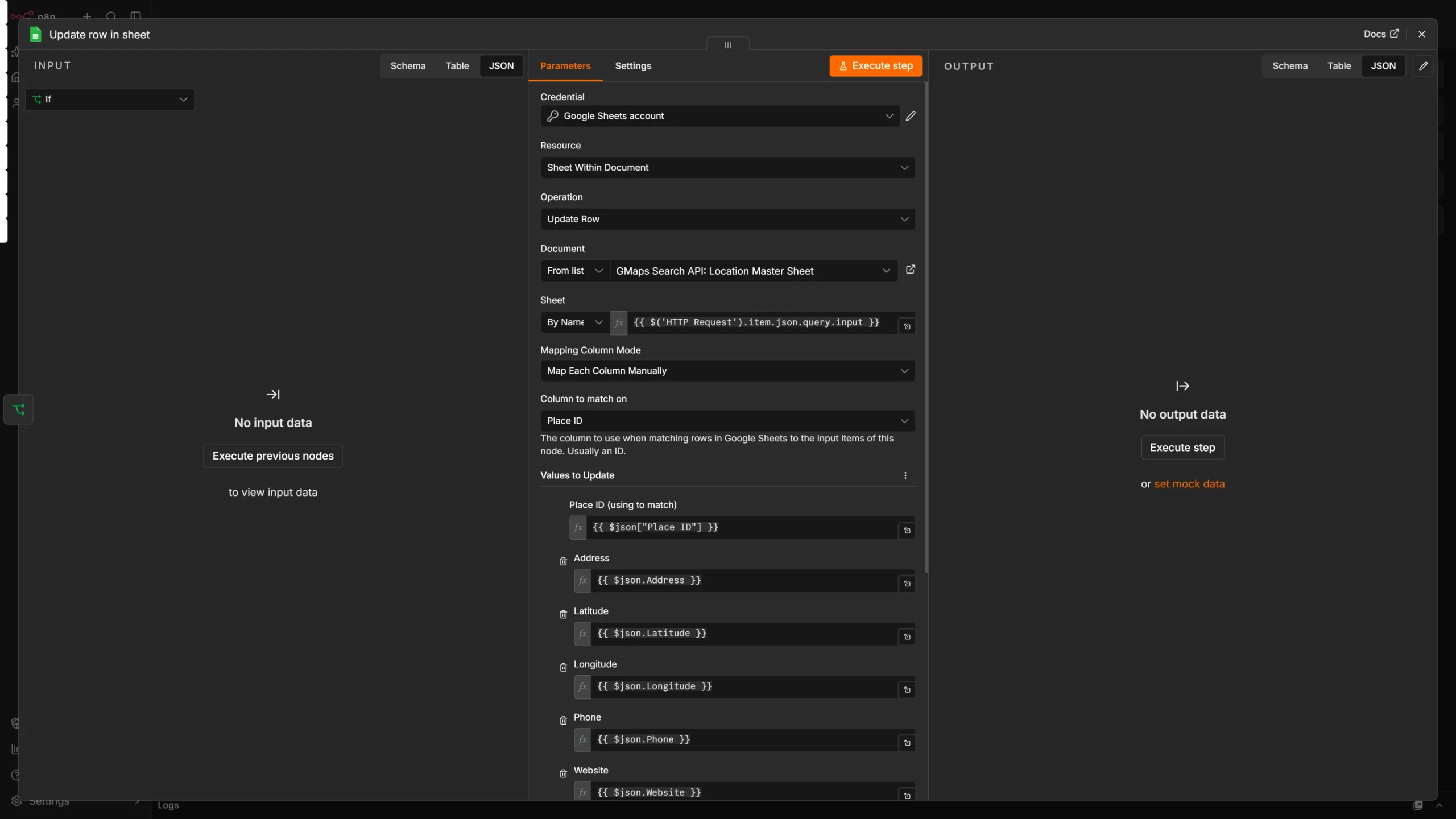
When you rerun the workflow, n8n finds the existing row with the same Place ID and updates its details. This keeps ratings, review counts, phone numbers, and websites current without creating duplicate rows.
12. Close the Loop
Connect the outputs of both Append Rows and Update row in sheet back to the input of Loop Over Items.
This allows n8n to process the next listing from the current query. Once all listings have been processed, the Loop Over Items node moves to the next query in the Queries worksheet.
Test the Workflow
Run a First Test
- Open your Google Spreadsheet and add a test query to the Queries sheet, such as plumbers in New York.
- In n8n, click Execute Workflow.
- Confirm that the Get row(s) in sheet node returns the query.
- Confirm that the HTTP Request node returns ScrapeHero’s Google Maps response.
- Check that the Create sheet node creates a worksheet named after the query.
- Verify that Split Listings creates one item per business.
- Check that Append Rows writes the mapped fields into the new worksheet.
Your new worksheet should contain columns such as Place ID, Address, Latitude, Longitude, Phone, Website, Google Maps URL, Rating, and Review Count.
Run the Workflow Again
Run the same workflow again without changing the query.
This time:
- The Create sheet node should not create a new worksheet.
- The If node should route listings to the Update row in the sheet branch.
- Existing rows should be updated by Place ID.
- New listings should be added if they appear in the latest API response.
Now the workflow to automate Google Maps data collection with n8n is complete: run it daily, weekly, or on whatever schedule fits your local SEO or lead-generation workflow.
How this Workflow Helps Your Business
- Run faster local SEO audits. Track competitor names, addresses, phone numbers, websites, ratings, and review counts across target locations. Repeated runs make it easier to spot missing or inconsistent business information and monitor local visibility over time.
- Support competitor research. Build a clean worksheet for each query so you can compare nearby competitors, identify high-rated businesses, and see which listings are actively maintaining their profiles.
- Generate and qualify leads. Export structured business details, including phone numbers and websites, into a location database your sales or outreach team can use. Because the workflow updates records by Place ID, your lead list stays current and free of duplicate entries.
- Monitor listing changes automatically. Ratings, review counts, phone numbers, and websites can change at any time. Rerunning the workflow updates existing rows, giving you a dependable view of the latest listing information.
- Create a foundation for reporting. The Google Sheets output can feed dashboards in Looker Studio, Power BI, or another BI tool. That makes it easier to visualize location coverage, review trends, competitor density, and changes across multiple markets.
- Scale without adding manual work. Add new search queries to the Queries sheet, and the workflow creates and maintains a separate worksheet for each one. Whether you monitor ten locations or hundreds, the process remains consistent.
Best Practices
- Keep one worksheet per query to make historical comparisons and dashboards easier.
- Use Place ID as the canonical identifier for every business.
- Set a sensible pagination limit to control API usage and prevent unexpectedly large runs.
- Do not hardcode API keys in node parameters; store them in n8n credentials.
- Test with a single query before adding multiple queries to the Queries sheet.
Ways to Extend the Workflow
Once the base workflow is working, you can extend it to:
- Send a Slack, email, or Telegram alert when a new business appears.
- Track changes in rating or review count over time.
- Add a Last Updated timestamp column.
- Filter listings by minimum rating, review count, or location.
- Feed the Google Sheets data into Looker Studio, Power BI, or another dashboard tool.
- Schedule the workflow in n8n so Google Maps data refreshes automatically.
With this setup, you can turn Google Maps search results into a structured, refreshable location database—without manually copying listings into spreadsheets.
Wrapping Up
Manually searching Google Maps and building a location database row by row is slow, repetitive, and difficult to maintain. Using ScrapeHero’s Google Maps Search API, you can automate Google Maps data collection with n8n, organize results by search query, and keep your business-listing data up to date.
ScrapeHero handles the data extraction, while n8n manages the workflow logic—from reading search queries and handling pagination to creating worksheets and updating records. This lets your team spend less time copying data and more time using it for local SEO, competitor analysis, lead generation, and location monitoring.
Sign up for a ScrapeHero API key to start building your Google Maps data workflow. Need additional data points or a custom output format? Share your requirements, and we can build a custom API for your use case.
ScrapeHero is a full-service web scraping provider that combines automated data extraction with human-in-the-loop quality checks to deliver reliable, usable data at scale. Contact ScrapeHero to get started.