Tracking Fulfillment by Amazon (FBA) deals manually across expanding product catalogs is time-consuming and prone to delays. Setting up automated Amazon FBA deals monitoring with n8n ensures that changes in prime-eligible seller competition, stock sellouts, and new offer surges are detected immediately without manual oversight.
This tutorial shows how to build an n8n workflow that:
- Reads tracked ASINs and previous FBA offer counts from Google Sheets
- Retrieves live seller offers through ScrapeHero’s Amazon Offer Listing API
- Filters for active FBA offers and computes the current deal count
- Compares counts to suppress duplicate alerts, logs updates to Google Sheets, and sends alerts to Google Chat
What You’ll Learn
- How to use the Amazon Offer Listing API to extract real-time seller and fulfillment details.
- How to iterate over a list of ASINs and process each catalog entry individually.
- How to unpack nested offer_listings arrays into discrete item streams.
- How to filter exclusively for prime-eligible offers where fulfilled_by_amazon is true.
- How to dynamically calculate the number of active FBA sellers in an Edit Fields node.
- How to stop receiving duplicate alerts by validating current counts against baseline figures.
- How to append updated counts to Google Sheets and broadcast instant notifications to Google Chat.
Why Find Amazon FBA Deals?
Most e-commerce monitors look only at the featured Buy Box. While the Buy Box captures the majority of customer orders, it conceals critical competitive dynamics occurring across the wider catalog. Secondary FBA sellers often match or undercut the featured offer, while third-party merchant-fulfilled sellers fluctuate in price without prime shipping benefits.
When tracking high-demand products, changes in the number of active FBA sellers indicate market shifts:
- Inventory exhaustion: When FBA seller counts drop, competitors are running out of prime stock, allowing remaining sellers to raise prices.
- New competition entering: An abrupt jump in FBA count signals that wholesale distributors or arbitrageurs have checked in new inventory at fulfillment centers.
- Buy Box suppression: If all FBA sellers stock out, Amazon may suppress the Buy Box or hand it to a merchant-fulfilled seller with longer delivery estimates.
Extracting these details by hand or with fragile custom scripts runs into anti-bot barriers and layout variations. Using ScrapeHero’s Amazon scraping APIs solves this challenge. The Amazon Offer Listing API returns structured JSON containing every seller, price, shipping origin, and fulfillment status in a single call.
Before You Begin
Before building the Amazon FBA deals monitoring workflow, prepare the following resources:
- An active n8n instance (cloud-hosted or self-hosted n8n installation).
- A Google Cloud OAuth client ID and client secret for connecting to Google Sheets and Google Chat.
- A Google Spreadsheet named FBA Deal Finder with a tab named Sheet1.
- A ScrapeHero account and API key.
Set up your Google Sheet with the following column headers and baseline tracking rows:
| ASIN | Product Name | Previous FBA Count |
|---|---|---|
| B08141GQQG | Logitech G733 LIGHTSPEED Wireless Gaming Headset | 3 |
| B07PXGQC1Q | Apple AirPods with Charging Case | 5 |
Create the Workflow
1. Add a Schedule Trigger
Open the n8n canvas by clicking Create Workflow.
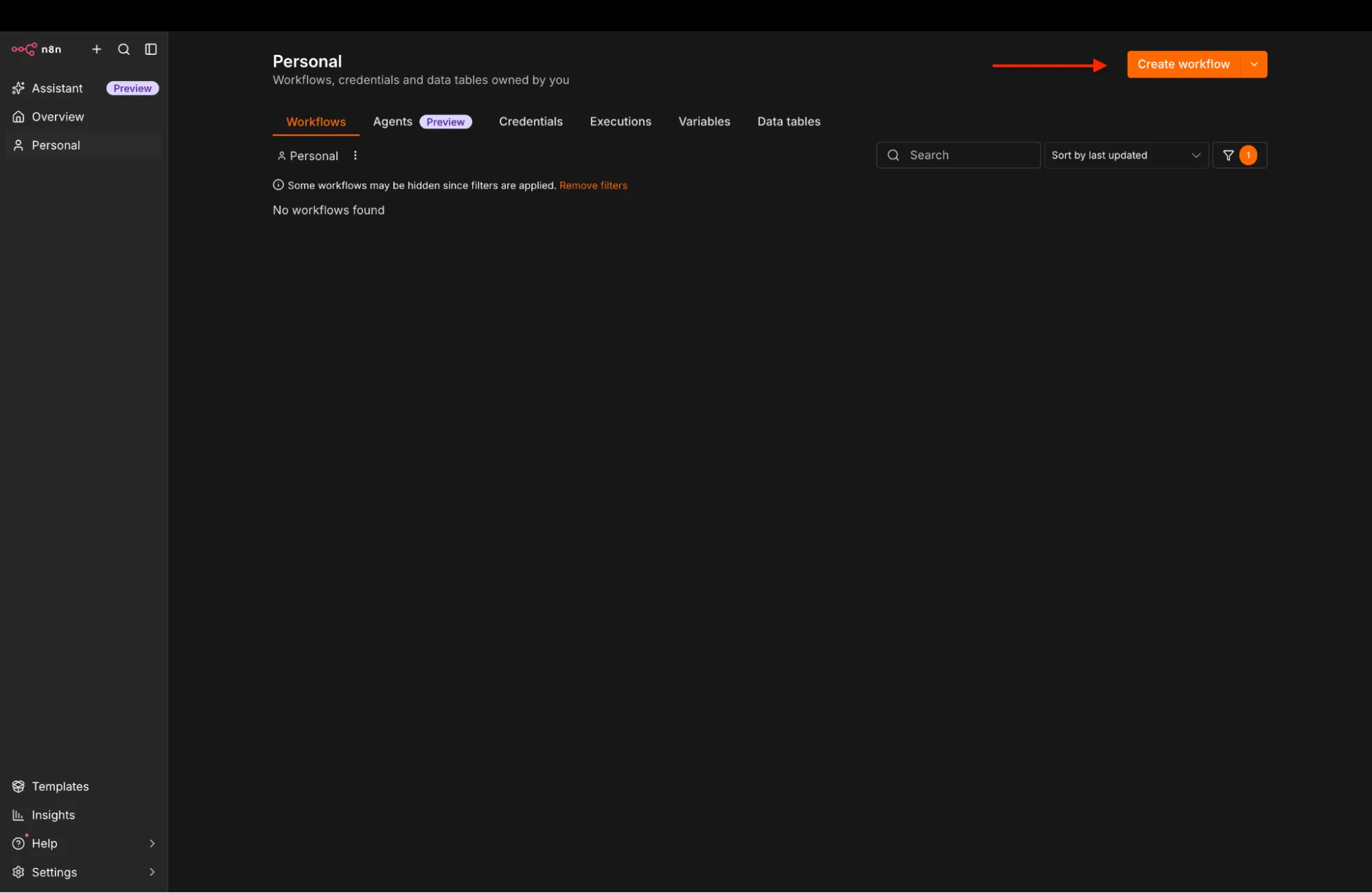
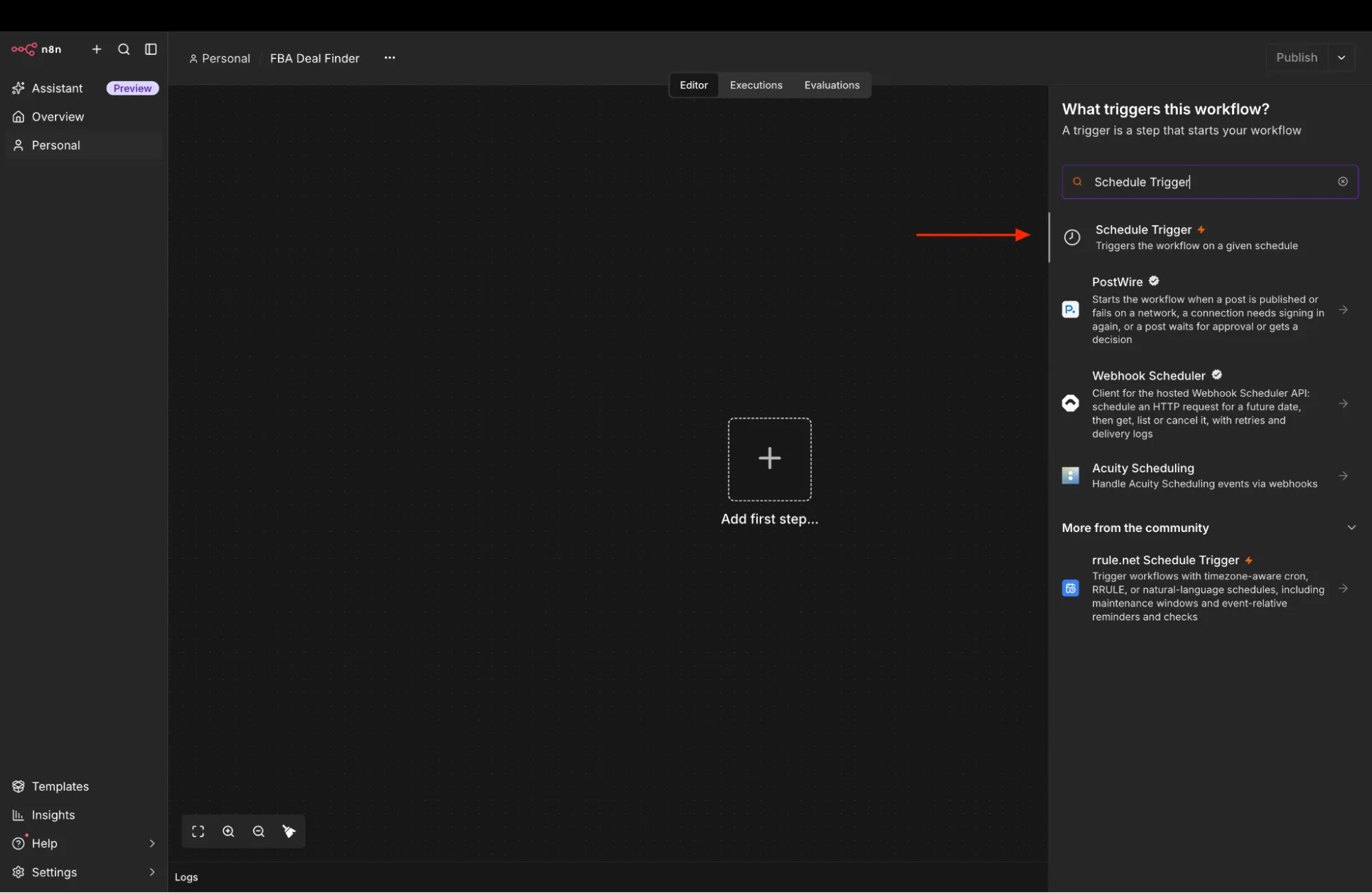
Next, click the plus icon, search for Schedule Trigger, and add it to the canvas. Set the trigger interval according to your monitoring requirements (such as every day, every week, or once a month). A scheduled trigger ensures continuous catalog surveillance without manual activation.
2. Read Tracked Products and Baseline Counts from Google Sheets
Next, read your catalog ASINs and existing baseline counts into the workflow.
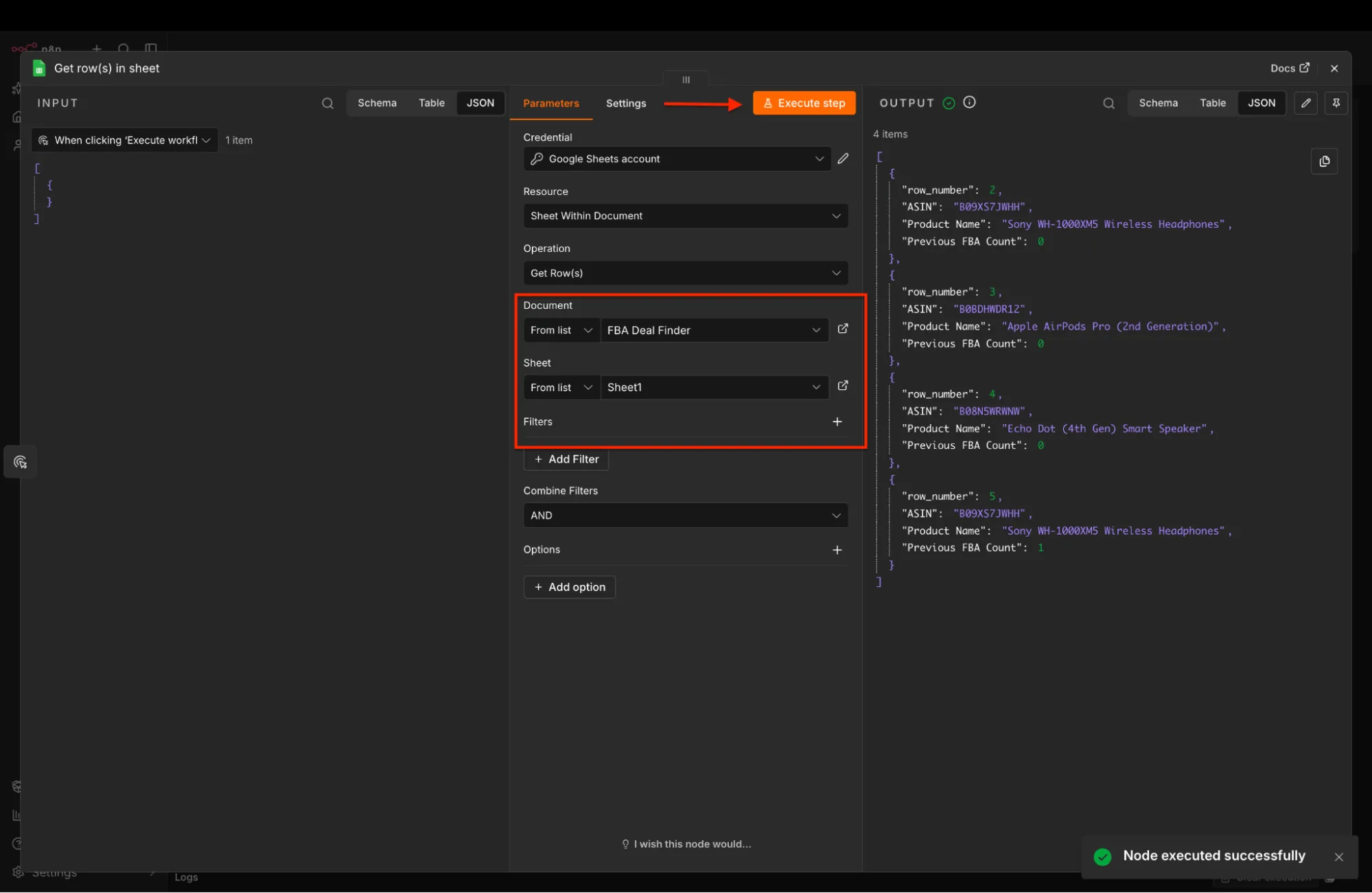
Add a Google Sheets node after the Schedule Trigger. Under actions, choose Get Row(s) in Sheet.
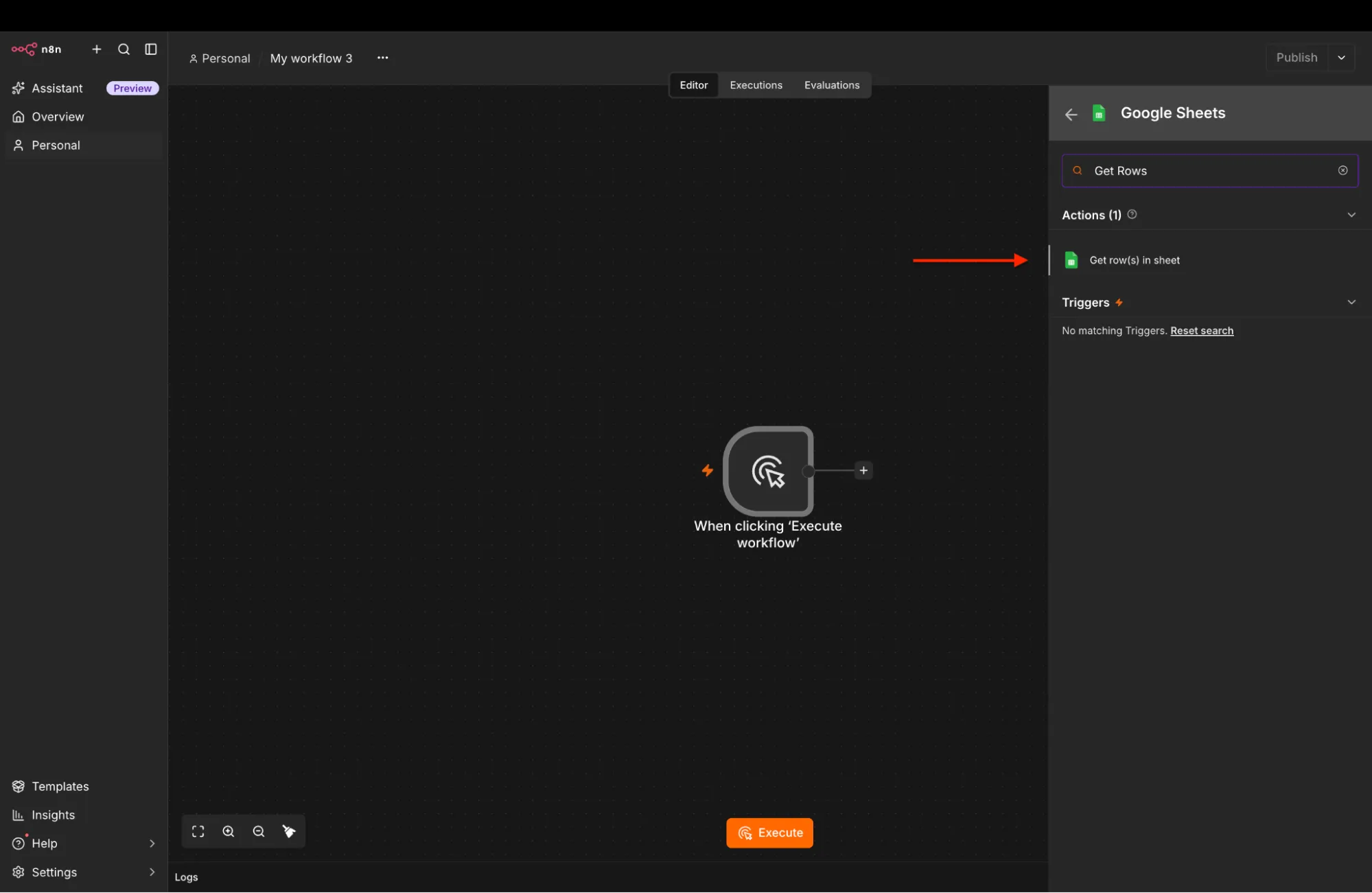
Connect your Google Sheets account.
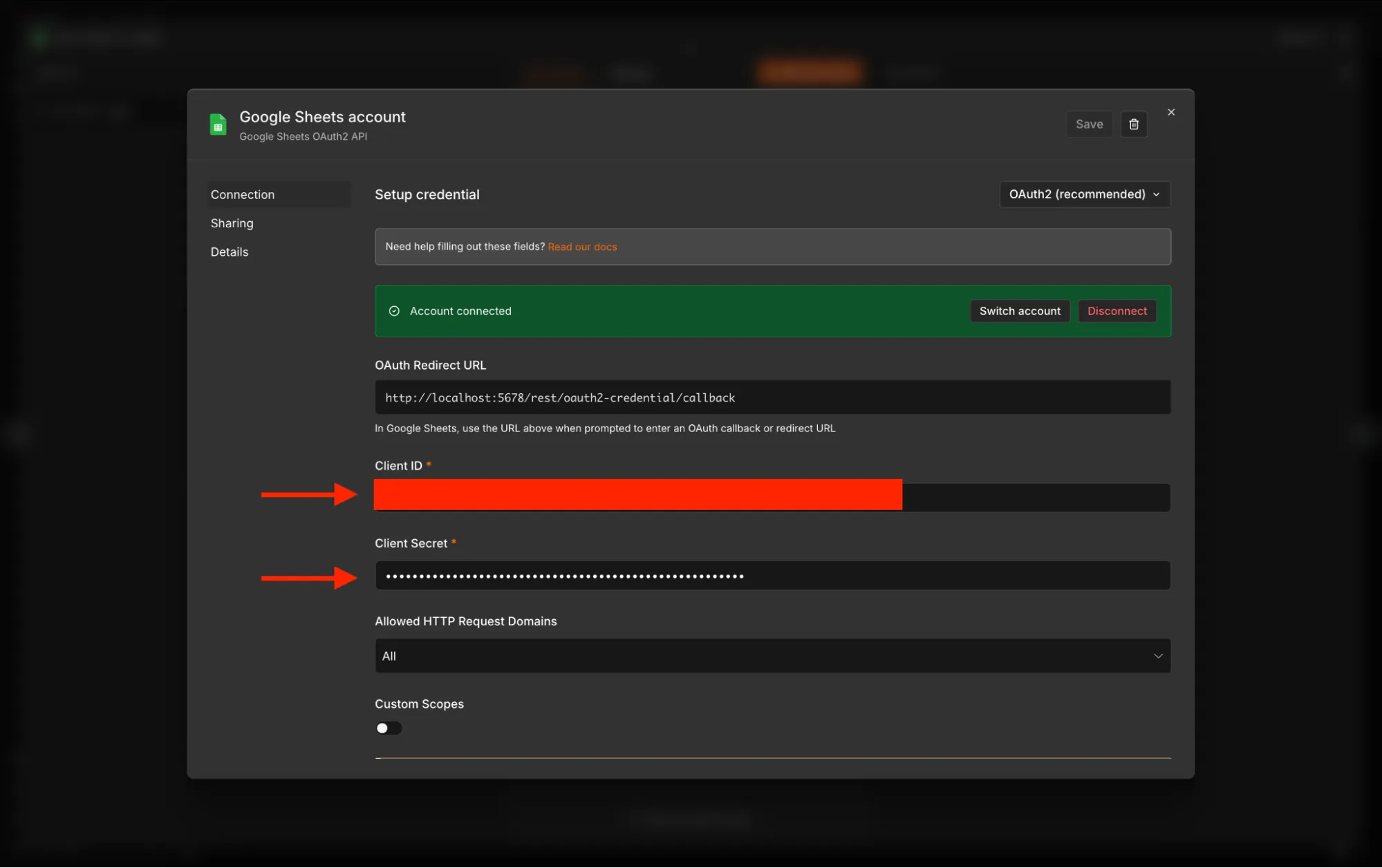
And then, configure:
- Document: Select FBA Deal Finder from the list.
- Sheet: Select Sheet1.
Click Execute Step to verify that the rows with ASINs, product names, and baseline counts are loaded into n8n.
3. Process Each Product with Loop Over Items
Processing products one at a time ensures that API requests execute sequentially and avoids rate limits or memory exhaustion.
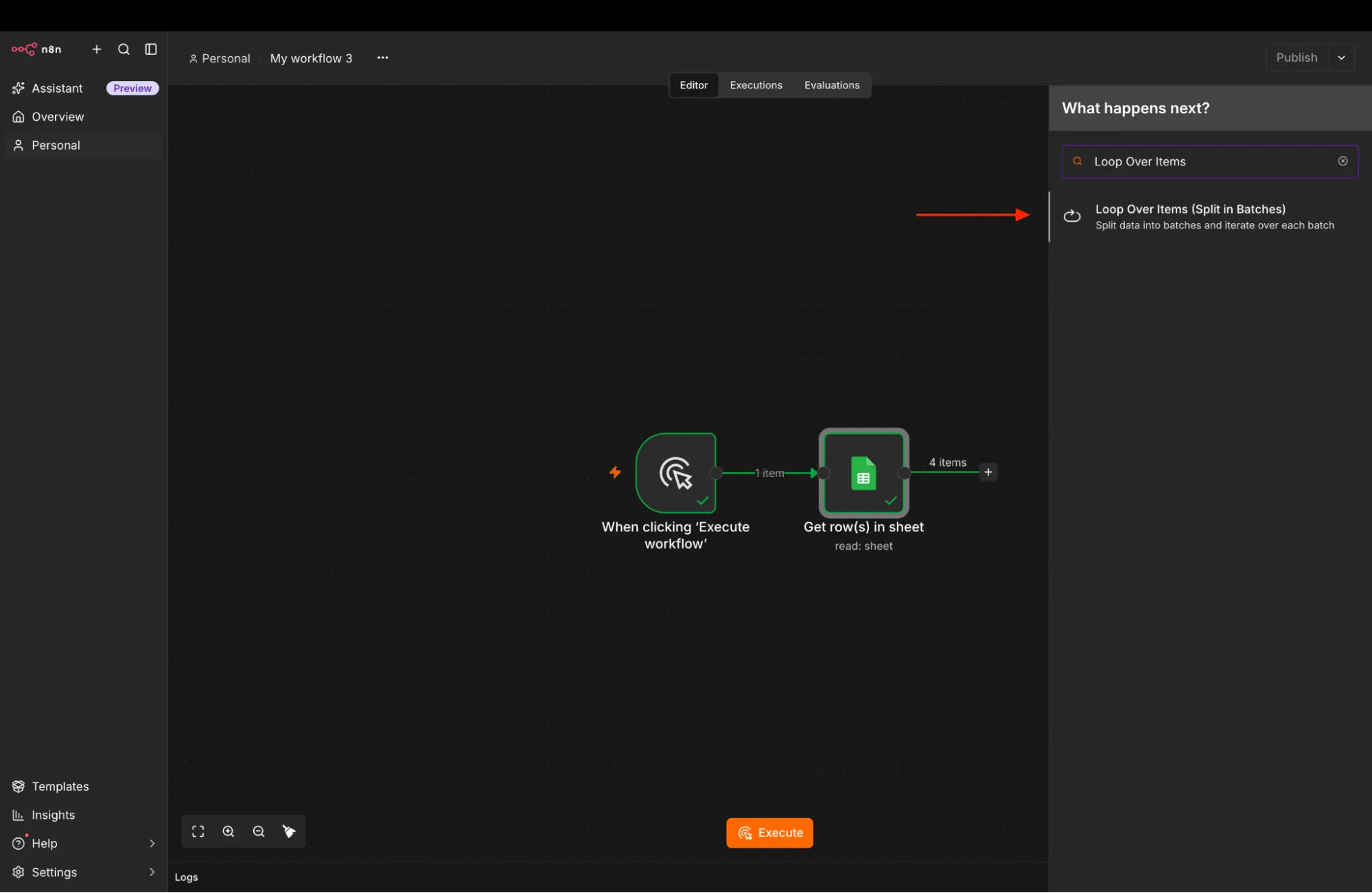
Add a Loop Over Items node after the Google Sheets node.
Keep the default Batch Size set to 1.
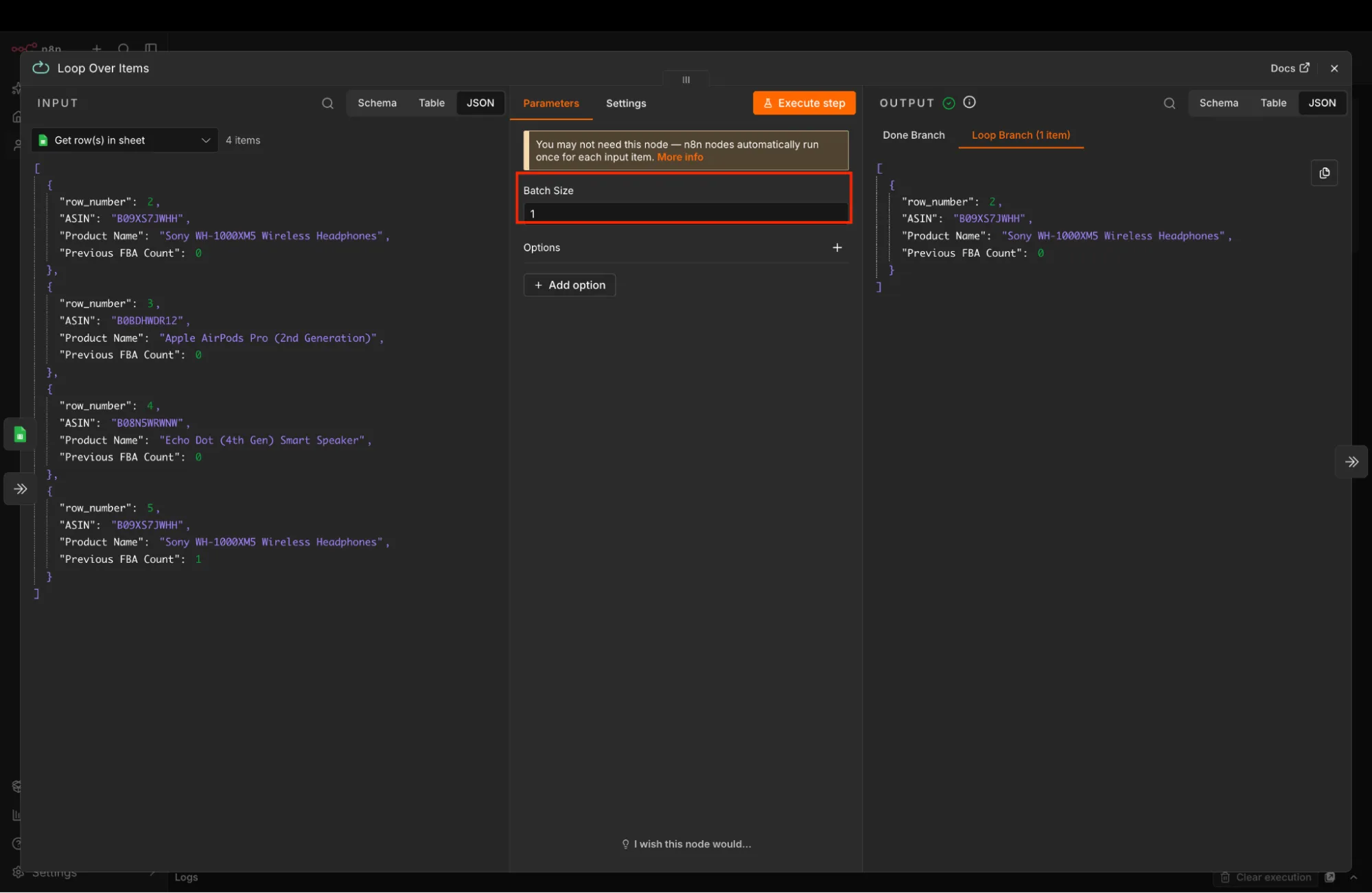
The loop node routes each product through its loop branch and finishes via the done branch once all rows are processed.
4. Fetch Active Offers with ScrapeHero
Add the ScrapeHero community node to the loop output of the Loop Over Items node.
Search for ScrapeHero in the node library and add it to the workflow.
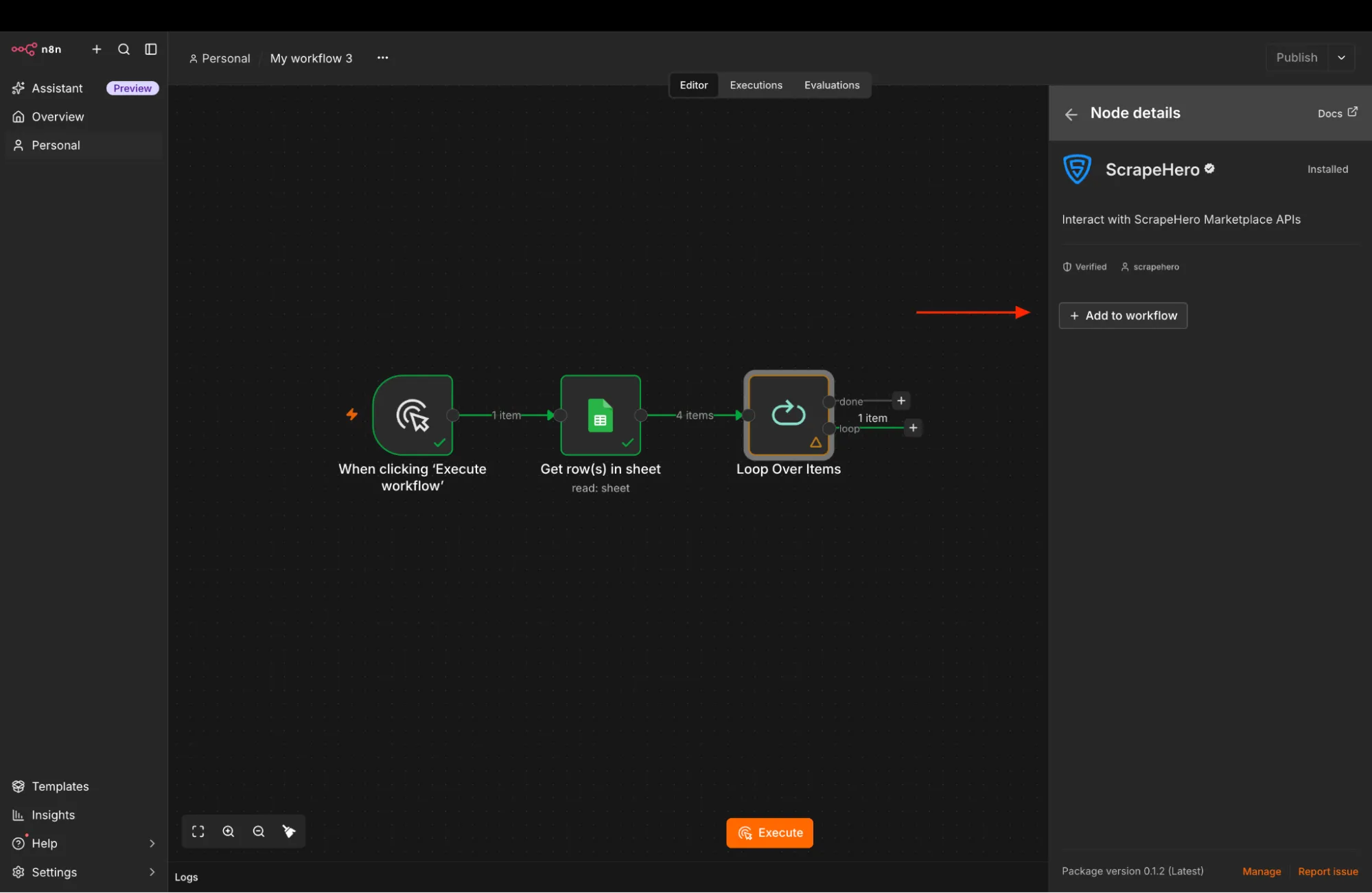
To configure your credentials:
- Go to app.scrapehero.com.
- Sign in to your account.
- Click your profile icon in the upper-right corner.
- Open the API Key page.
- Copy your API key.
- Return to n8n and select Create New Credential.
- Paste your API key into the credential field.
- Save the credential.
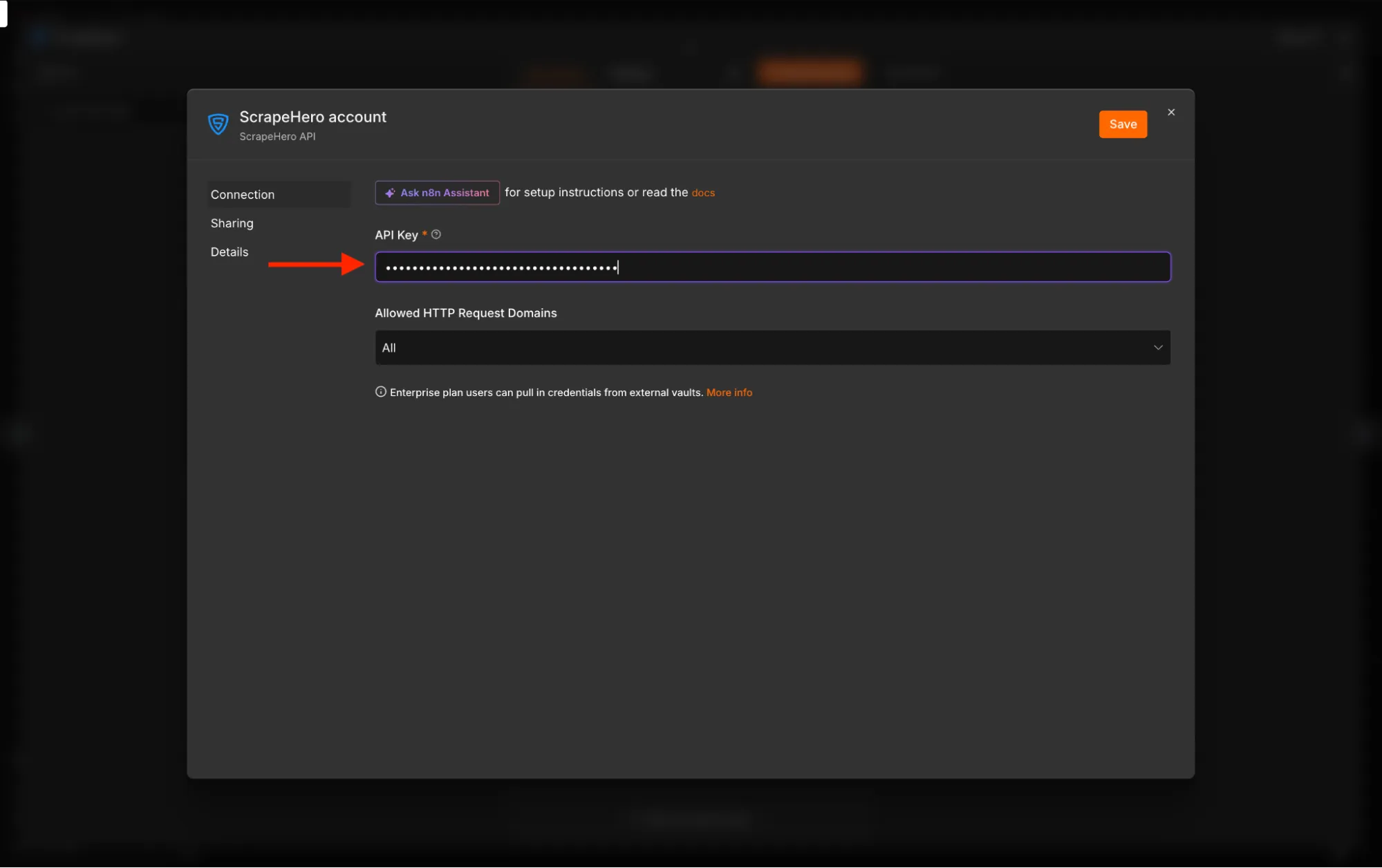
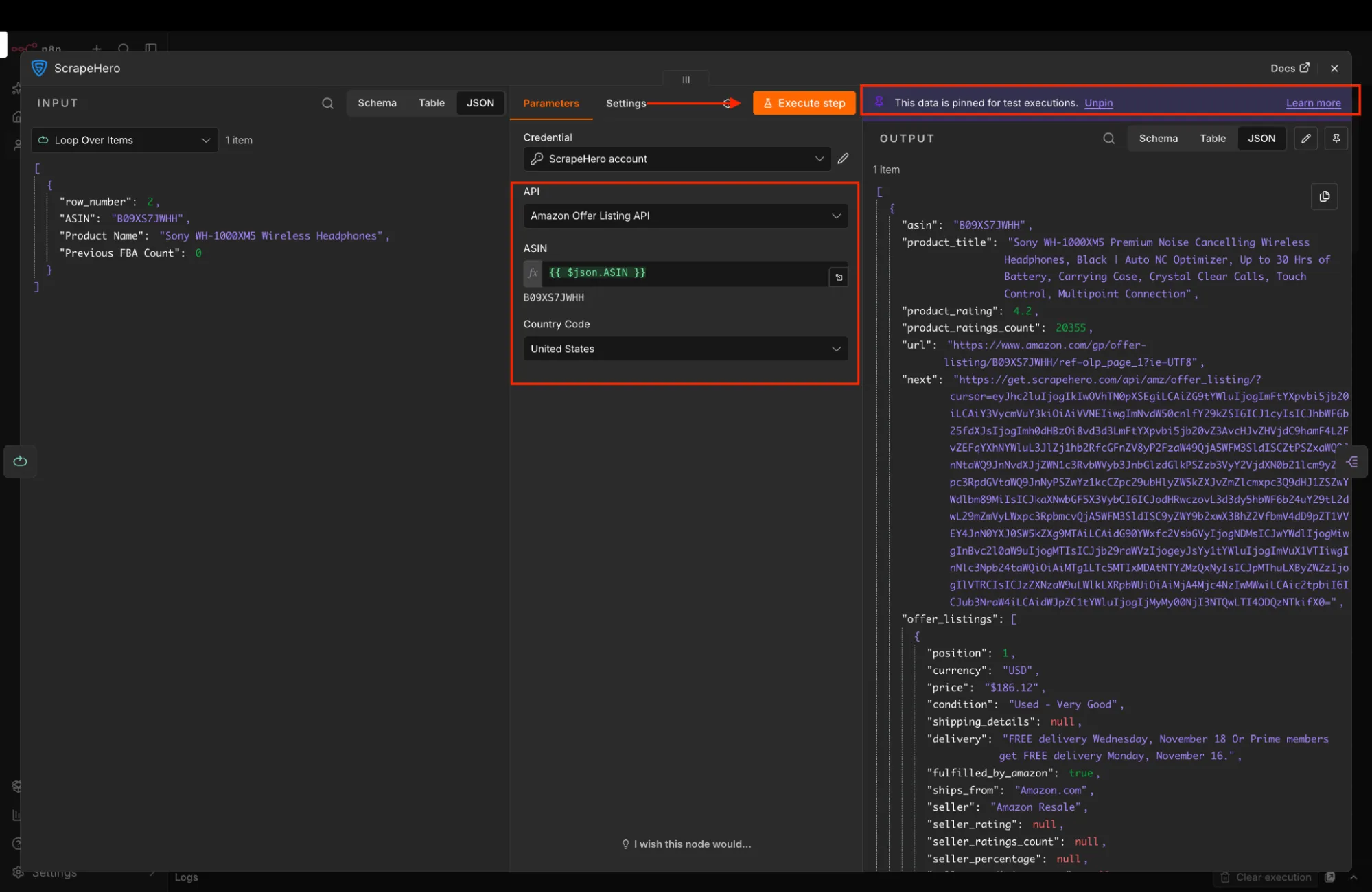
In the node parameters:
- Set API to Amazon Offer Listing.
- In the ASIN field, switch to expression mode and enter:
{{ $json.ASIN }}<code></code>Click Execute Step to test the request for the first ASIN. ScrapeHero returns product details along with an offer_listings array containing all competing seller offers. Pin this output while configuring downstream nodes to prevent redundant API calls during testing.
Filter and Count Active FBA Deals
5. Split Out the Offer Listings
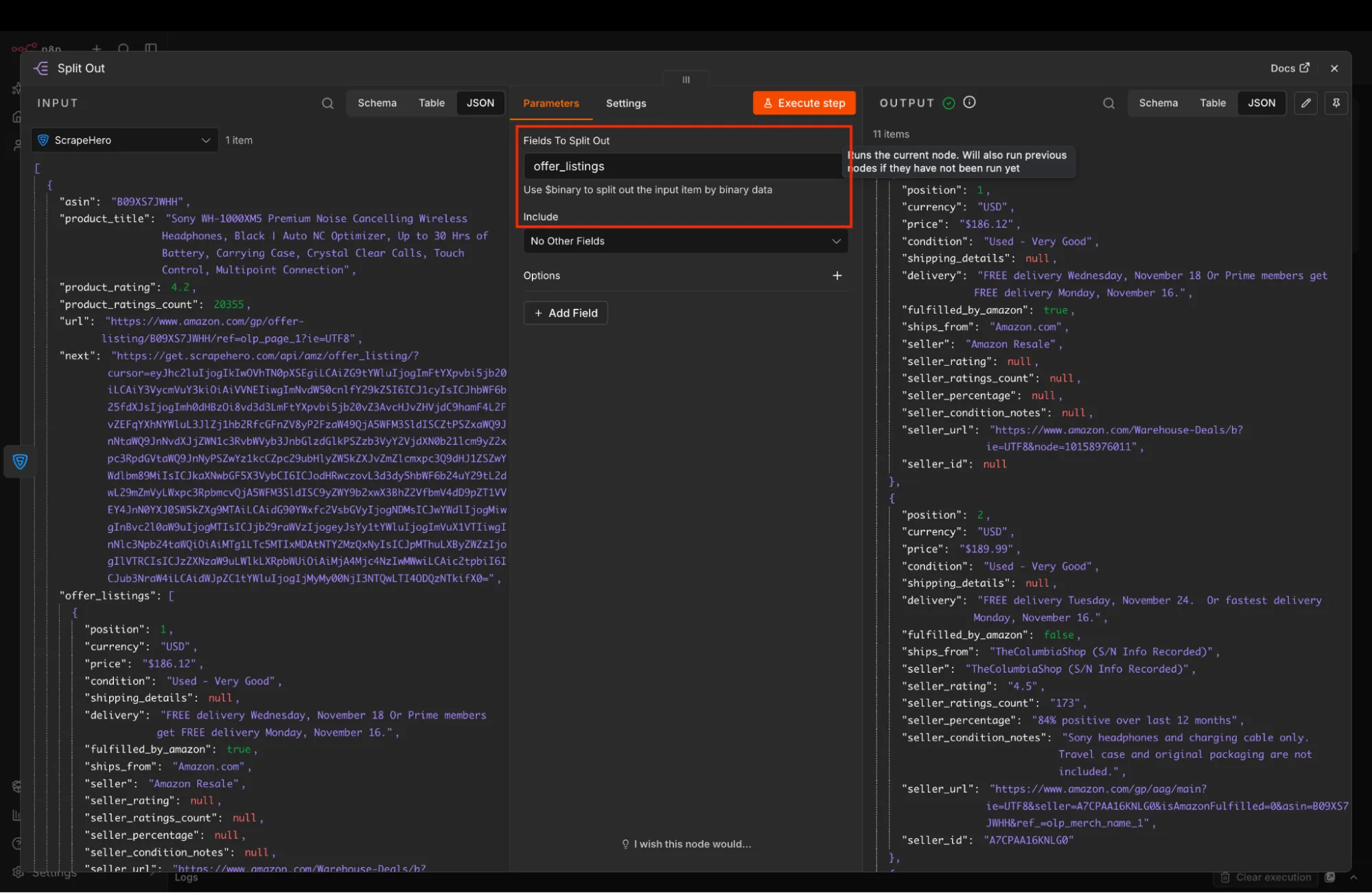
The offer_listings array contains multiple seller objects within a single incoming item. To inspect and count each seller individually, unpack the array into separate items.
Add a Split Out node after the ScrapeHero node.
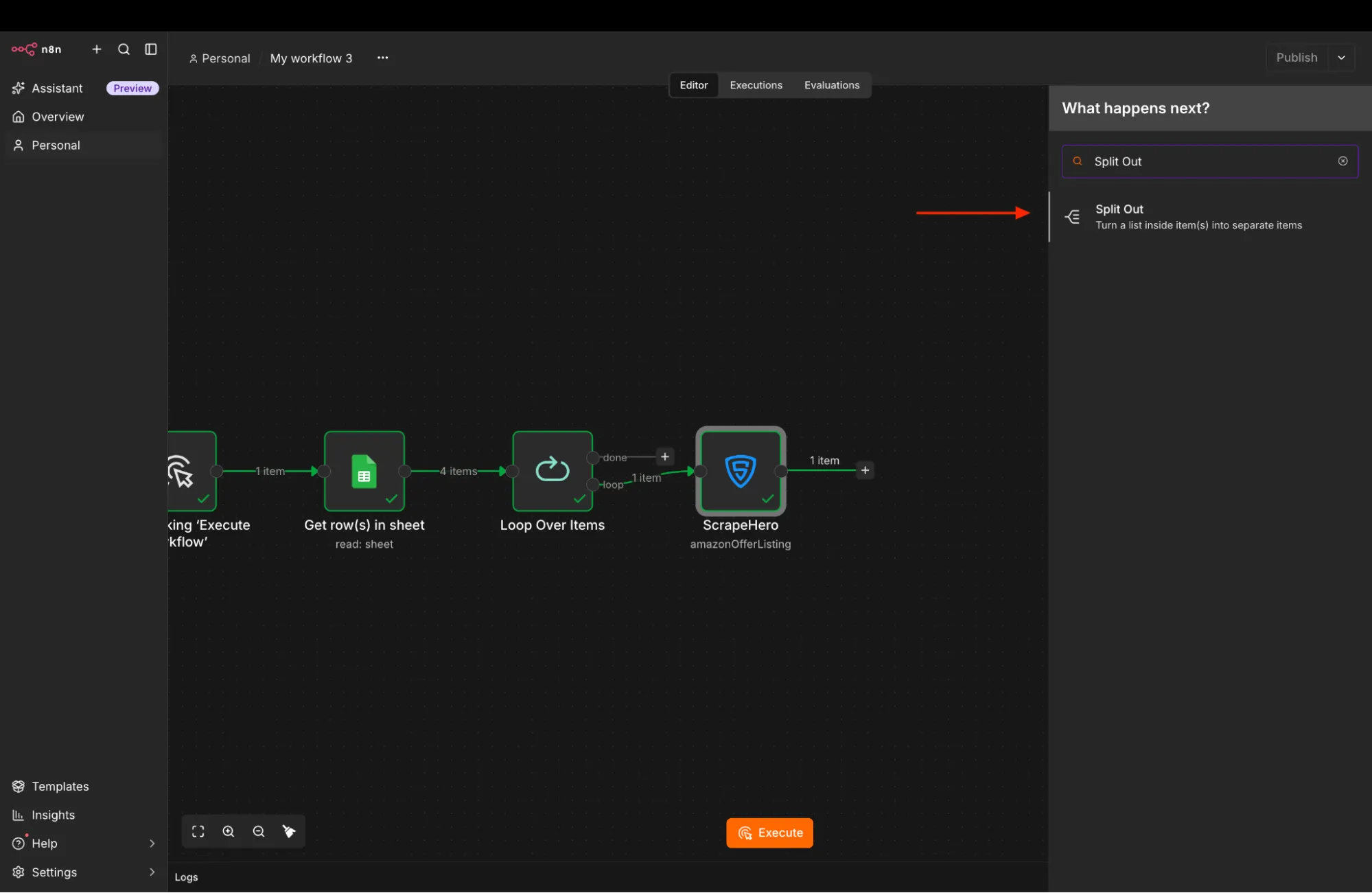
In the Fields To Split Out parameter, enter:
offer_listingsClick Execute Step. Each seller offer is transformed into its own item containing fields such as price, condition, seller, and fulfilled_by_amazon.
6. Filter for Prime-Eligible FBA Offers
To isolate FBA deals from merchant-fulfilled listings, filter the stream by fulfillment type.
Add a Filter node after the Split Out node.
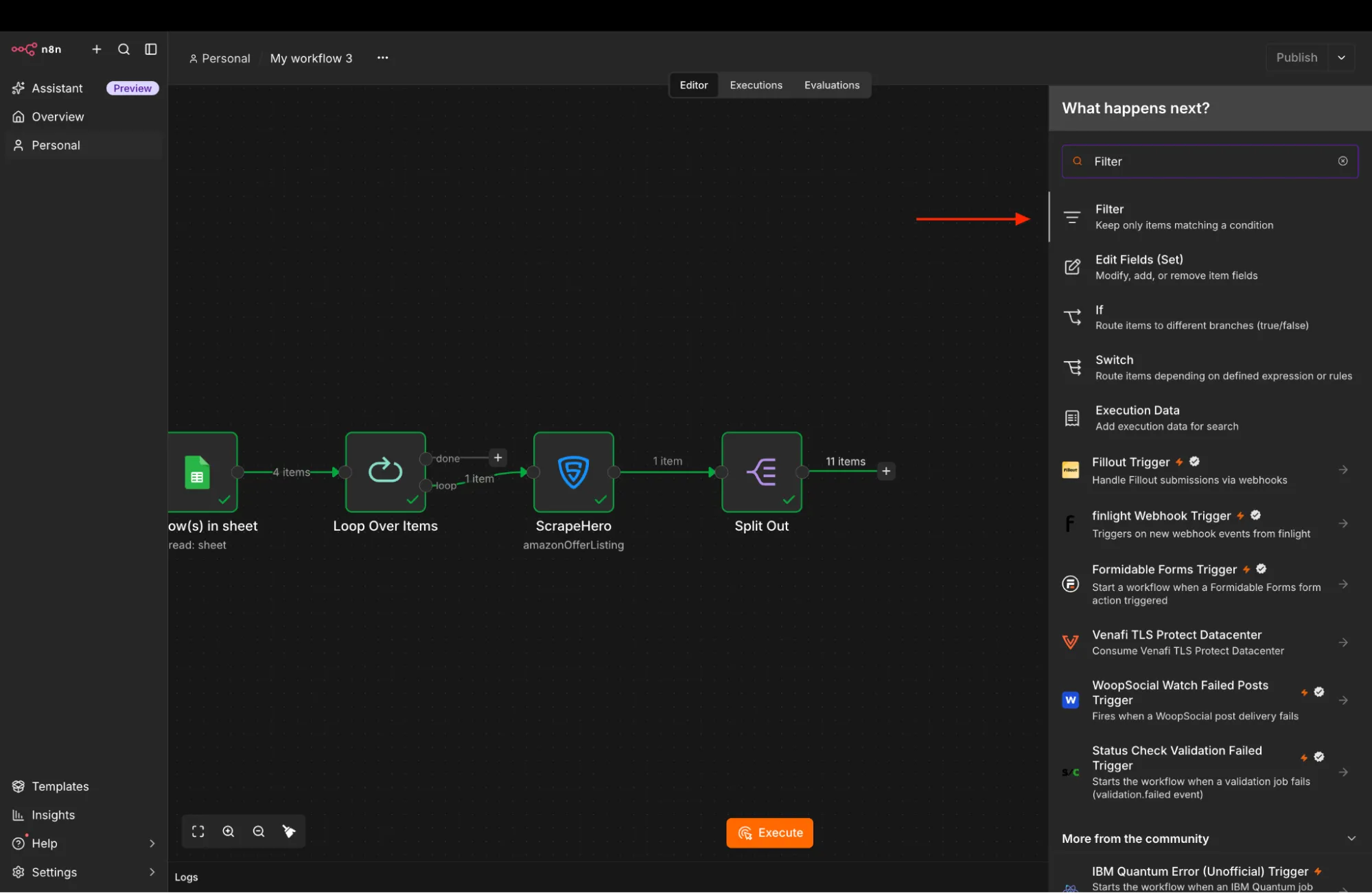
Set the condition as:
- Left Value:
{{ $json.fulfilled_by_amazon }} - Operator: Boolean is true
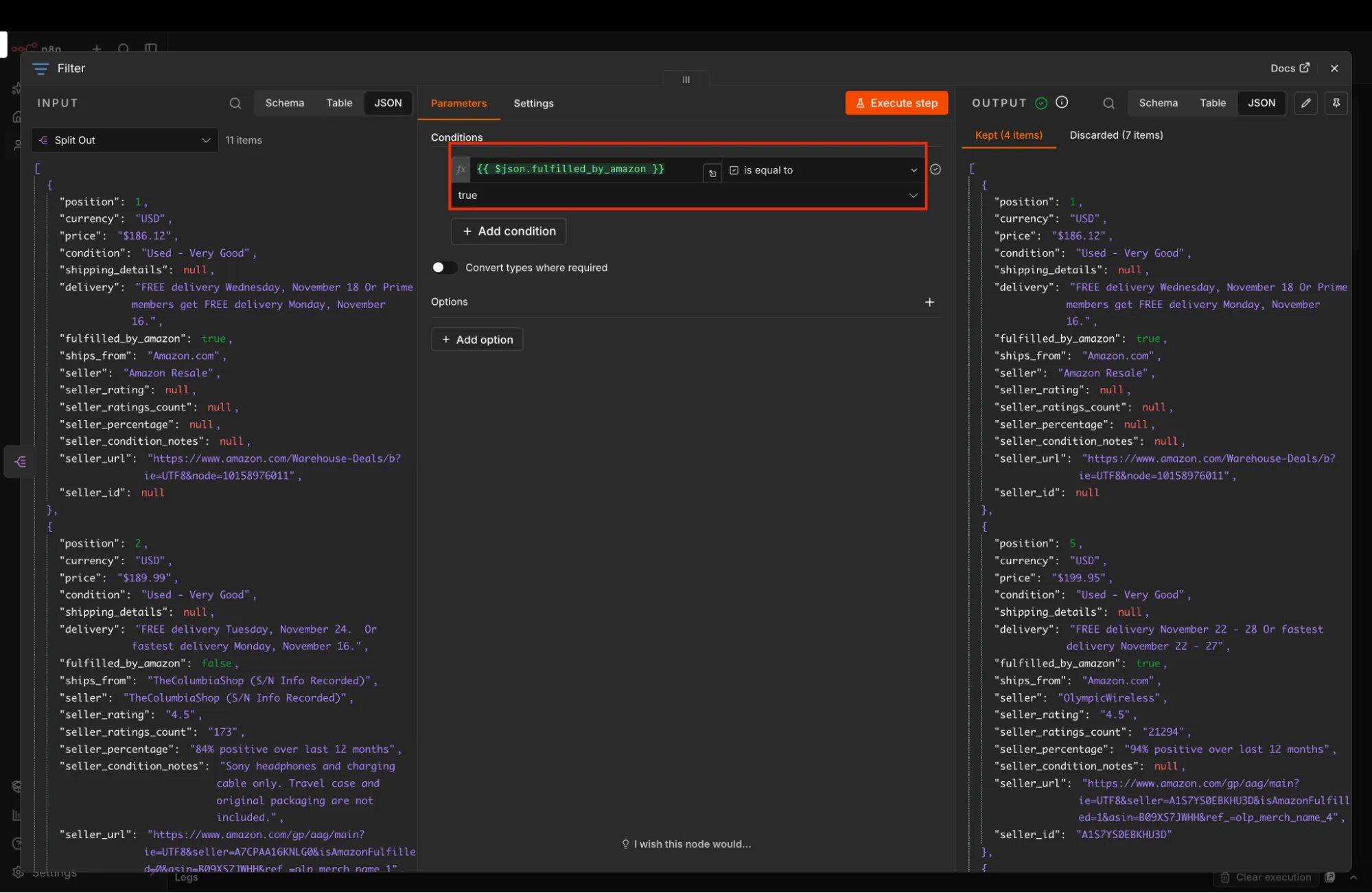
Enable Always Output Data in the node settings so that if a product currently has zero FBA sellers, an empty item is emitted downstream rather than stalling the execution.
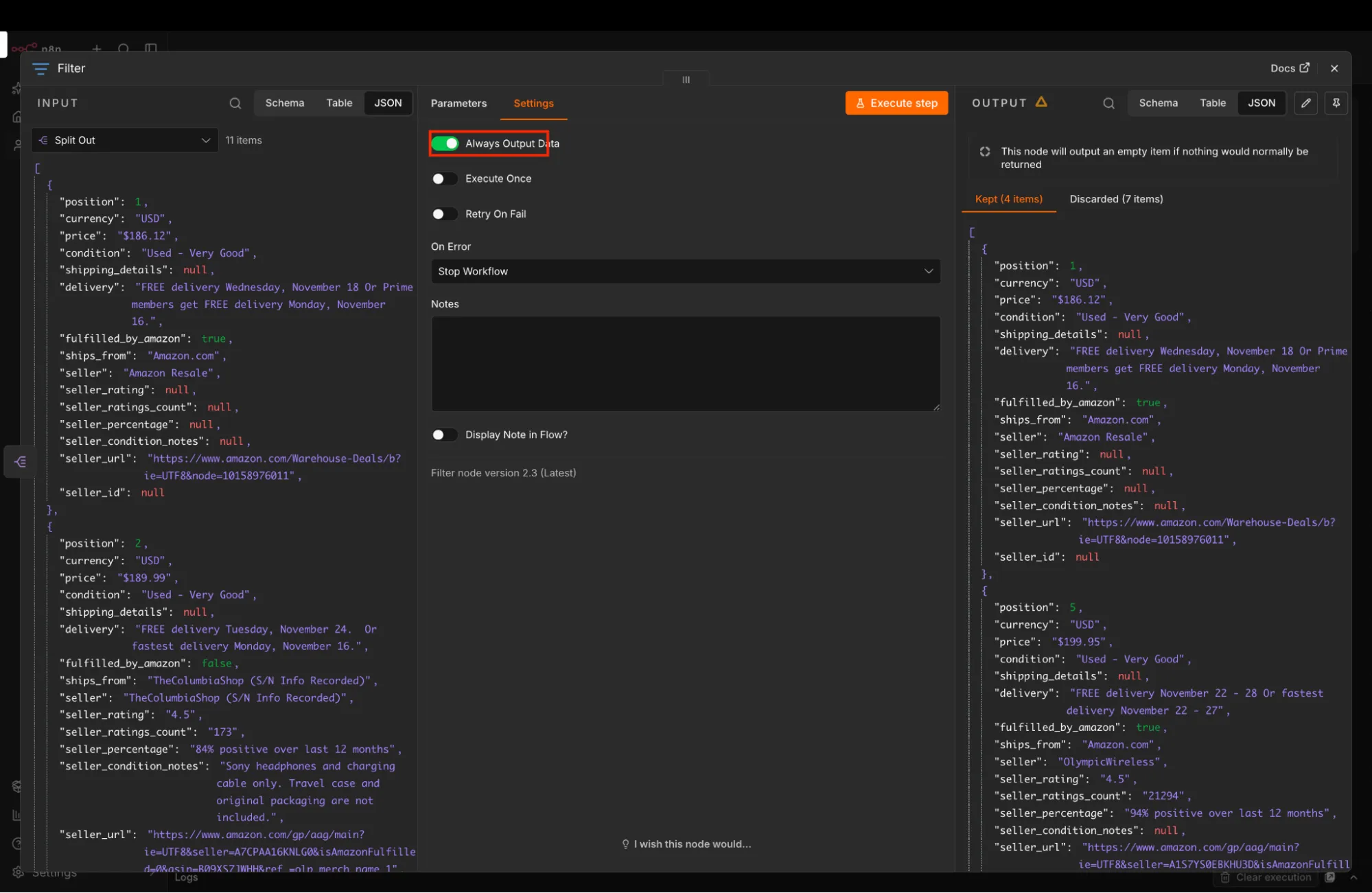
7. Check for Active FBA Offers
When no FBA offers are present, the Filter node produces an empty object {} due to the Always Output Data safeguard. An If node checks whether valid offer data exists before attempting to calculate counts.
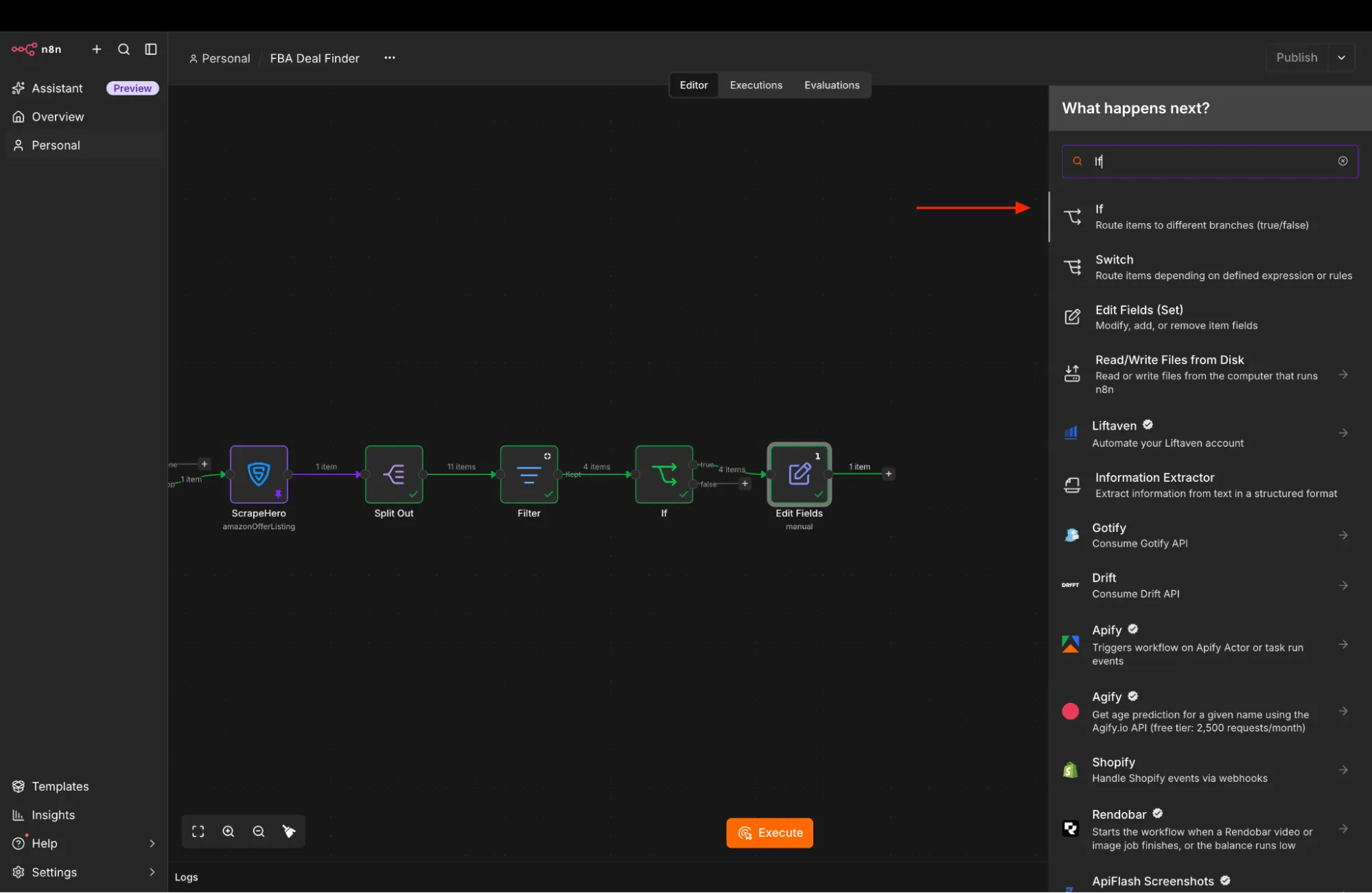
Add an If node after the Filter node.
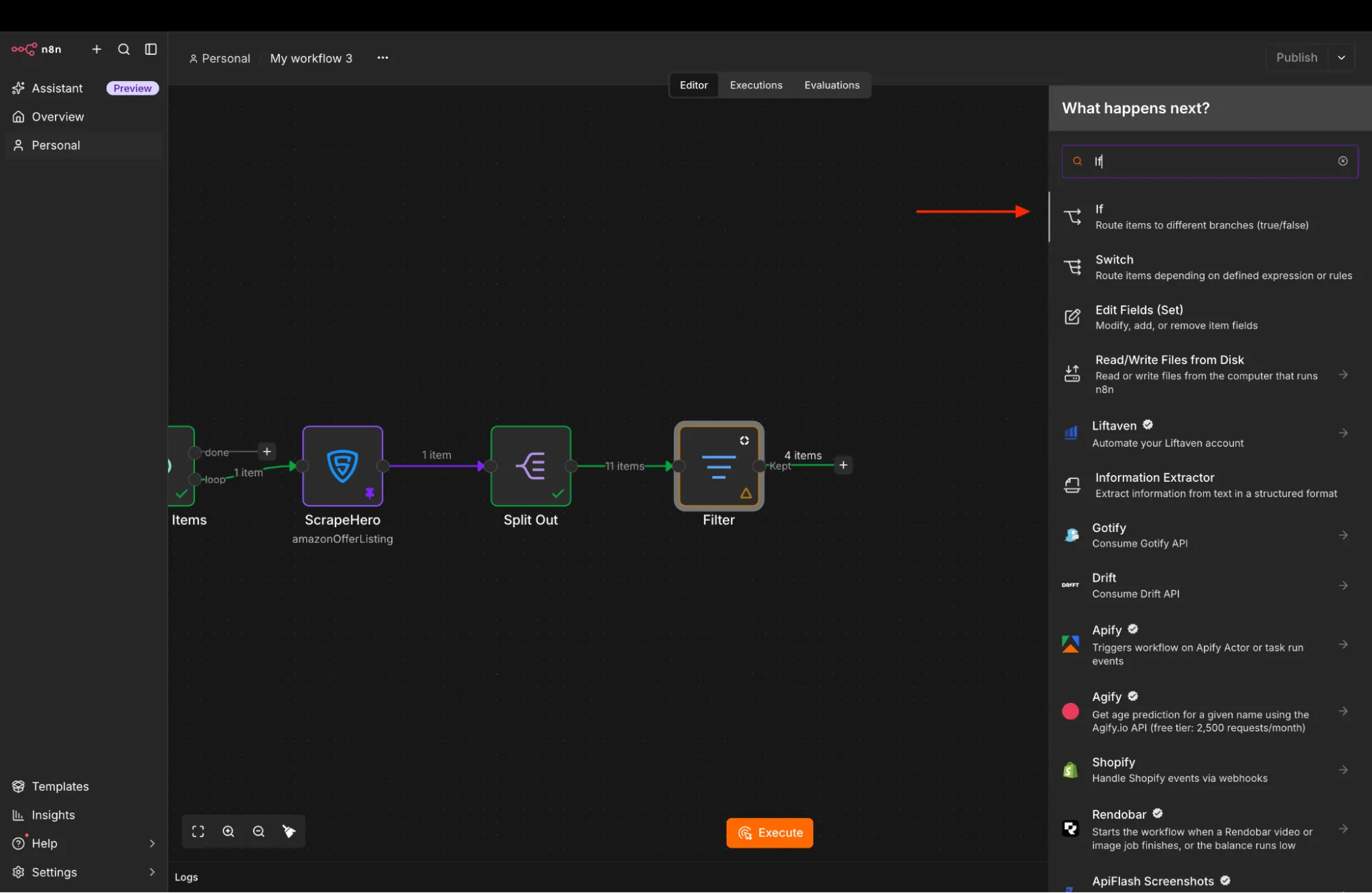
And configure:
- Left Value:
{{ Object.keys($json).length === 0 }} - Operator: Boolean is false
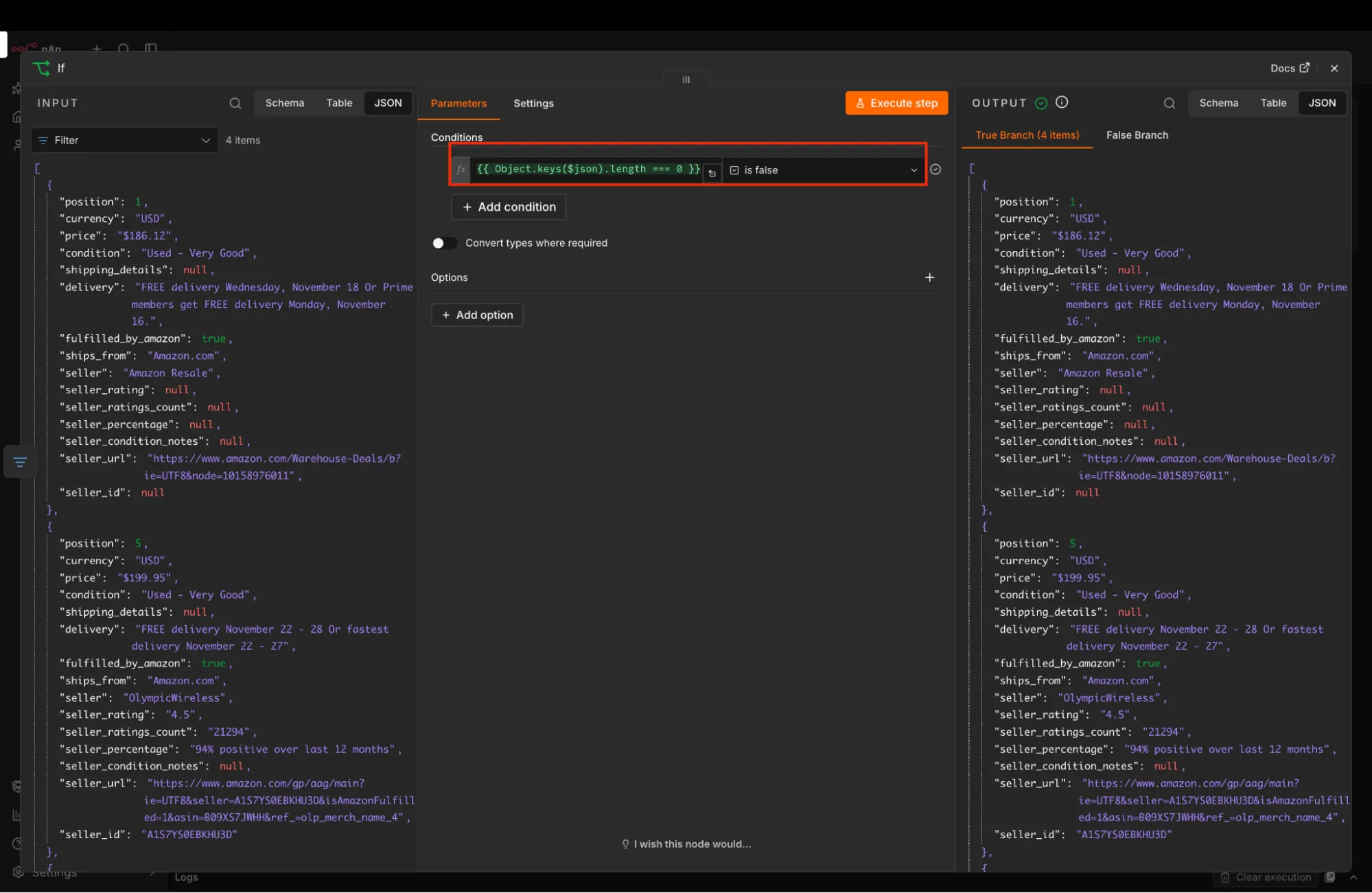
When valid offers exist, this condition evaluates to true and routes to the count calculation step. If no FBA offers are present, it evaluates to false and routes directly back to the loop.
8. Count Active FBA Offers
To monitor competitive intensity, count how many FBA offers survived the filter for the current product.
Add an Edit Fields node to the true output of the If node.
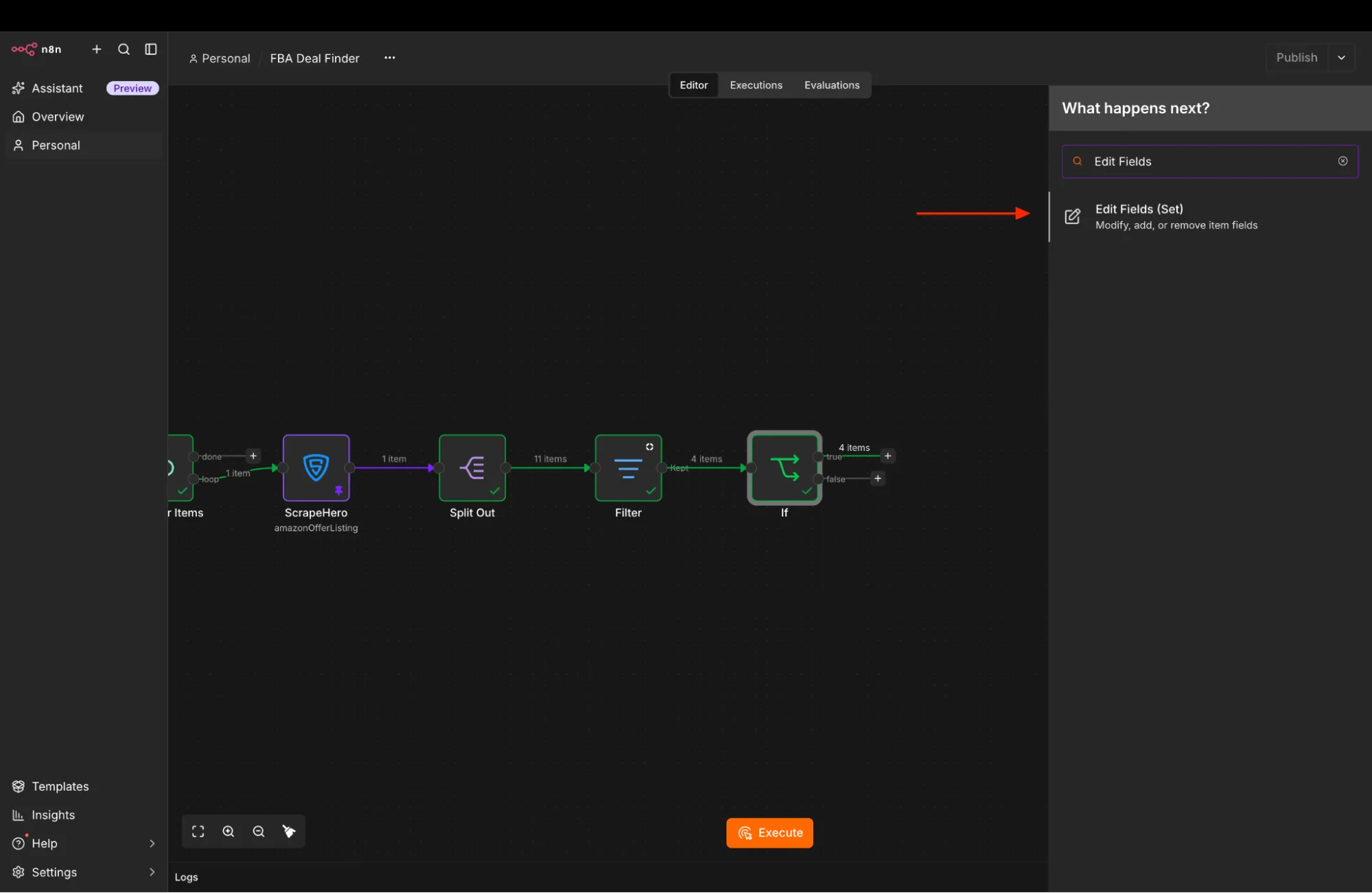
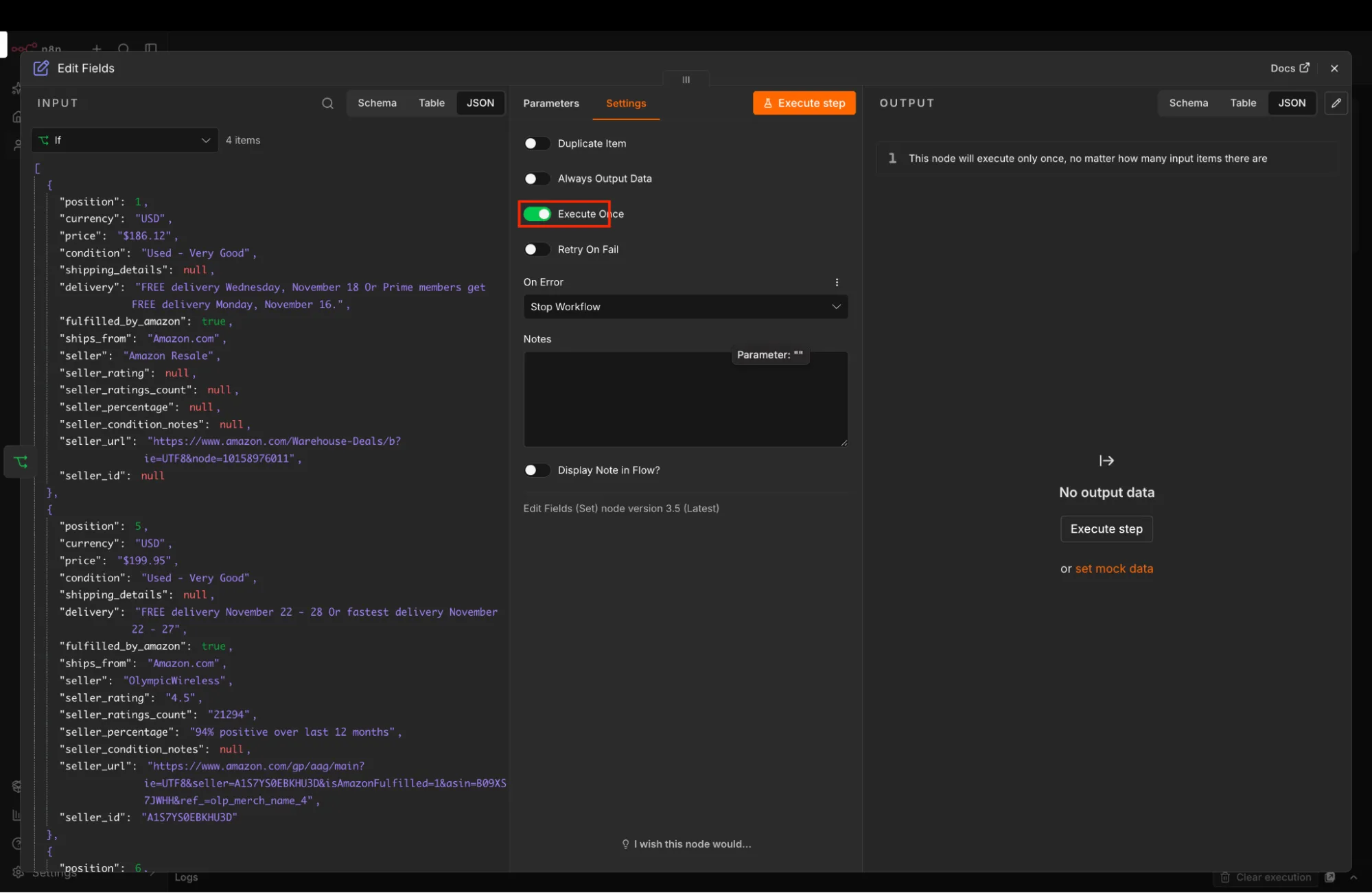
Add a numeric field named Count and assign the expression:
{{ $input.all().length }}This expression evaluates the total number of items entering the node simultaneously, capturing the exact count of active FBA sellers for this product.
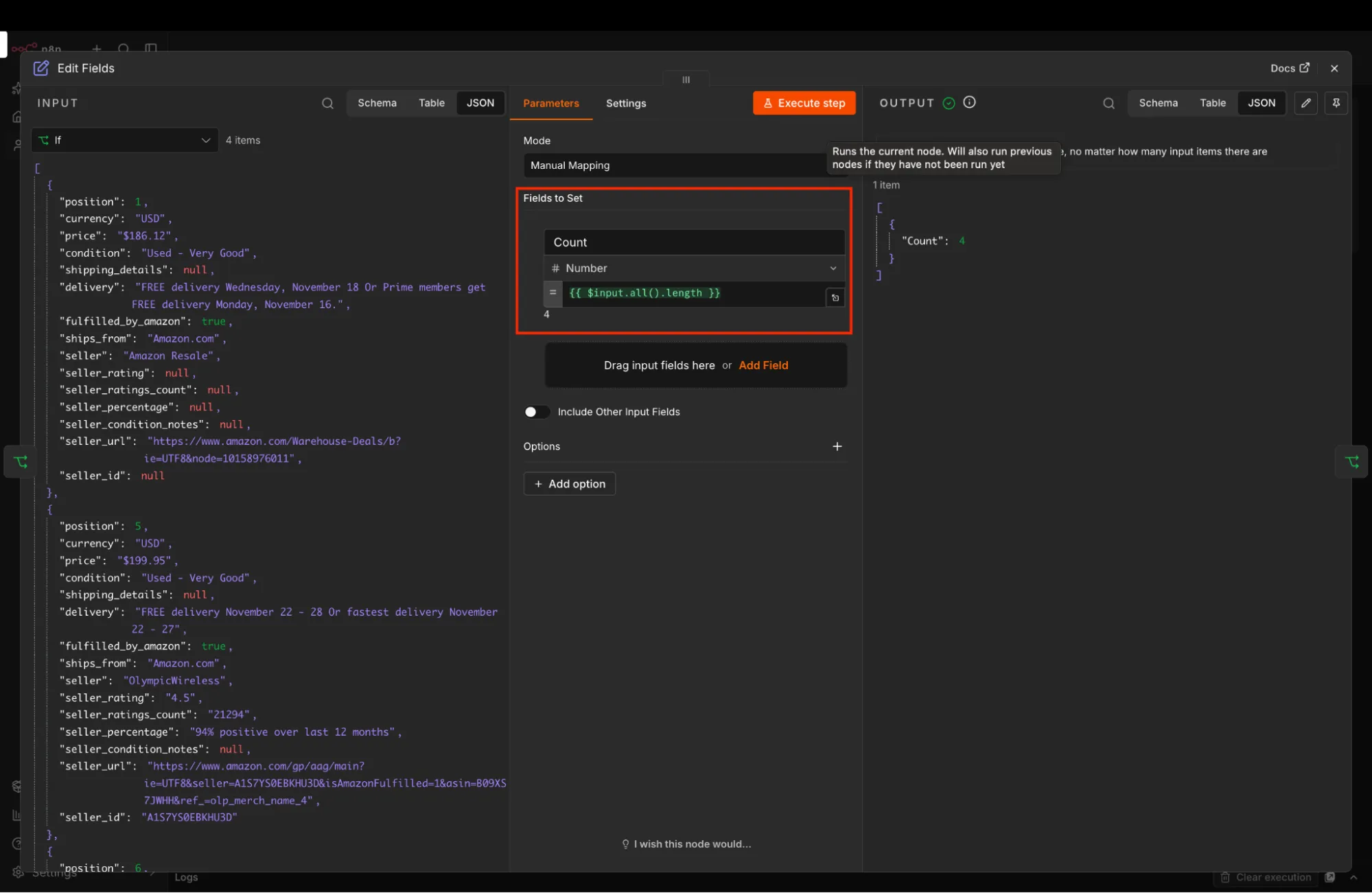
You also need to switch on the Execute Once option in the settings; otherwise, it will output the total count for every input item.
Prevent Duplicate Alerts and Record Changes
9. Compare Against Previous Counts
Receiving notifications when nothing has changed creates alert fatigue. An If node evaluates whether the newly computed count differs from the baseline stored in your sheet.
Add a second If node after the Edit Fields node.
Set the condition to:
- Left Value:
{{ $('Loop Over Items').item.json["Previous FBA Count"].toNumber() }} - Operator: Number not equals
- Right Value:
{{ $json.Count }}
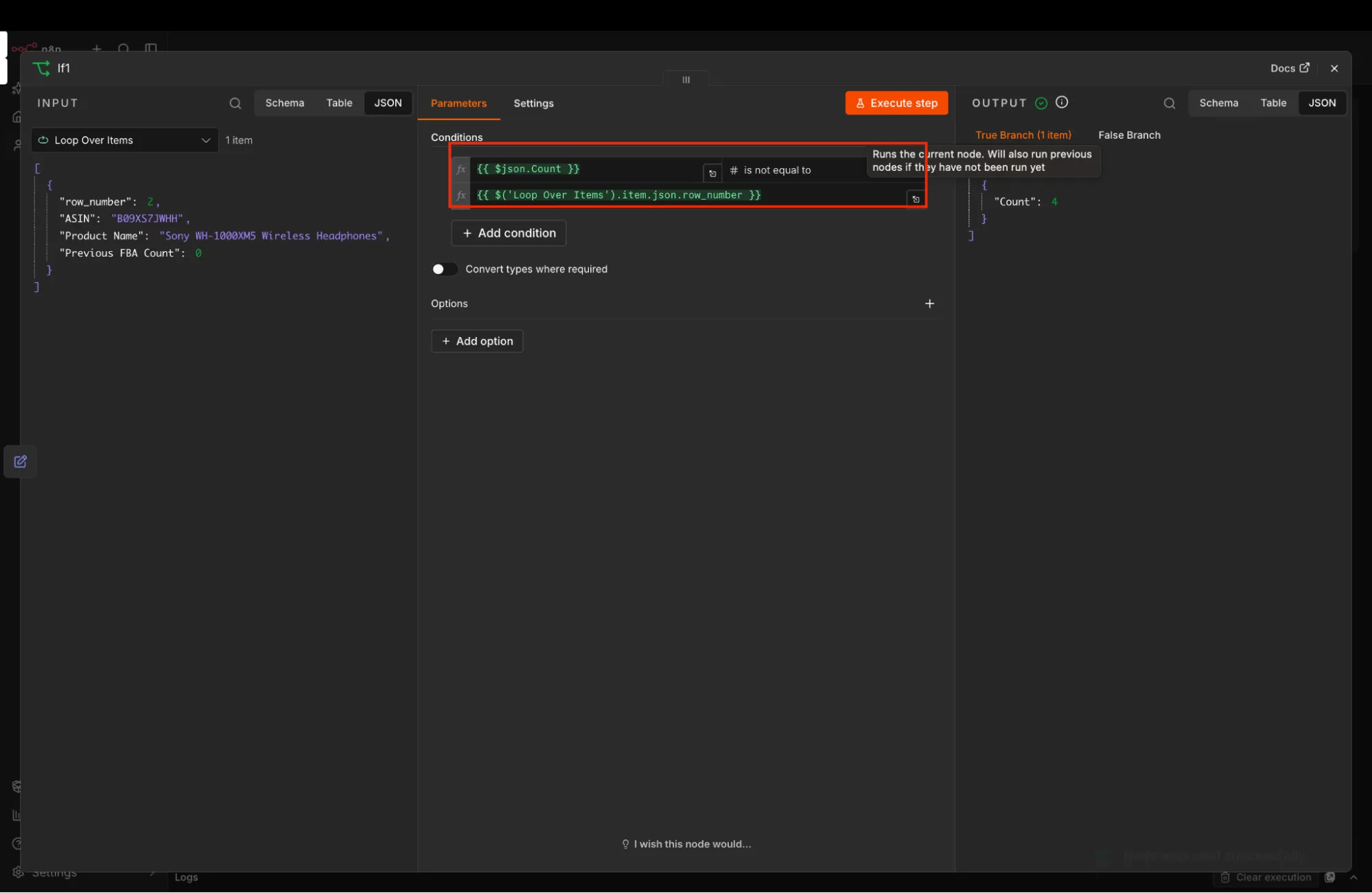
If the previous count equals the current count, the item routes to false and returns to the loop without spamming alerts. If the count has changed, the item routes to true for recording and notification.
10. Append Updated Counts to Google Sheets
When competition shifts, log the updated metric into Google Sheets for historical tracking.
Add a Google Sheets node to the true output of the second If node. Select the Update Row in Sheet.
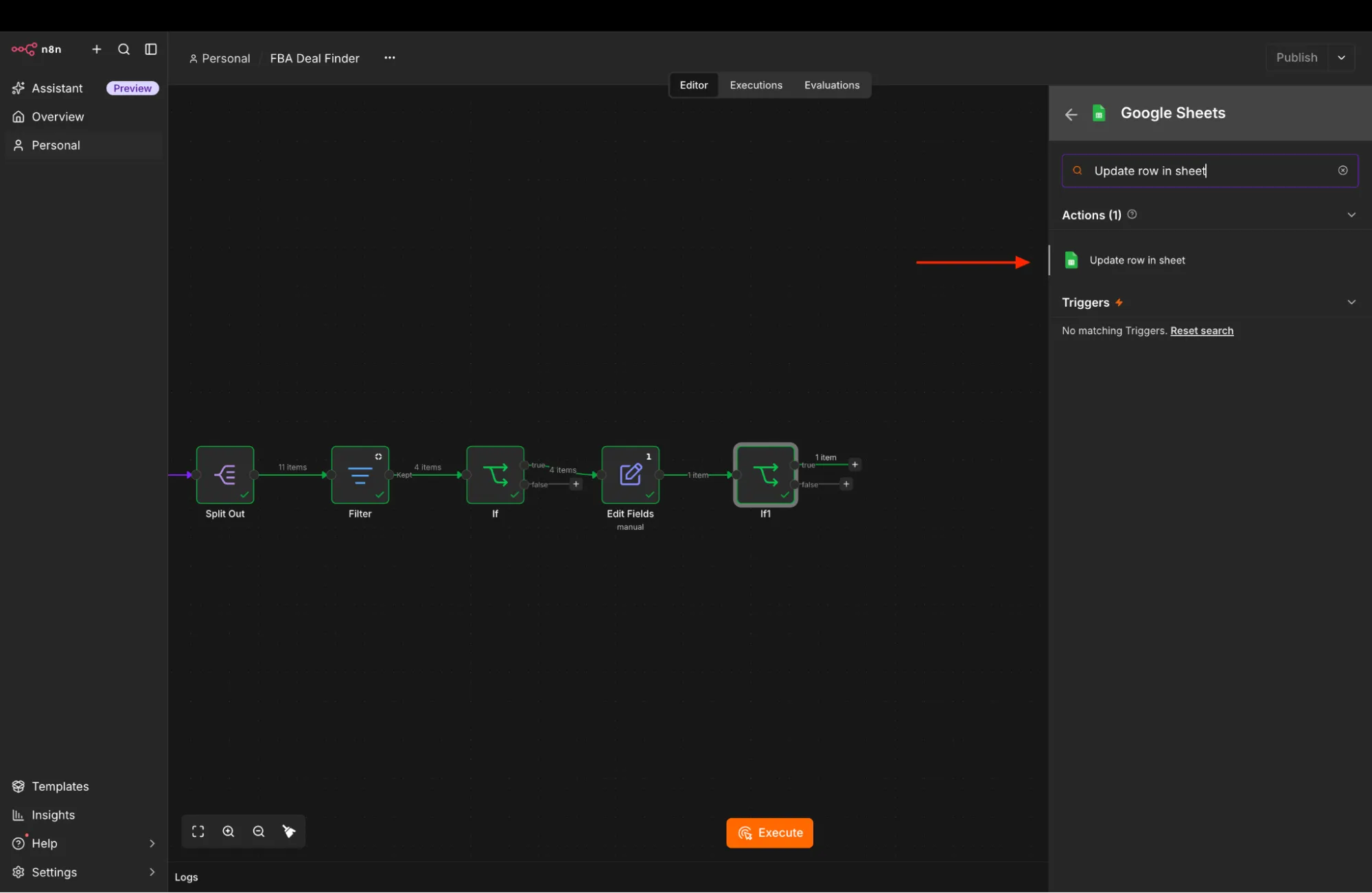
Inside the node, select FBA Deal Finder and Sheet1.
Under Columns, map the fields:
| Column | Expression |
|---|---|
| ASIN | {{ $(‘Loop Over Items’).item.json.ASIN }} |
| Product Name | {{ $(‘Loop Over Items’).item.json[“Product Name”] }} |
| Previous FBA Count | {{ $json.Count }} |
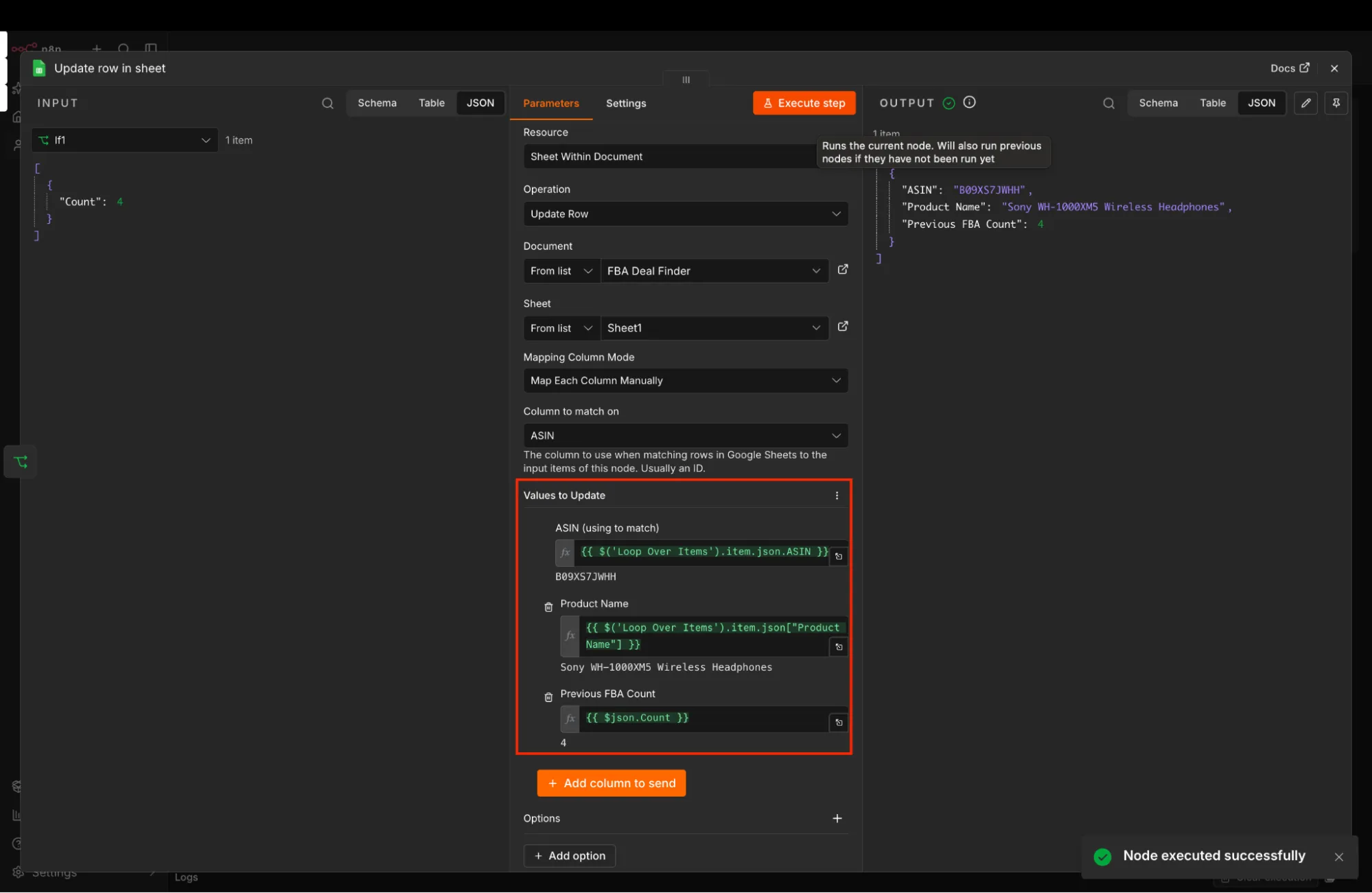
This logs the product’s new count, ensuring future runs compare against the updated baseline.
11. Send Deal Alerts via Google Chat
Simultaneously dispatch an immediate notification to your operations team.
Add a Google Chat node to the true output of the second If node. Set Action to Create a Message.
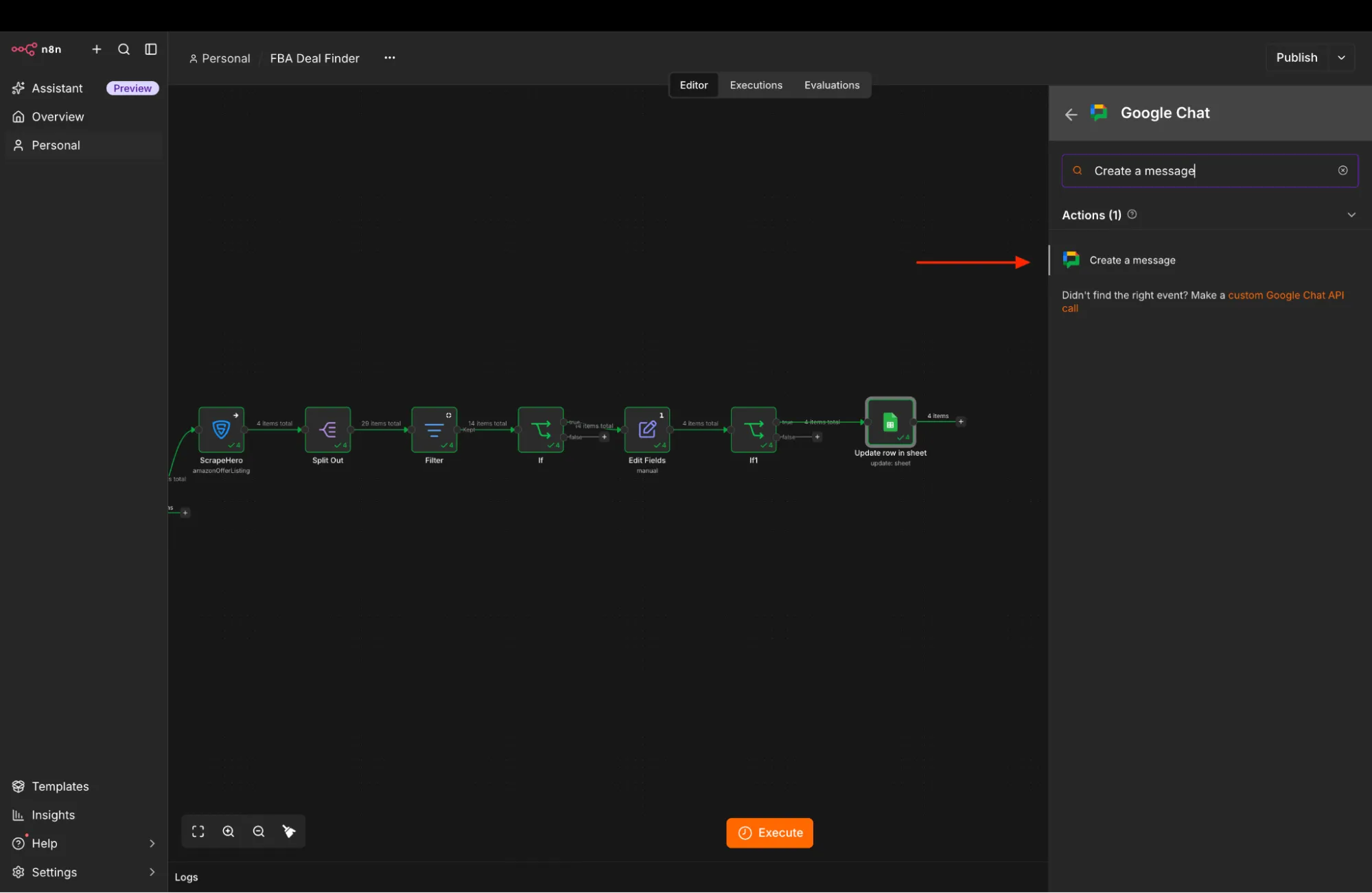
Select your alert space, and configure the message text:
FBA Count for {{ $('Loop Over Items').item.json["Product Name"] }} has changed to {{ $json.Count }} from {{ $('Loop Over Items').item.json["Previous FBA Count"] }}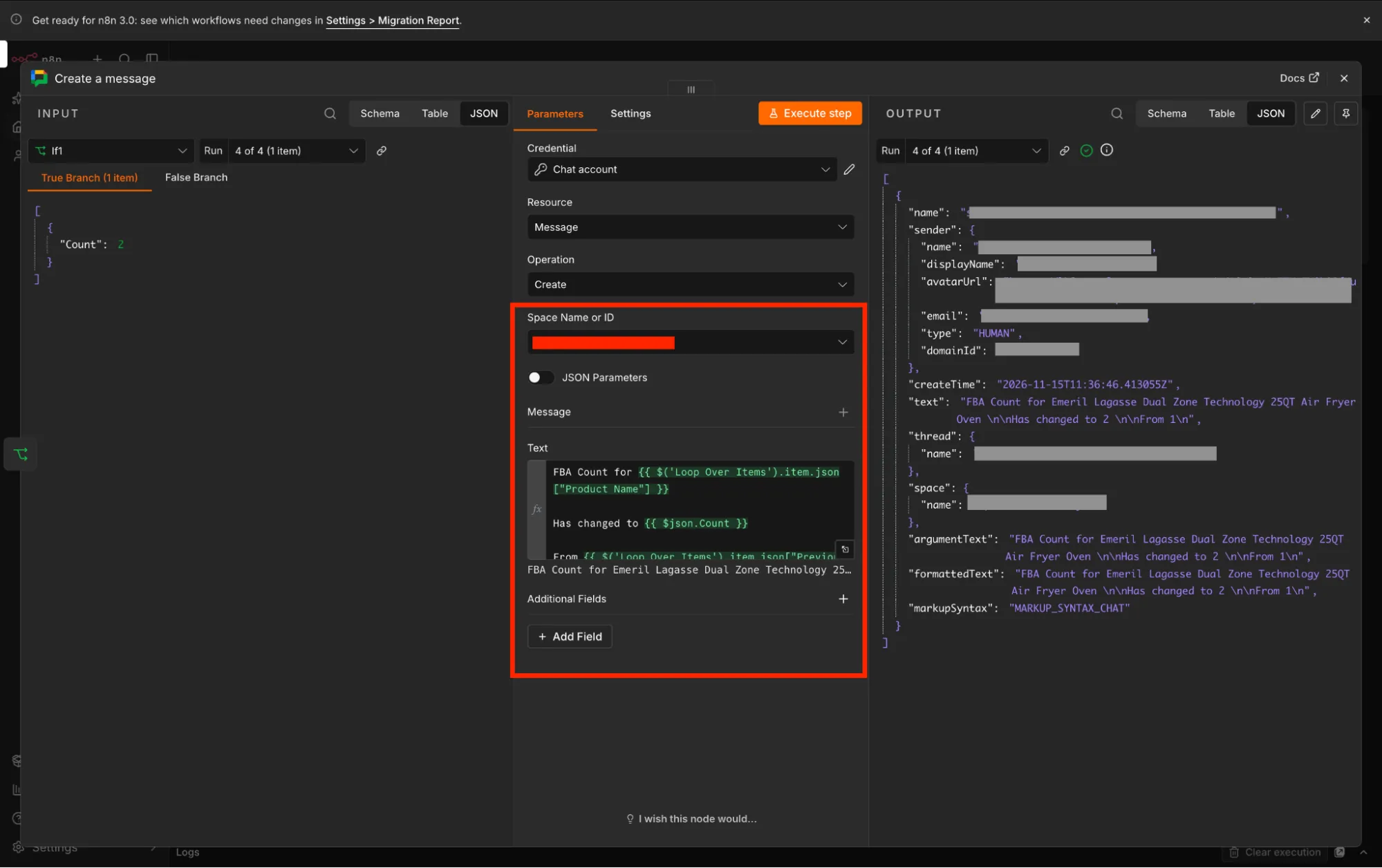
Team members receive real-time visibility into seller count spikes or inventory drops.
Test and Complete the Loop
Connect the Loop
Complete the loop wiring so the execution advances to subsequent ASINs:
- Connect the output of Append row in sheet back to the input of Loop Over Items.
- Connect the false output of If back to Loop Over Items.
- Connect the false output of the second If node back to Loop Over Items.
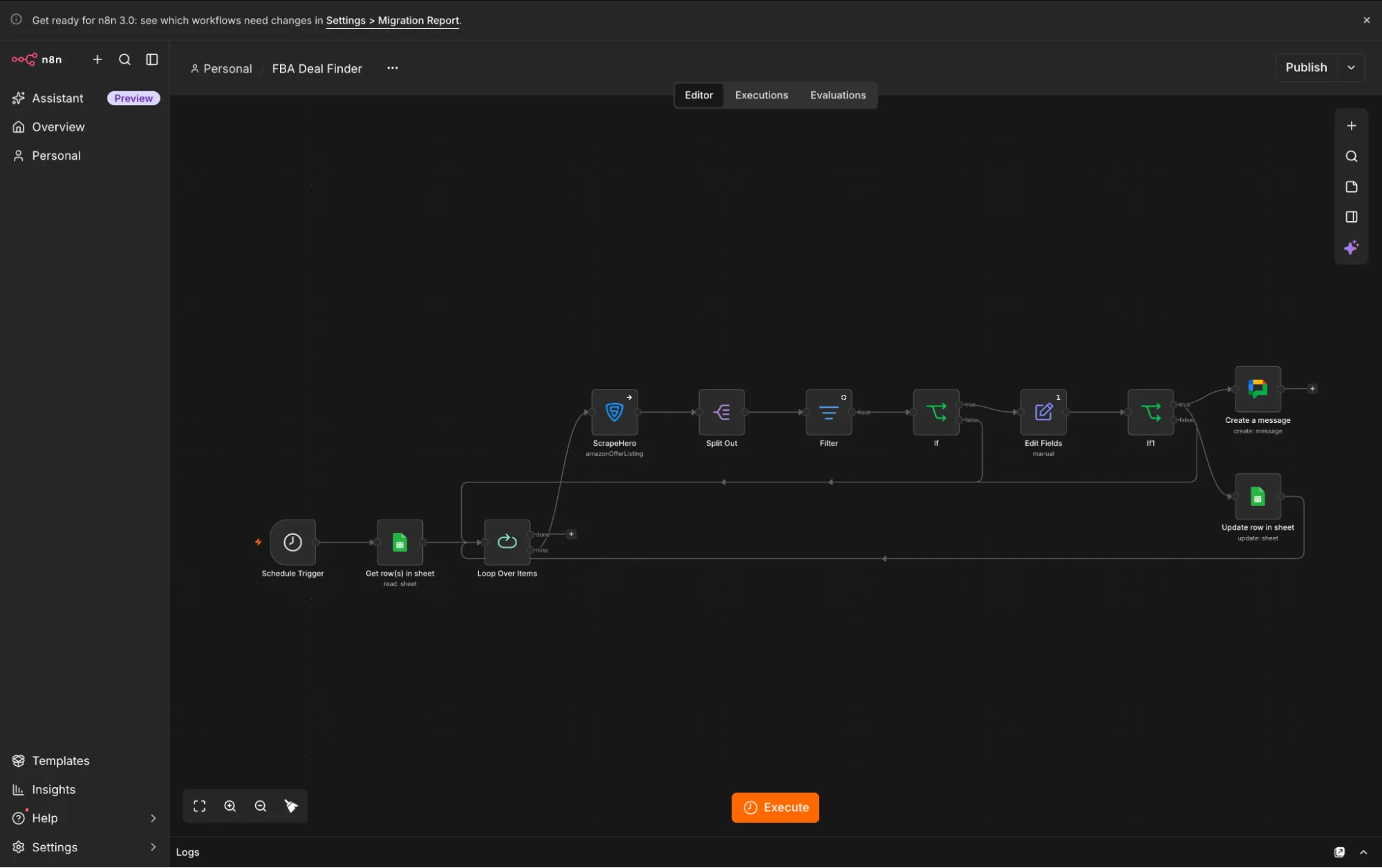
Test the Workflow
- Unpin any pinned data in the ScrapeHero node.
- Click Execute Workflow at the bottom of the canvas.
- Verify that each ASIN is fetched sequentially.
- Confirm that products with changed FBA counts trigger a Google Chat notification and append a row to Google Sheets.
- Confirm that products with unchanged counts complete quietly without sending notifications.
Once verified, click Publish to run the workflow automatically on schedule.
What This Unlocks for Your Business
Implementing automated FBA deals monitoring provides decisive market advantages:
- Track competitor inventory depletion. Spot when competing FBA sellers run out of stock, allowing you to capture the Buy Box or increase retail margins.
- Eliminate notification fatigue. Suppress redundant messages by comparing live counts against historical records, ensuring your team acts only on real market shifts.
- Protect brand integrity. Identify unauthorized resellers and liquidators who check unauthorized FBA inventory into Amazon fulfillment centers.
- Source profitable arbitrage deals. Monitor sudden spikes in seller counts to detect clearance dumps and discounted inventory across product categories.
- Maintain historical competition records. Maintain an auditable log of seller fluctuations in Google Sheets to analyze seasonal stock cycles.
For teams looking for pre-built extractors without maintaining workflow infrastructure, browse ready-to-use options in the ScrapeHero Marketplace and review our guide to the best price monitoring tools.
Next Steps
Extend your FBA deals monitoring workflow with these practical enhancements:
- Multi-channel alerting: Add Slack, Telegram, or Discord nodes alongside Google Chat to notify distributed sales and procurement channels.
- Lowest price threshold logic: Integrate price-checking expressions within the Edit Fields node to alert only when the lowest FBA price falls below a target profit threshold.
- Automated repricing triggers: Connect webhook outputs to your Amazon repricing engine to automatically adjust list prices when competitor FBA counts change.
- Multi-region ASIN tracking: Add marketplace region identifiers (such as US, UK, DE) to your input sheet to track international FBA competition across borders.
Wrapping Up
Automating Amazon FBA deals monitoring with n8n and ScrapeHero transforms manual catalog spot-checks into a reliable, continuous intelligence pipeline. By combining scheduled triggers, API extraction, condition filtering, and state comparison, your operations team stays informed of critical marketplace movements in real time.
The ScrapeHero node handles the complex scraping, proxy management, and anti-bot resolution, returning pristine JSON data directly into your automation canvas.
Sign up for a ScrapeHero API key to build your automated monitoring workflows. If your catalog requires specialized attributes, custom formats, or non-standard frequencies, tell us your requirements and we will build a custom API tailored to your business.
For enterprise brands and retailers monitoring tens of thousands of ASINs across global marketplaces, our fully managed Amazon scraping services deliver verified, high-volume data straight to your data warehouse or cloud storage. Contact ScrapeHero today to scale your e-commerce data pipeline.
Frequently Asked Questions
Use ScrapeHero’s Amazon Offer Listing API to pull all active seller offers for a product. Filter the results by setting fulfilled_by_amazon to true, sort the remaining offers by price ascending, and select the first item to obtain the cheapest FBA offer.
Store the previous count or price in your database or Google Sheet. In n8n, use an If node to compare the newly extracted value against the stored baseline. Configure the workflow to dispatch notifications only when the values are not equal, routing unchanged items back into the loop.
Amazon deploys anti-scraping measures against basic HTTP scrapers. Using the ScrapeHero community node in n8n routes requests through ScrapeHero’s proxy rotation and browser emulation infrastructure, returning structured JSON without IP blocks or CAPTCHA disruptions.
Install the ScrapeHero community node (n8n-nodes-scrapehero.scrapeHero) from the n8n community node registry. Add your ScrapeHero API key under credentials, select Amazon Offer Listing from the API dropdown, and map the ASIN parameter using an expression such as ={{ $json.ASIN }}.