Tracking Amazon keyword rankings manually takes too much time. Build an n8n Amazon keyword rank tracker to automate the process and see where products rank for the keywords you care about without checking search pages yourself.
This tutorial shows how to build an n8n workflow that:
- Reads target keywords from Google Sheets
- Fetches Amazon search results for each keyword through ScrapeHero’s Amazon Search API
- Maps the data, including each product’s
rank, into sheet columns - Compares the new results with the existing records, then updates existing rows, adds new products, and deletes outdated listings
What You’ll Learn
- How to build an Amazon keyword rank tracker in n8n using ScrapeHero’s Amazon Search API
- How to read keywords from Google Sheets and process them one at a time with the Loop Over Items node
- How to extract the
rankfield by splitting thesearch_resultsarray into individual products - How to compare new results with existing rows using the Merge node, and update the sheet with Append or Update Row
- How to delete outdated rows from the bottom up to avoid row-shifting bugs in Google Sheets
Before You Begin
Before creating the n8n Amazon keyword rank tracker, prepare the following:
- An n8n account or self-hosted n8n installation.
- A Google Cloud OAuth client ID and client secret.
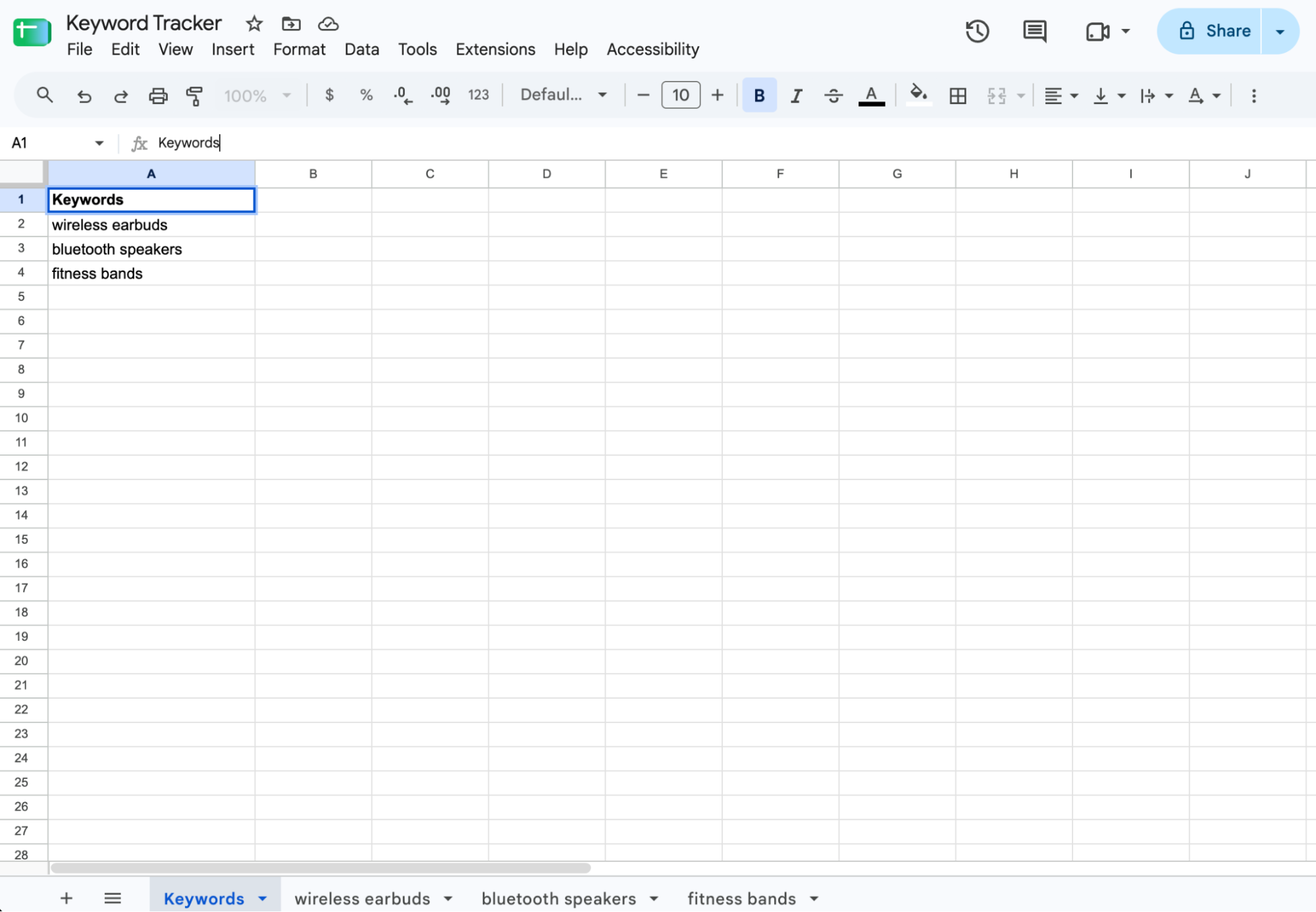
- A Google Sheets document with a sheet containing keywords. And a sheet for each of those keywords.
- A ScrapeHero account and API key.
The sheet containing keywords needs one column with one search term per row:
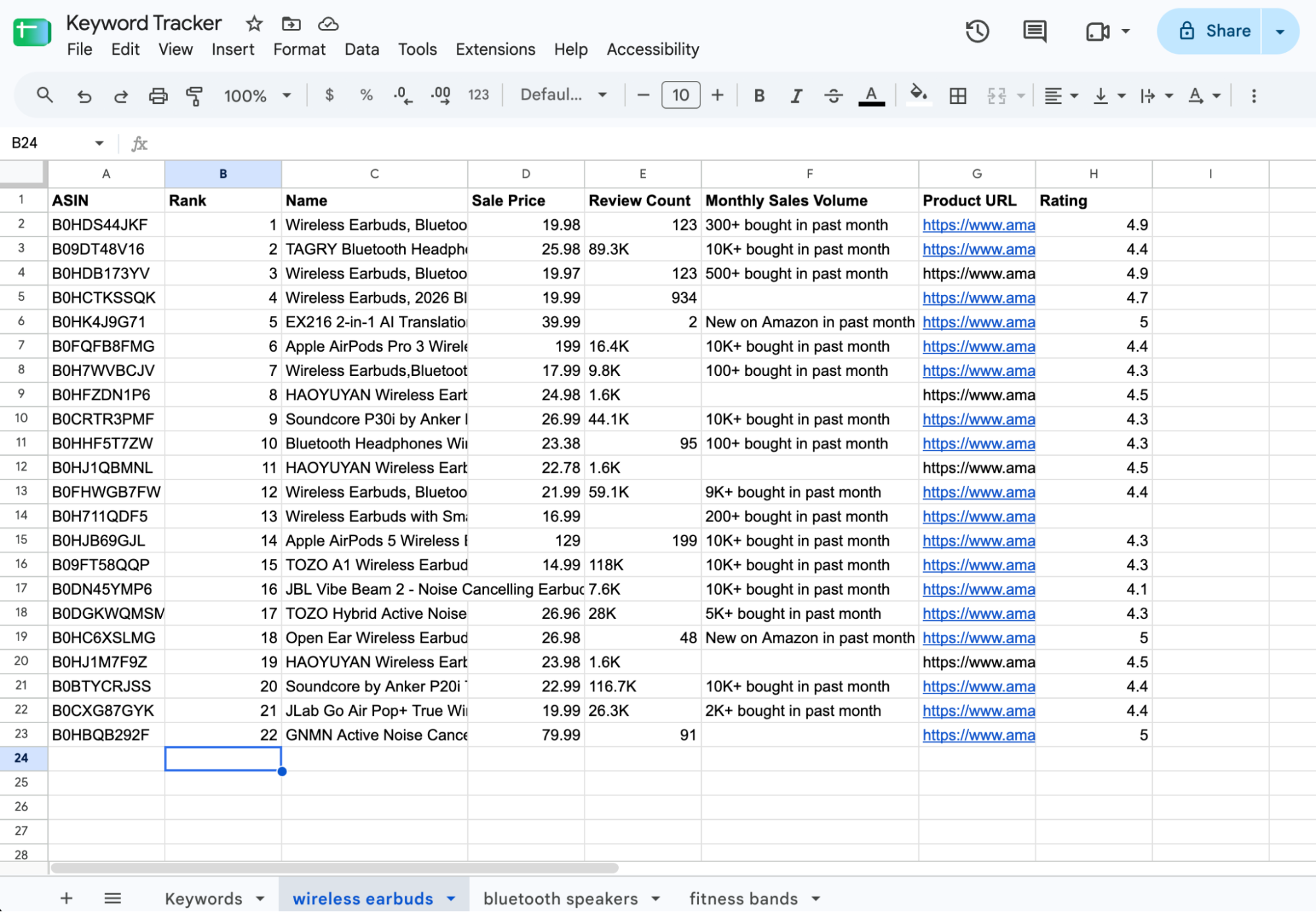
Each sheet corresponding to the keywords should contain eight columns.
- ASIN
- Rank
- Name
- Sale Price
- Review Count
- Monthly Sales Volume
- Product URL
- Rating
Create the Workflow
1. Get the Keywords
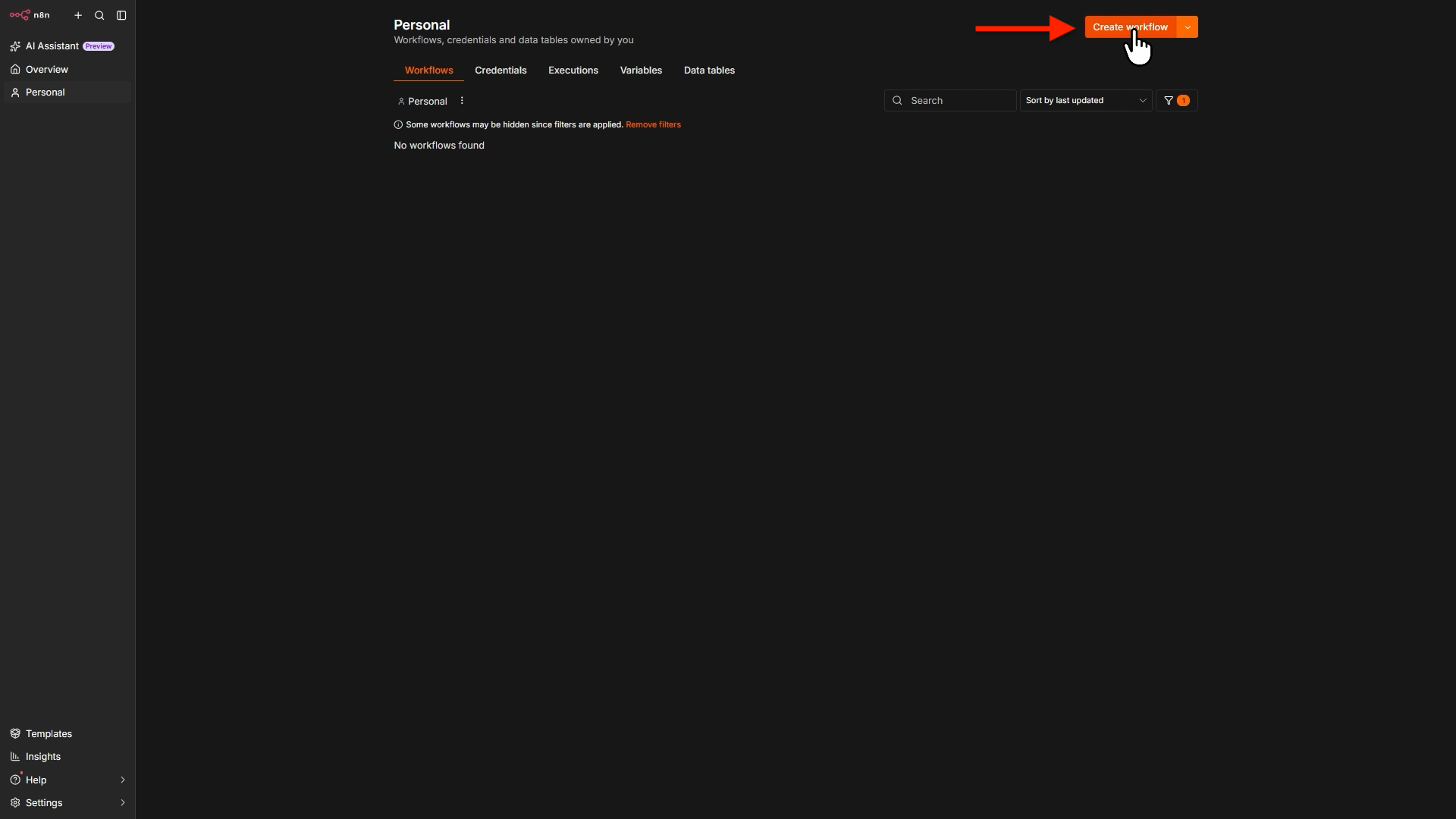
On your n8n dashboard, click “Create Workflow” to open a new canvas with a big plus sign in the center.
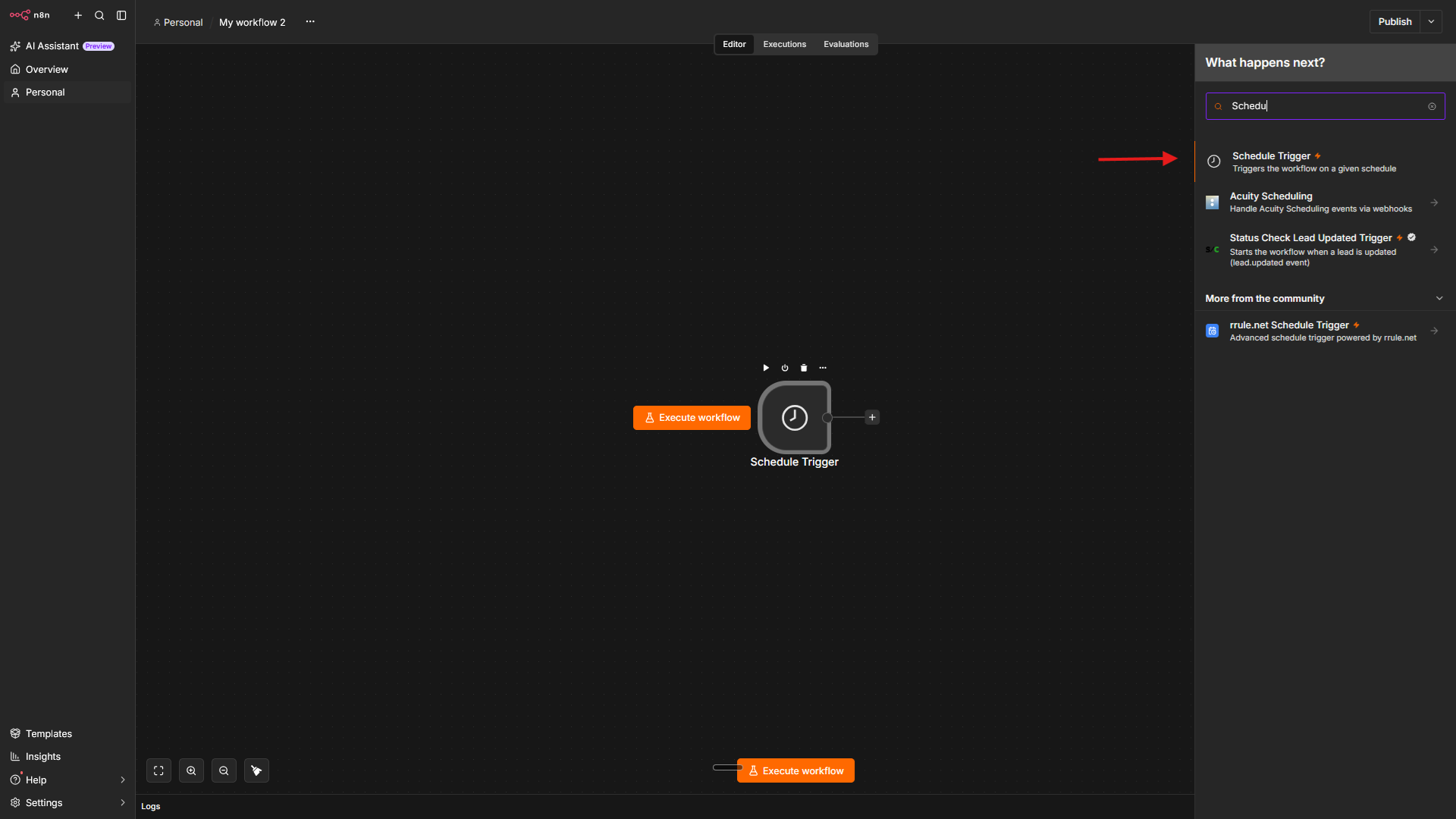
Click the plus icon in the center of the canvas. Search for “Schedule trigger” and select it.
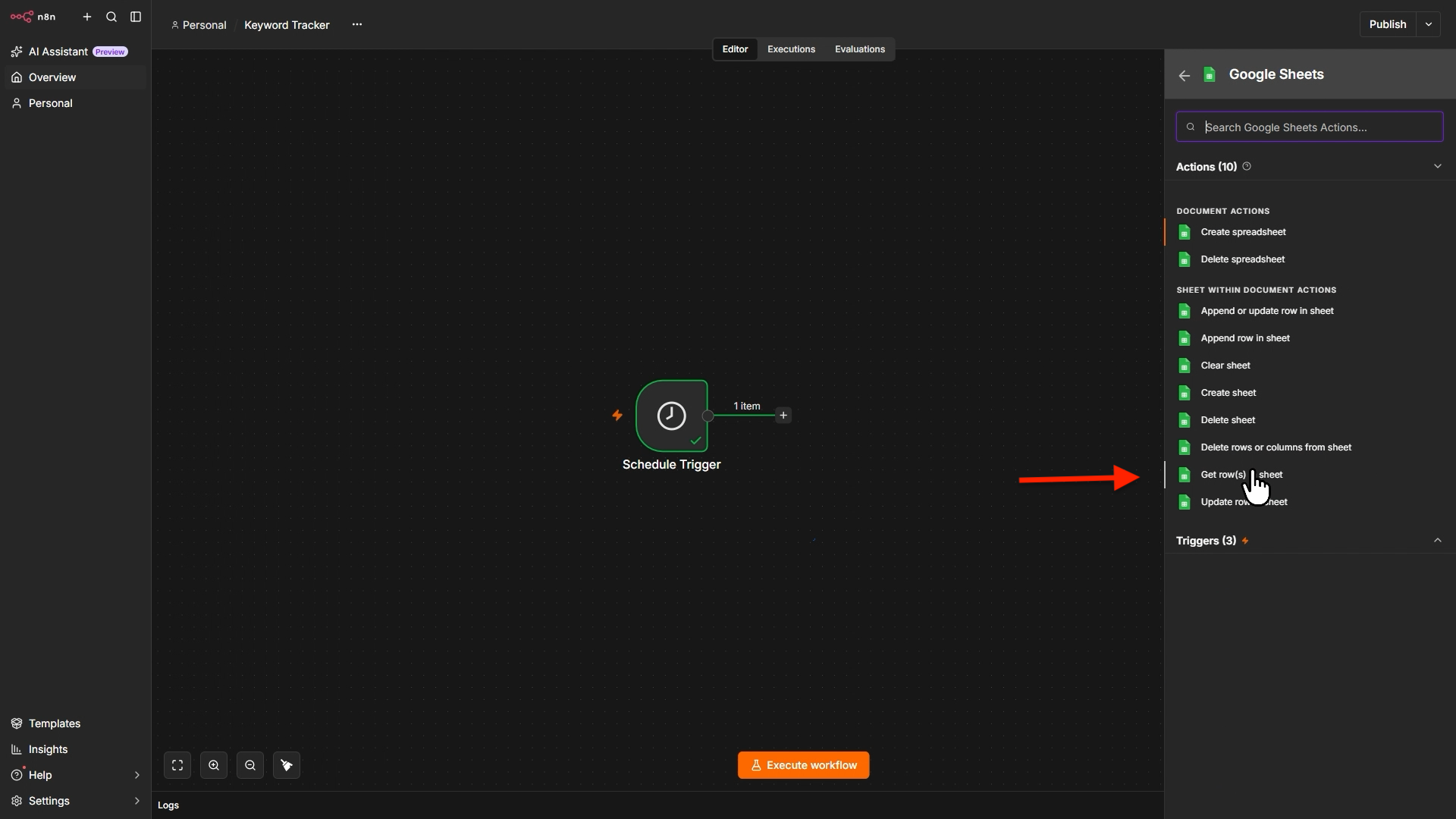
Click the plus icon, search for Google Sheets, and click to add the node. For the Sheet action, choose Get Row(s) in Sheet.
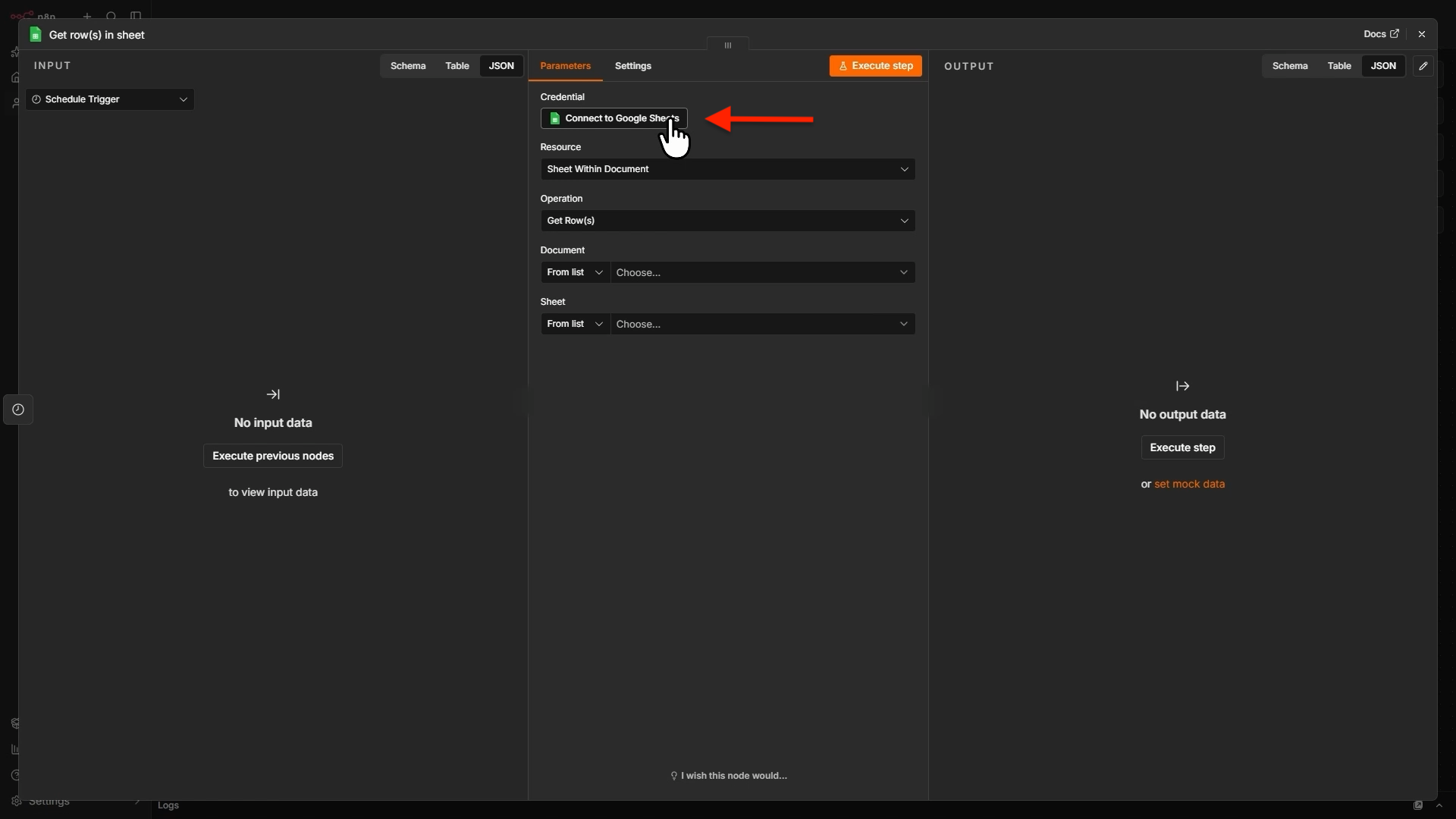
Next, click Connect to Google Sheets.
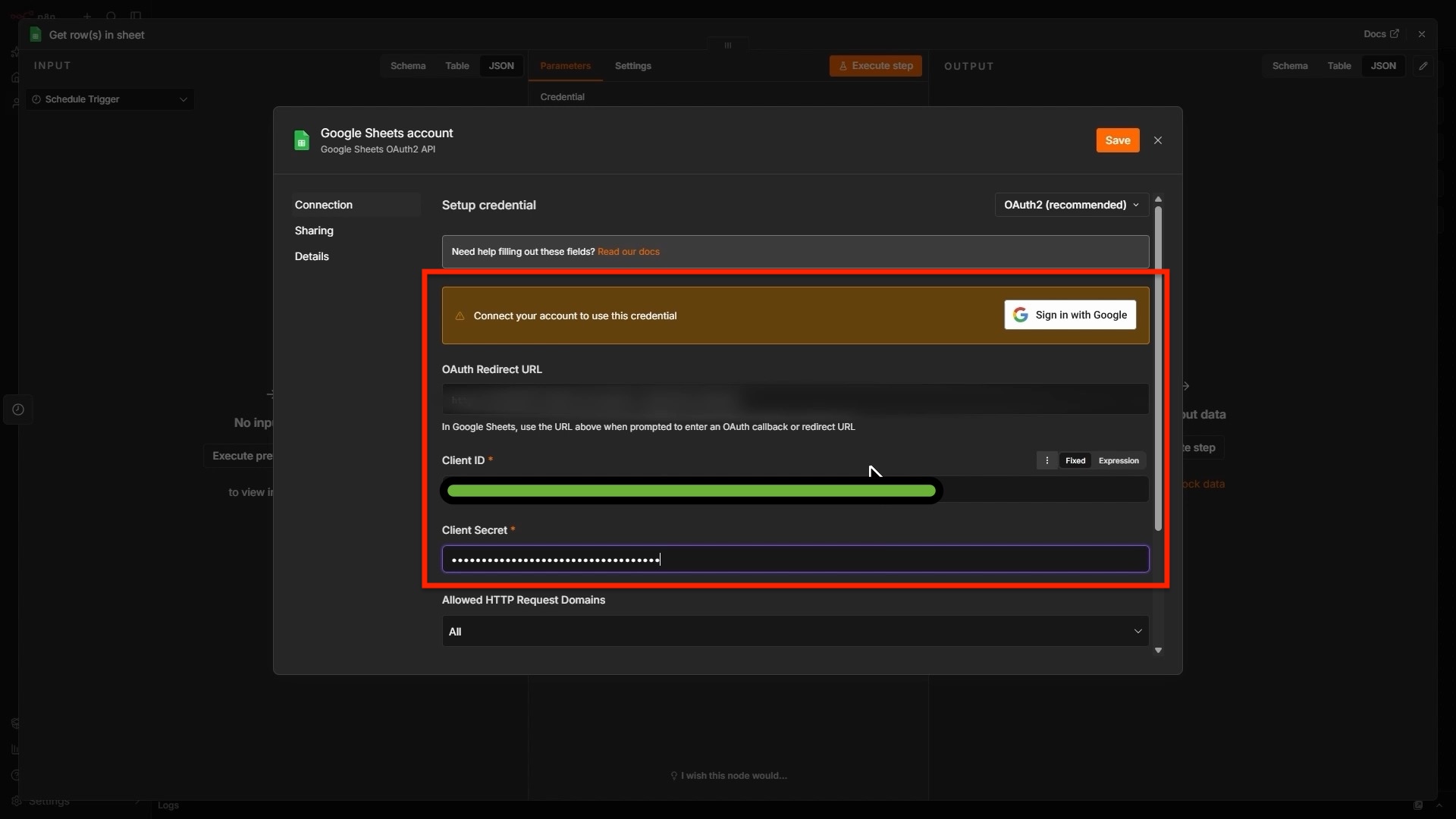
Paste your Google Cloud Client ID and Client Secret, then click Sign in with Google. Complete the authorization process and return to n8n.
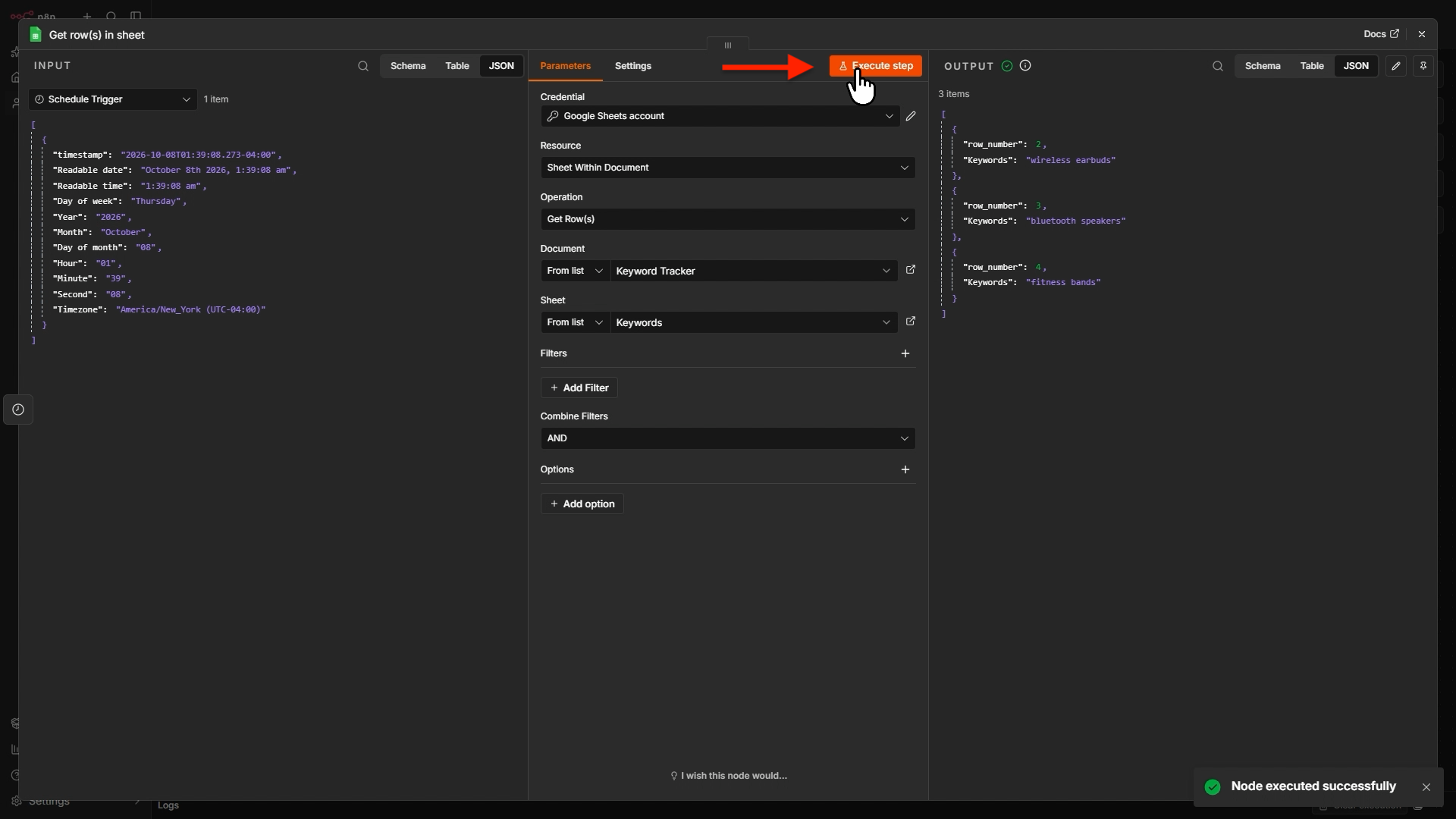
Now select the Google Sheet document and the sheet inside it that contains the list of keywords. Then, click Execute Step to confirm that the keywords load.
2. Process Each Keyword Individually
Each keyword needs its own request to the ScrapeHero API. Processing them one at a time prevents rate-limit issues.
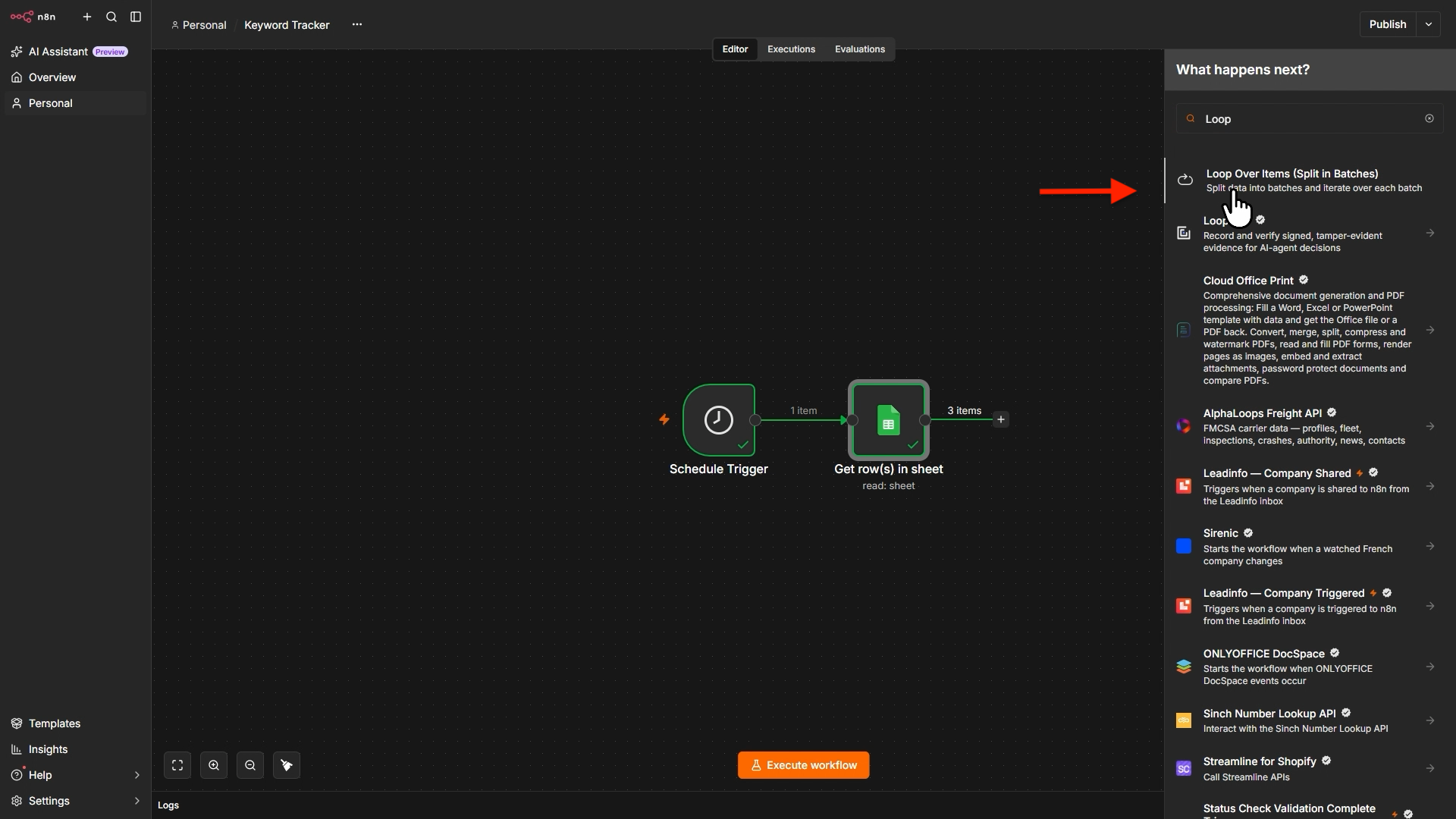
To do so, add a Loop Over Items node. Click the plus icon to the right of the Get Queries node, search for Loop Over Items, and click it. Set the Batch Size to 1.
3. Add the ScrapeHero Node
Next, add the ScrapeHero node to the loop output of the Loop Over Items node. If you are adding the node for the first time, you need to install the ScrapeHero community node first.
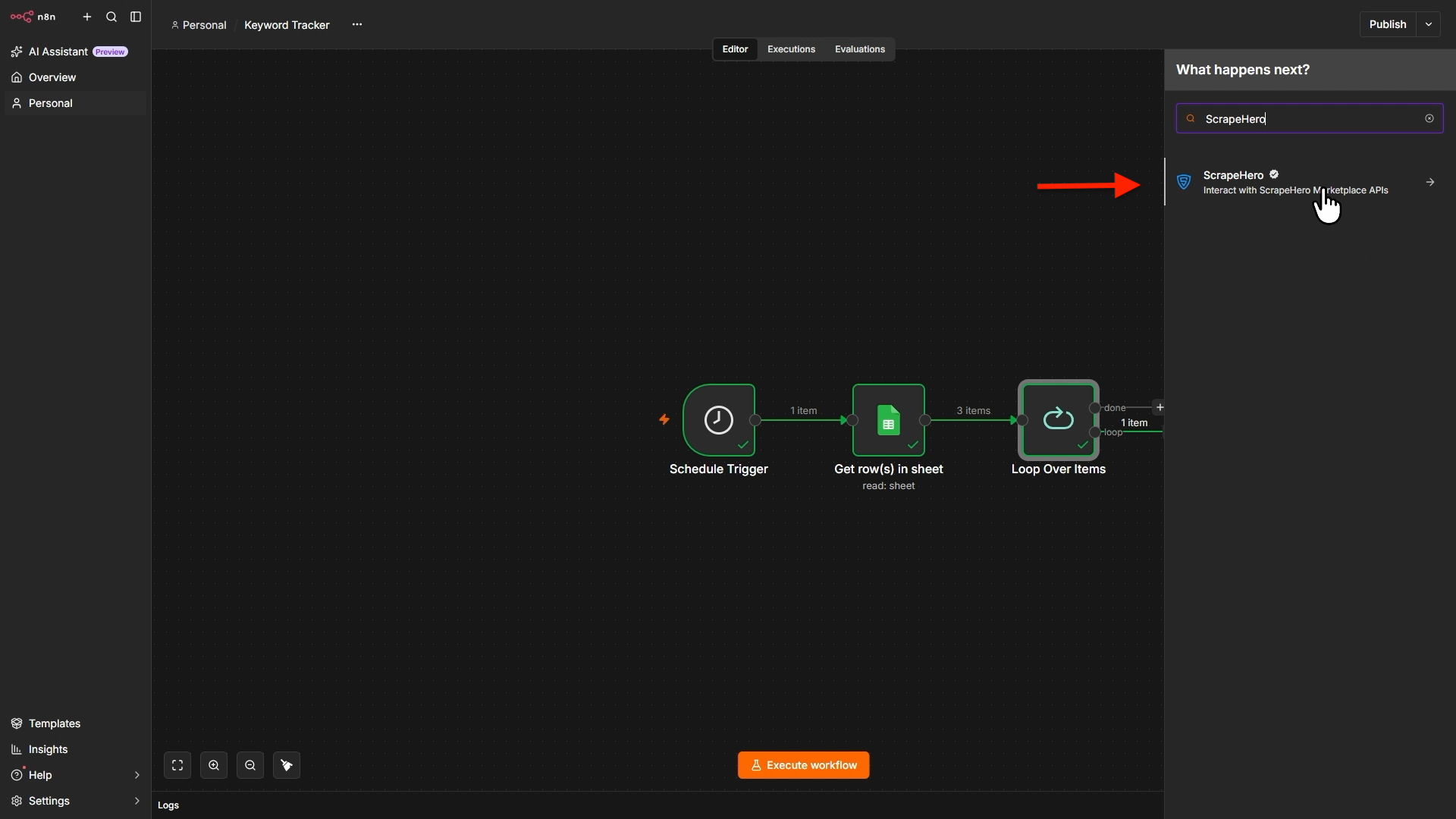
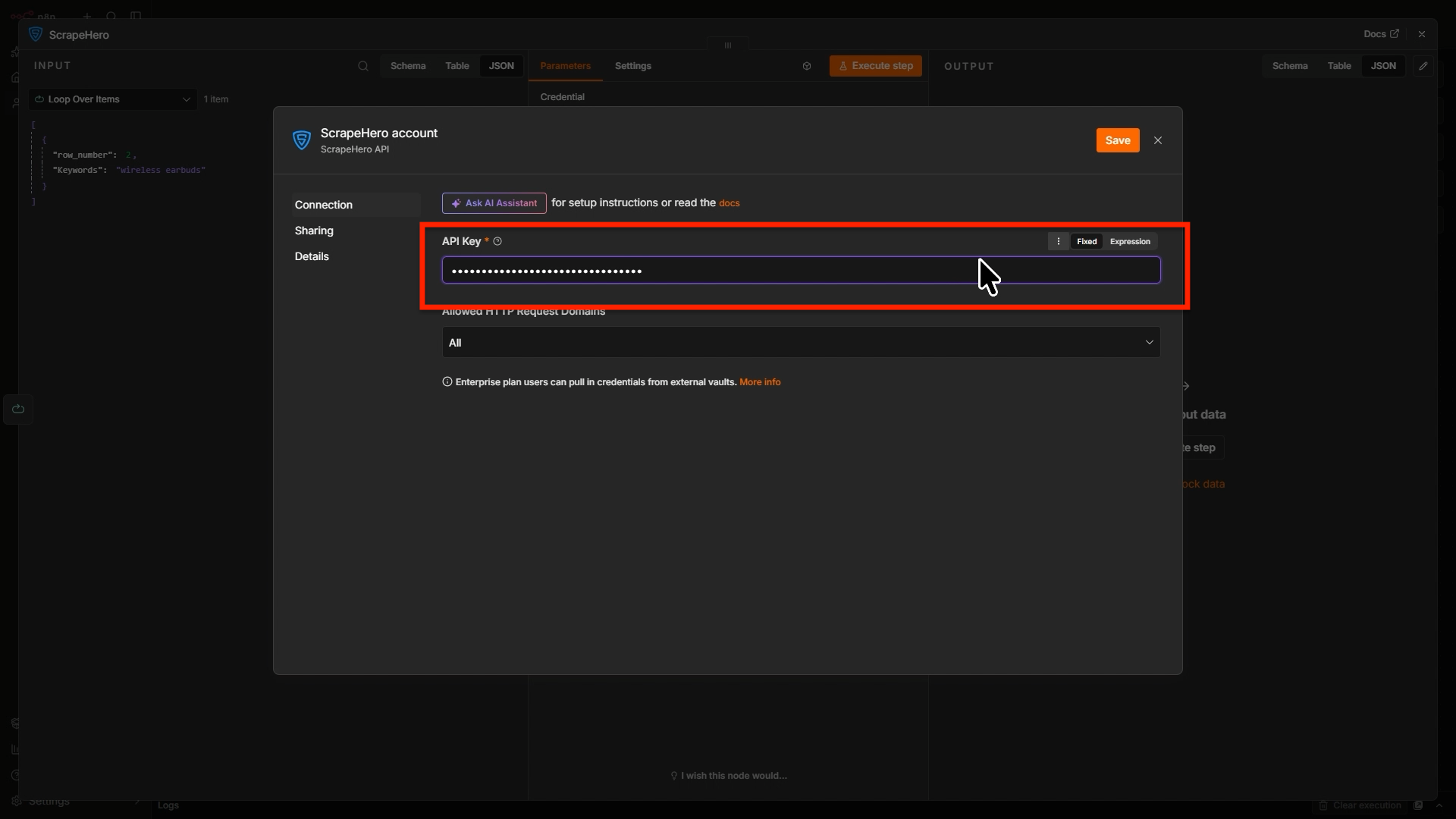
In the configuration window, click Connect ScrapeHero to create the credentials. Then:
- Go to app.scrapehero.com.
- Sign in to your account.
- Click your profile icon.
- Open API Key.
- Copy your API key.
- Return to n8n.
- Paste the key into the ScrapeHero credential field.
- Save the credentials
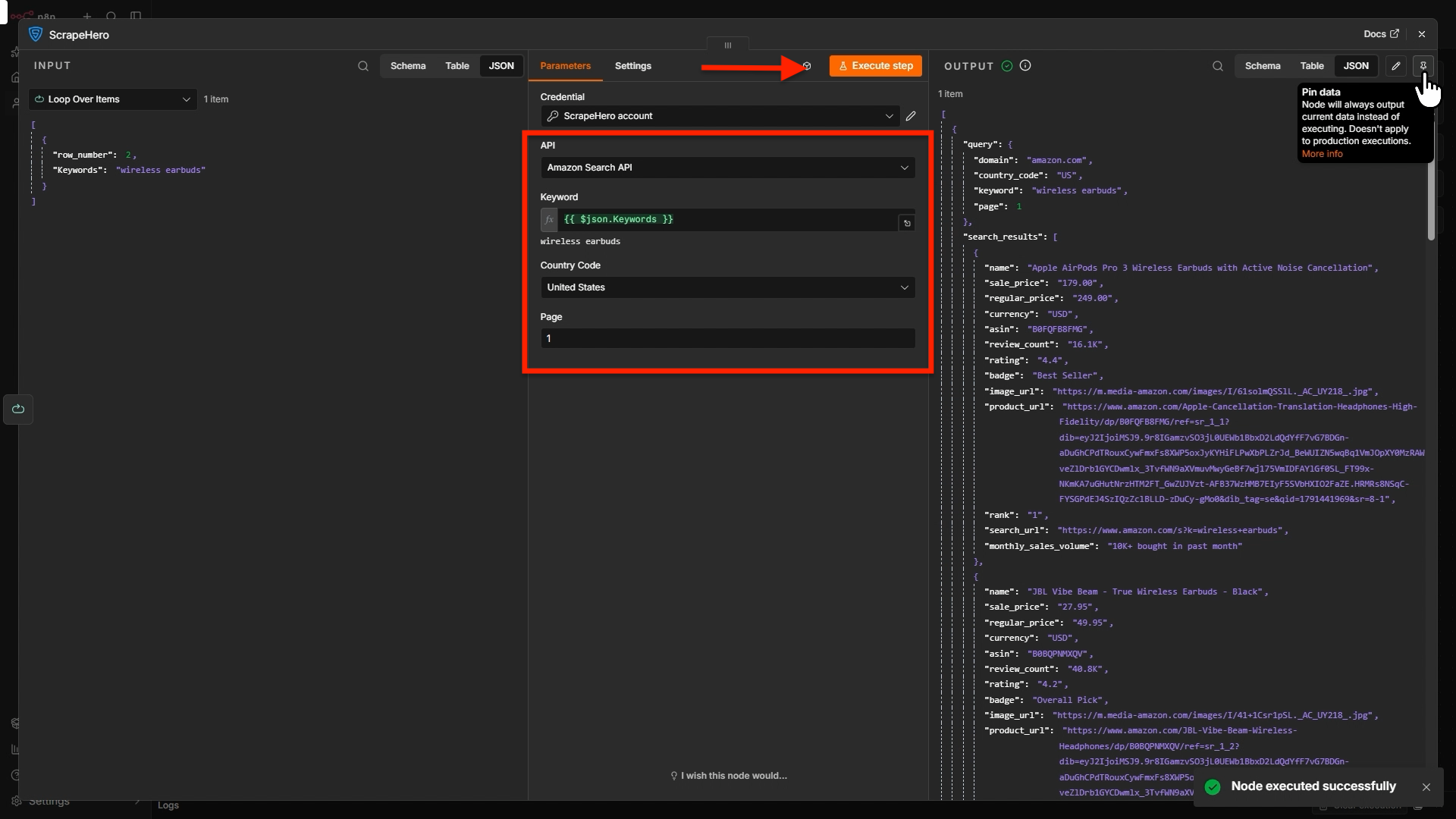
Next, select Amazon Search API from the API dropdown.
Locate the Keyword field and switch to the expression editor, or drag the Keyword value from the Loop Over Items node into it. You can also enter the expression directly:
{{ $json.Keyword }}Select the Country Code. Use the Pages field to fetch deeper results. Each extra page uses more credits, so keep the number small while testing.
Click Execute Step to test the request. After the test succeeds, pin the output temporarily so that repeated tests do not make unnecessary API requests.
4. Split the Search Results
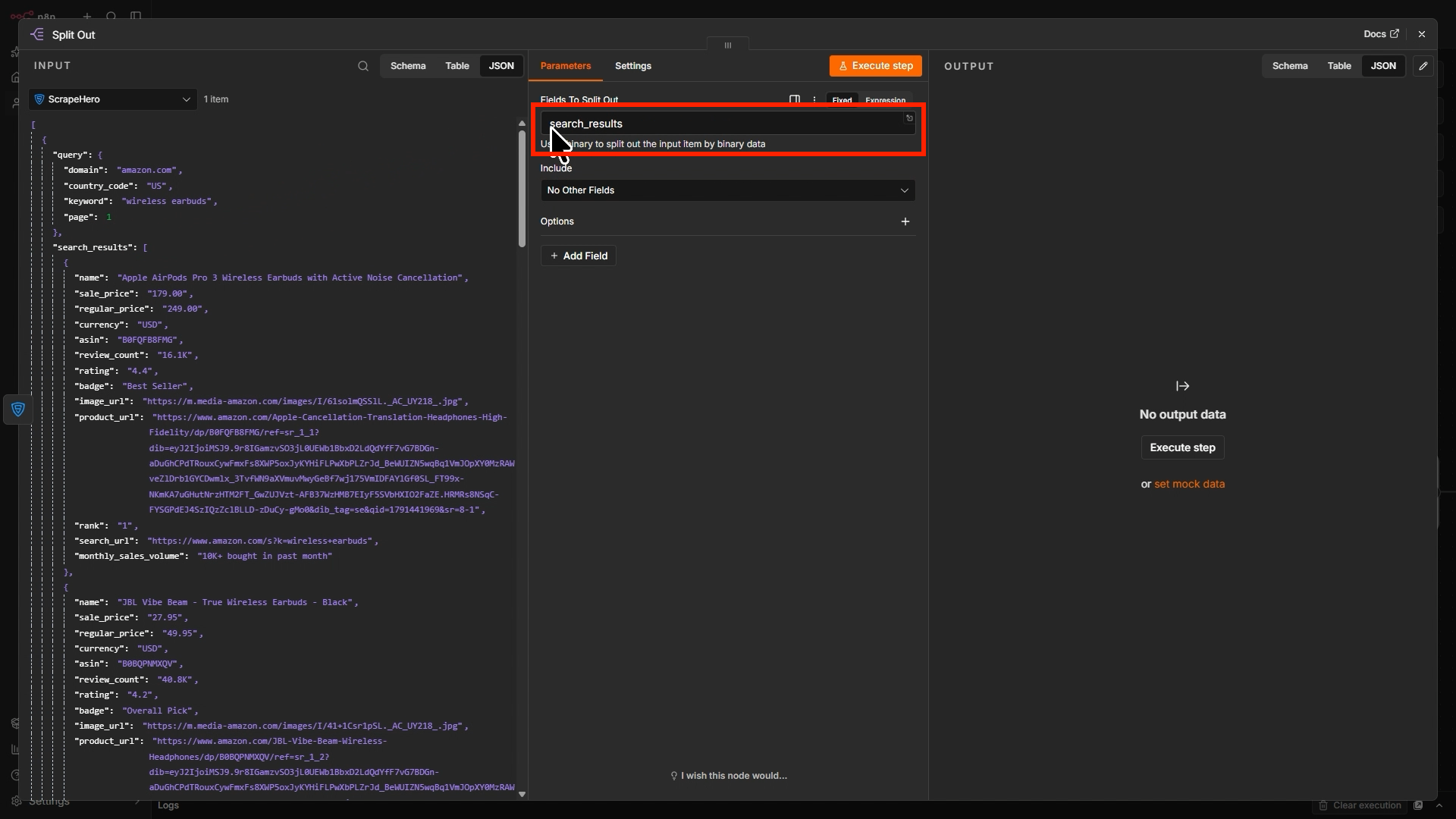
The API returns a JSON object with a search_results array. Each item in the array includes fields such as asin, rank, name, sale_price, and product_url.
To output each product as its own item, add a Split Out node after the ScrapeHero node.
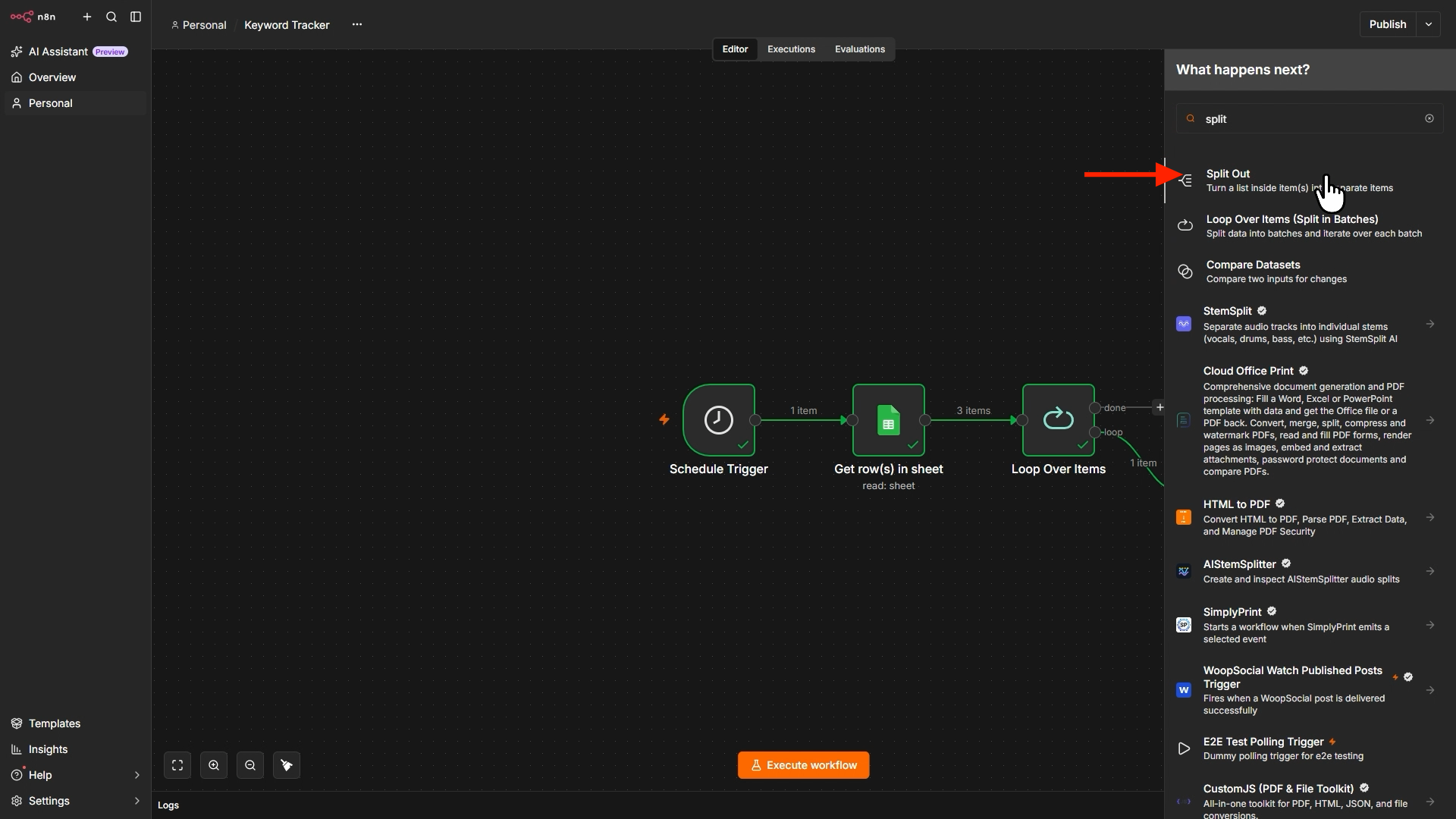
In the Fields To Split Out box, enter ‘search_results’
5. Keep Only Essential Fields
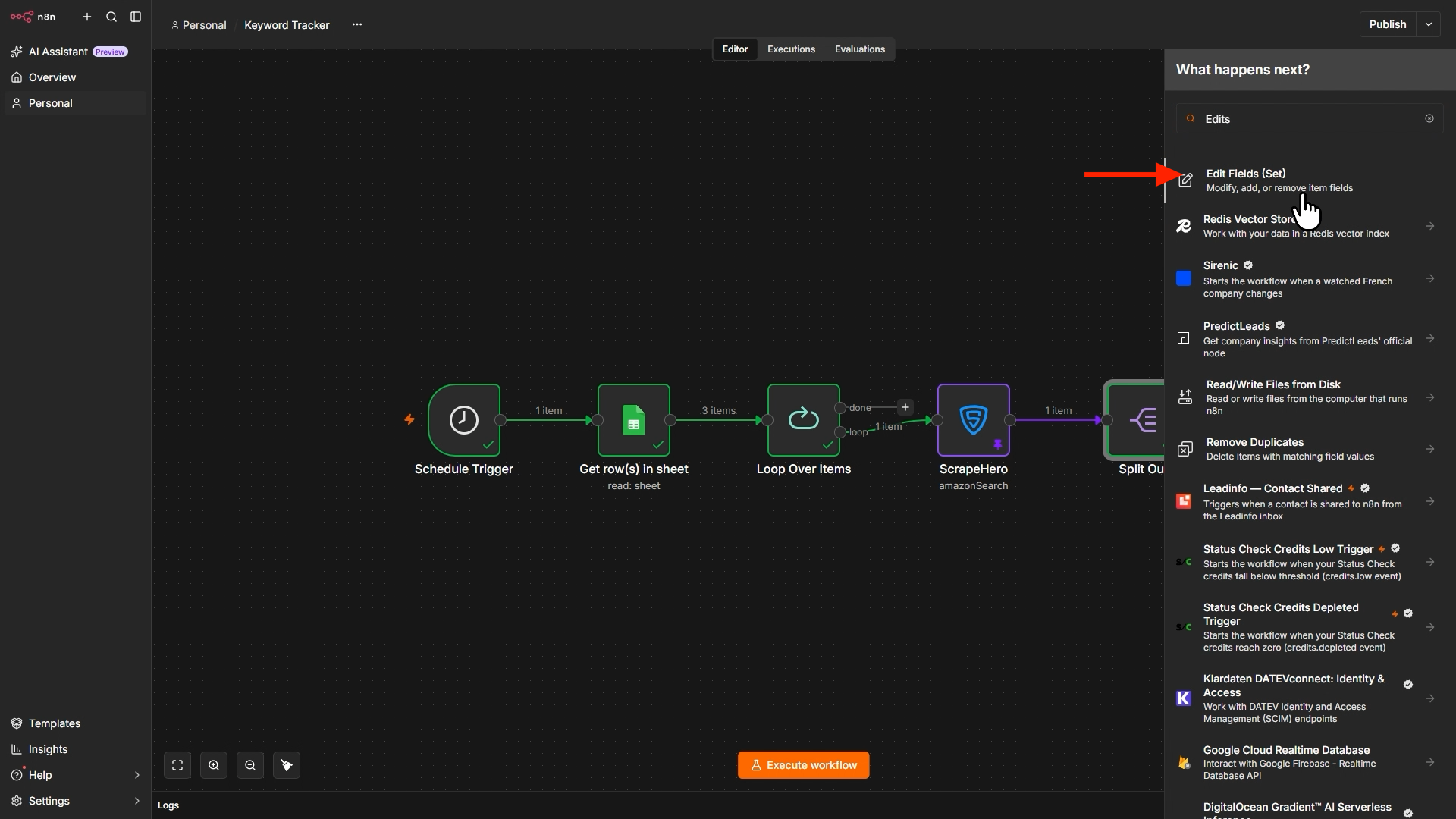
The API returns a lot of data, but we don’t need all of it. Add an Edit Fields node that allows you to keep only the essential fields
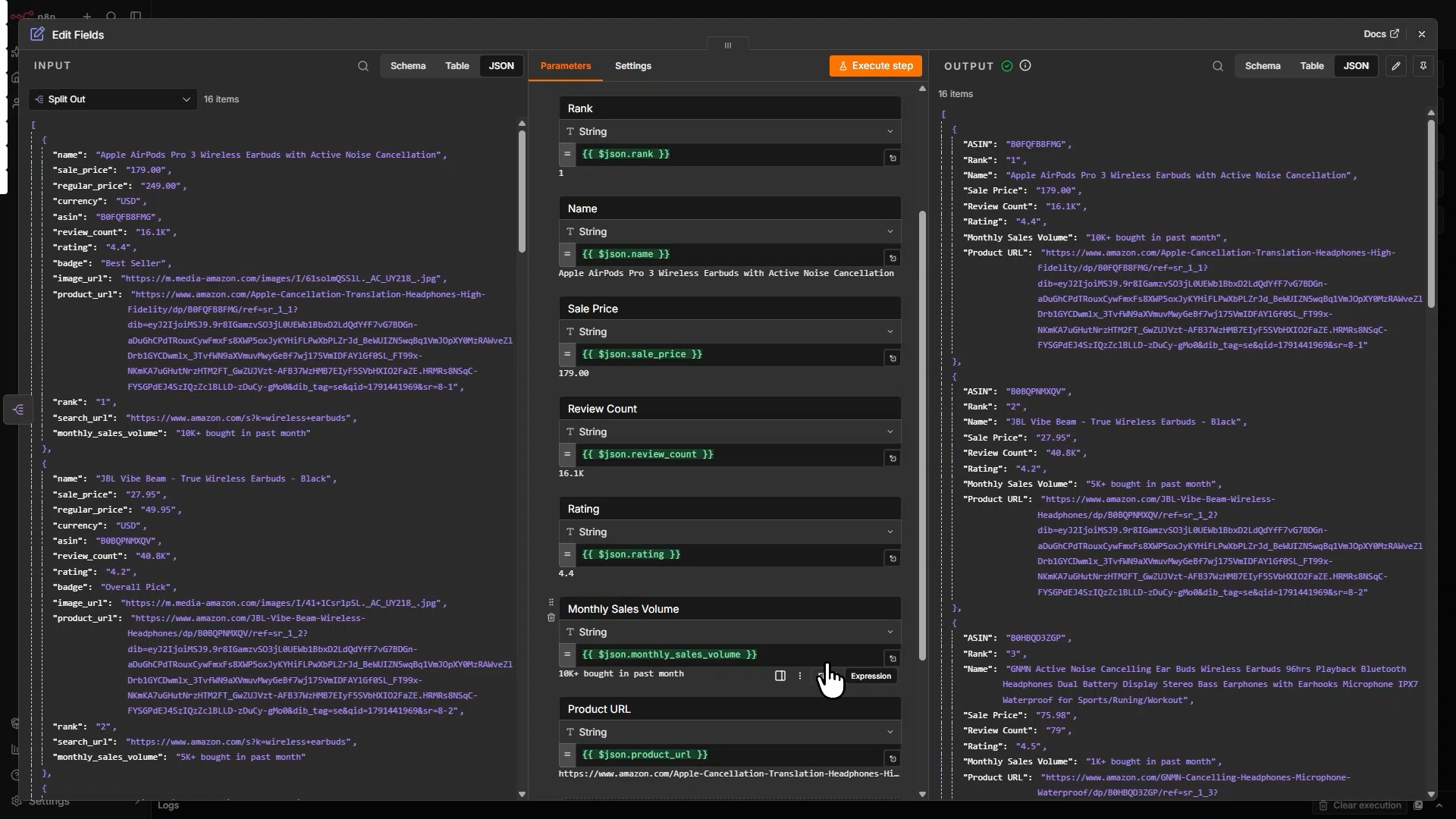
Drag these fields from the Split Out output into the “Drag input fields here” region.
- Keyword
- ASIN
- Rank
- Name
- Sale Price
- Product URL
Update the Rankings
8. Update the Sheet
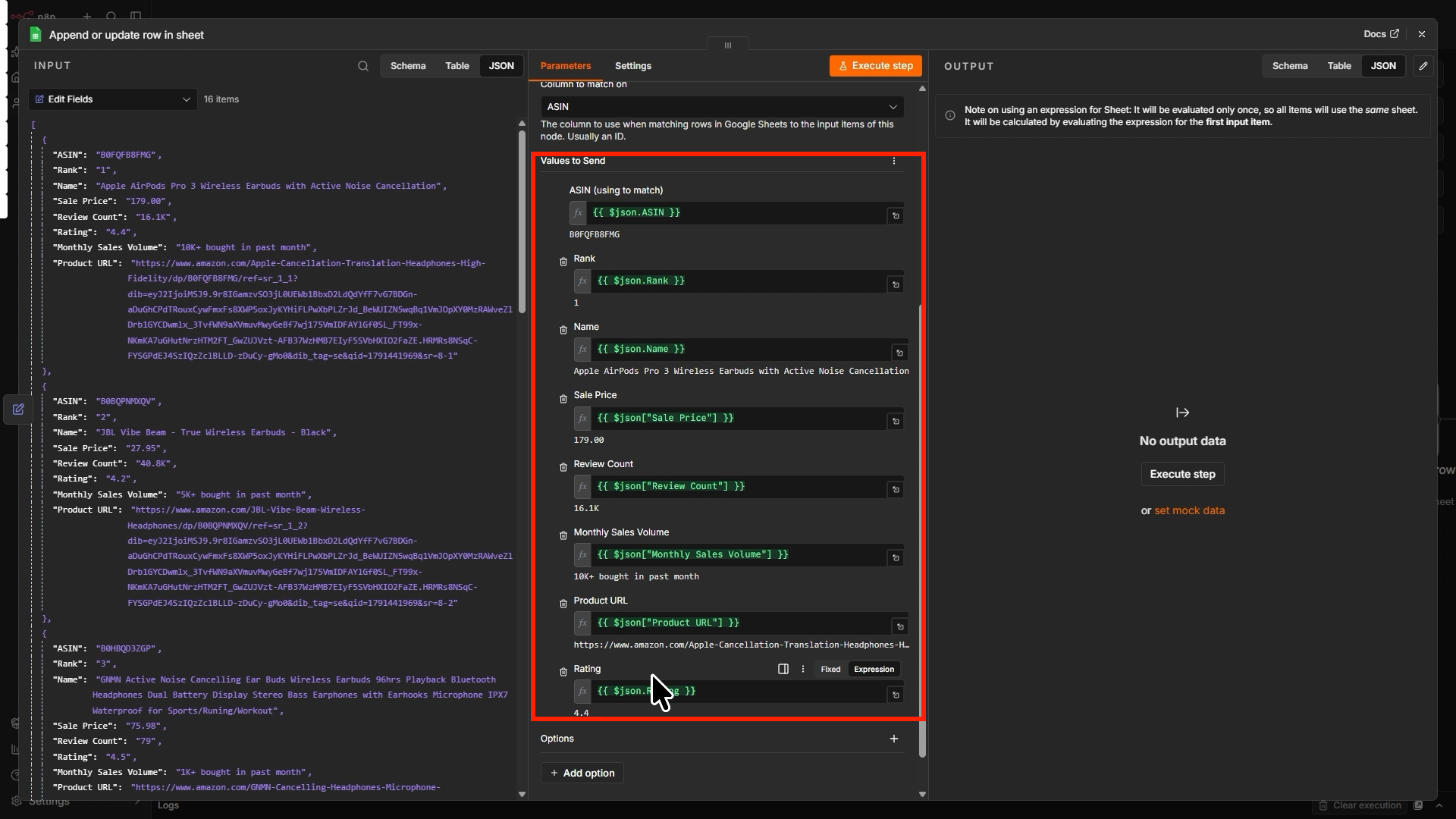
Add another Google Sheets node after the Edit Fields node and choose Append or Update Row in Sheet as the action.
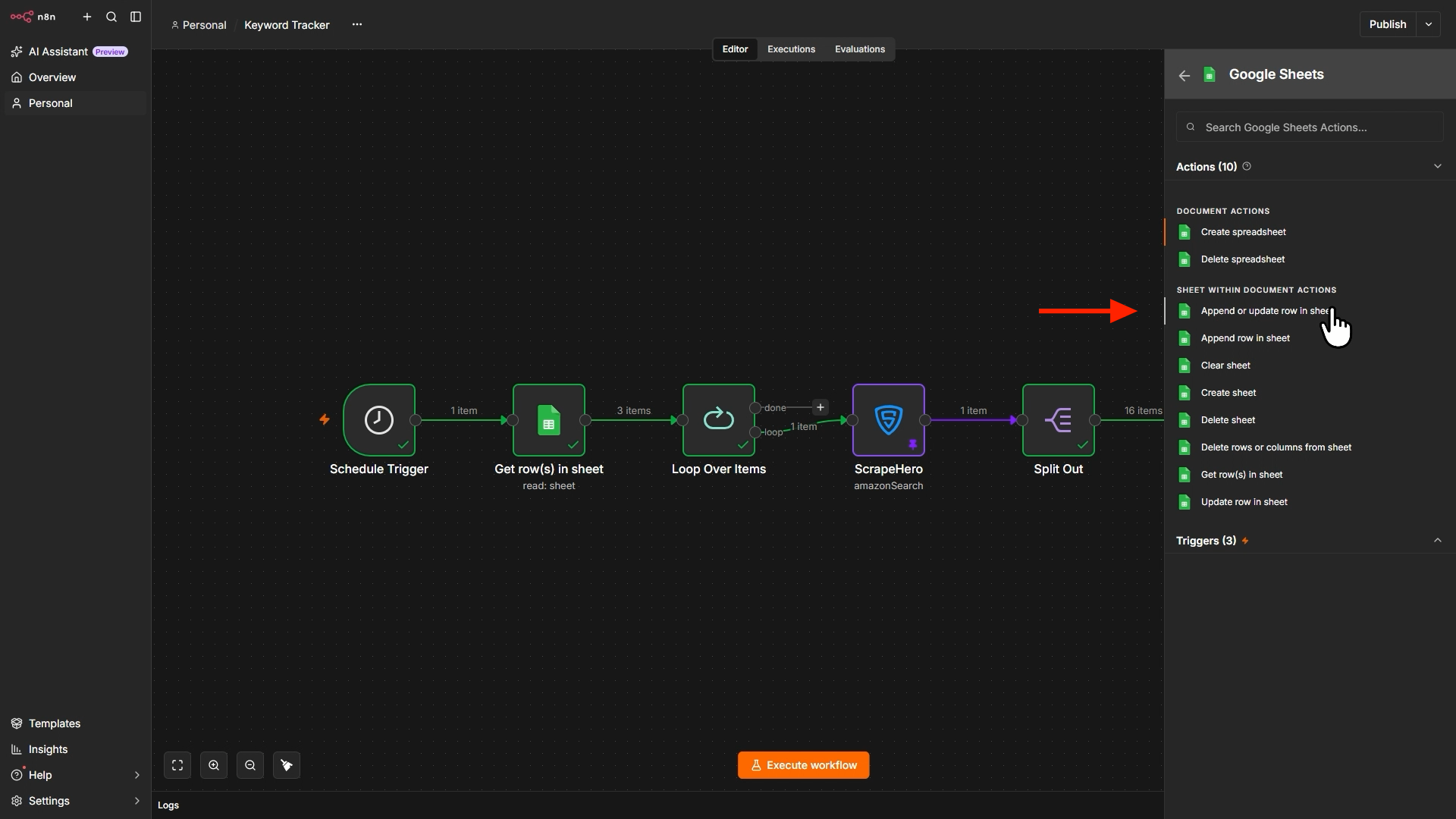
Select the same document containing the keywords. For the sheet name, drag and drop the Keywords field from the output of the Loop Over Items node. Make sure the sheet is identified by name.
Then set Mapping Column Mode to Map Automatically. For the matching columns, choose ASIN.
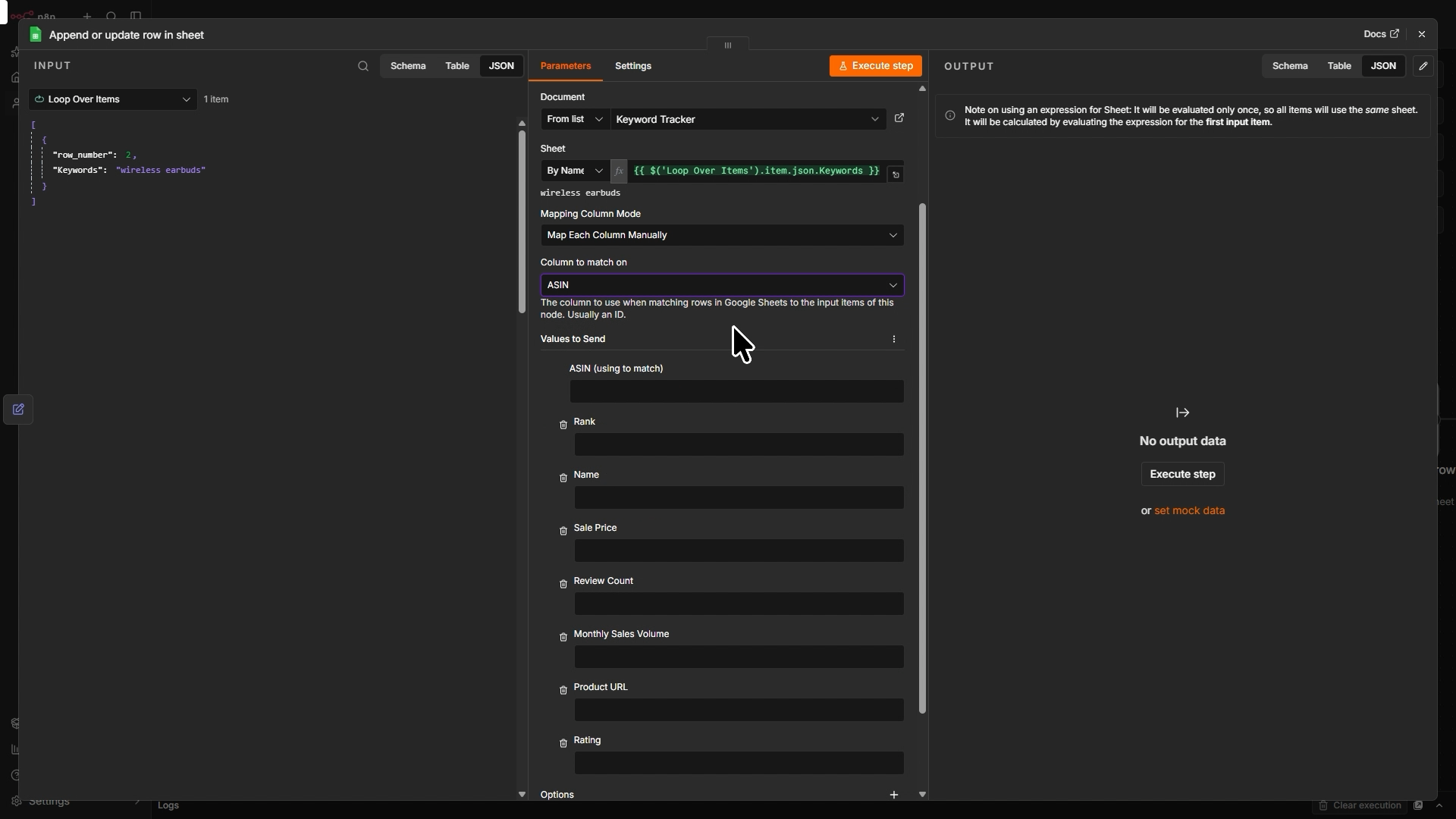
Existing rows are updated with the latest rank and price, and new products are added.
8. Find the Outdated Listings
The workflow so far updates the rankings and adds rows for products that appear on the first page. However, some products may also fall off the first page, and you need to remove those.
First, find the listings you need to remove. To do so, the workflow gets existing listings from the Google sheet. Then uses a Merge node to keep only those not in the new set of listings obtained with the ScrapeHero node.
Adding Google Sheets Node
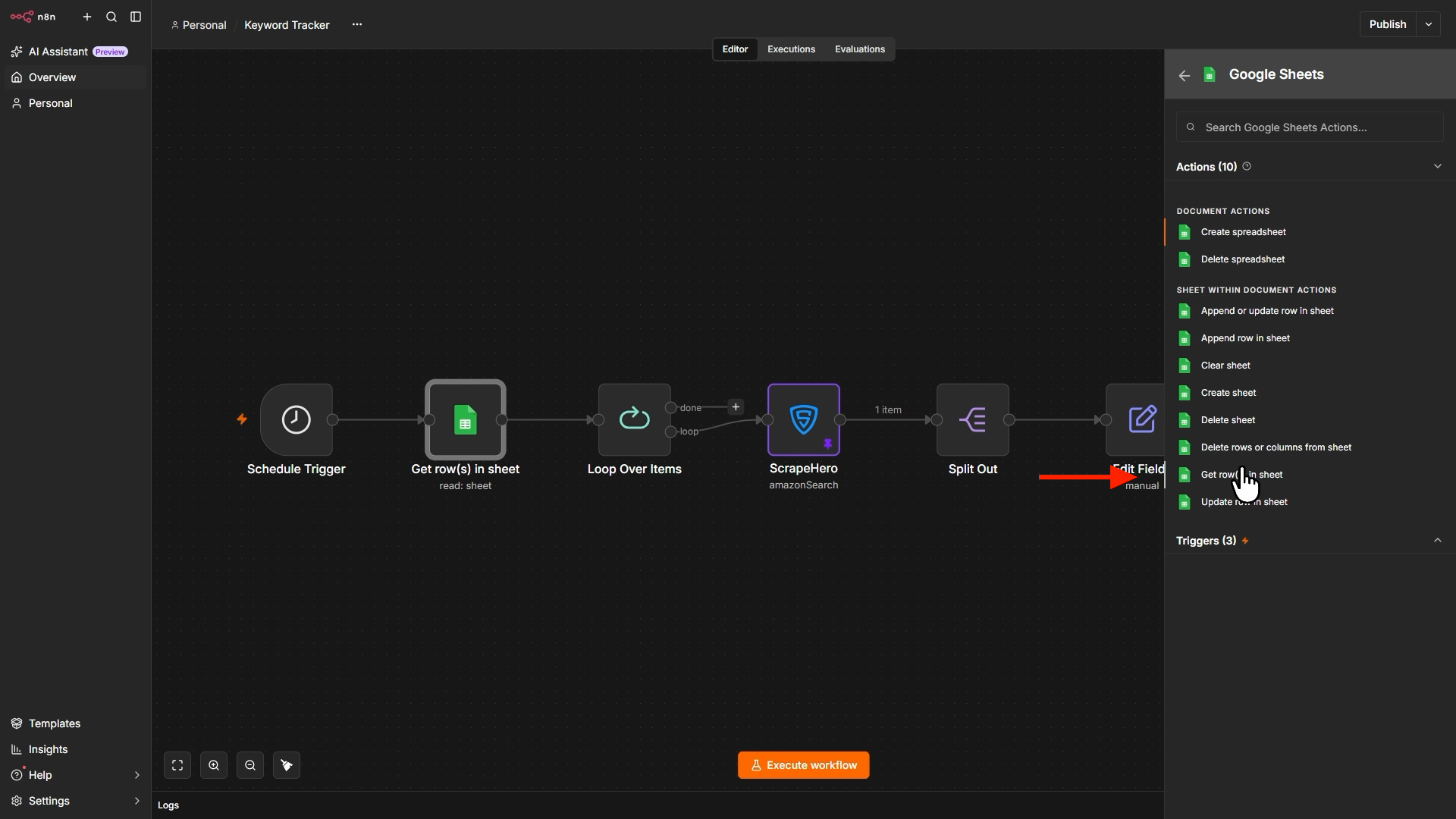
Add a Google Sheets node after the Edit Fields node, with the action Get Row(s) in Sheet.
Select the Keyword Tracker document and the sheet containing the existing listings for the current keyword (drag and drop the name from the Loop Over Items node). Then, under Filters, add a filter on the Keyword column and set the value to the current keyword:
{{ $('Loop Over Items').item.json.Keyword }}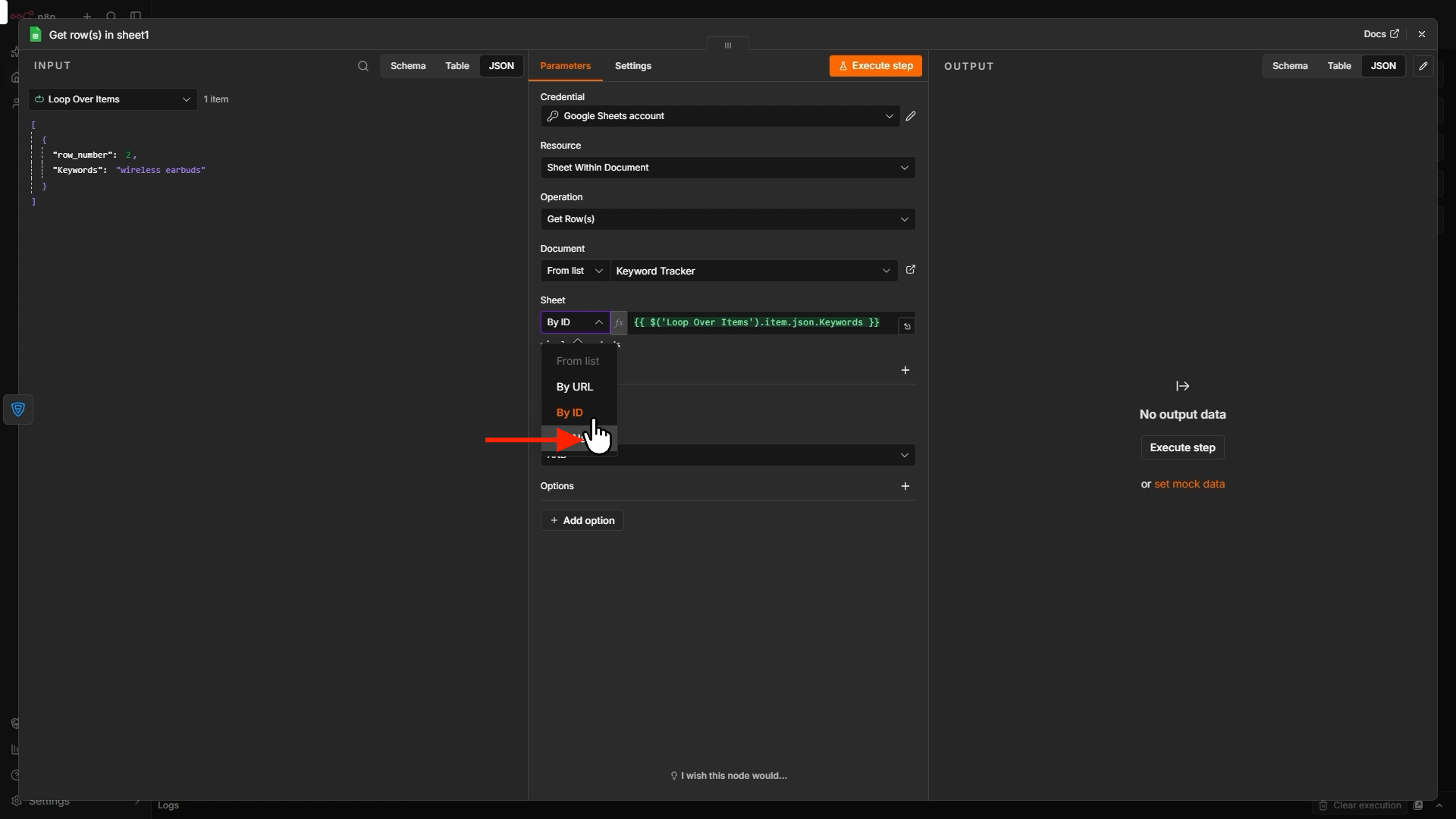
This reads only the existing listings for the keyword being processed. The node also returns a row_number for each row, which you need for deletion later.
Adding a Merge Node
Add a Merge node. It has two inputs; connect the Edit Fields node (new data) to Input 1 and the Get Existing Listings node to Input 2.
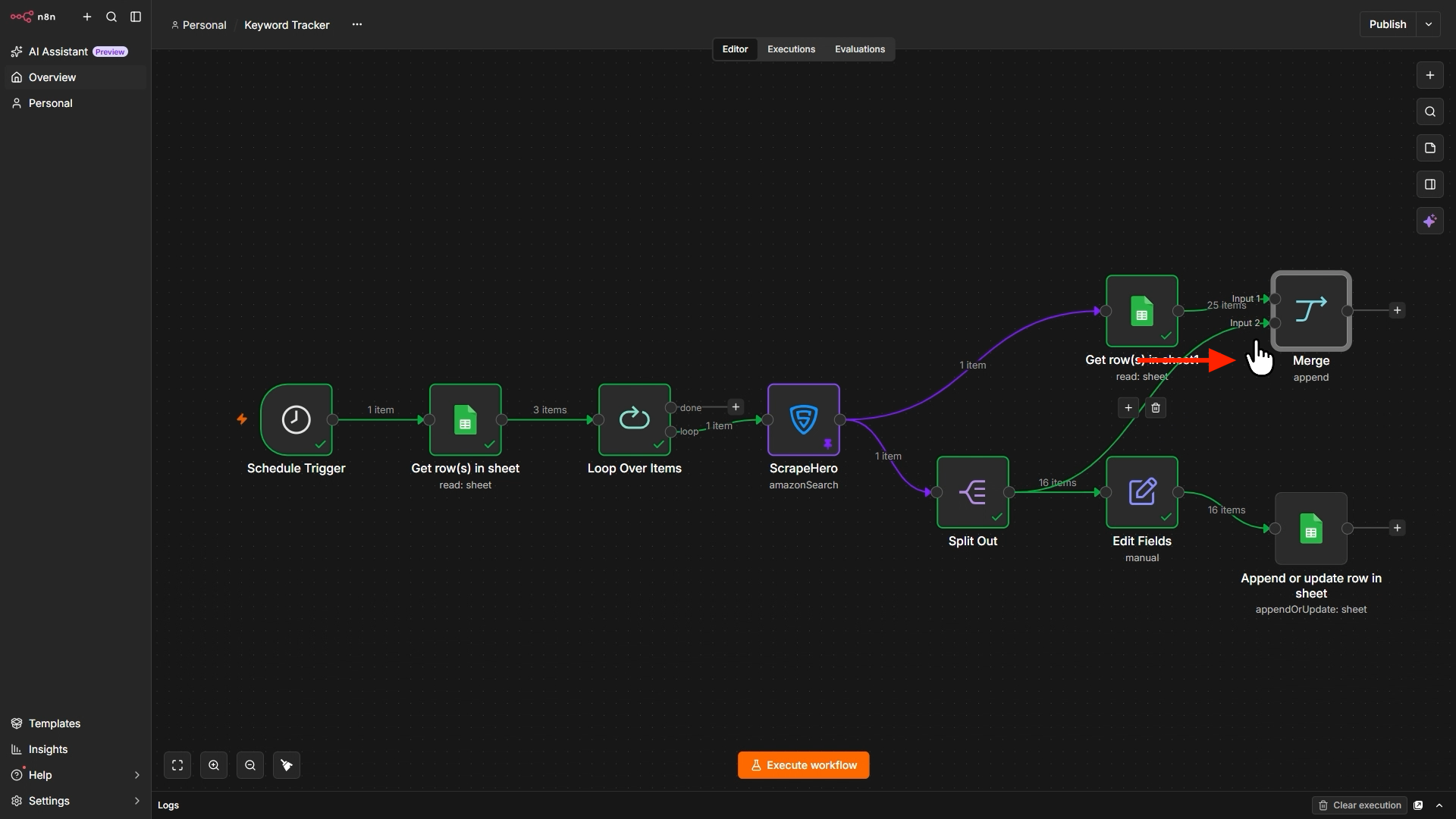
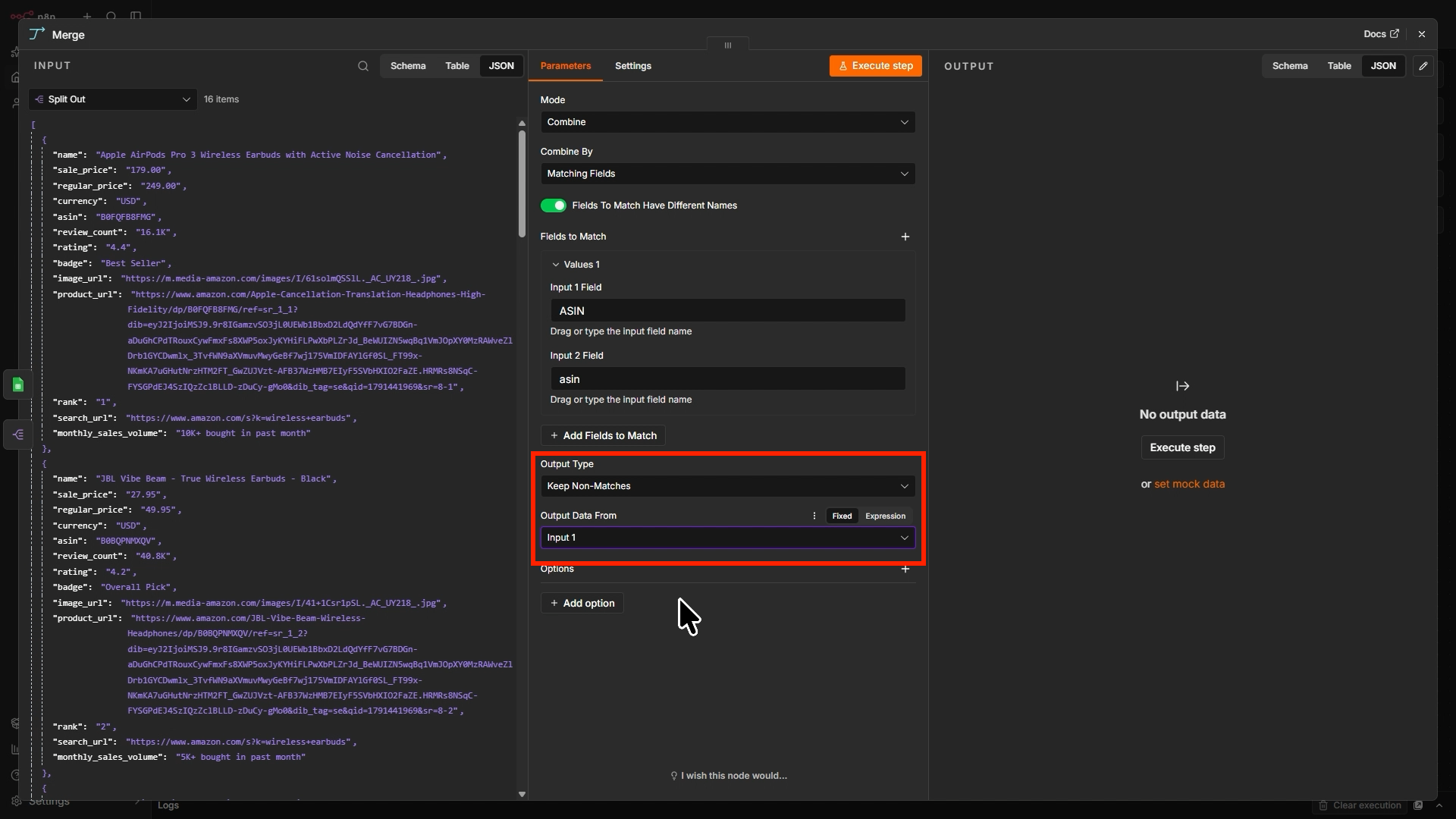
Configure it as follows:
- Set Mode to Combine, then Combine By to Matching Fields.
- Set the field to match as
ASINon both inputs. - Set Output Type to Keep Non-Matches.
- Set Output Data From to Input 2.
The node now outputs only the rows that exist in your sheet but no longer appear in the new results. These are the outdated listings. You do not need a Code node to find them.
9. Delete the Outdated Listings
Now remove the listings identified by the Merge node. Deleting rows from the top down shifts the row numbers in Google Sheets, so rows must be deleted from the bottom up.
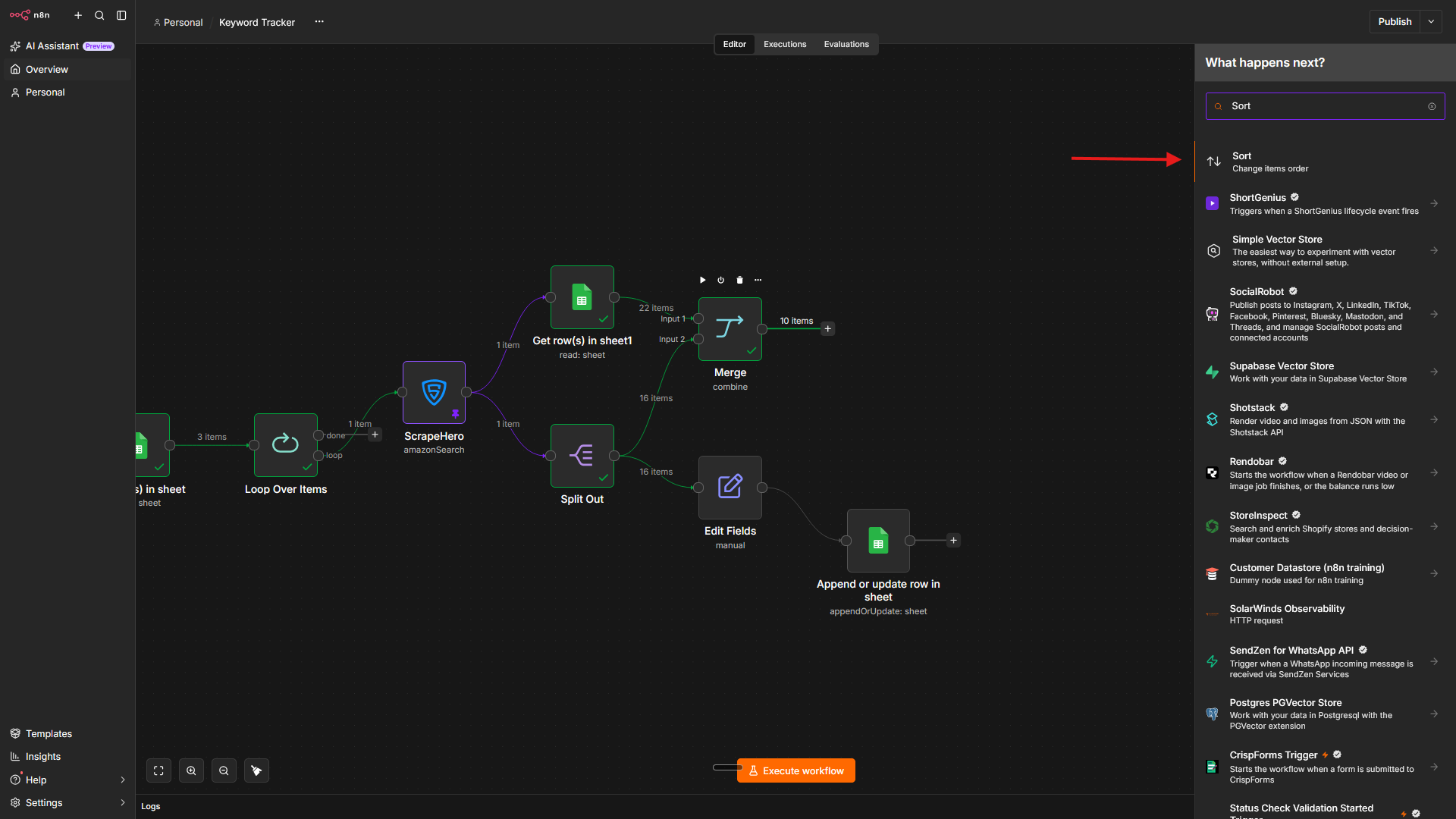
Add a Sort node after the Merge node.
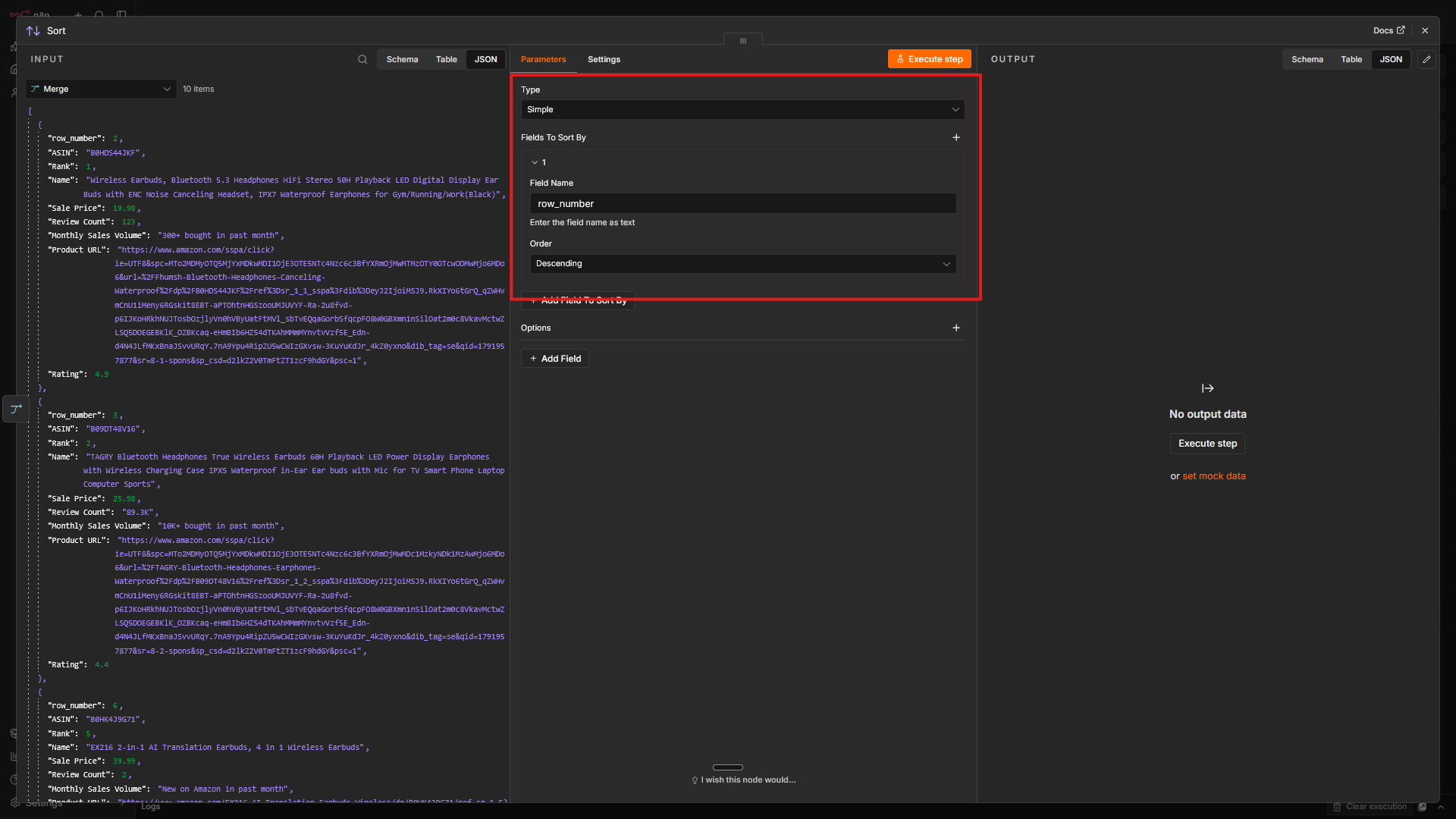
Set the type to Simple, the Field Name option to row_number, and order to Descending.
Then add a Google Sheets node after the Sort node, and choose Delete Rows or Columns from Sheet as the action.
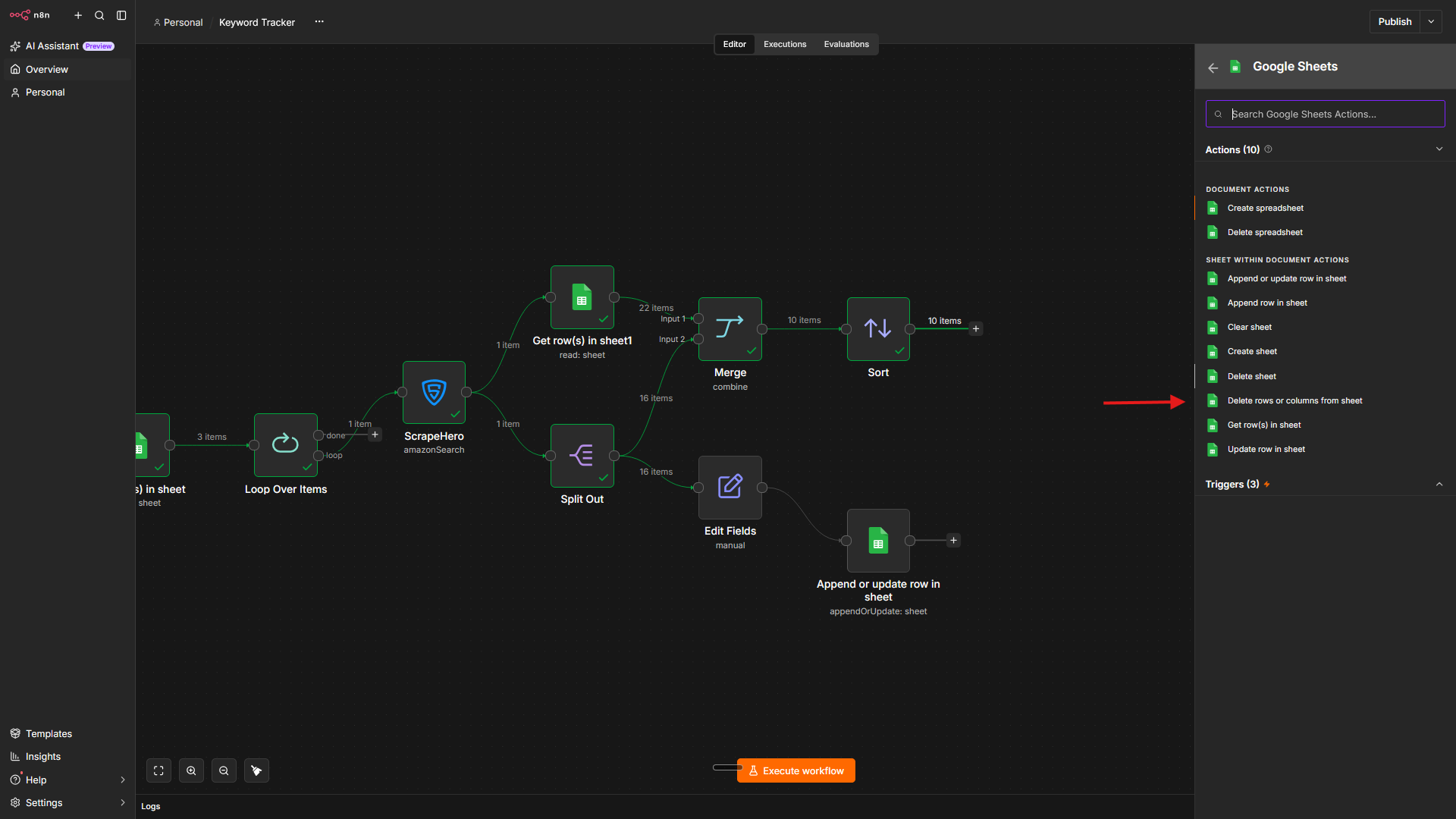
Inside the node, select the Keyword Tracker document. And use these configurations.
- (By Name) Sheet:
{{ $('Loop Over Items').item.json.Keywords }} - To Delete: Rows
- Start Row Number:
{{ $json.row_number }} - Number of Rows to Delete: 1
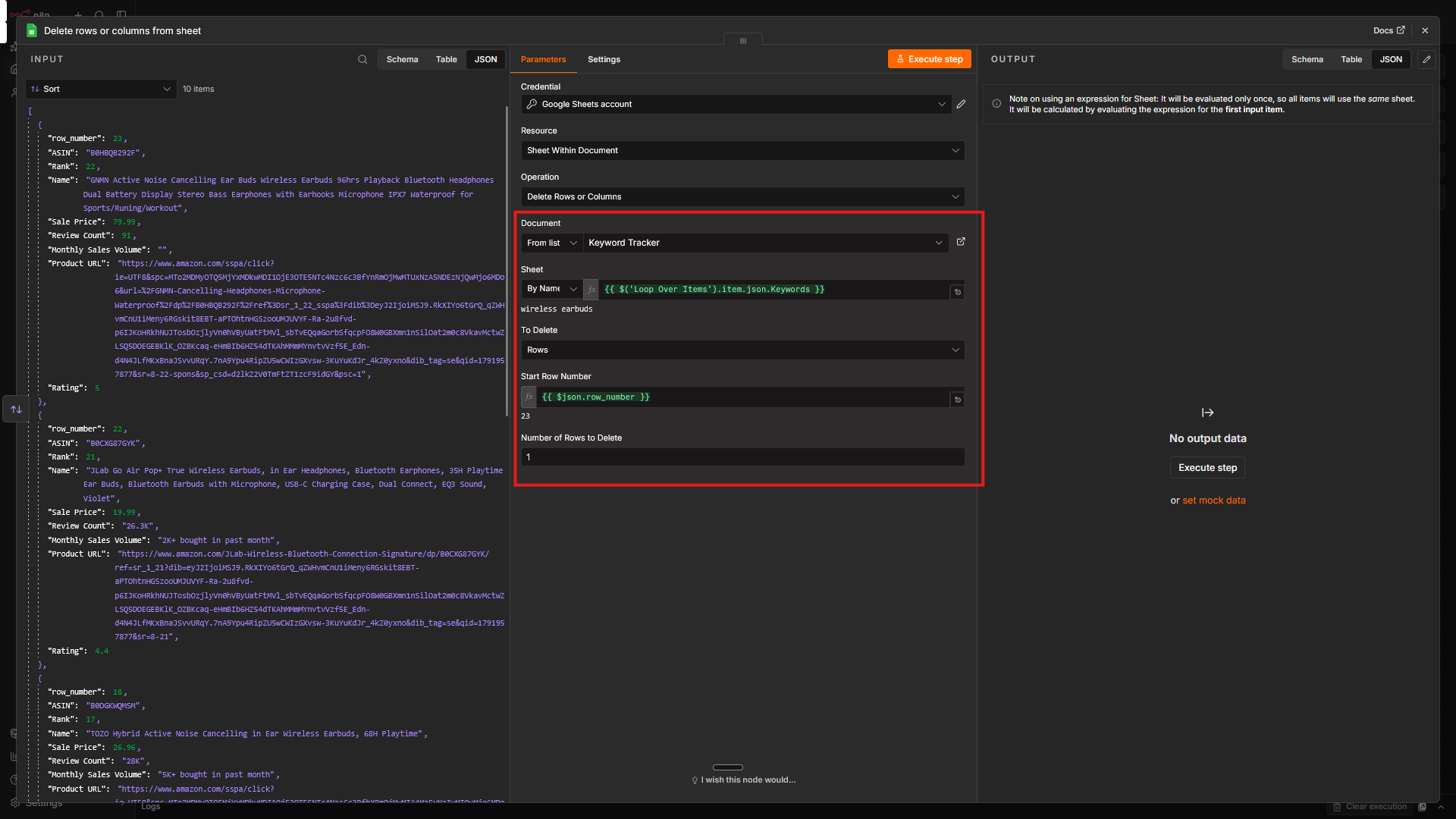
This ensures the node starts deleting from the item’s row number and deletes only one row, effectively removing just the row corresponding to that item.
Test and Complete the Loop
Connect the Loop
Connect the output of the Delete node back to the Loop Over Items node. This tells the loop to continue with the next keyword.
If a keyword has no outdated listings, the Merge node outputs nothing, and the loop stops early. To prevent this, turn on Always Output Data in the Merge node, and add a Filter node before the Sort node that keeps only items where row_number exists.
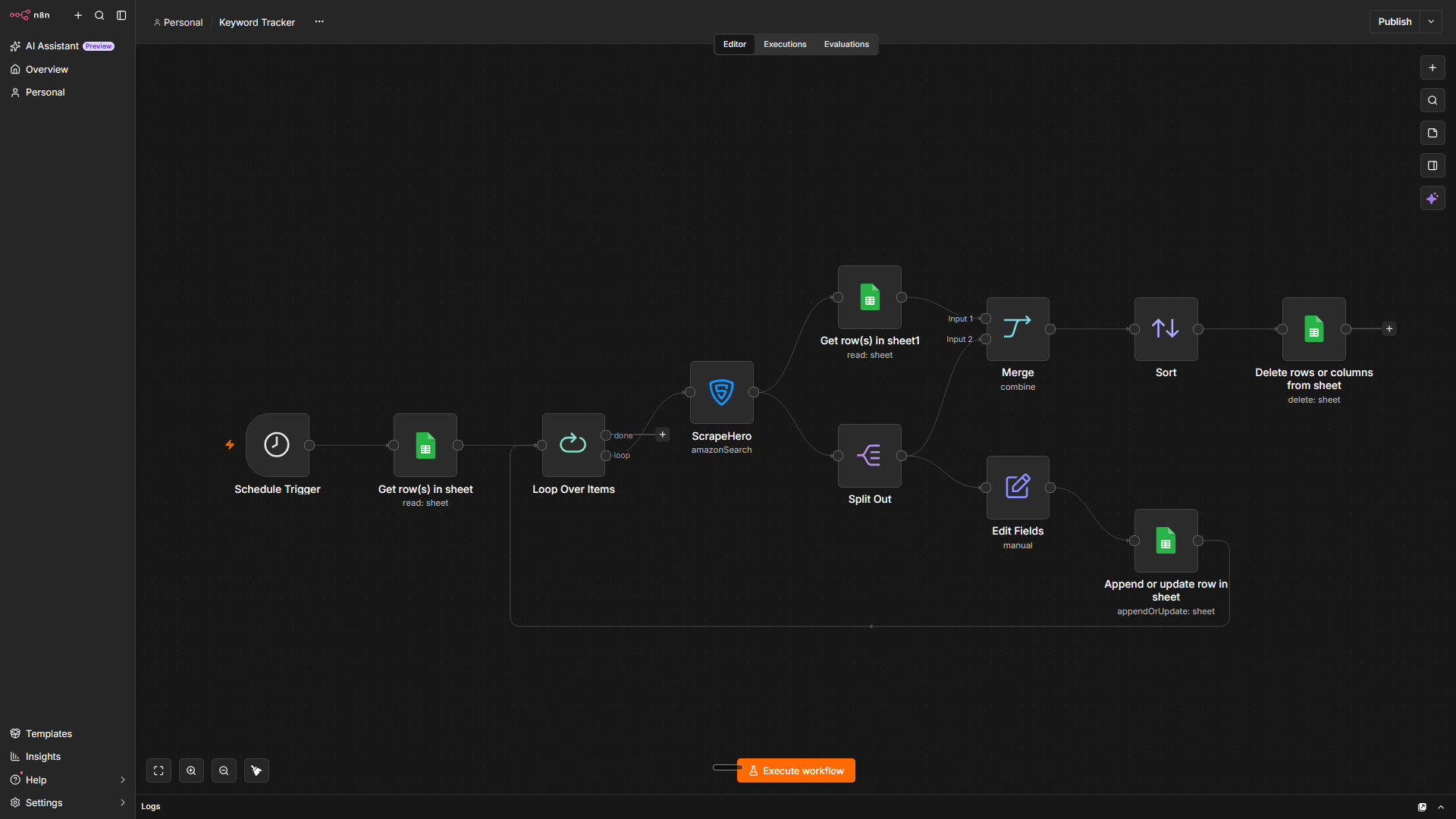
Test the Workflow
Unpin all the pinned outputs and click Execute Workflow at the bottom of the canvas.
When the run finishes, open the Rankings tab. You should see each product with its keyword, ASIN, rank, name, price, and URL. Run the workflow a second time and confirm that existing rows are updated instead of duplicated.
What This n8n Amazon Keyword Rank Tracker Unlocks for Your Business
Building this workflow to track Amazon keyword rankings with n8n helps you:
- Monitor rankings without manual checks. The workflow checks every keyword automatically, so you see ranking changes as soon as they appear in the sheet.
- Validate SEO changes. Track rank movements after you update product titles or backend search terms.
- Analyze share of voice. See how many placements your brand holds for core keywords compared with competitors.
- Adjust PPC campaigns. Use organic ranking positions to decide where to pause or increase bids.
- Watch competitor prices. The sale price is stored next to each rank, so you can see how competitors price the products that rank near yours.
Prefer not to handle API integration? Check out the ScrapeHero Cloud Amazon scrapers instead.
Next Steps
You can extend this n8n Amazon Keyword Rank tracker with:
- Rank drop alerts: Add an If node after the Merge node or the Edit Fields node. If the rank of a key product moves beyond your chosen position, route the output to a Slack or Gmail node.
- Rank history: Instead of updating and deleting rows, append each day’s rank to a separate History tab with a Google Sheets Append Row node. Skip the delete steps.
- Scheduled runs: Add a Schedule Trigger before the Get Queries node to run the tracker daily.
- Competitor monitoring: Use ScrapeHero’s Amazon Product Details and Pricing API to track changes in competitor prices and reviews.
Wrapping Up
Building your own n8n rank tracker gives you full control over your data. You can customize exactly which metrics matter to your Amazon business.
The ScrapeHero API, accessed via the ScrapeHero node, handles the data extraction part. You just have to focus on building the workflow that improves your business.
Sign up for a ScrapeHero API key and build your rank tracker. Do you want additional data points? Tell us your requirements, and we will build a custom API just for you.
ScrapeHero is your #1 web scraping service provider for fully outsourcing data extraction. If your data needs grow beyond a DIY workflow, our fully managed Amazon scraping services can build and maintain custom scrapers and deliver clean, structured data to your preferred databases. Contact ScrapeHero today to get started.
FAQs
This workflow stores every product in the search results, so a product that drops out is removed by the delete step. If you want to track specific ASINs over time, log a default “unranked” value, such as 0 or above your page limit, in a separate History tab. That keeps the trend line continuous.
It depends on what you want to measure. Excluding sponsored results gives you the organic rank. Including them shows the full share of voice and competitor ad activity. Check the API response for a field that marks sponsored listings, then filter on it or store it in its own column.
Set the Pages parameter in the ScrapeHero node to fetch deeper results. You can also build a loop that follows the next_page value from the response.