Amazon rating monitoring across ASINs requires checking products, comparing ratings against stored data, and taking action when changes occur.
In this tutorial, you will implement Amazon product rating monitoring by building an n8n workflow that reads ASINs from a Google Sheet, retrieves product data through ScrapeHero’s Amazon API, detects rating changes, updates your tracking sheet, and sends email alerts when a rating drops or jumps.
The workflow uses:
- n8n for workflow automation, batch processing, conditional logic, and email notifications
- Google Sheets to store ASINs and maintain rating data
- ScrapeHero’s Amazon Products API to retrieve structured product data
- ASIN as the unique identifier for updating existing records or adding new ones
ScrapeHero’s Amazon Products API for n8n returns product data in a structured JSON response, including fields such as asin, title, average_rating, url, and more.
What You’ll Learn
- How to build Amazon rating monitoring with n8n and ScrapeHero’s Amazon Product Details and Pricing API.
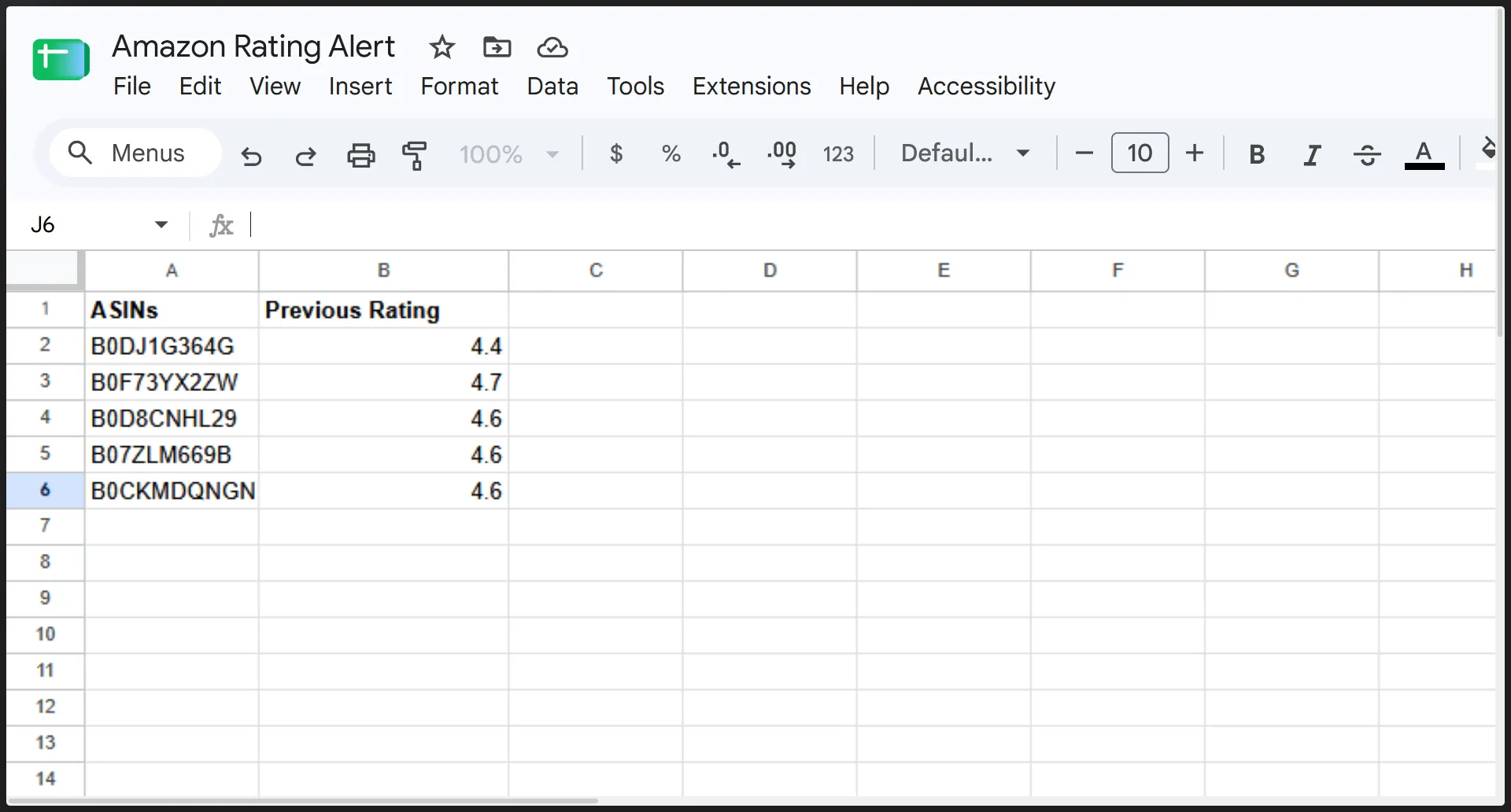
- How to store ASINs and their previous ratings in a Google Sheet.
- How to process each ASIN one at a time and fetch its current product data.
- How to skip invalid ASINs or failed API responses so they do not break the workflow.
- How to calculate the difference between the current rating and the stored one.
- How to set a threshold so alerts fire only when a rating changes significantly, and how to adjust it.
- How to update the sheet with the new rating so it becomes the baseline for the next run.
- How to send a Gmail alert with the product name, previous rating, current rating, and product URL.
How Do You Build Amazon Rating Monitoring with an API?
The workflow shown in this tutorial lets you use ScrapeHero Cloud’s Amazon Product Details and Pricing API with n8n. It accepts one or more ASINs from a Google Sheet named ASINs.
For each ASIN, it calls the API, processes the data, compares the current rating with the historical value, and updates your tracking sheet when it detects a significant change. All of this happens through n8n nodes.
For example, if your ASINs sheet contains:
| ASINs | Previous Rating |
|---|---|
| B08N5WRWNW | 3 |
| B07FZ8S74R | 4 |
The workflow will:
- Read each ASIN from the sheet
- Fetch current product data for each ASIN
- Compare the current rating with the previous rating
- If the difference exceeds your threshold (default 1 point), update the sheet and send an email alert
- Continue to the next ASIN
On the first run, the workflow establishes baseline ratings. On subsequent runs, it detects changes and takes action when significant variations occur.
Before You Automate Amazon Product Rating Monitoring with n8n
Prepare the following:
- An n8n cloud account or self-hosted n8n instance
- A Google account with access to Google Sheets
- A Google Cloud OAuth2 credential
- A ScrapeHero account and API key
- A Google Spreadsheet containing your ASINs to monitor, along with their ratings.
The workflow reads each ASIN, retrieves current product data, compares ratings with stored values, and triggers actions when it detects significant changes.
Amazon Product Rating Monitoring with n8n Overview
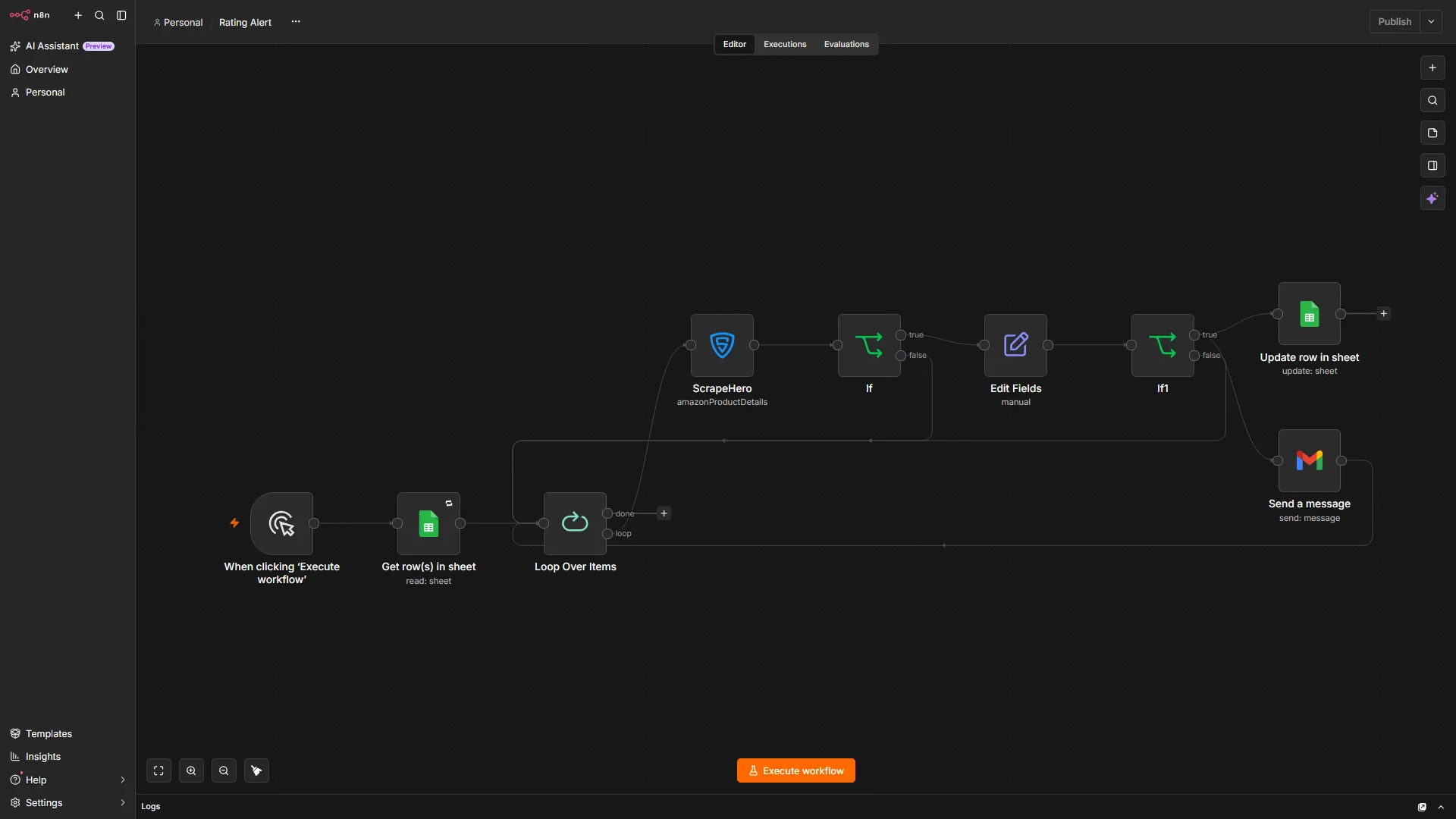
The completed workflow follows this structure:
- Manual Trigger
- Get row(s) in sheet: ASINs
- Loop Over Items: Process each ASIN individually
- ScrapeHero: Amazon Products API
- If: Check for valid data
- Set: Extract and calculate rating data
- If: Evaluate rating changes (significant difference threshold)
- Google Sheets: Update row (when significant change detected)
- Gmail: Send email alert (when significant change detected)
- Back to Loop Over Items
The workflow processes each ASIN individually, fetches current data, calculates rating differences, and acts only when changes exceed your configured threshold.
How Do You Build an Amazon Rating Monitoring Workflow in n8n?
Add a Manual Trigger
Create a new workflow in n8n.
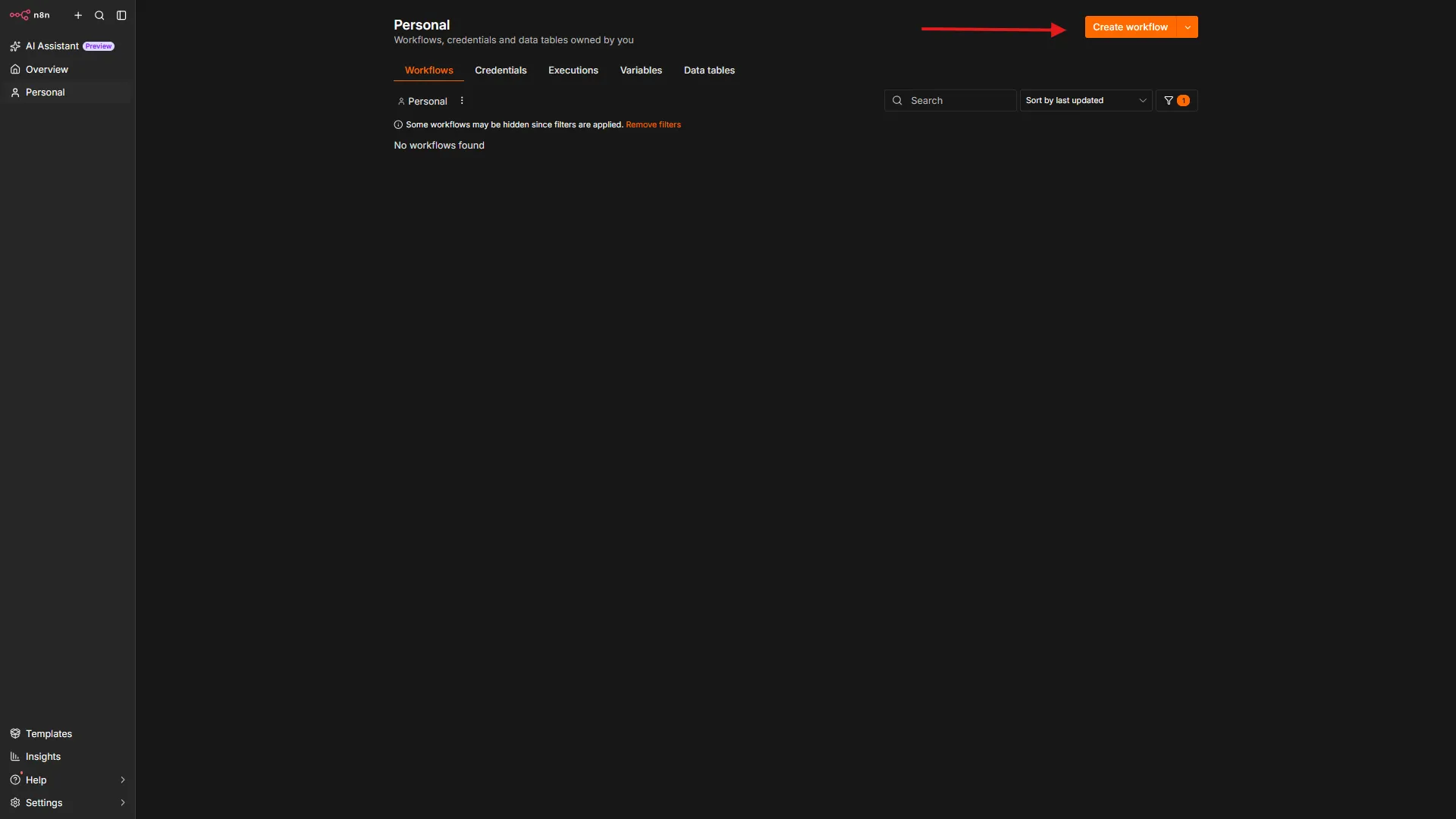
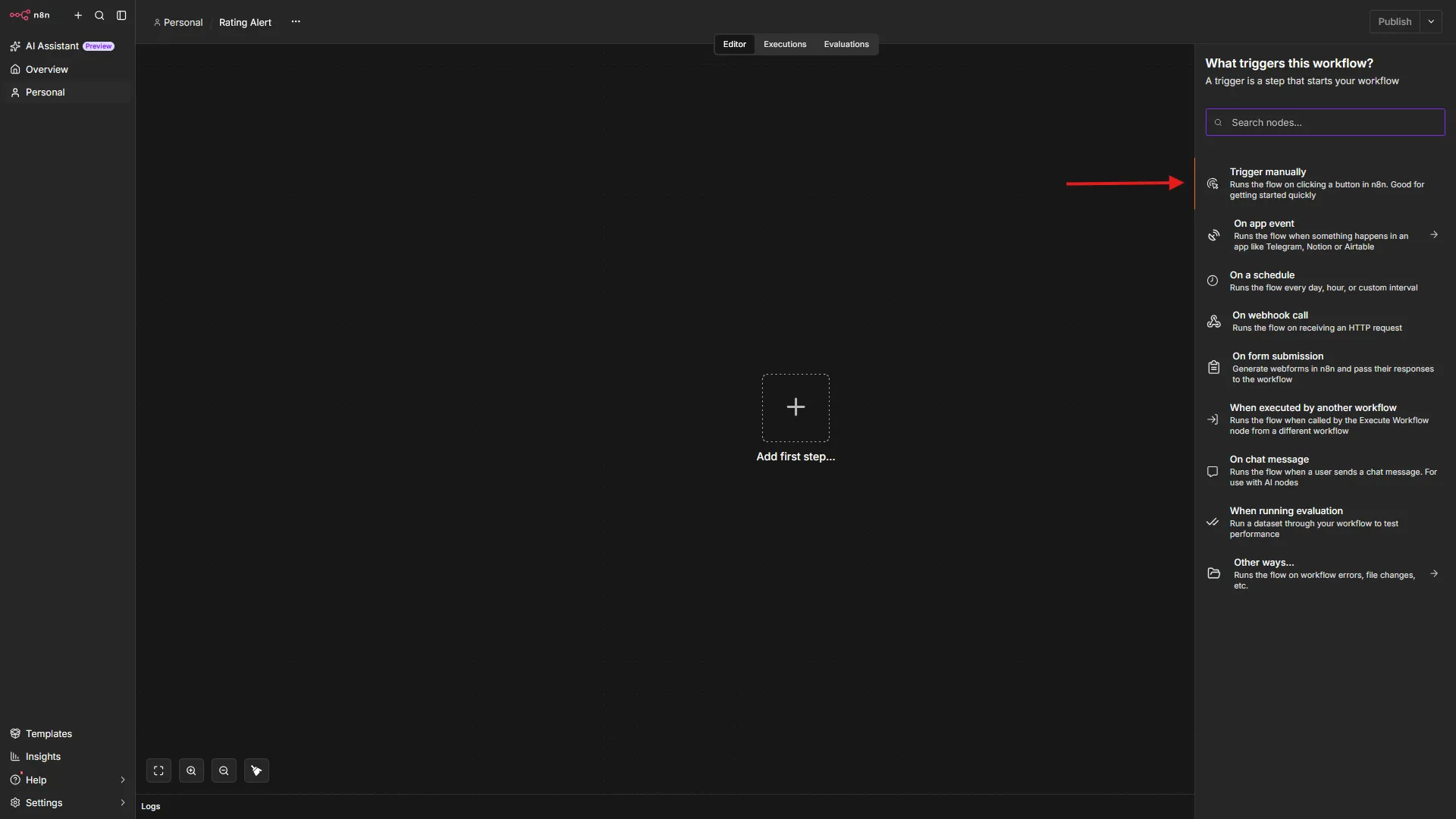
Click the plus icon and select “Trigger manually” in the right pane. This node lets you start the workflow manually whenever you want to check for rating updates.
Read ASINs from Google Sheets
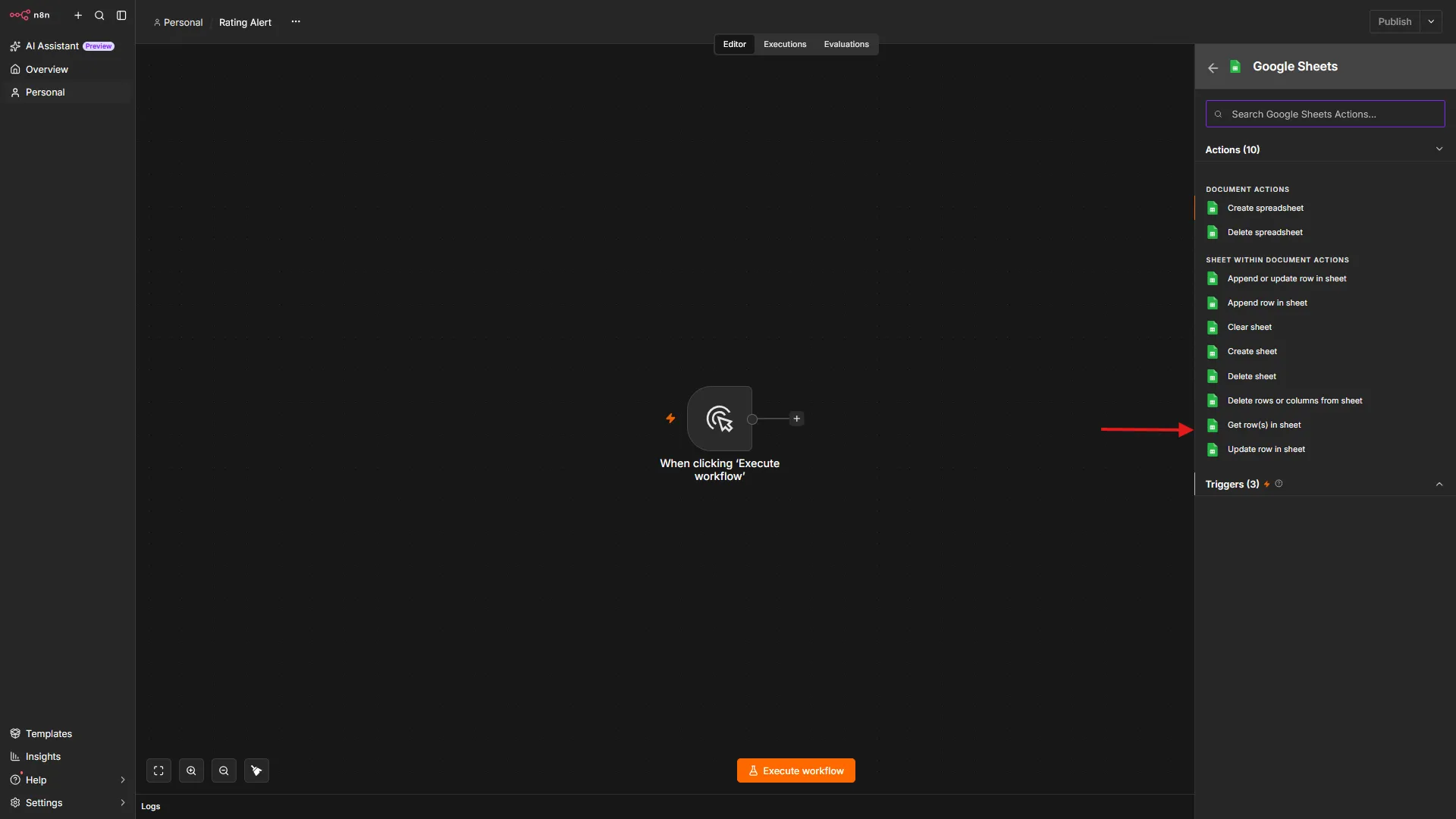
Connect a Google Sheets node with Get row(s) in sheet as the action.
Configure it as follows:
- Document: Select your Google Spreadsheet, for example, Amazon Rating Tracker.
- Sheet: Select your sheet inside the spreadsheet, for example, ASINs.
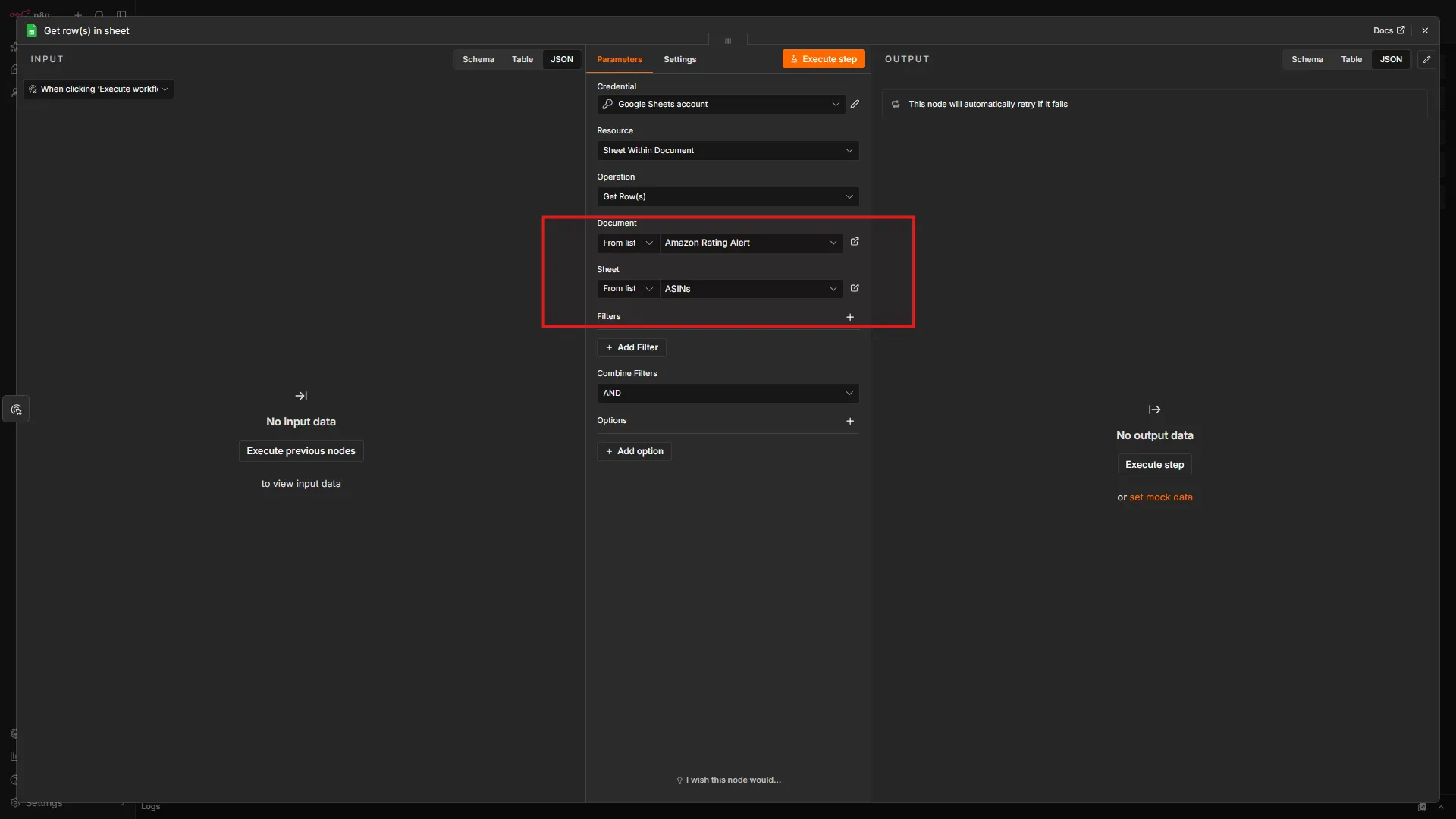
This node retrieves every row in the ASINs worksheet. Each row should contain an ASIN value that the workflow will process.
Add a Loop Over Items Node
Connect a Loop Over Items node to the Get row(s) in sheet node.
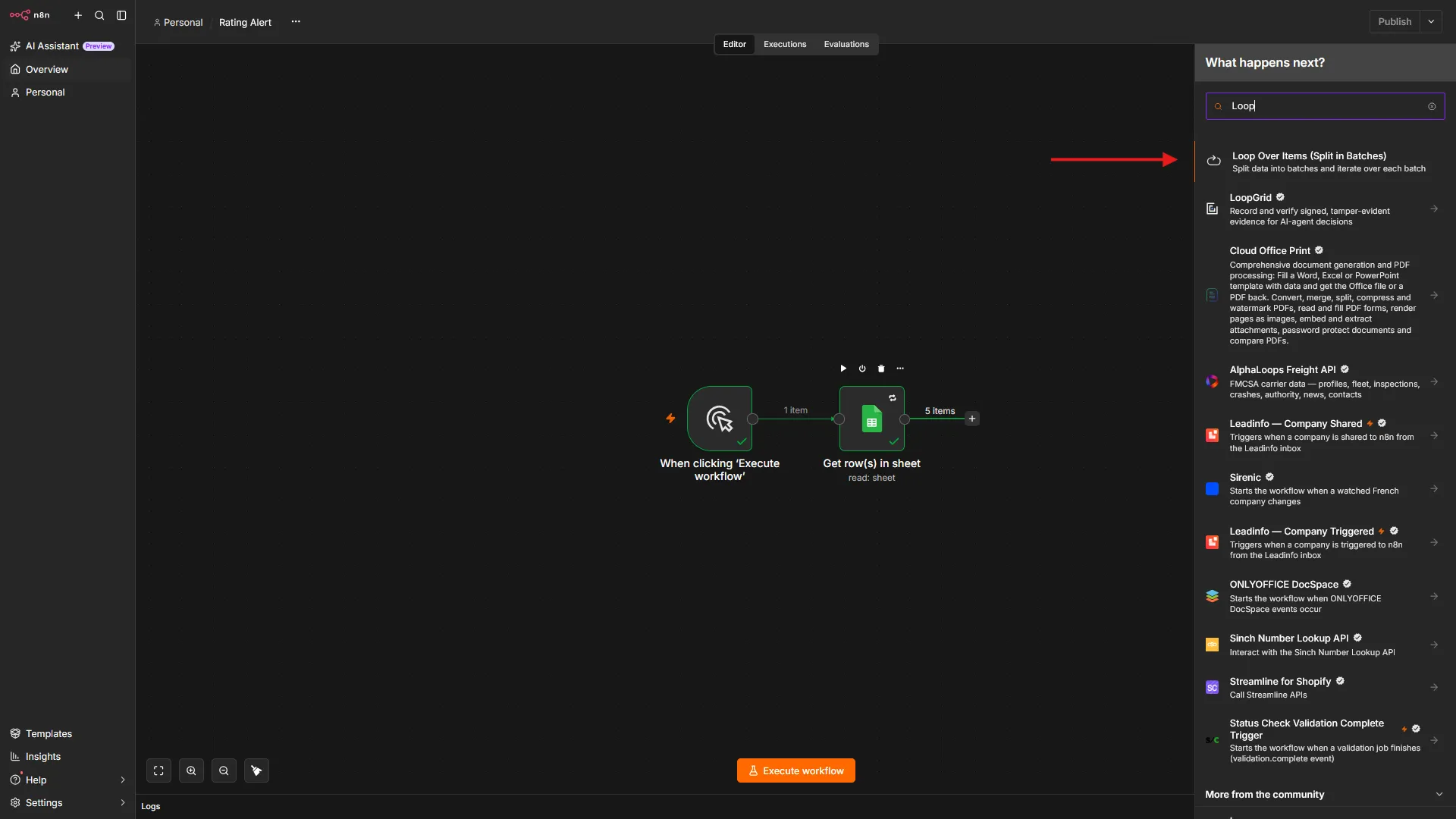
This node processes one ASIN at a time. This matters because each ASIN needs its own API request, data processing, and evaluation logic.
Call ScrapeHero’s Amazon Products API
Connect a ScrapeHero node to the loop branch of the Loop Over Items node.
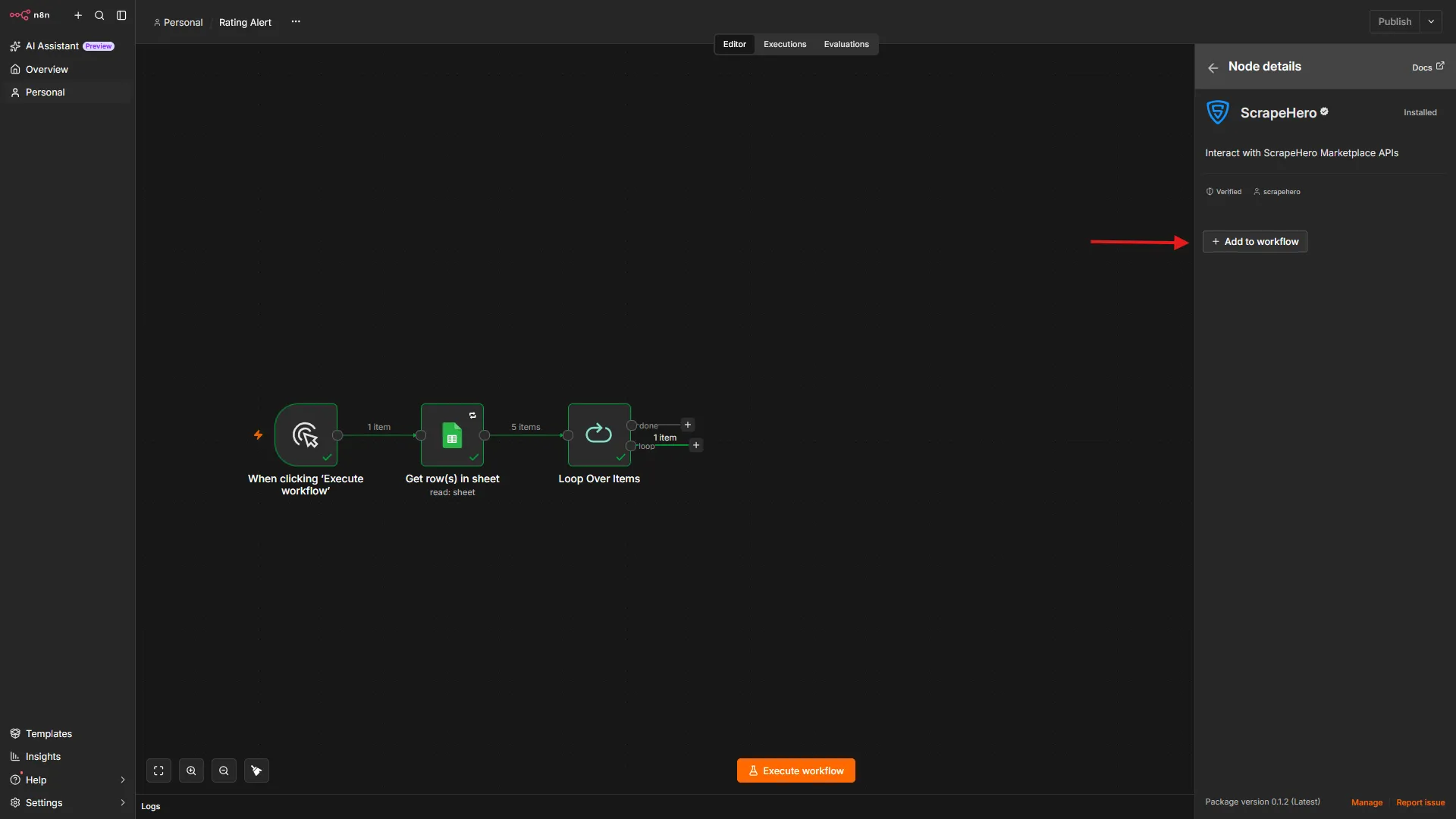
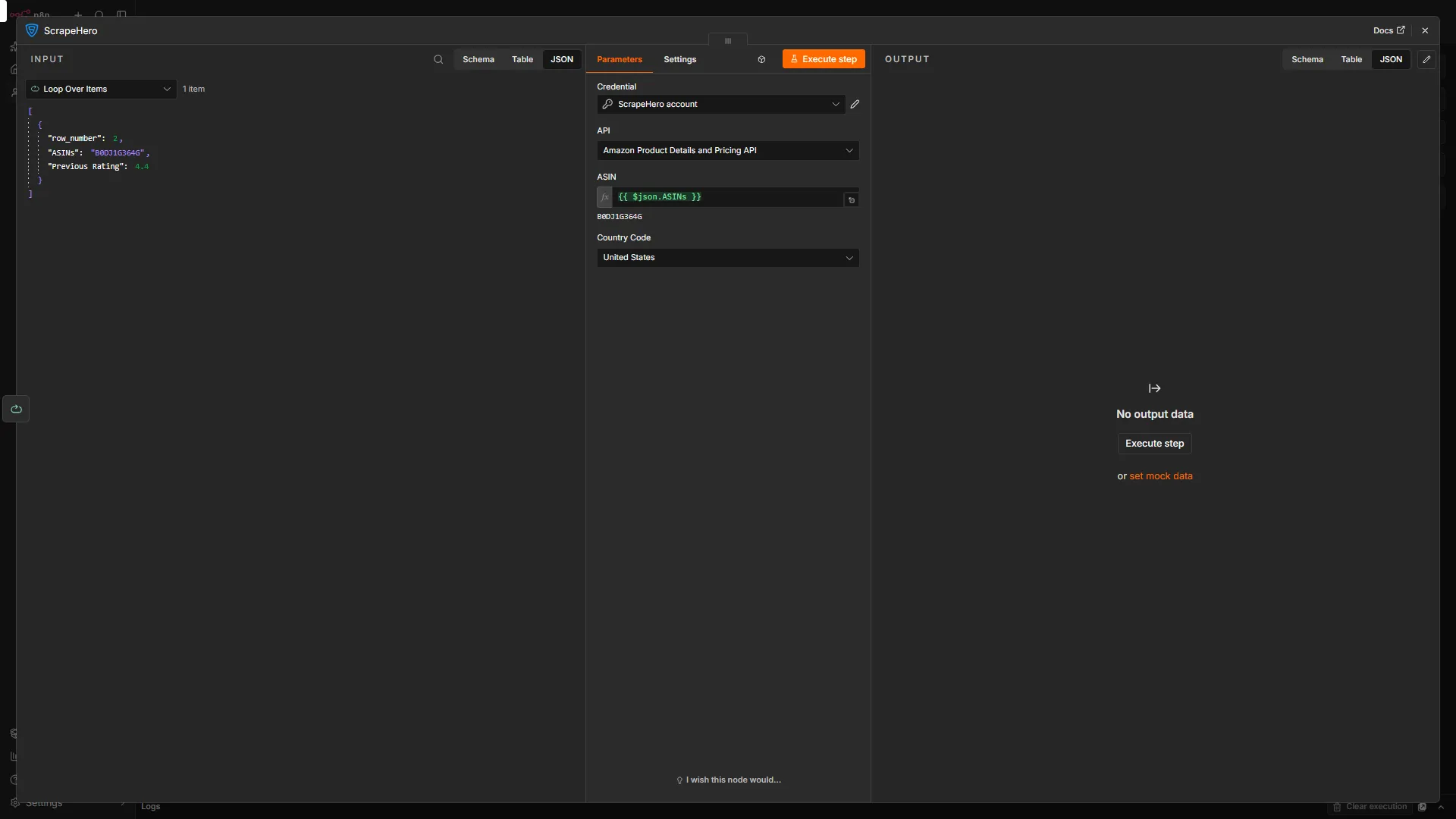
Configure it as follows:
- API: Amazon Product Data and Pricing API
- ASIN: ={{ $json.ASIN }}
- Country Code: United States
The ASIN parameter receives the current ASIN from the ASINs sheet. For example, if the current row contains B08N5WRWNW, the API request fetches product data for that ASIN.
Configure ScrapeHero Authentication
- Under Credentials, click Connect to ScrapeHero API.
- Add your ScrapeHero API key using the key and value specified in ScrapeHero’s API documentation.
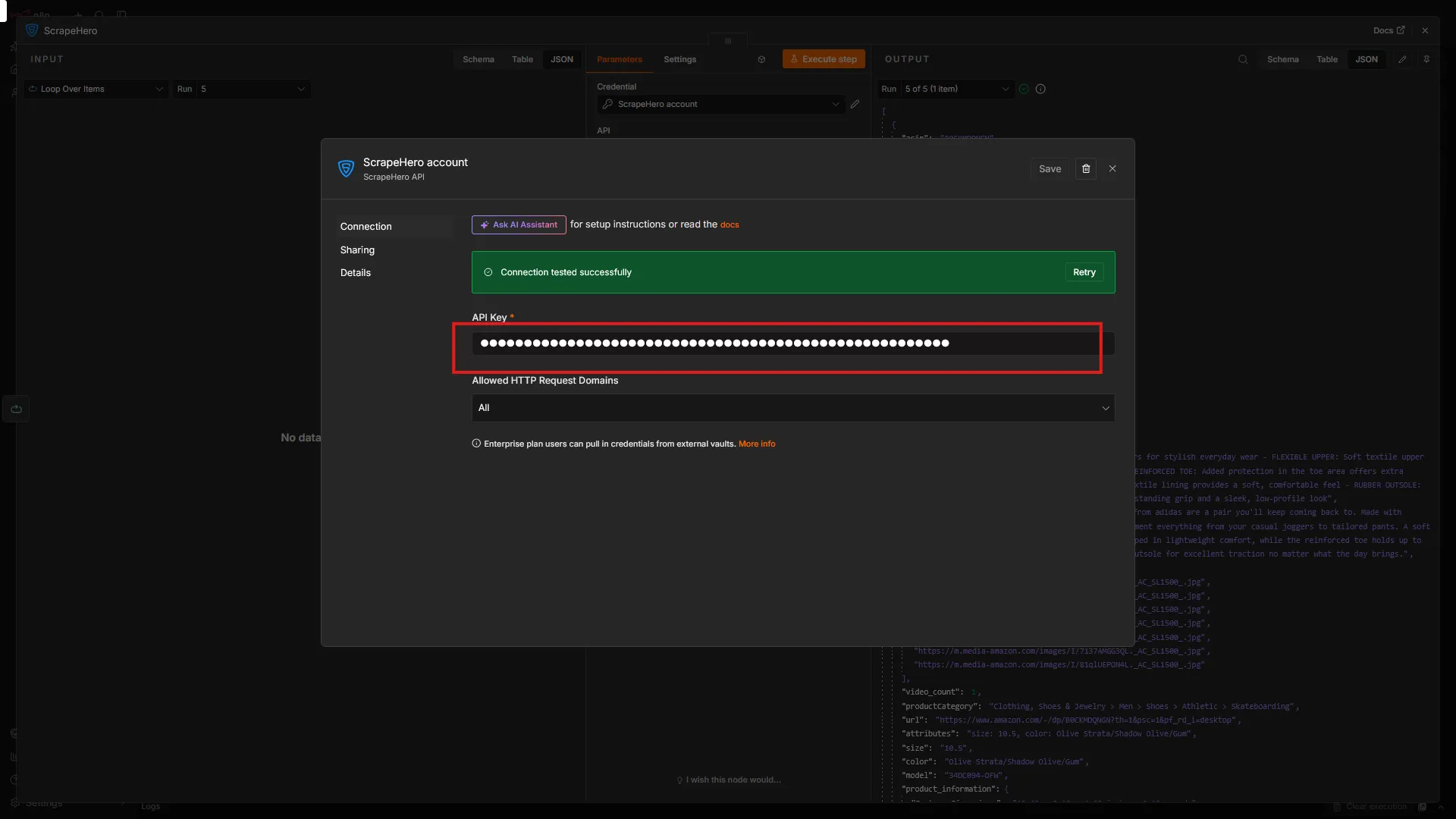
Storing the API key in an n8n credential keeps it off the workflow canvas and makes it easier to rotate later.
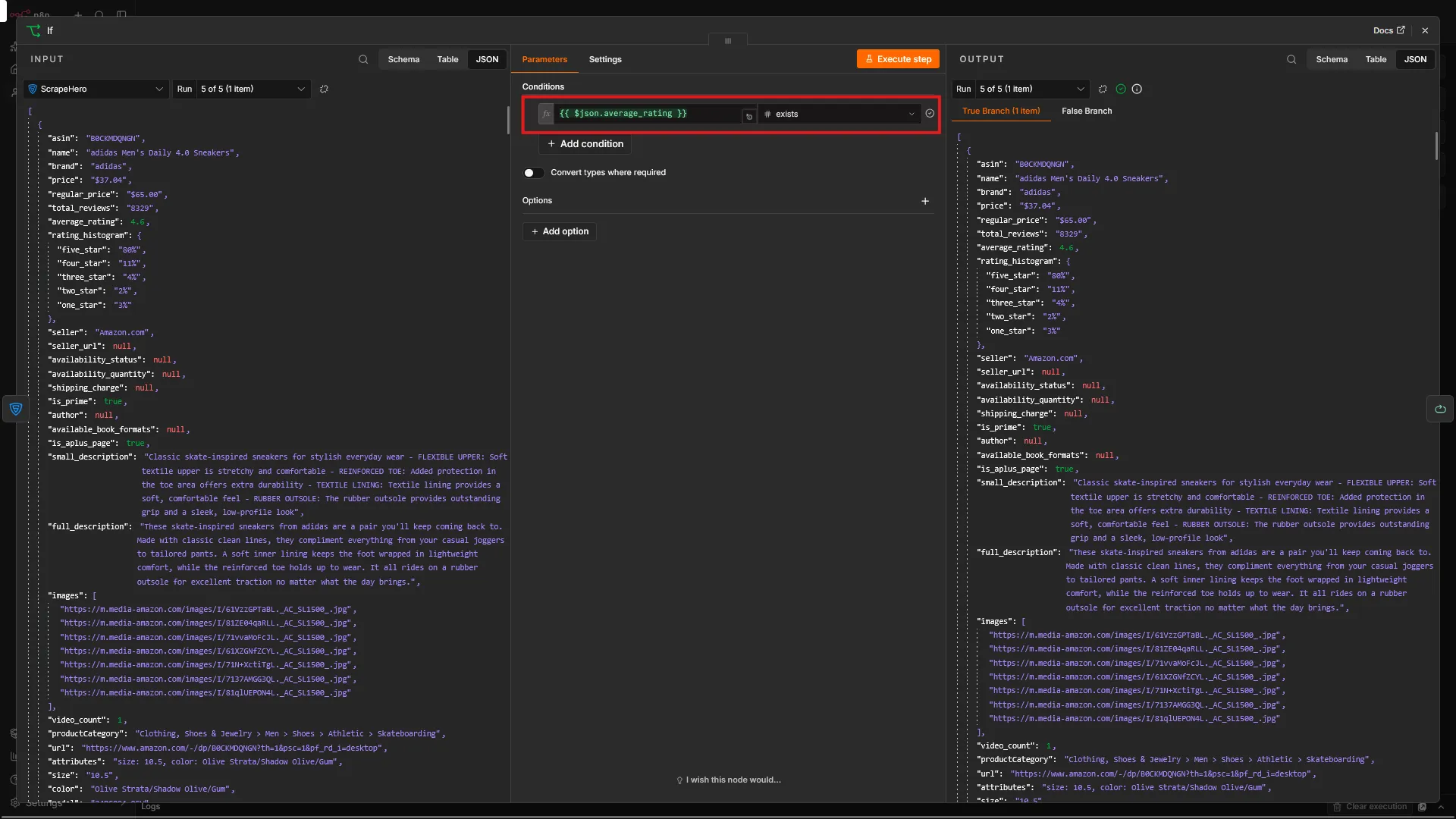
Check for Valid Data (First If Node)
Add an If node after the ScrapeHero node.
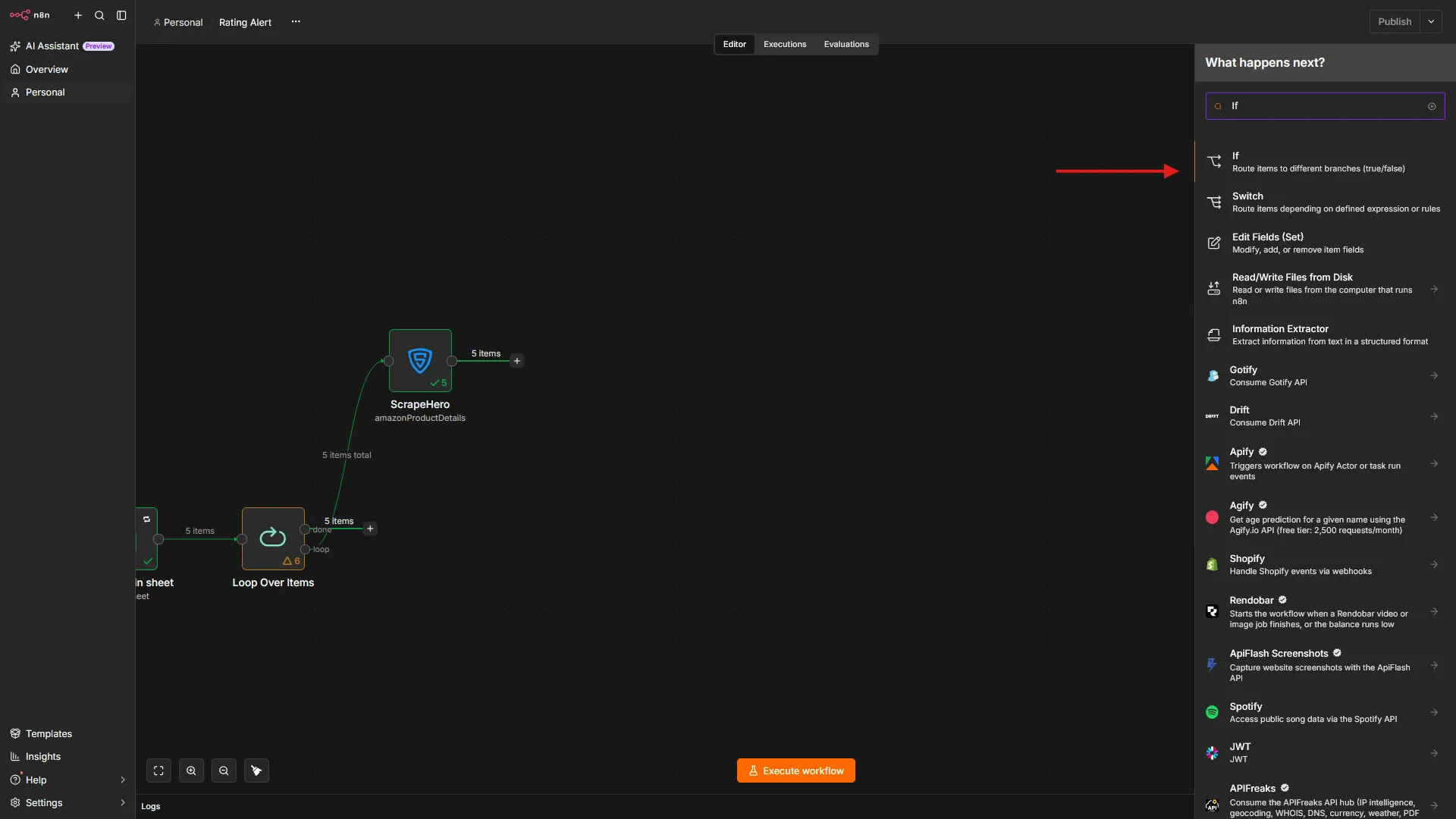
Configure it as follows:
- Condition: {{ $json.average_rating }} exists
- True path: Continue to rating change evaluation
- False path: Loop back to process the next item (skip invalid ASINs)
This prevents the workflow from breaking if ScrapeHero returns an error for a particular ASIN, such as an invalid ASIN or an API issue.
Extract and Calculate Rating Data
Add an Edit fields node after the If node.
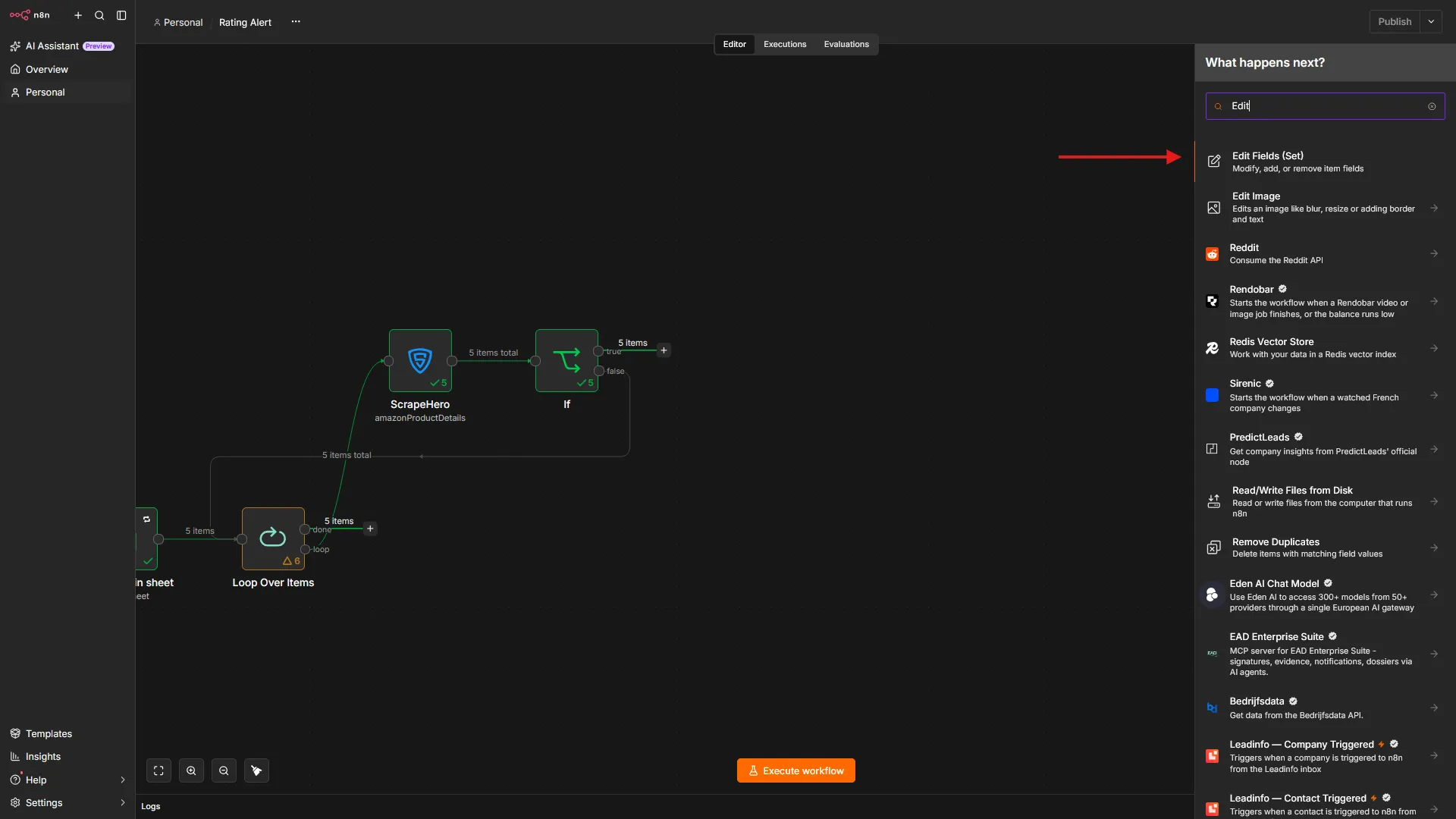
Configure it as follows:
- Keep Only Set: Disable (to preserve all incoming data)
- Set Fields:
- ASIN: ={{ $json.asin }}
- Average Rating: ={{ $json.average_rating }} (as number)
- Previous Rating: ={{ $(‘Loop Over Items’).item.json[‘Previous Rating’] }}
- Difference: ={{ Math.abs($json.average_rating – $(‘Loop Over Items’).item.json[‘Previous Rating’]).round(2) }}
- Name: ={{ $json.name }}
- URL: ={{ $json.url }}
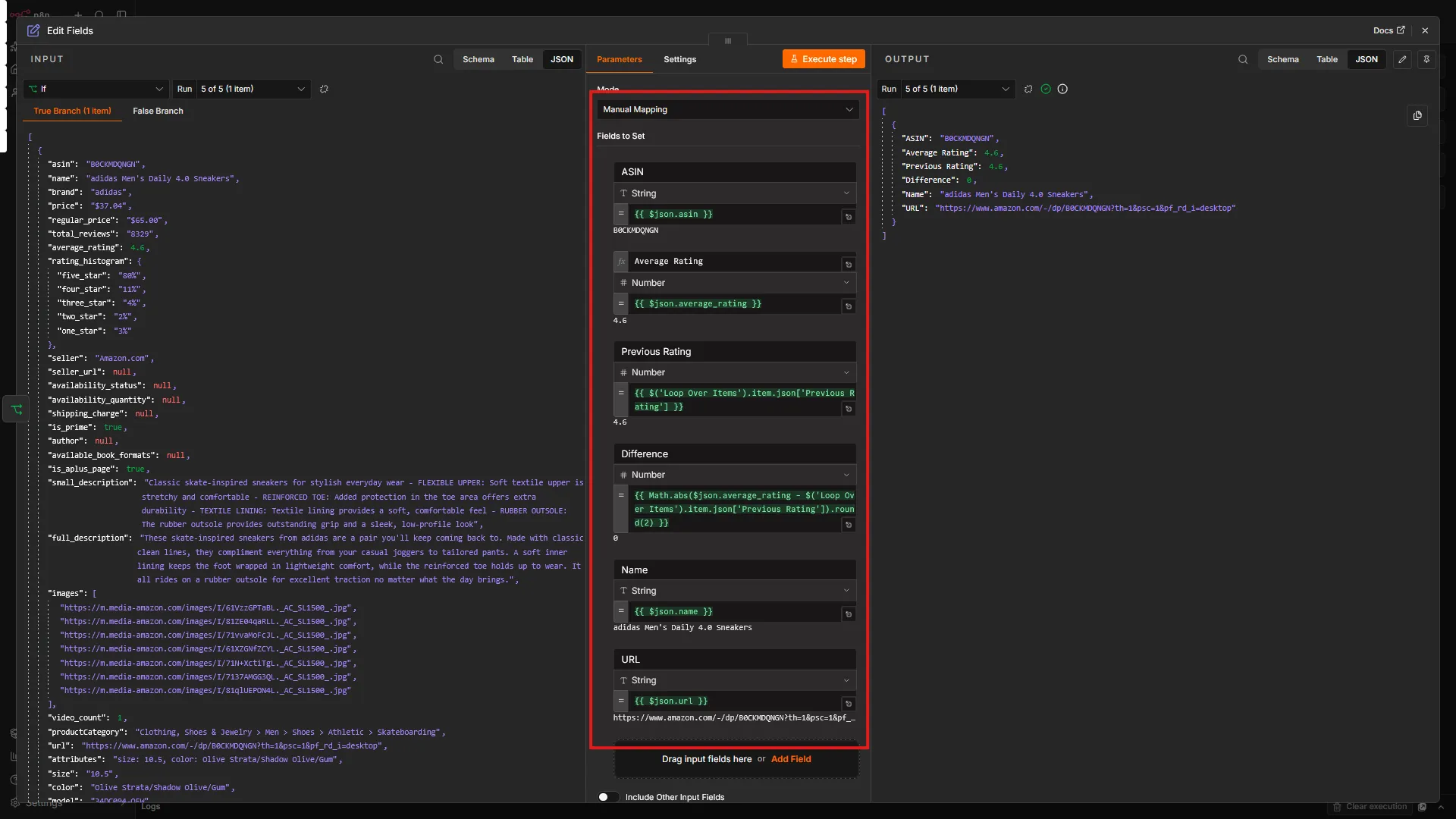
This node preserves the original data and adds calculated fields for comparison, including the absolute difference between the current and previous ratings.
What Threshold Should Trigger an Amazon Rating Alert?
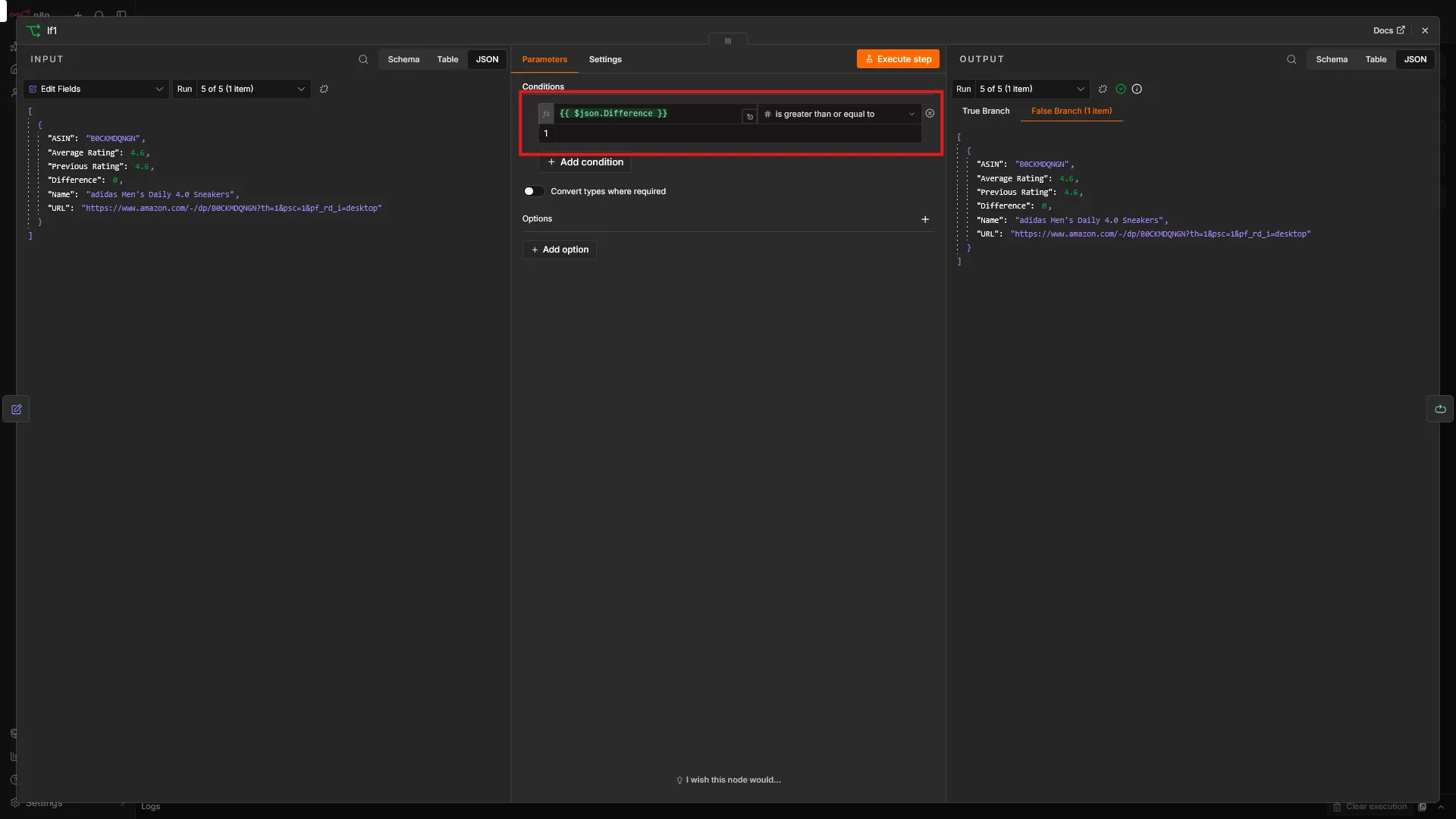
Add another If node after the Edit fields node.
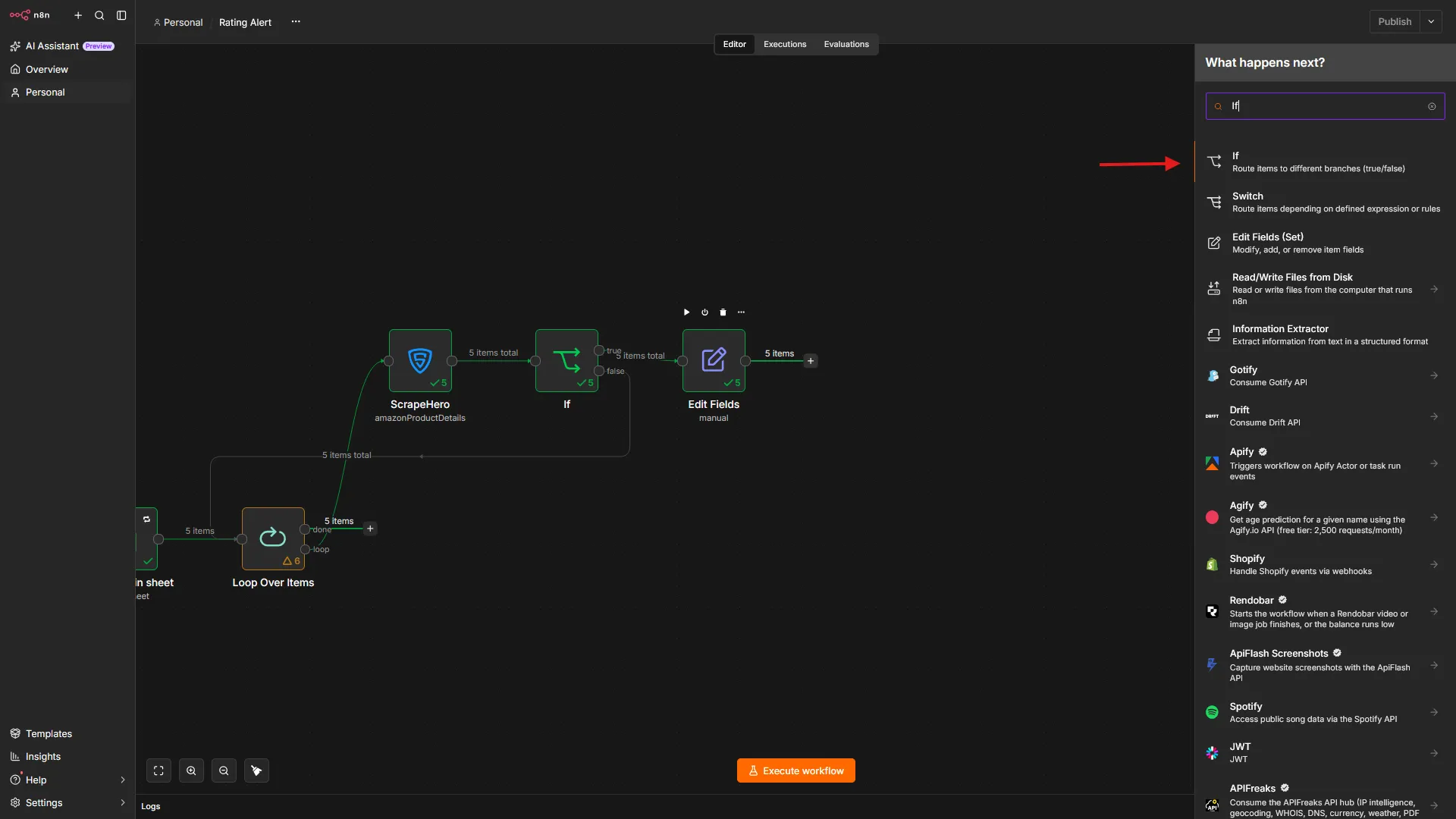
Configure it as follows:
- Condition: {{ $json.Difference }} >= 1 (you can adjust this threshold)
- True path: Rating changed significantly. Update the sheet and send an alert.
- False path: No significant change. Loop to the next item.
This node determines whether the rating change is significant enough to warrant action. The default threshold is 1 point (for example, a change from 4.5 to 3.5 or lower), but you can adjust it based on your monitoring needs.
A lower threshold, such as 0.5, flags smaller shifts but sends more alerts. A higher threshold sends fewer alerts and flags only large swings. Products with few ratings tend to move more with each new review, so they may need a higher threshold to avoid noise.
Update Google Sheet
For products with significant changes, add a Google Sheets node after the second If node’s true path.
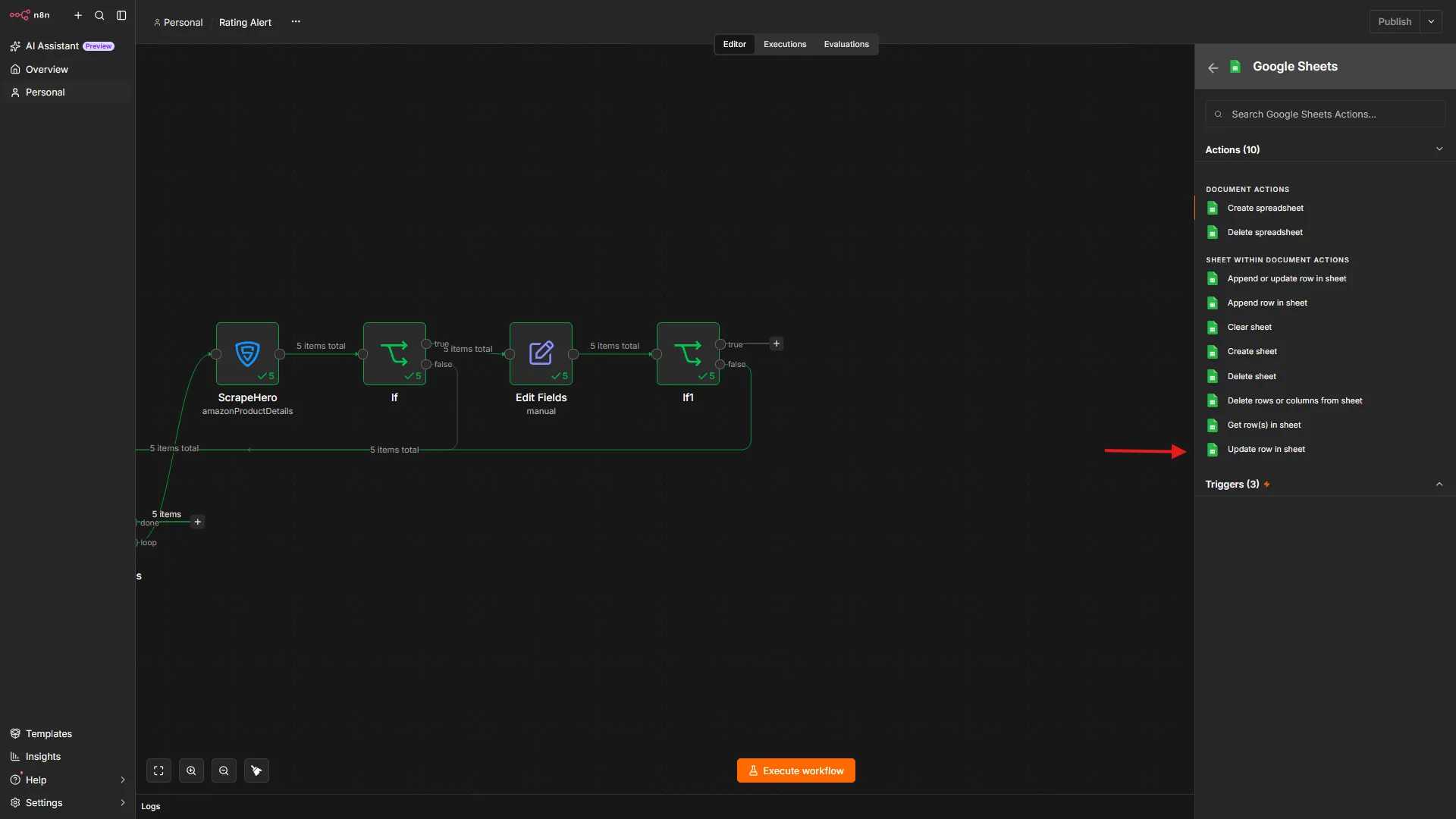
Configure it as follows:
- Operation: Update
- Document: Select the same Google Spreadsheet used for the ASINs worksheet
- Sheet: Select the ASINs worksheet
- Update Operation: Match by ASINs column
- Columns to Update:
- Previous Rating: ={{ $json[“Average Rating”] }} (store the current rating as the new baseline)
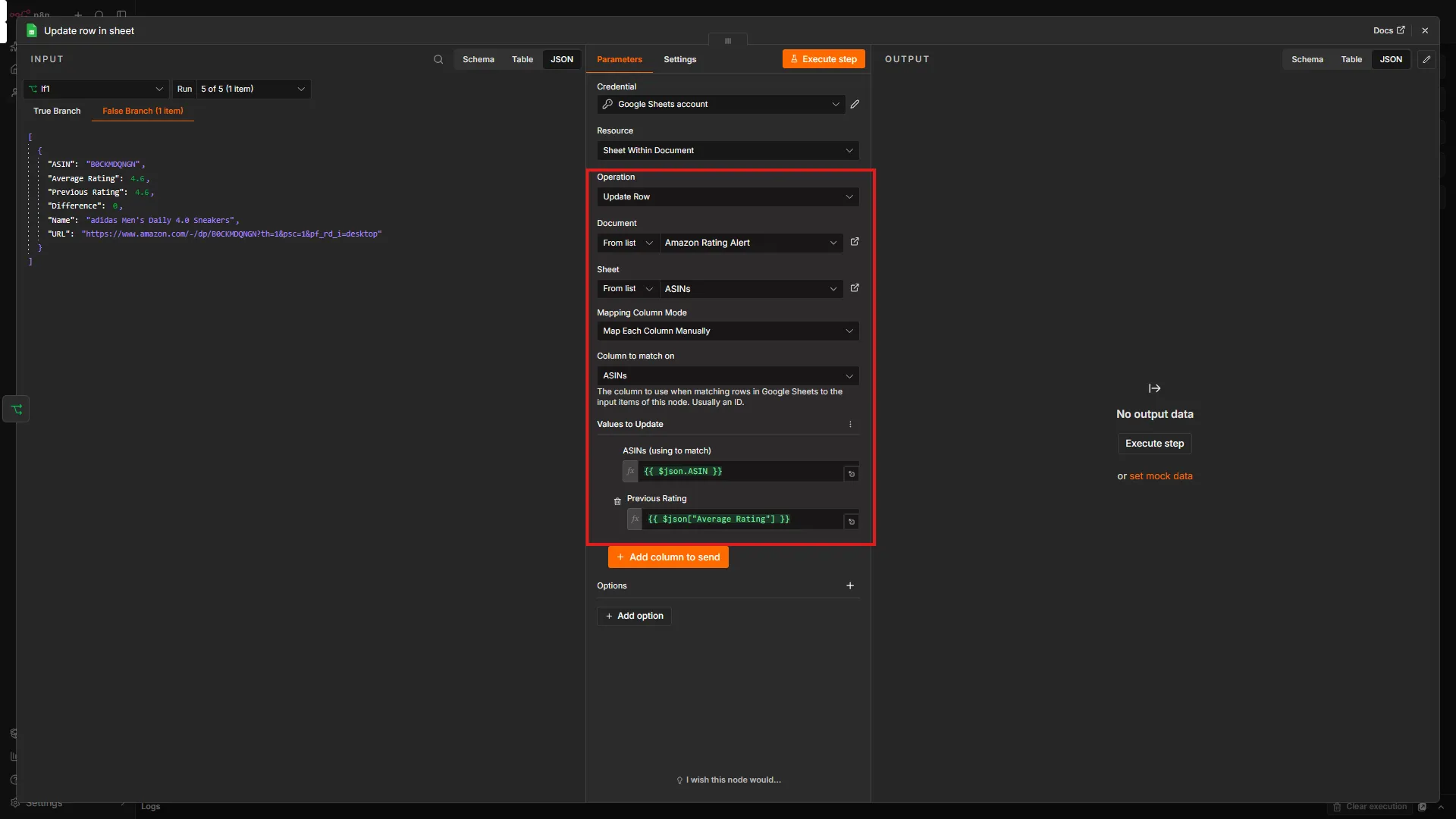
This prepares the sheet for the next monitoring cycle by storing the current rating as the new baseline for comparison.
Send Email Alert
For products with significant changes, add a Gmail node after the Google Sheets update node (both connected to the second If node’s true path).
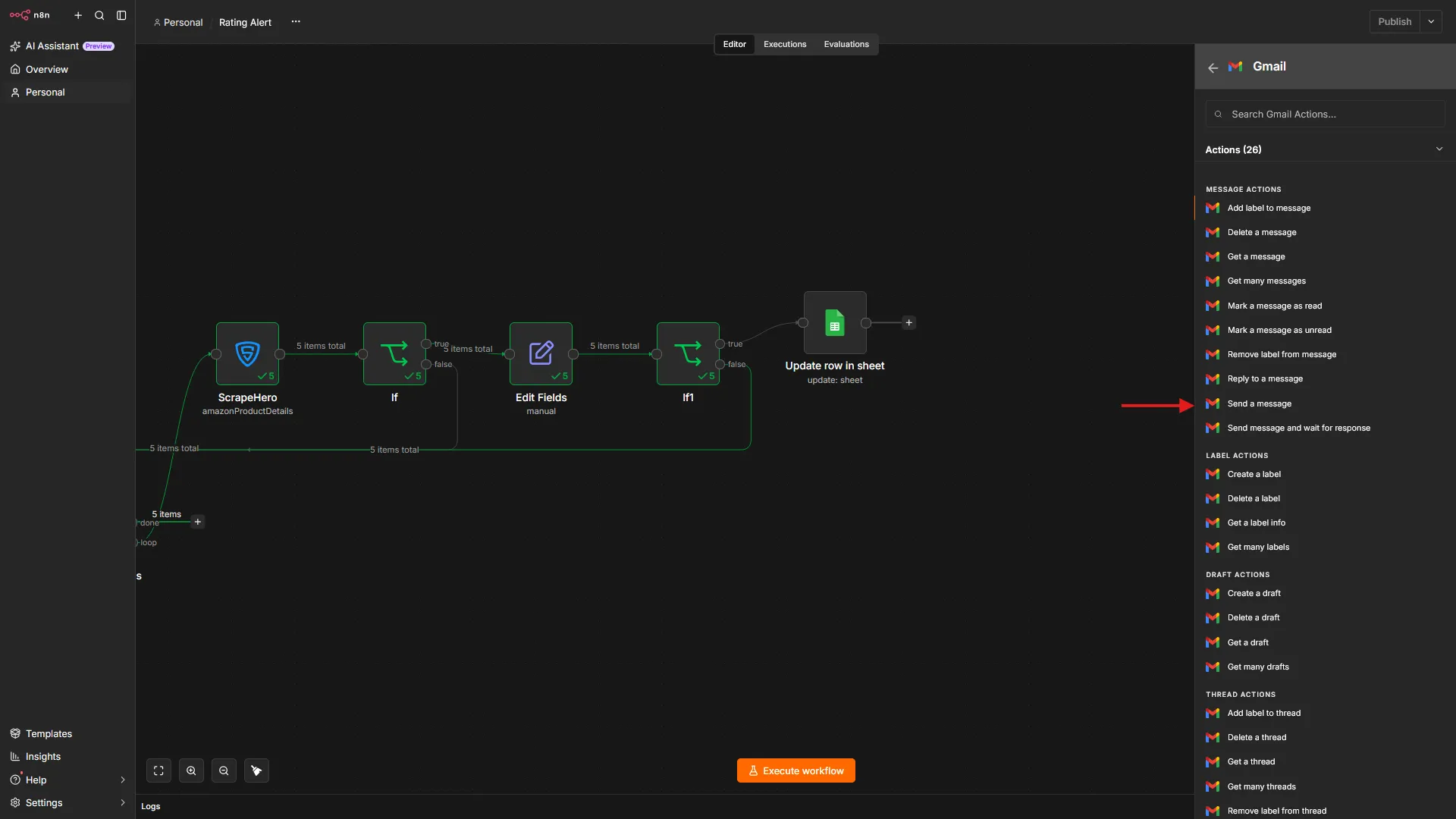
Configure it as follows:
- To: <Your monitoring email address>
- Subject: =Rating Changed: {{ $json.Name }}
- Message:
Rating of {{ $json.Name }} has changed.
Previous Rating: {{ $json["Previous Rating"] }}
Current Rating: {{ $json["Average Rating"] }}
URL: {{ $json.URL }}
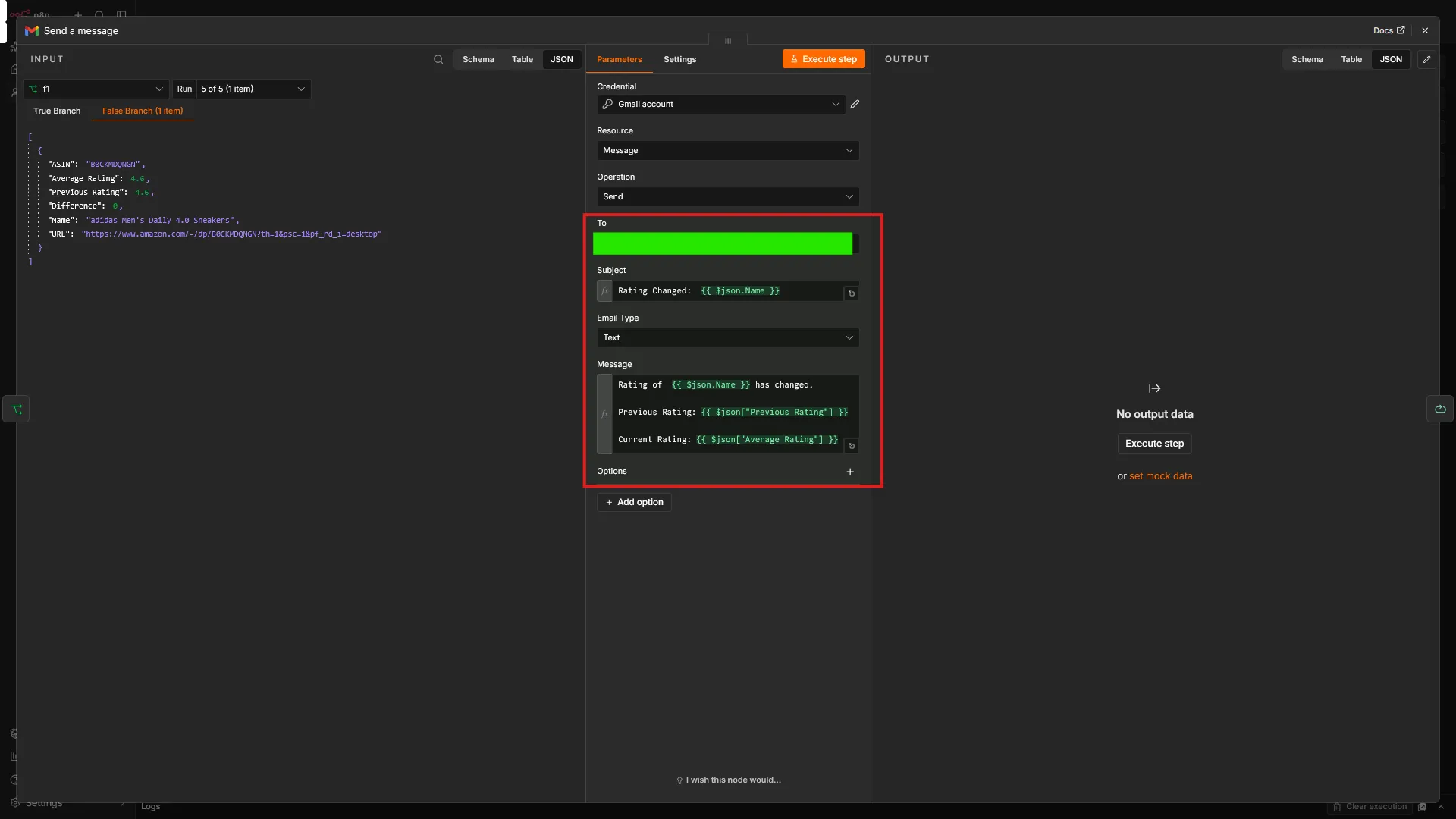
This gives you all the context you need to investigate the rating change immediately.
Also, loop back the output of the Gmail node to the Loop Over Items node to process the next item.
The Complete Amazon Rating Monitoring Workflow
Running Your Rating Monitor
- Click Execute Workflow to run a manual check.
- Monitor the execution:
- Each ASIN is processed individually
- Valid products proceed to rating comparison
- Only products with significant changes trigger updates and alerts
- Check your Google Sheet. The Previous Rating column should update for changed products.
- Check your email for alerts about any significant rating movements.
Ways to Extend the Amazon Rating Monitoring System
Once the basic workflow is running, consider these improvements.
Schedule Automated Checks
Replace the Manual Trigger with a Cron Trigger to run:
- Hourly for fast-moving products
- Daily for standard monitoring
- Weekly for long-term tracking
Add More Data Points
Enhance the ScrapeHero node to also capture:
- Number of ratings (rating_count)
- Price changes
- Availability status
- Best Seller Rank
Create Rating History
Instead of only updating the previous rating, add:
- A separate worksheet for historical data
- Each check appended with a timestamp, rating, and change amount
- Trend charts built over time
Add Escalation Logic
For critical products:
- Send Slack or Teams notifications for immediate attention
- Create tasks in project management tools
- Trigger different email templates based on change direction (improvement vs. decline)
Handle New Products
Modify the workflow to:
- Automatically add new ASINs to your tracking sheet
- Initialize their Previous Rating with the first scraped value
- Send new product onboarding notifications
How Do You Automatically Monitor Amazon Reviews?
This workflow monitors the average rating of each ASIN. To monitor review text, such as new complaints or praise, pair it with ScrapeHero’s Amazon review scraper and store the output in a separate worksheet. You can then set up Amazon review alerts the same way: store, compare, and email.
Collected reviews also open the door to Amazon sentiment analysis. To see how that works, read ScrapeHero’s guide to sentiment analysis using web scraping.
How Amazon rating monitoring Helps Your Business
- Track rating trends automatically. See how product ratings change over time without manual checks. Spot gradual declines that might indicate quality issues, or sudden jumps from fake reviews.
- Respond to rating drops fast. Get alerts when ratings drop significantly so you can investigate the causes, such as shipping issues or product defects, before they hurt sales. To go deeper on the feedback behind a drop, see how web scraping boosts customer feedback analysis.
- Monitor competitor performance. Add competitor ASINs to your sheet to watch how their ratings change relative to yours. Use this data for pricing and inventory decisions. For a starting list of competitors, browse ScrapeHero’s Amazon best sellers with ratings.
- Reduce manual work. Eliminate the weekly chore of checking dozens of product pages and copying ratings into a spreadsheet.
Troubleshooting Common Issues
“No data returned from ScrapeHero”
- Verify the ASIN is valid and exists on Amazon
- Check that your ScrapeHero subscription includes the Amazon Products API
- Ensure you are not hitting rate limits (consider adding delays)
“Google Sheets update failed”
- Confirm the ASIN column exists and matches exactly
- Check that your credentials have update permissions
- Verify the worksheet name is correct
“Not receiving email alerts”
- Check that the If node threshold is set appropriately
- Verify that your Gmail credentials are properly authorized
- Look at the workflow execution details to see which path was taken
Wrapping Up
Checking Amazon ratings by hand is slow and error-prone. You can use ScrapeHero Cloud’s Amazon Product Details and Pricing API and automate Amazon product rating monitoring with n8n, turning that manual check into a repeatable workflow.
ScrapeHero supplies the Amazon data, n8n orchestrates the process, and Google Sheets stores the baselines. Start with this foundation and adapt it to your needs, whether you are running Amazon competitor monitoring or tracking your own catalog. Add price, availability, and rank data, and your Amazon rating tracker grows into a broader product intelligence system.
Sign up for a ScrapeHero API key and connect it to n8n to build your rating monitor. Need Amazon data at a larger scale or in a custom format? Tell us your requirements, and we will build a custom API for your use case.
ScrapeHero is a full-service web scraping provider that pairs automated data extraction with human-in-the-loop quality checks to deliver reliable data at scale. Contact ScrapeHero to get started.
FAQs
Amazon lists the reviews you have written in your account. It does not show how a product’s rating has changed over time. To build that history, append each check to a worksheet with a timestamp, as described in the Create Rating History section.
Ratings change as new ratings and reviews come in, so the pace varies by product. The workflow captures the rating at the time of each run. Daily checks suit most products, and hourly checks suit fast-moving ones.
Add the ASIN to the ASINs column of your Google Sheet. The workflow fetches its data through ScrapeHero’s Amazon Products API on every run and compares the rating with the stored value.