Amazon prices can change frequently, so manually checking product pages is inefficient at scale. Automate Amazon product scraping with n8n to check prices at regular intervals and notify you whenever a change occurs.
This tutorial shows how to automate an Amazon price monitoring workflow that:
- Reads Amazon ASINs from Google Sheets
- Retrieves the latest product data through ScrapeHero’s Amazon Product Details and Pricing API
- Compares the current prices with previously recorded values
- Sends an email alert through Gmail when a price changes
Key Takeaways
Before You Begin
Before creating the workflow to automate Amazon product scraping with n8n, prepare the following:
- An n8n account or self-hosted n8n installation.
- A Google Cloud OAuth client ID and client secret.
- A Google Sheets document containing the products you want to track.
- A ScrapeHero account and API key.
Your Google Sheet should contain at least two columns:
| ASIN | Price |
|---|---|
| B098XP1Y38 | 129.95 |
| B079Y45KTJ | 89.99 |
The ASIN identifies the Amazon product, while the Price column stores the last price recorded by the workflow.
You can add additional columns, such as Product Name or Amazon URL, but the workflow described here uses ASIN and Price.
Create the Workflow
1. Add a Schedule Trigger
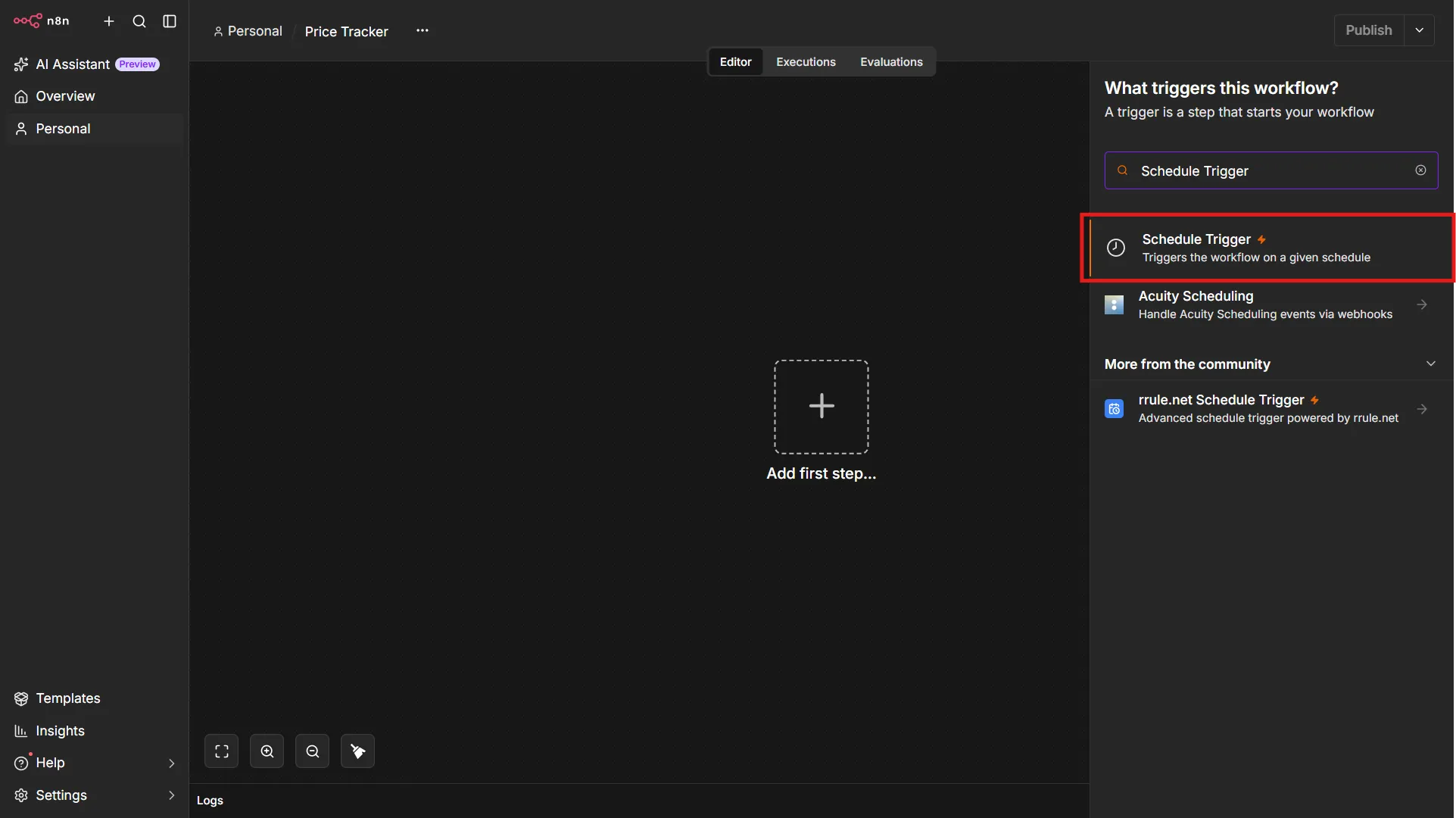
On your n8n dashboard, click “Create Workflow” to create a new workflow in n8n. This will open up a canvas with a big plus sign in the center.
Click the plus icon, search for Schedule Trigger, and click it to add it to the workflow. Adding the node immediately opens up its configuration window.
The Schedule Trigger determines how often n8n checks your products. In the configuration window, you can set it to run hourly, daily, weekly, or at another interval that suits your use case.
For example, you could run the workflow:
- Every hour for frequently changing products.
- Once per day for regular price monitoring.
- Once per week for products with relatively stable prices.
Choose the interval based on how quickly you need to know about a price change and how many API requests your workflow will make.
2. Read Products from Google Sheets
After exiting the configuration window of the node, the Scheduled Trigger will be on the canvas with a plus icon on its right side.
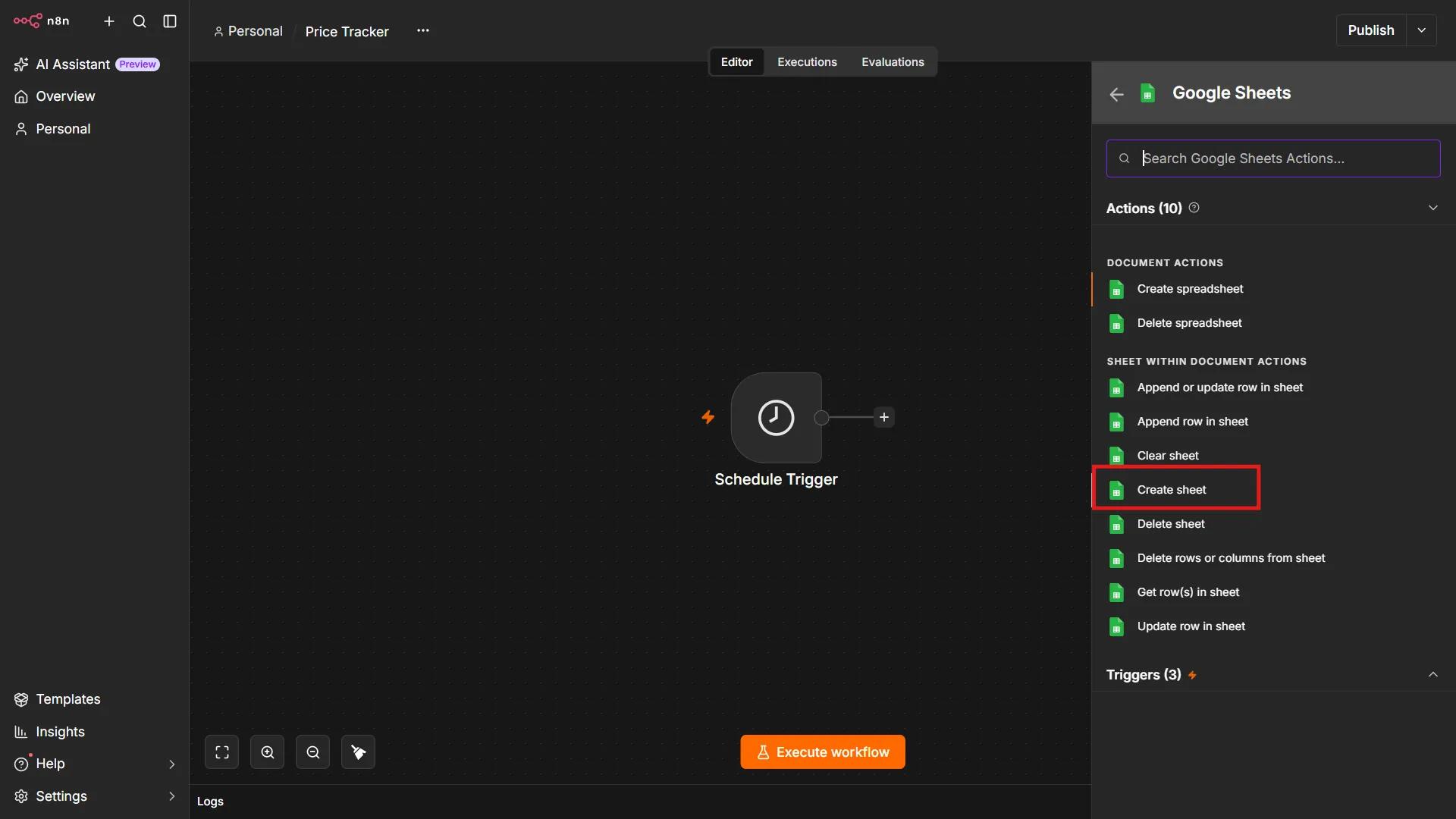
Click the plus icon, search for Google Sheets, and click to add the node. (This is similar to all the other nodes in this tutorial)
For the Sheet action, choose Get Row(s) in Sheet.
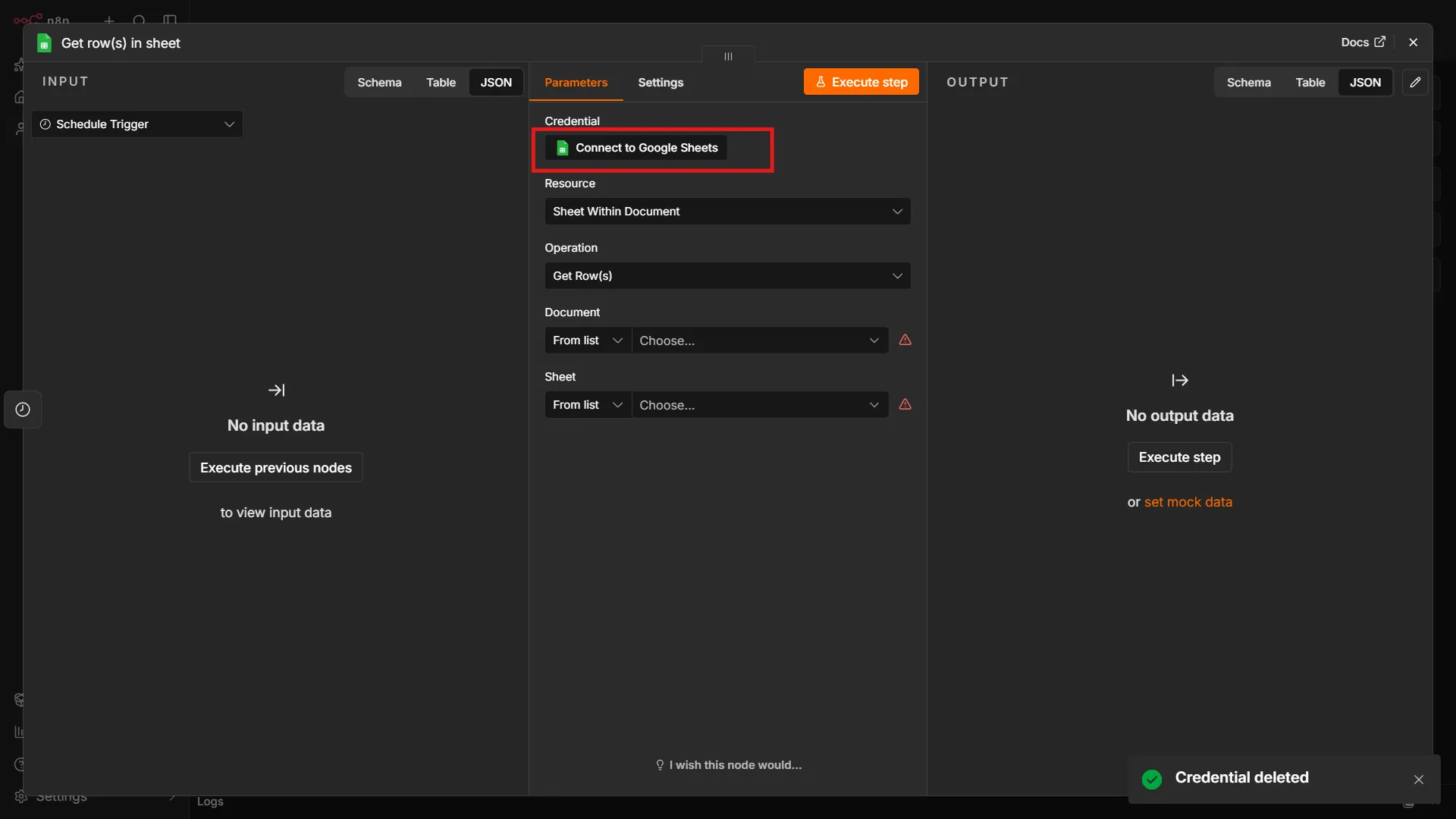
Next, click Connect to Google Sheets.
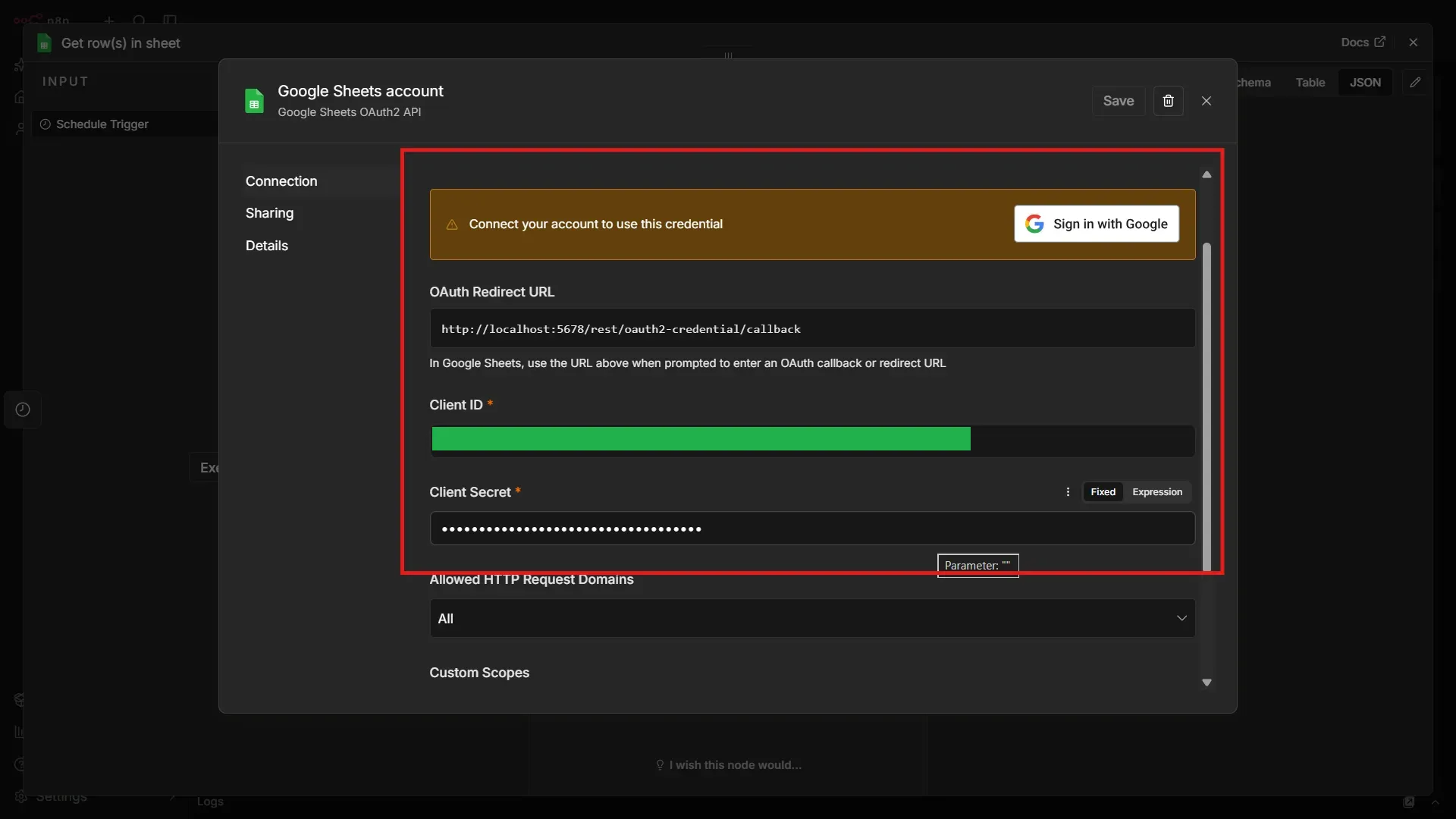
Paste your Google Cloud Client ID and Client Secret, then click Sign in with Google.
Complete the authorization process and return to n8n.
Now select:
- The Google Sheets document containing your product list.
- The sheet or tab containing the ASINs and prices.
The node will read each product row and pass the data to the next node.
3. Process Each ASIN Individually
You want each ASIN to move through the workflow before it processes new ASINs; this ensures that you wait for appropriate time before subsequent requests to the ScrapeHero API.
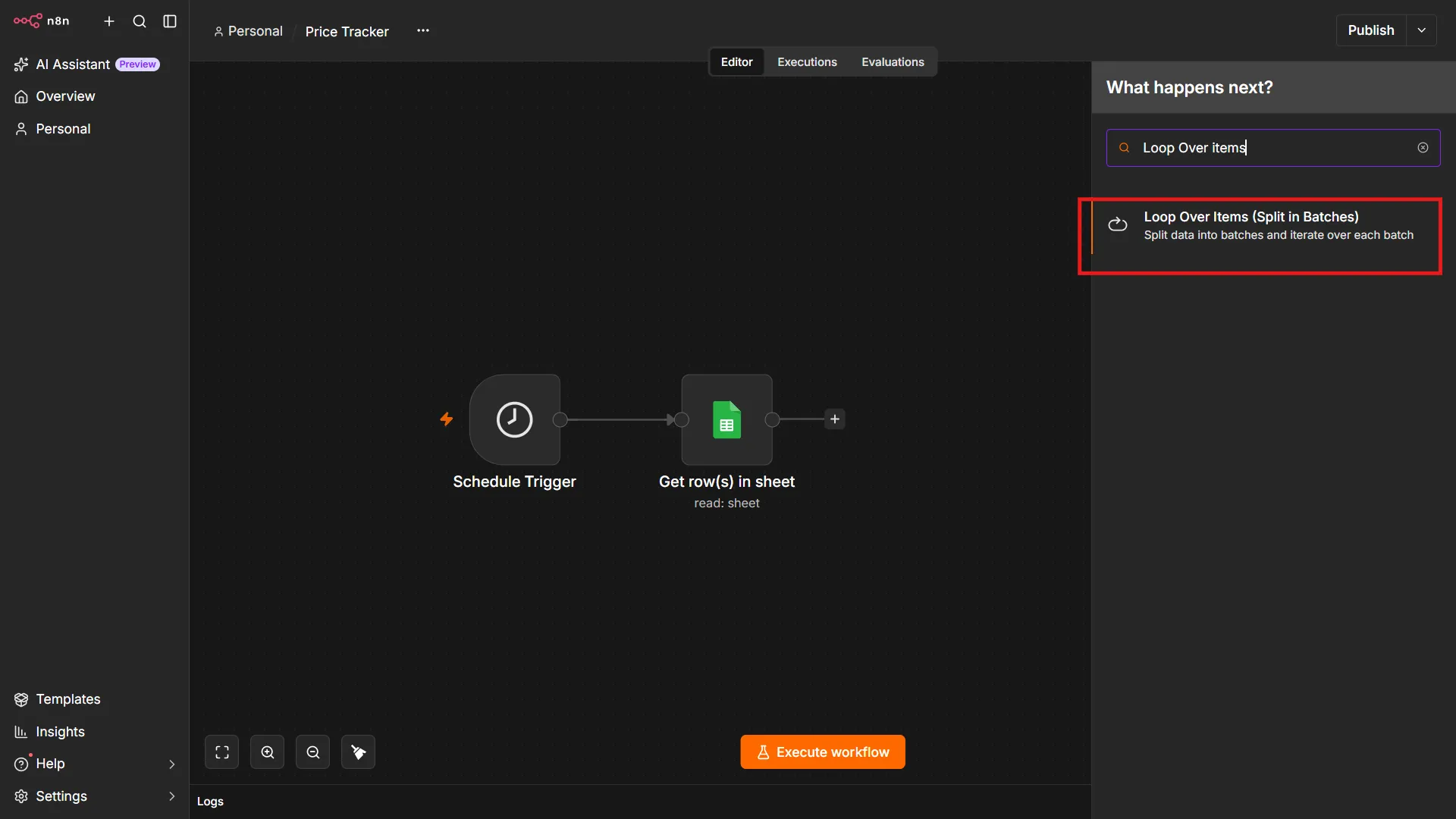
To do so, add a “Loop Over Items” node.
Click the plus icon to the right of the Google Sheet node, search for Loop Over Items, and click it.
This node processes the products one at a time. That is useful because each ASIN needs to be sent separately to the ScrapeHero API before its price can be compared with the value stored in Google Sheets.
4. Add the ScrapeHero Node
Next, add the ScrapeHero node, which serves as an Amazon scraper integration for n8n.
If you are adding the node for the first time, you need to install the ScrapeHero community node first.
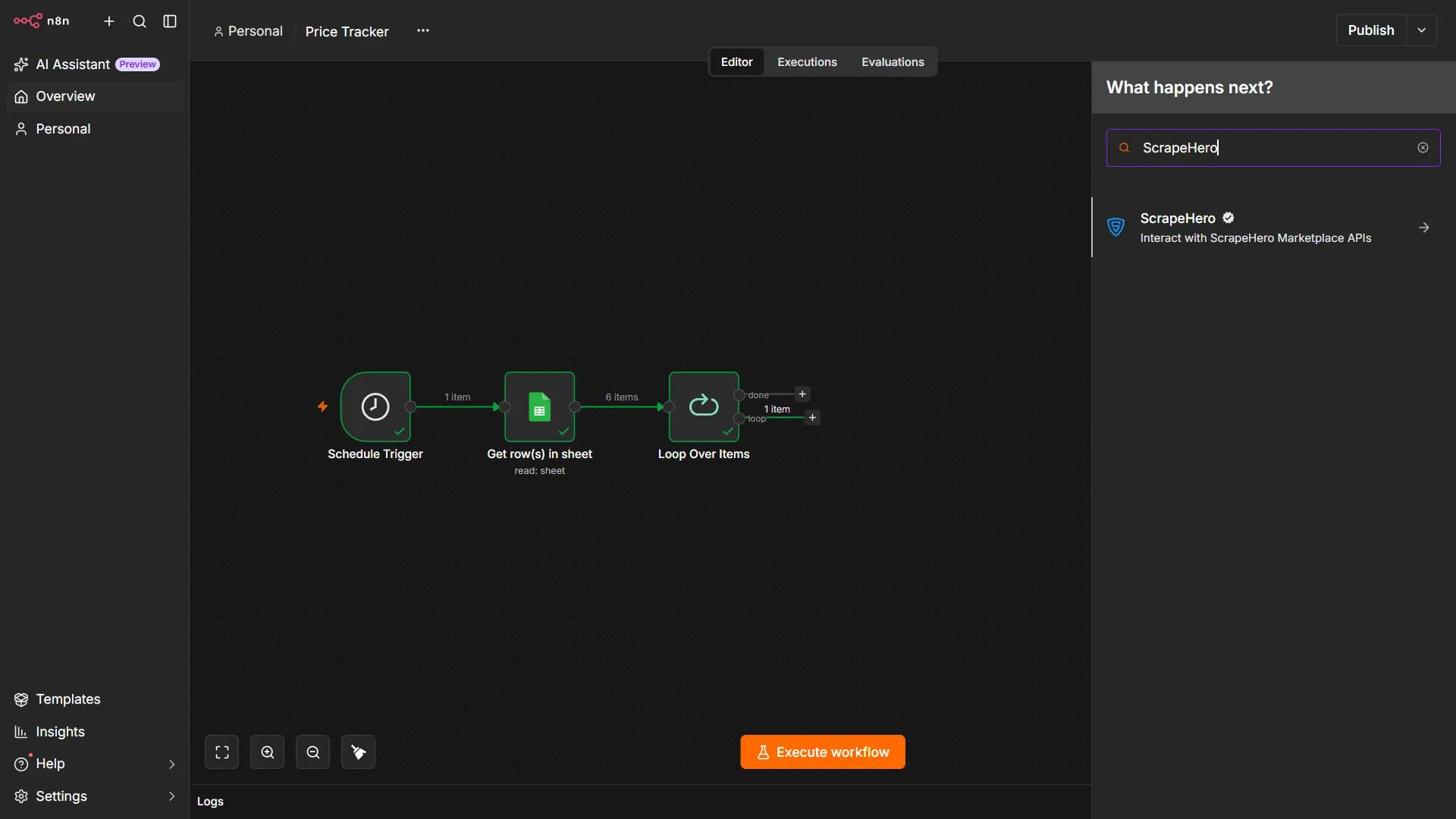
In the configuration window, click Connect ScrapeHero to create the credentials.
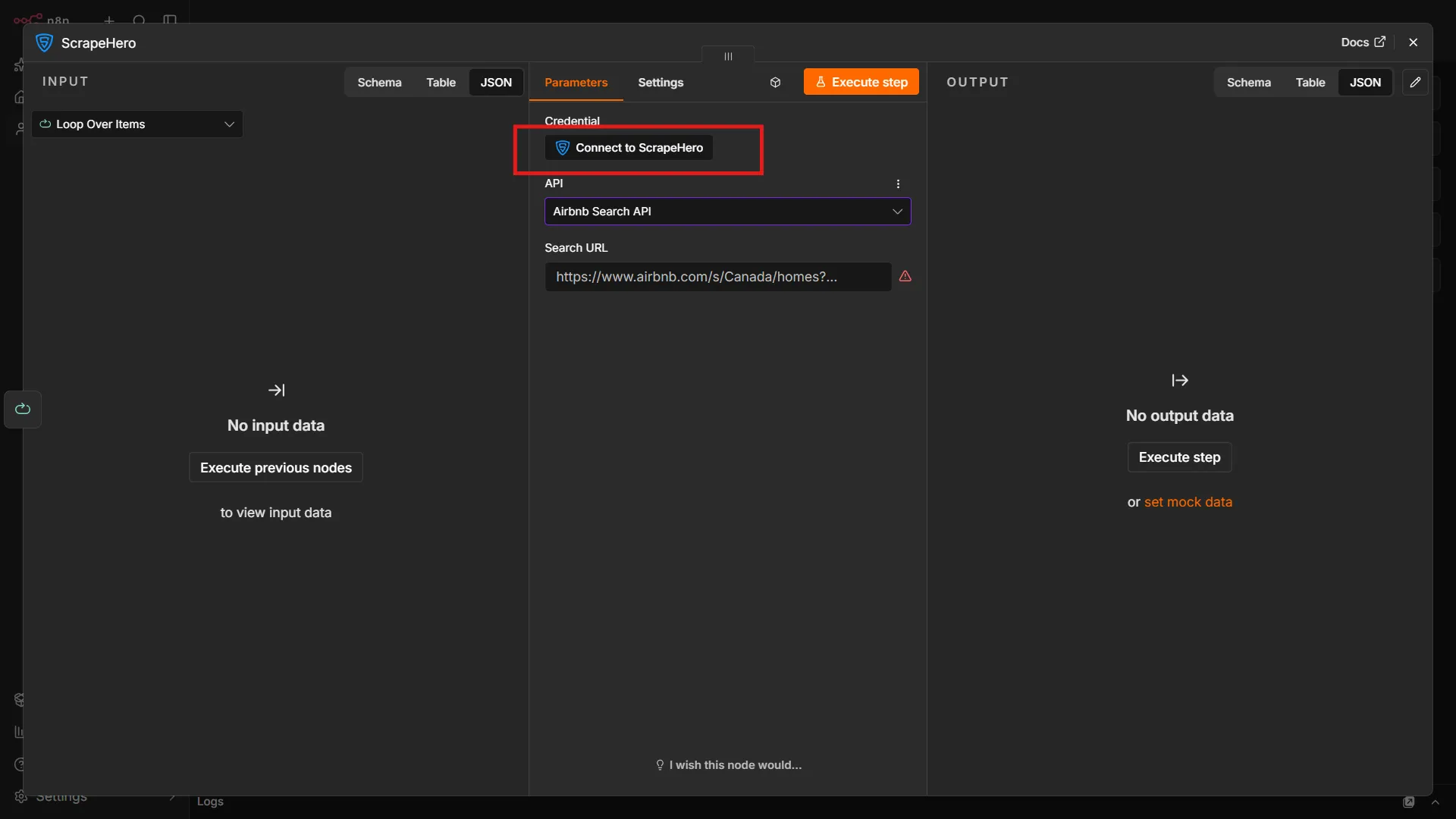
Then:
- Go to app.scrapehero.com.
- Sign in to your account.
- Click your profile icon.
- Open API Key.
- Copy your API key.
- Return to n8n.
- Paste the key into the ScrapeHero credential field.
- Save the credentials.
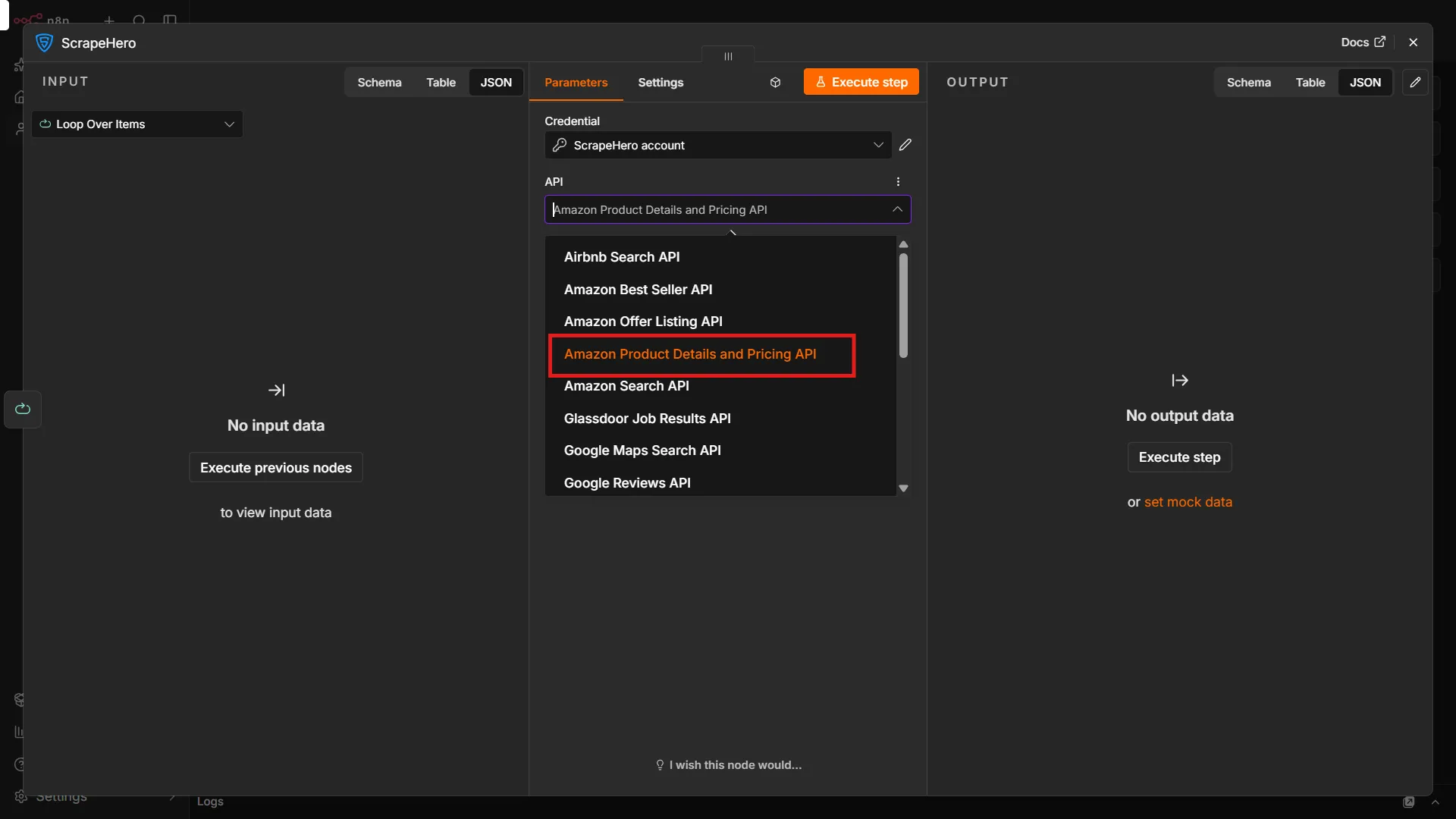
Select Amazon Product Details and Pricing API from the API dropdown.
This API returns structured Amazon product data, including product identifiers, names, and prices.
5. Configure the API Request
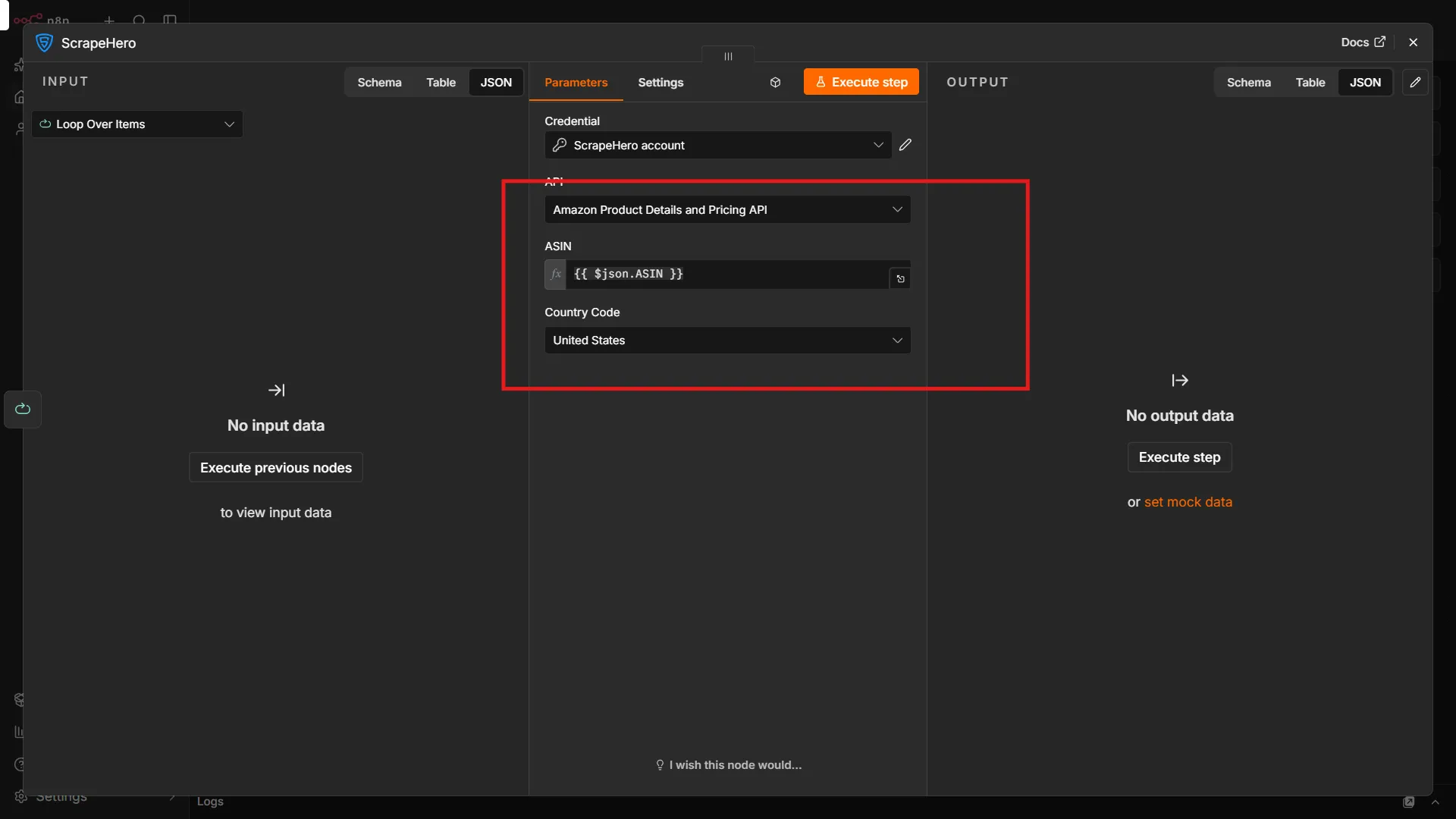
Next, locate the ASIN field and drag the ASIN value from the Loop Over Items node into this field. This creates an expression that allows the workflow to dynamically check every ASIN in the sheet.
You also need to select the Country Code.
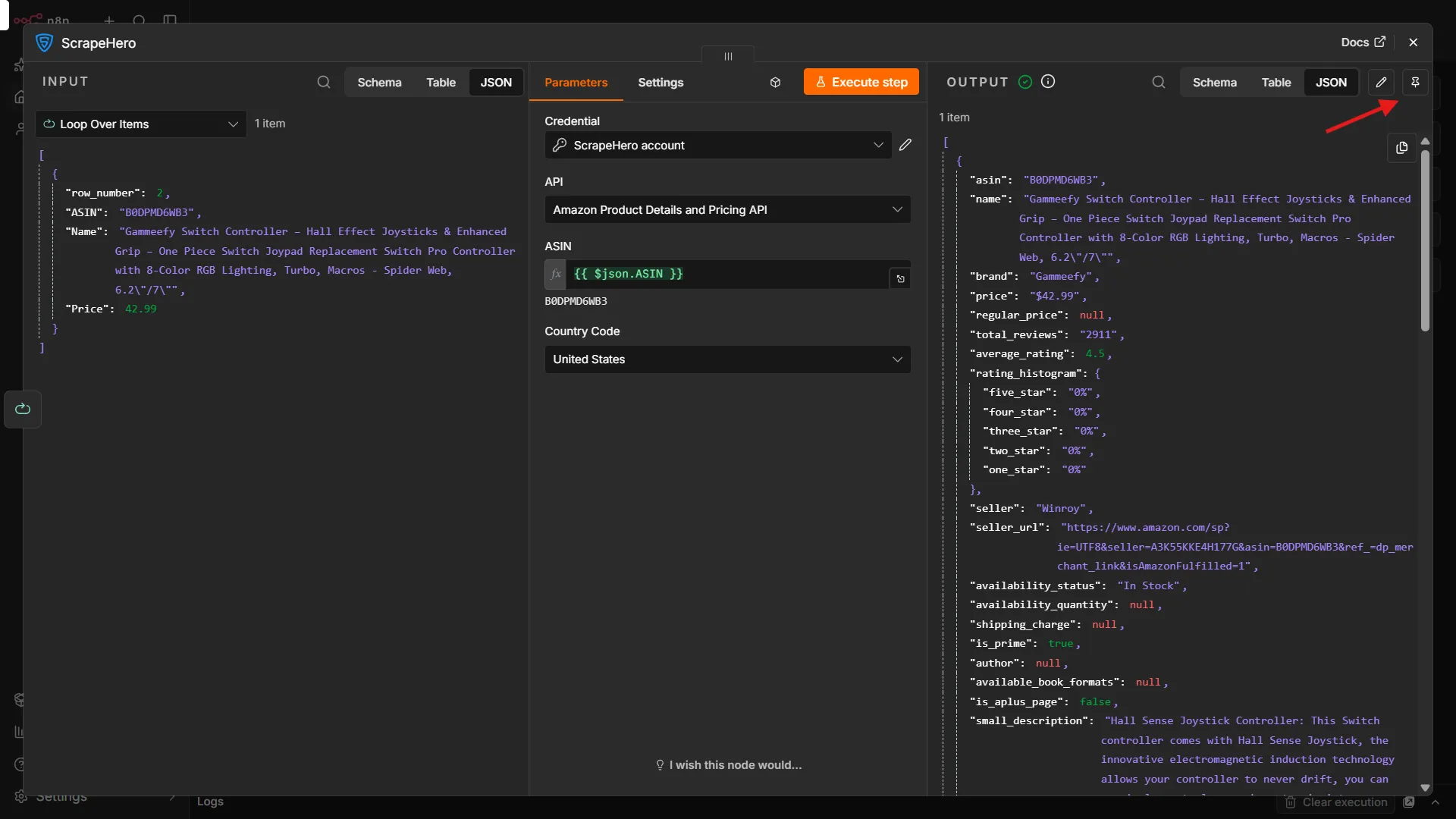
Click Execute Step to test the request.
After the test succeeds, pin the output temporarily. Pinning the response prevents repeated test executions from making unnecessary API requests while you configure the remaining nodes.
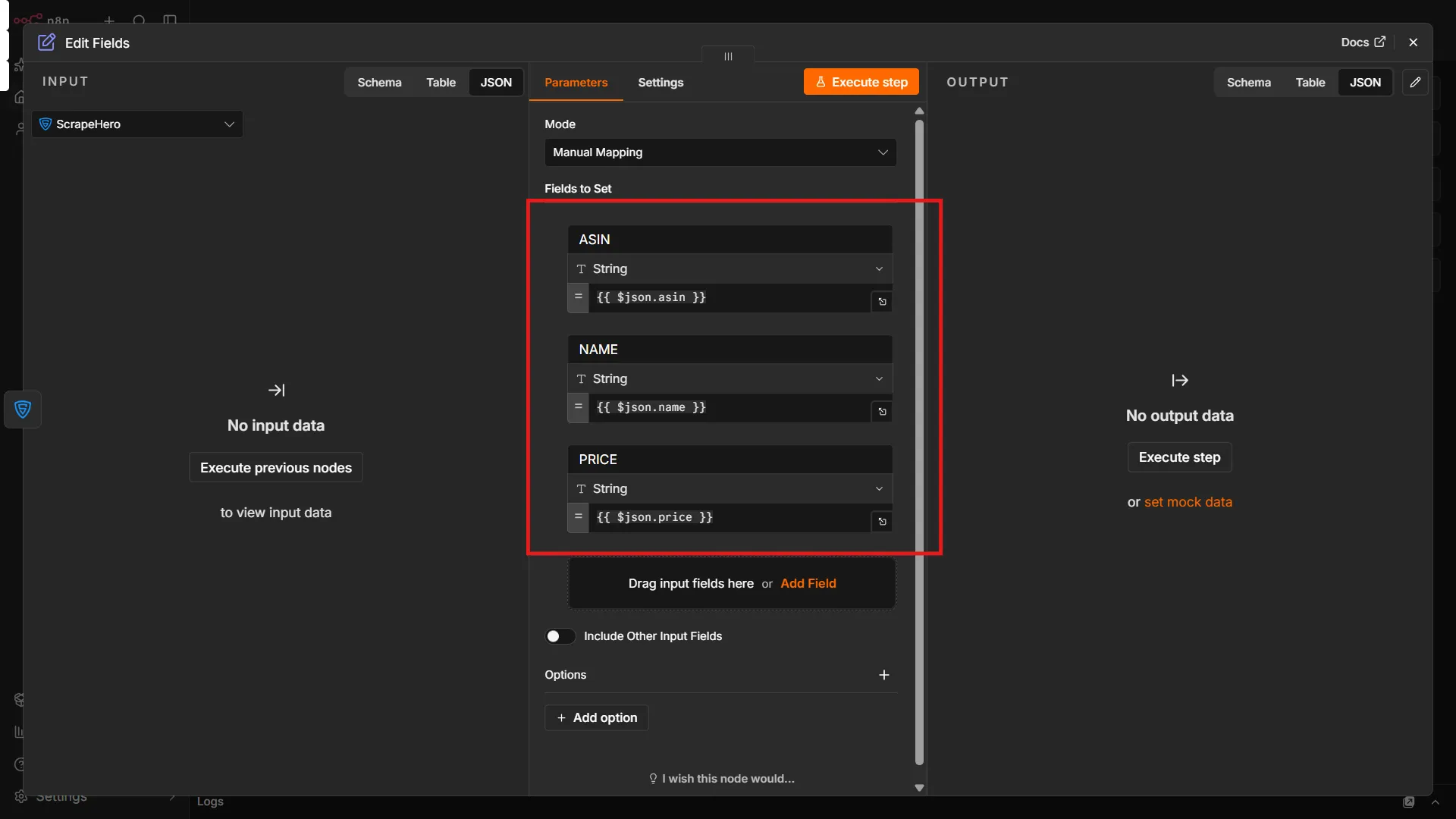
6. Keep Only the Required Fields
The ScrapeHero response contains many fields, but this workflow only needs:
- ASIN.
- Name.
- Price.
Add an Edit Fields node after the ScrapeHero node.
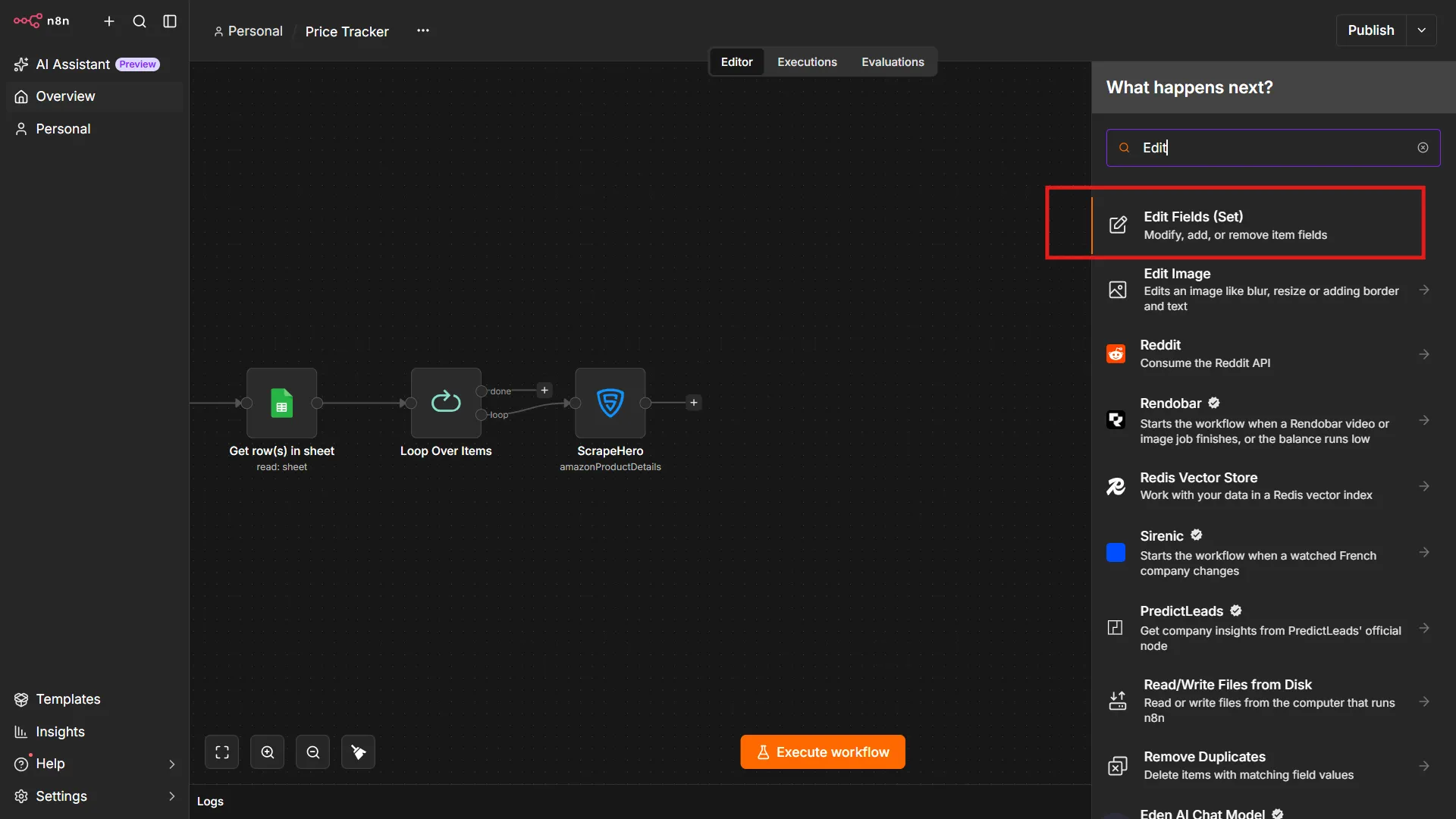
In the Edit Fields node, add fields for the three values above. Drag the corresponding values from the ScrapeHero output into the area that says “Drag the input fields here.”
A typical price response may look like this:
“$129.95”
The workflow will remove the dollar later when it writes the new price back to Google Sheets.
Compare the Prices
7. Add an If Node
Click the plus icon, search for If, and add the node after the Edit Fields node.
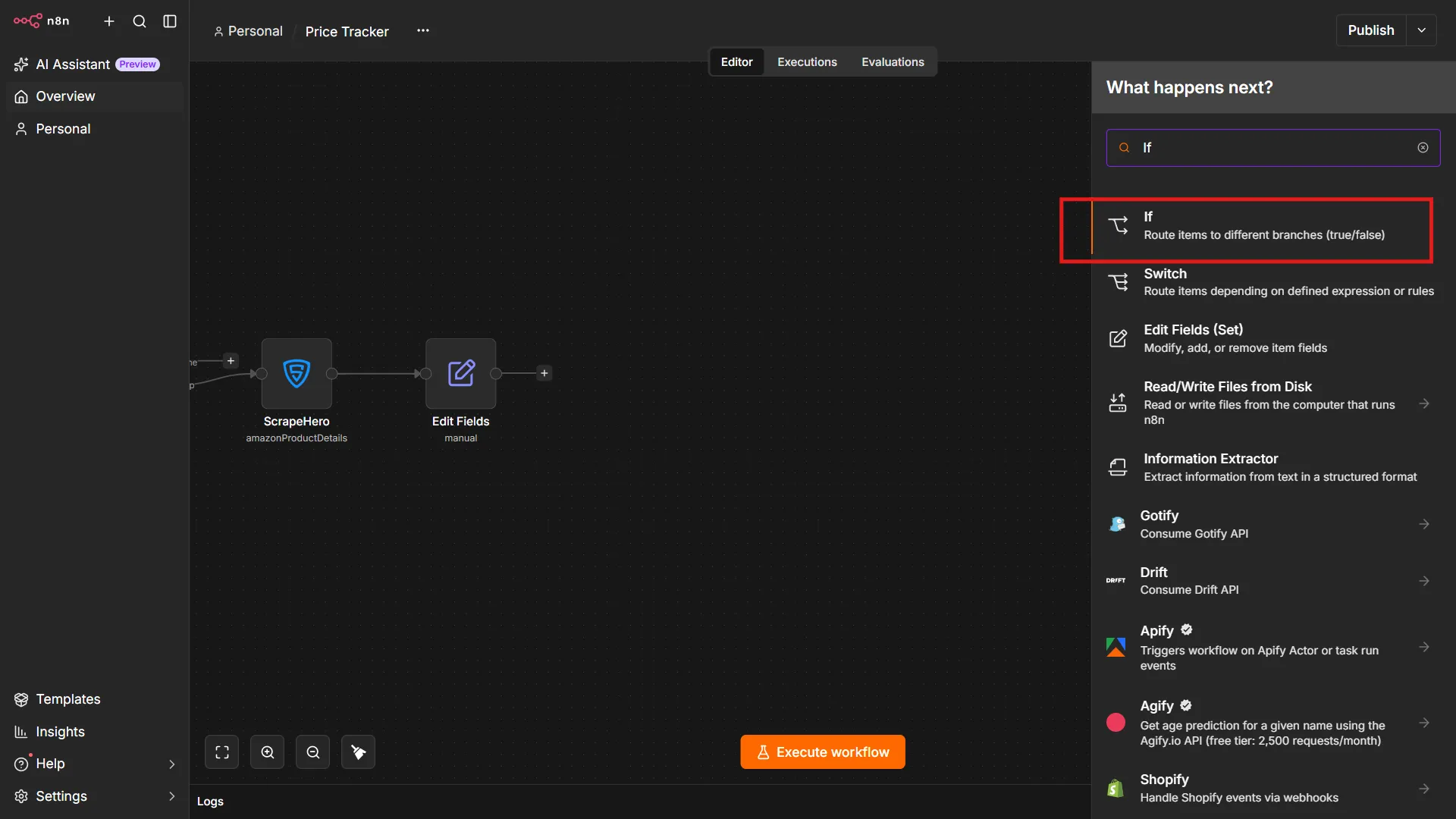
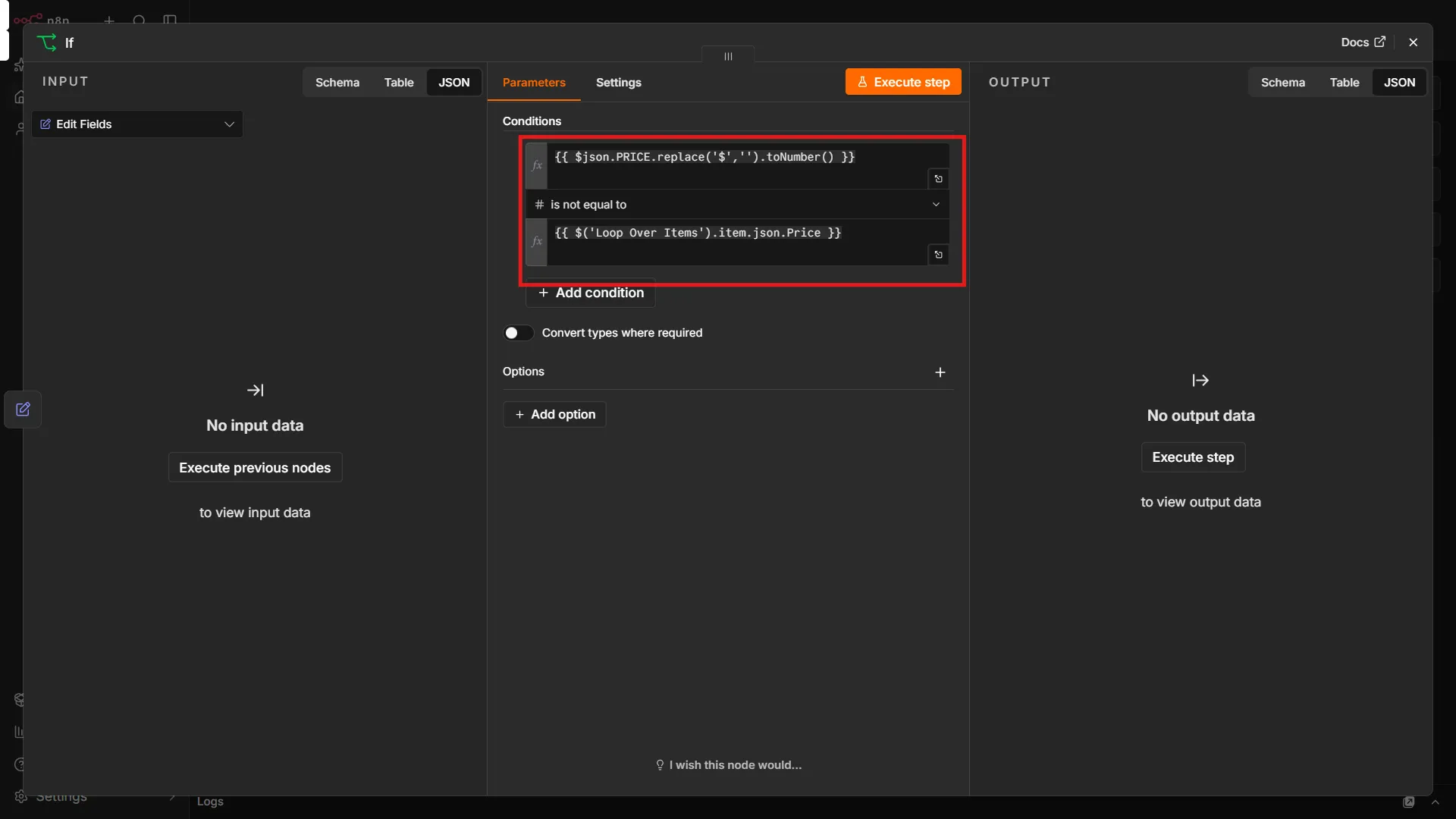
The If node determines whether the current Amazon price differs from the previous price stored in Google Sheets.
Use a JavaScript expression to extract values:
- Value1:
{{ $json.PRICE.replace('$','').toNumber() }} - Value2:
{{ $('Loop Over Items').item.json.Price }}
Value1 gets the price from the output of the last node (ScrapeHero), removes the dollar sign, and converts it into a number.
Value2 gets the price from the output of the “Loop Over Items” node.
Select the comparison option to “is not equal to” from the number section in the drop down.
Note: You can also compare the size of the price change. Put the difference of the two values in the Value1 field and the threshold value in the Value2 field with the comparison option as “is greater than.”
Send the Email Alert
8. Add Gmail to the True Branch
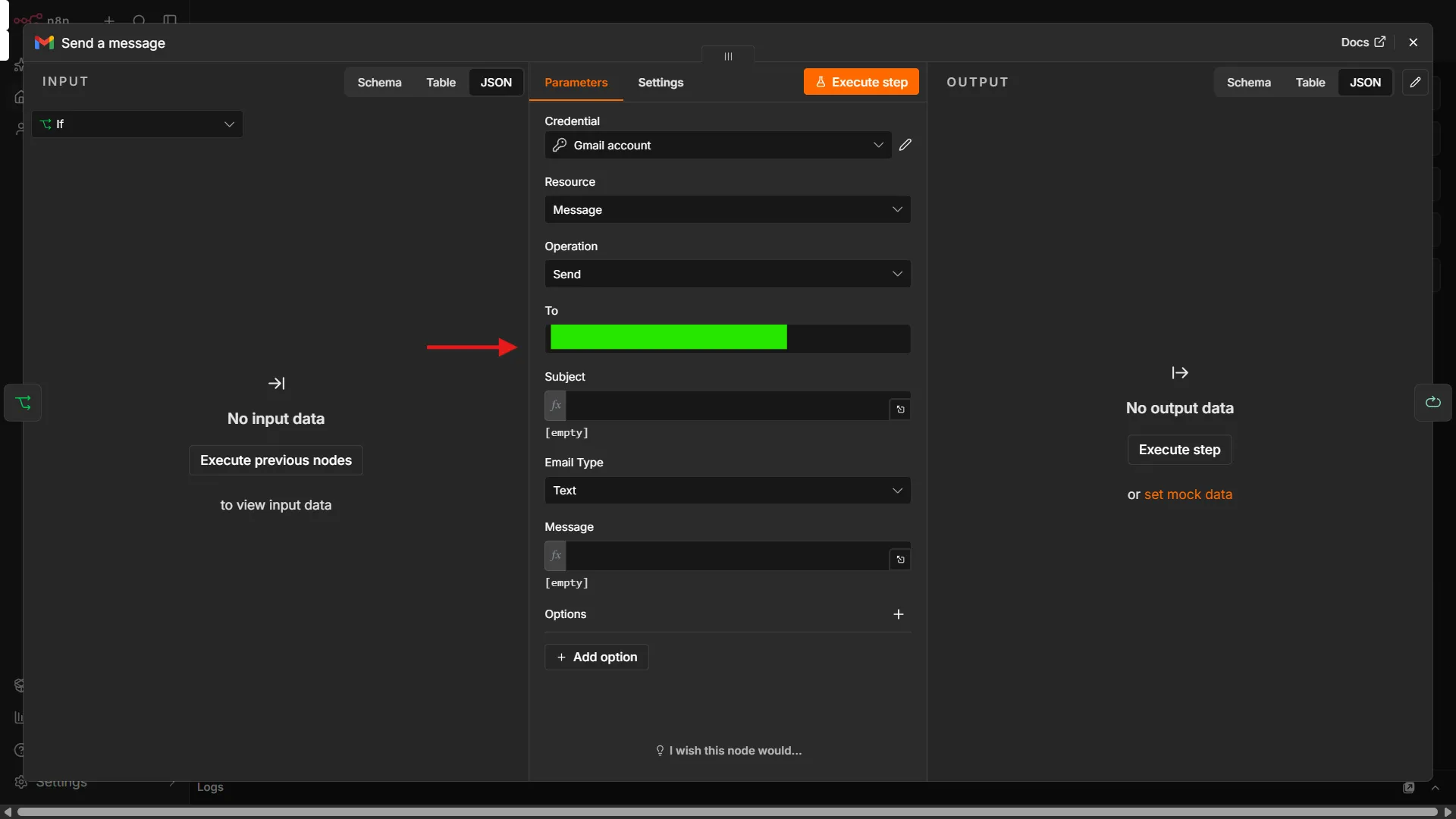
Add a Gmail node to the true branch of the If node with “Send a message” as the Message Action.
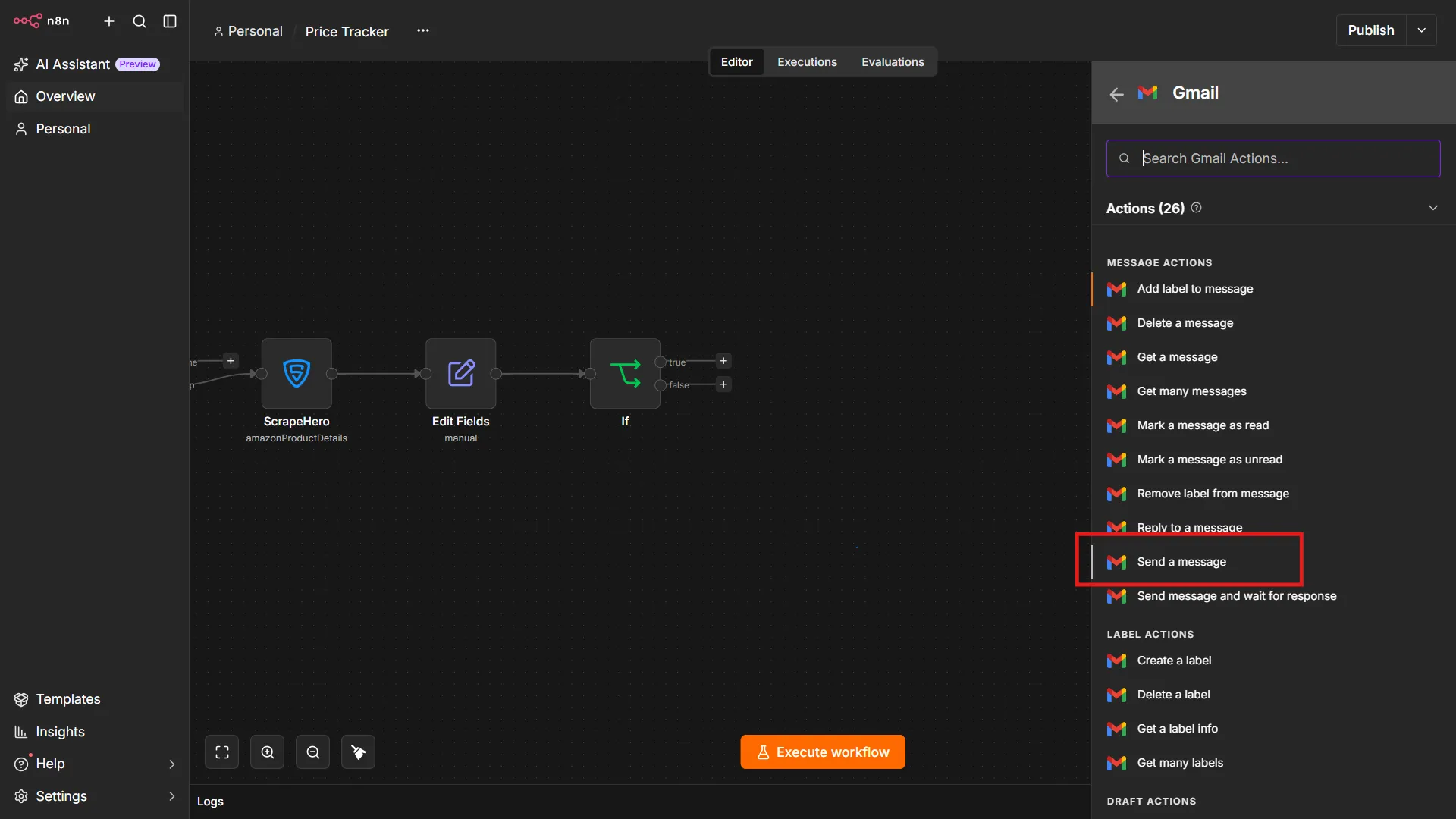
The workflow will only send the email when the current price is different from the price stored in Google Sheets.
Connect your Gmail account using the same general process used for Google Sheets credentials:
- Click Connect to Gmail.
- Add or select your Google OAuth credentials.
- Sign in with Google.
- Authorize n8n to send email.
Set the recipient’s email address.
9. Create a Dynamic Subject
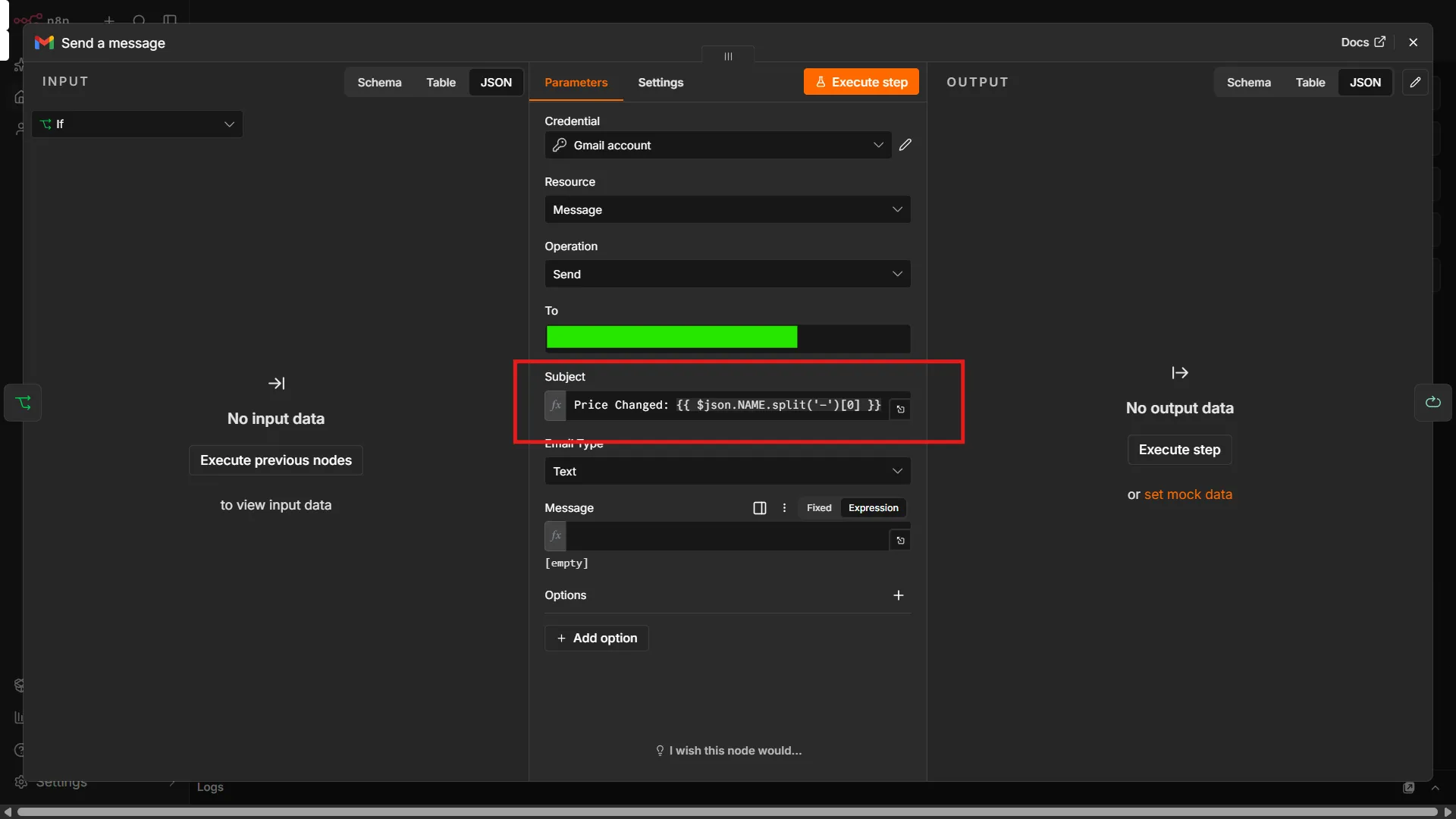
In the subject field, use an expression that includes the product name.
For example:
Amazon price change: {{ $json.NAME.split('–')[0] }}This makes it easy to identify the product from your inbox.
10. Add the Price-Change Message
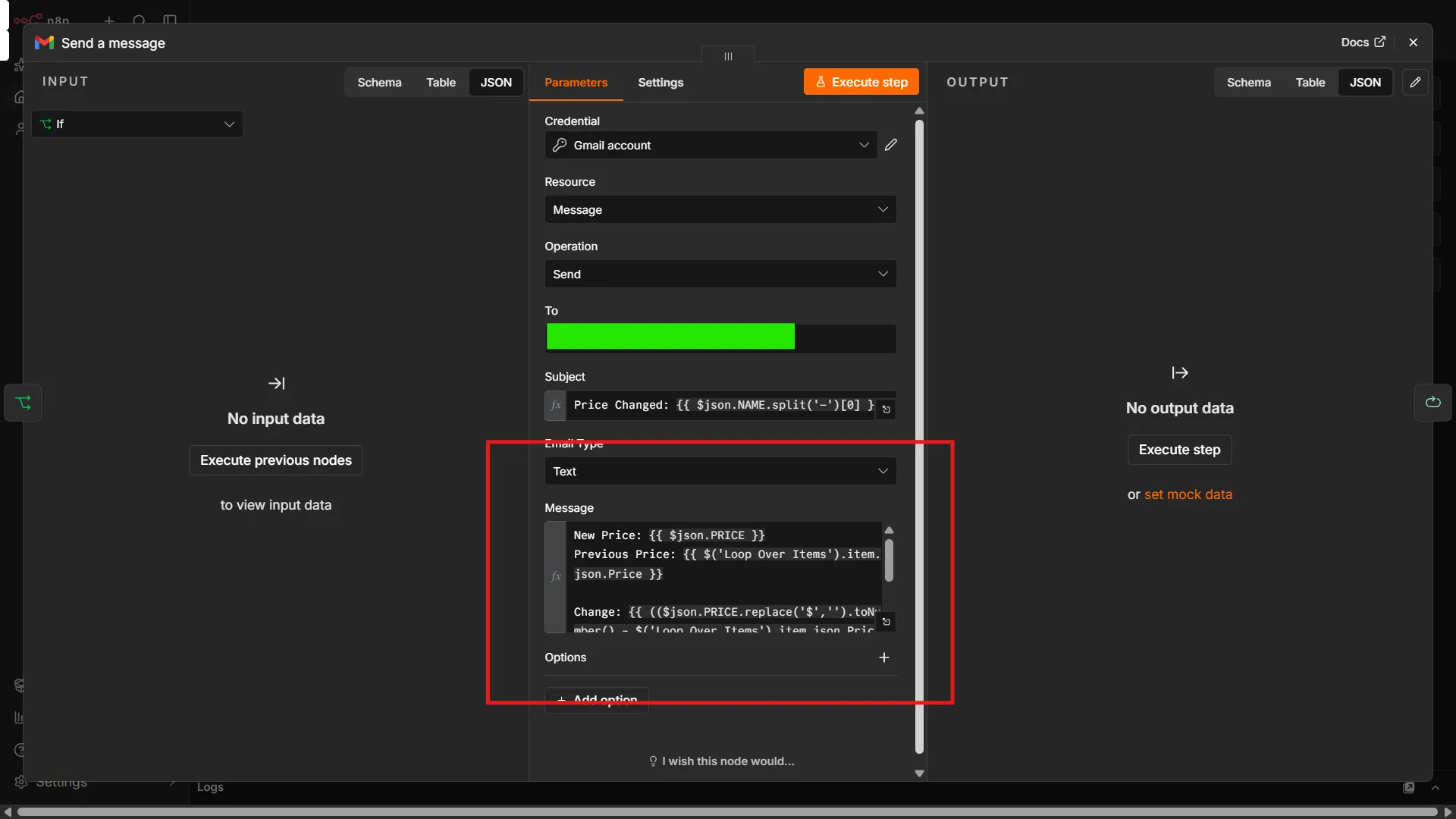
Set the Gmail message type or field type to Text.
Then add a message containing the product name, previous price, current price, and difference.
For example:
The price of {{$json.Name}} has changed.
New Price: {{ $json.PRICE }}
Previous Price: {{ $('Loop Over Items').item.json.Price }}
Change: {{ (($json.PRICE.replace('$','').toNumber() - $('Loop Over Items').item.json.Price)/$('Loop Over Items').item.json.Price*100).round(2) }}
Product Name: {{ $json.NAME }}
If the result is negative, the product becomes cheaper. If it is positive, the price increases.
The exact expression used to reference the previous Google Sheets value may vary depending on your node names and n8n version. Use the expression editor to select the Google Sheets output rather than typing the reference manually when possible.
Update the Google Sheet
The workflow now sends an alert, but the stored price still contains the old value. If you do not update it, the workflow will send the same alert every time it runs.
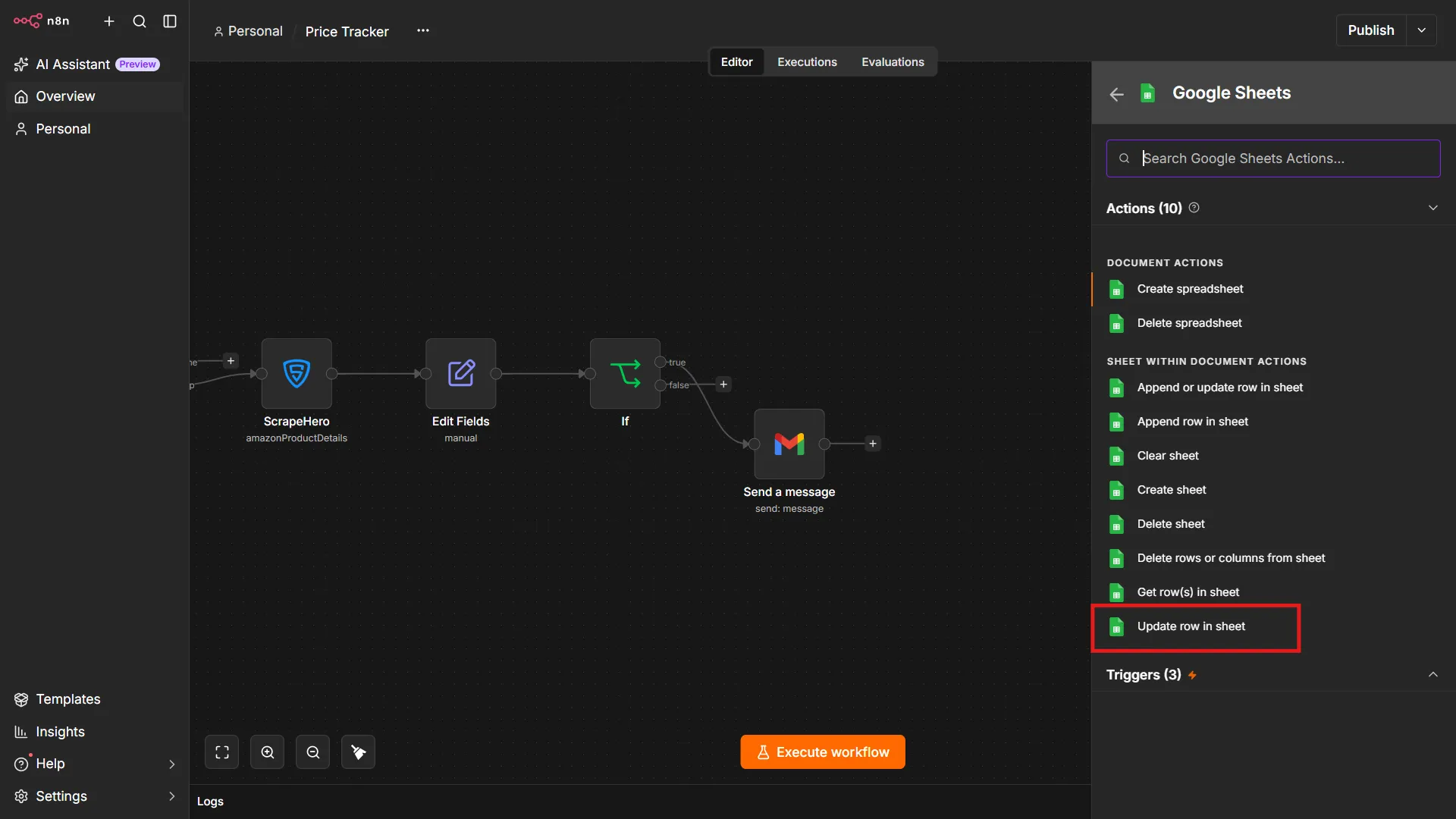
11. Add an Update Google Sheets node
Add another Google Sheets node to the true branch after the Gmail node.
For the action, choose Update.
The Google Sheets credentials should already be available. Select:
- The same document used in the Get Row(s) in Sheet node.
- The same sheet or tab used earlier.
Set Mapping Column Mode to Map Manually.
For the column used to identify the row, choose ASIN.
This tells n8n to find the row whose ASIN matches the current product.
Next, in the ASIN matching field, drag and drop the ASIN from the current item.
Then map the new price to the Price column.
Because the API may return the price with a dollar sign, use an expression that removes the currency symbol and converts the result to a number:
{{ $json.PRICE.replace('$','').toNumber() }}
For example:
“$129.95”
becomes:
129.95
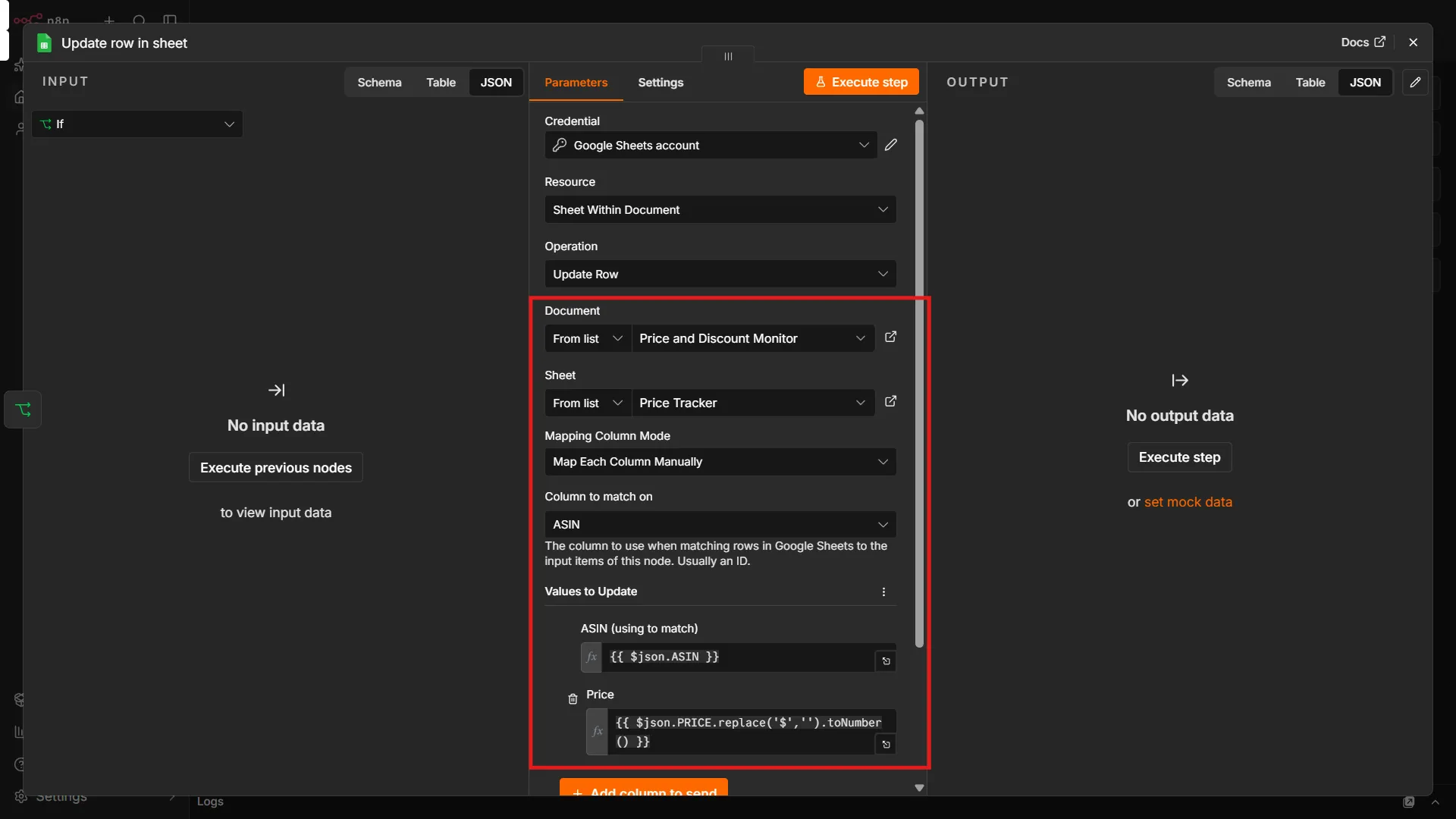
The update node should now:
- Find the row whose ASIN matches the current item.
- Replace the old price with the latest price.
- Leave the ASIN and other columns unchanged.
Test and Complete the Loop
Connect the Loop
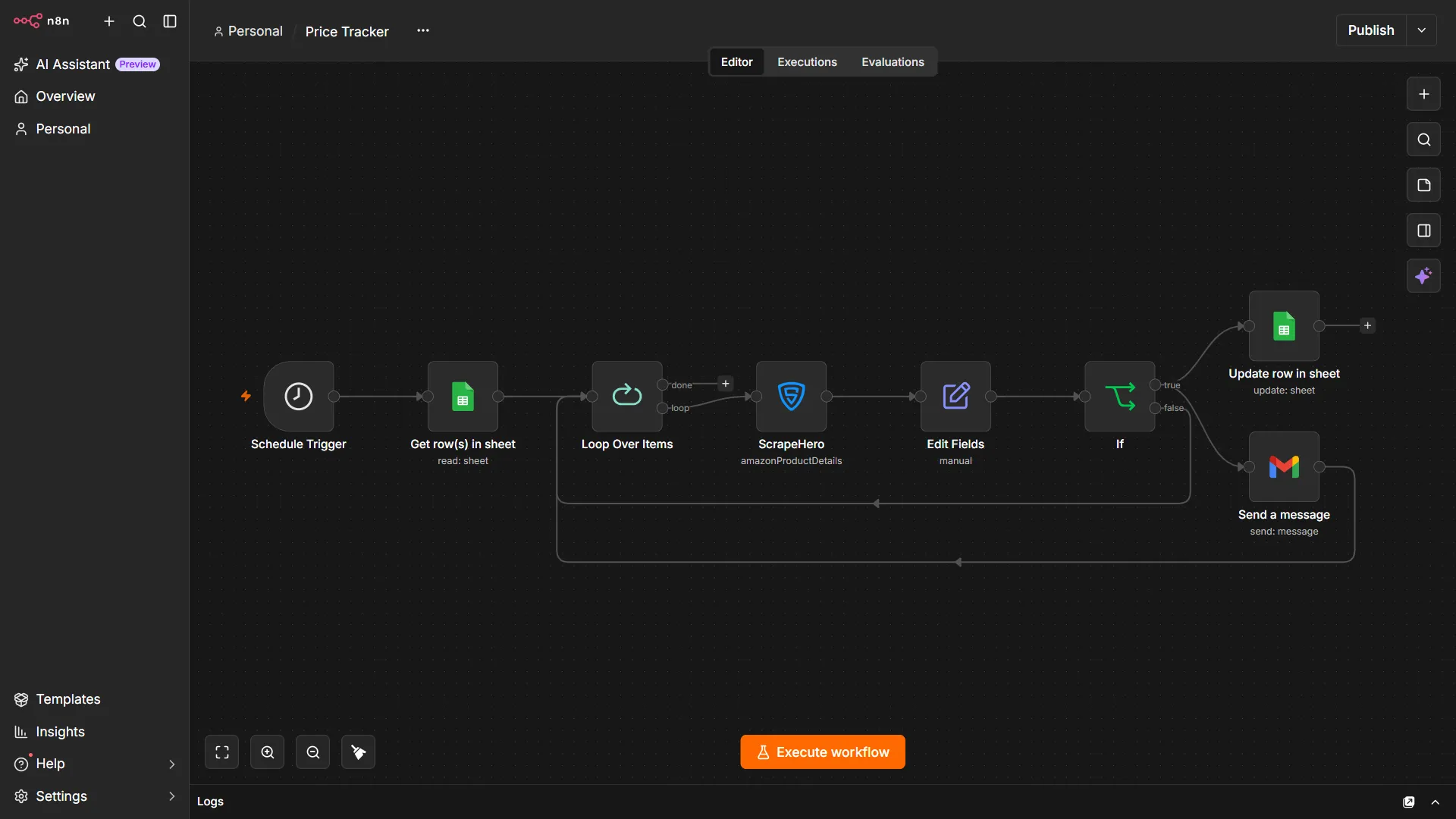
Finally, connect the output of the final Gmail node back to the Loop Over Items node; this tells the loop node to proceed with the next item.
Also, connect the false branch of the If node back to the Loop Over Items node; this ensures that the workflow continues with the next ASIN even if the price didn’t change and the mail wasn’t sent.
Test the Workflow
Unpin all the pinned outputs in the nodes and click Execute Workflow at the bottom of the canvas to test the entire workflow.
Publish the Workflow
Confirm that there are no errors, including in the received mail.
When everything works as expected, publish the workflow.
From then on, n8n will:
- Run at the configured schedule.
- Read ASINs and stored prices from Google Sheets.
- Check each product through ScrapeHero.
- Compare the latest price with the stored price.
- Send an email if the price changed.
- Update Google Sheets with the new price.
- Continue to the next ASIN.
With this workflow, you can monitor Amazon prices automatically without repeatedly checking product pages yourself.
What This Unlocks for Your Business
Building this workflow to automate Amazon product scraping with n8n helps you:
- Eliminate manual price checks. No more opening Amazon product pages repeatedly to track competitor prices. The workflow checks every ASIN automatically.
- React to price changes faster. The moment a competitor changes their price, your team receives an email alert, reducing reaction time from hours or days to minutes.
- Protect your Buy Box eligibility. Timely visibility into competitor pricing helps you respond before a lower-priced listing takes sales away from your offer.
- Make margin-aware pricing decisions. Pair competitor prices with your cost and minimum price so alerts highlight opportunities and risks, not just raw price changes.
- Monitor your entire catalog at scale. Adding a new product is as simple as adding its ASIN and current price to your Google Sheet.
- Build a reliable price history. Each run creates a record of market movement, helping you identify pricing patterns, promotional cycles, and seasonal trends.
- Reduce missed revenue opportunities. When competitor prices rise, you can review your own pricing and avoid unnecessary discounts or promotions.
Next Steps
You can extend this workflow with:
- Slack/Telegram notifications: Add channel-specific alerts for “price dropped below threshold” and separate notifications for “workflow errors”.
- Price-history tracking: Append each scrape to a “History” sheet (columns: ASIN, Timestamp, Price) for trend analysis and charts.
- Minimum-price alerts: Add a second threshold (e.g., Min_Price) and trigger a high-priority alert when the price hits that level.
- Database for long-term analysis: Replace or mirror the Google Sheet with a lightweight database (e.g., SQLite, Postgres, or Airtable) for better querying and retention.
Wrapping Up
Tracking price changes at scale doesn’t have to be a manual, error-prone process. You can use ScrapeHero’s Amazon Product Data and Pricing API and automate Amazon product scraping with n8n.
The ScrapeHero API, accessed via the ScrapeHero node, handles the data extraction part. You just have to focus on building the workflow that improves your business.
Sign up for a ScrapeHero API key and build your price tracking workflow. Do you want additional data points? Tell us your requirements, and we will build a custom API just for you.
ScrapeHero is your #1 web scraping service provider for fully outsourcing data extraction. We combine automated scraping power with human-in-the-loop oversight to ensure maximum accuracy. Contact ScrapeHero today to get started.