Zepto is one of the top quick-commerce platforms in India, offering groceries, fresh items, and daily needs.
If you scrape Zepto data, you can track product prices, stock levels, and market trends to gain business insights for competitive intelligence, pricing, and market research.
Wondering how to get started? Read on. This guide shows you how to perform Zepto data scraping using Python and Playwright.
Key Takeaways
- Zepto’s search and category pages are JavaScript-driven, so use a browser automation tool (Playwright or Selenium) to scrape product listings.
- Key data extracted: product name, offer price, MRP, discount (MRP − offer), pack size/amount, rating, and review count.
- Main steps: launch browser context with realistic UA, set PIN/location, scroll to load items, locate product cards (e.g., anchor containing ADD button), parse fields with robust selectors and fallbacks, handle exceptions, and save to JSON/CSV.
- Limitations: site HTML may change, and large-scale scraping needs proxy rotation, throttling, and anti-bot handling.
- Use scheduled runs or managed scraping APIs for ongoing price-tracking at scale.
Can You Scrape Product Data From Zepto?
Yes, you can get public product details from Zepto’s website. However, Zepto uses modern JavaScript to render search results and category pages, so you can’t use request-based methods to retrieve data.
That’s why this tutorial uses Playwright to automate browser actions; this allows you to get real-time product listings, prices, discounts, and ratings directly from Zepto’s search pages.
Want to avoid scraping yourself? Try ScrapeHero’s enterprise APIs.
What Data Can You Scrape From Zepto?
This Zepto product data scraping script in this guide extracts 7 main product attributes:
- Product Name (Full name of the product)
- Offer Price (Price after discount at checkout)
- MRP (Original price before discount)
- Discount Amount (Calculated as `MRP – Offer Price`)
- Pack Size / Amount (e.g., `1 pack (400 g)`, `1 pc (500 ml)`)
- Rating (e.g., `4.5`)
- Review Count (e.g., `43.8k`)
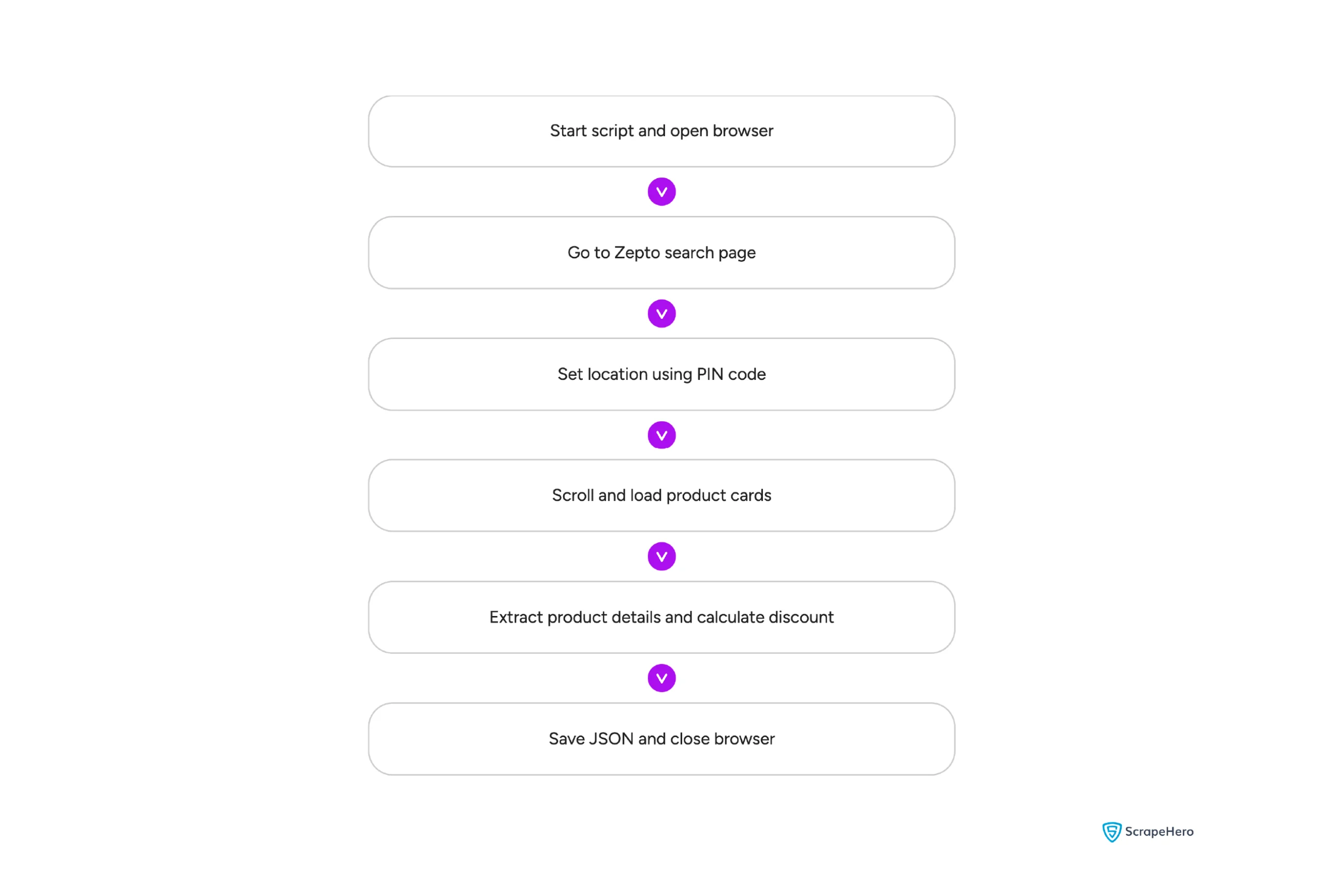
To scrape Zepto data effectively, the script uses Python with Playwright. Playwright manages dynamic content, JavaScript, and browser sessions smoothly.
If you’re interested in other automation methods, you can check our guide on Selenium web scraping
Prerequisites
Install Playwright in your Python environment:
pip install playwright
playwright install
Step 1: Start Playwright and Edge Browser
We start using Microsoft Edge with Playwright’s Chromium engine (channel=”msedge”) and set up an isolated browser session:
import json
import re
from playwright.sync_api import sync_playwright
with sync_playwright() as p:
browser = p.chromium.launch(channel="msedge", headless=False)
context = browser.new_context(
viewport={"width": 1280, "height": 800},
user_agent="Mozilla/5.0 (Windows NT 10.0; Win64; x64) AppleWebKit/537.36 (KHTML, like Gecko) Chrome/120.0.0.0 Safari/537.36"
)
page = context.new_page()
page.goto("https://www.zeptonow.com/search?query=bread", wait_until="domcontentloaded")
page.wait_for_timeout(3000)
The code visits the search results page showing listings for the query “bread.” Although this code hard-codes the query, you can use argparse to input the keywords as arguments when executing the script from a shell.
Step 2: Automate Location and PIN Code Entry
Zepto shows product availability based on your delivery address. The script clicks the Select Location button, types a PIN code (like 560004), selects the suggested address, and confirms:
try:
location_button = page.locator('button[aria-label="Select Location"], button:has-text("Select Location")').first
if location_button.is_visible():
print("1. Clicking 'Select Location' button...")
location_button.click()
page.wait_for_timeout(2000)
addr_input = page.locator("input[placeholder*='address'], input[placeholder*='Address'], input[placeholder*='pincode']").first
addr_input.wait_for(state="visible", timeout=10000)
print(f"2. Entering PIN Code: {pincode}...")
addr_input.fill(pincode)
page.wait_for_timeout(2000)
print("3. Selecting suggested address item...")
address_item = page.locator("div[data-testid='address-search-item'], div[class*='address']").first
address_item.wait_for(state="visible", timeout=10000)
address_item.click()
page.wait_for_timeout(2000)
print("4. Confirming location...")
confirm_button = page.locator('button[aria-label*="Confirm"], button:has-text("Confirm")').first
if confirm_button.is_visible():
confirm_button.click()
page.wait_for_timeout(3000)
print("Location updated successfully!")
except Exception as loc_err:
print(f"Location selection notice: {loc_err}")This code tries multiple selectors for each data point. For instance, the code tries
- button[aria-label=”Select Location”]
- button:has-text(“Select Location”)
to locate the selection location button. And the .first method gets the first selector that can locate it.
Pro-Tip: How to Find HTML Selectors Using the “Inspect” Tool
Before you can tell a web scraper what to click or extract, you need to find the element’s exact identifier hidden in the website’s code. Here is the standard workflow using Google Chrome:
- Open Developer Tools: Navigate to the competitor’s product page. Right-click anywhere on the page and select Inspect (or press F12 / Cmd+Option+I on Mac). A panel showing the site’s underlying HTML will open.
- Activate the Selector Tool: In the top-left corner of the Developer Tools panel, click the small icon that looks like a cursor clicking a square (or press Ctrl+Shift+C).
- Hover and Click: Move your mouse over the actual web page and click the exact element you want to scrape (e.g., the ZIP code input box or the delivery date text).
- Extract the Locator: The Developer Tools will immediately highlight the corresponding HTML code for that element.
- Identify the attributes: Look closely at the highlighted line for attributes like id=”GLUXZipUpdateInput” or class=”a-color-success”.
- The Shortcut: Right-click the highlighted line of code, hover over Copy, and select Copy selector (for CSS) or Copy XPath. You can paste this value directly into your Selenium script!
Step 3: Scroll to Load More Content
Zepto loads products as you scroll. So once the PIN code is set, the script triggers scrolling to make sure all items are shown before we start collecting data:
for _ in range(5):
page.keyboard.press("End")
page.wait_for_timeout(2000)
Step 4: Extract Data
Once the products load, the code can extract data points.
Prepare a list to collect extracted product dictionaries and use Playwright locators to target interactive product cards that contain an “ADD” button. Then, run through each card to pull name, prices, size, rating, and reviews.
# 3. Locate Product Cards using intuitive Playwright Locators
product_cards = page.locator("a:has(button:has-text('ADD'))").all()
print(f"Found {len(product_cards)} product cards.")
product_details = []
The code here
- Locates all anchor elements that contain a button with the exact text “ADD”
- Converts that locator into a list, prints the count of cards found
- Initializes an empty list to hold parsed product objects.
The locator targets the clickable product container commonly used on e-commerce listings.
Next, iterate over each card and wrap the parsing in a try/except block to avoid stopping on a single malformed card.
for idx, card in enumerate(product_cards):
try:
Here, the loop context enables per-card scraping and separate error handling.
Within the loop, extract the product name primarily from the image alt attribute; fall back to structured text selectors when alt is missing.
While extracting, ensure checks for element existence before accessing attributes or inner text.
# --- Product Name ---
img = card.locator("img").first
name = img.get_attribute("alt") if img.count() > 0 else None
if not name:
name_el = card.locator("div[data-clamp] span, h5, h6").first
name = name_el.inner_text().strip() if name_el.count() > 0 else NoneThis snippet tries to get the product name from the first image’s alt attribute and, if absent, looks for common heading or clamped text containers. The fallback handles cards that omit alt text but include visible titles within headings or a clamped description element.
Now, locate the price container using attributes or class names that include “Price,” and normalize the span contents to extract currency values.
# --- Price Container Handling ---
price_container = card.locator("[data-slot-id*='Price'], div[class*='Price']").first
if price_container.count() > 0:
span_elements = price_container.locator("span").all()
spans = [s.inner_text().strip() for s in span_elements if '₹' in s.inner_text()]
if len(spans) >= 2:
offer_price = spans[0]
mrp = spans[1]
elif len(spans) == 1:
offer_price = None
mrp = spans[0]
else:
offer_price = None
mrp = None
else:
offer_price = None
mrp = None
Here, the code finds the price container, collects text from child spans that include the rupee symbol, and then assigns offer and MRP based on the count. This logic accounts for products that may not have an offer price.
If the listing has an offer price, compute a numeric discount by stripping non-digit characters and converting the remaining digits to integers. Wrap this conversion in try/except to avoid breaking on unexpected formats.
# --- Calculate Discount (MRP - Offer Price) ---
if offer_price and mrp:
try:
mrp_val = int(re.sub(r'[^\d]', '', mrp))
offer_val = int(re.sub(r'[^\d]', '', offer_price))
if mrp_val > offer_val:
discount = f"₹{mrp_val - offer_val} OFF"
else:
discount = None
except Exception:
discount = None
else:
discount = None
Next, detect common pack-size and amount patterns using a regex filter on span elements. Extract the first matching span text when present.
# --- Pack Size / Amount ---
size_el = card.locator("span").filter(has_text=re.compile(r'\d+\s*(?:pack|pc|g|kg|ml|L|combo)', re.IGNORECASE)).first
amount = size_el.inner_text().strip() if size_el.count() > 0 else None
Here, the code filters span elements for patterns such as “2 pack”, “500 g”, “1 kg”, and “250 ml”, and captures the first match as the product amount. Here, the regex covers common units and terms used in grocery or packaged goods listings.
The code next captures the rating.
# --- Rating ---
rating_el = card.locator("span:has(svg)").first
rating = rating_el.inner_text().strip() if rating_el.count() > 0 else None
This snippet targets spans that contain an SVG icon and extracts the visible rating text from the icon. This approach relies on the common pattern where ratings accompany an icon rendered inline.
Next, extract the review count by locating a span that contains a parenthesis character.
# --- Review Count ---
review_el = card.locator("span:has-text('(')").first
review_count = review_el.inner_text().strip().replace('(', '').replace(')', '') if review_el.count() > 0 else None
The above code searches for any span containing “(” to find the review count (e.g., “(123)”), then removes parentheses to normalize the value. This method will only work if the listing uses parentheses for review numbers.
Finally, append a structured product dictionary to the results list containing the collected fields.
product_details.append({
"Name": name,
"Offer Price": offer_price,
"MRP": mrp,
"Discount": discount,
"Amount": amount,
"Rating": rating,
"Review Count": review_count
})
Here, the structure prepares data for downstream steps such as CSV export, JSON output, or loading into a database.
You also need to handle per-card exceptions by logging the card index and exception message, then continue parsing the remaining cards.
After the loop finishes, close the browser context and browser to release resources.
except Exception as e:
print(f"Error parsing card {idx+1}: {e}")
context.close()
browser.close()
How can I track Zepto product prices?
You can track Zepto product prices by running this script at regular intervals, such as every day or every hour, and saving the results to a database or a JSON file.
This allows you to monitor price changes, sales, and stock levels across different areas.
For large-scale tracking of thousands of products without worrying about browsers or internet connections, you can also use a managed web scraping API.
Complete Python Code for Zepto Scraping
Here’s the full script you can copy and use directly:
import json
import re
from playwright.sync_api import sync_playwright
def run(pincode="560093"):
with sync_playwright() as p:
print("Launching Edge browser...")
browser = p.chromium.launch(channel="msedge", headless=False)
context = browser.new_context(
viewport={"width": 1280, "height": 800},
user_agent="Mozilla/5.0 (Windows NT 10.0; Win64; x64) AppleWebKit/537.36 (KHTML, like Gecko) Chrome/120.0.0.0 Safari/537.36"
)
page = context.new_page()
print("Navigating to Zepto...")
page.goto("https://www.zeptonow.com/search?query=bread", wait_until="domcontentloaded")
page.wait_for_timeout(3000)
# 1. Location & PIN Code Input
try:
location_button = page.locator('button[aria-label="Select Location"], button:has-text("Select Location")').first
if location_button.is_visible():
print("1. Clicking 'Select Location' button...")
location_button.click()
page.wait_for_timeout(2000)
addr_input = page.locator("input[placeholder*='address'], input[placeholder*='Address'], input[placeholder*='pincode']").first
addr_input.wait_for(state="visible", timeout=10000)
print(f"2. Entering PIN Code: {pincode}...")
addr_input.fill(pincode)
page.wait_for_timeout(2000)
print("3. Selecting suggested address item...")
address_item = page.locator("div[data-testid='address-search-item'], div[class*='address']").first
address_item.wait_for(state="visible", timeout=10000)
address_item.click()
page.wait_for_timeout(2000)
print("4. Confirming location...")
confirm_button = page.locator('button[aria-label*="Confirm"], button:has-text("Confirm")').first
if confirm_button.is_visible():
confirm_button.click()
page.wait_for_timeout(3000)
print("Location updated successfully!")
except Exception as loc_err:
print(f"Location selection notice: {loc_err}")
# 2. Scroll to load product cards
print("Loading products by scrolling...")
for _ in range(5):
page.keyboard.press("End")
page.wait_for_timeout(2000)
# 3. Locate Product Cards using intuitive Playwright Locators
product_cards = page.locator("a:has(button:has-text('ADD'))").all()
print(f"Found {len(product_cards)} product cards.")
product_details = []
for idx, card in enumerate(product_cards):
try:
# --- Product Name ---
img = card.locator("img").first
name = img.get_attribute("alt") if img.count() > 0 else None
if not name:
name_el = card.locator("div[data-clamp] span, h5, h6").first
name = name_el.inner_text().strip() if name_el.count() > 0 else None
# --- Price Container Handling ---
# 2 Spans: Offer Price = spans[0], MRP = spans[1]
# 1 Span: MRP = spans[0], Offer Price = None
price_container = card.locator("[data-slot-id*='Price'], div[class*='Price']").first
if price_container.count() > 0:
span_elements = price_container.locator("span").all()
spans = [s.inner_text().strip() for s in span_elements if '₹' in s.inner_text()]
if len(spans) >= 2:
offer_price = spans[0]
mrp = spans[1]
elif len(spans) == 1:
offer_price = None
mrp = spans[0]
else:
offer_price = None
mrp = None
else:
offer_price = None
mrp = None
# --- Calculate Discount (MRP - Offer Price) ---
if offer_price and mrp:
try:
mrp_val = int(re.sub(r'[^\d]', '', mrp))
offer_val = int(re.sub(r'[^\d]', '', offer_price))
if mrp_val > offer_val:
discount = f"₹{mrp_val - offer_val} OFF"
else:
discount = None
except Exception:
discount = None
else:
discount = None
# --- Pack Size / Amount ---
size_el = card.locator("span").filter(has_text=re.compile(r'\d+\s*(?:pack|pc|g|kg|ml|L|combo)', re.IGNORECASE)).first
amount = size_el.inner_text().strip() if size_el.count() > 0 else None
# --- Rating ---
rating_el = card.locator("span:has(svg)").first
rating = rating_el.inner_text().strip() if rating_el.count() > 0 else None
# --- Review Count ---
review_el = card.locator("span:has-text('(')").first
review_count = review_el.inner_text().strip().replace('(', '').replace(')', '') if review_el.count() > 0 else None
product_details.append({
"Name": name,
"Offer Price": offer_price,
"MRP": mrp,
"Discount": discount,
"Amount": amount,
"Rating": rating,
"Review Count": review_count
})
except Exception as e:
print(f"Error parsing card {idx+1}: {e}")
context.close()
browser.close()
with open('zepto_products_intuitive.json', 'w', encoding='utf-8') as f:
json.dump(product_details, f, indent=4, ensure_ascii=False)
print("Scraping completed cleanly! Data saved to zepto_products_intuitive.json")
if __name__ == "__main__":
run()
Sample JSON Output
[
{
"Name": "English Oven Milk Bread",
"Offer Price": "₹34",
"MRP": "₹60",
"Discount": "₹26 OFF",
"Amount": "1 pack (400 g)",
"Rating": "4.5",
"Review Count": "43.8k"
},
{
"Name": "Ariel Power Gel Liquid Detergent for Top load washing machine",
"Offer Price": null,
"MRP": "₹205",
"Discount": null,
"Amount": "1 pc (950 g)",
"Rating": "4.5",
"Review Count": "1.5k"
}
]
Code Limitations
If you just want to extract data on a smaller scale, the script shown in this tutorial is enough. However, for large-scale scraping, consider these limitations:
- Site Changes: Zepto can change its HTML structure at any time. When that happens, the selectors used in the script might stop working.
- Anti-Scraping Measures: Large-scale scraping requires greater caution. You need to throttle your requests or rotate proxies; this script doesn’t use these advanced anti-scraping measures.
Wrapping Up
You now know how to create a Python script to scrape Zepto data. This script can serve as a starting point, and you can extend it to handle common limitations such as anti-scraping measures and site changes. However, you’ll need to update the code whenever Zepto changes its HTML structure.
If you’d rather avoid maintaining the scraper yourself, a web scraping service like ScrapeHero can help. ScrapeHero’s enterprise APIs cover Zepto and several other websites. If you need more than the API currently provides, contact us. Why spend time scraping manually when you can simply get the data?
FAQs
Zepto does not provide a public API for developers to access product data. Because of this, the primary way to obtain Zepto product information is through automated web scraping tools such as Playwright or Selenium.
Yes, you can scrape Zepto to monitor competitor pricing, discounts, and assortment changes in real time.
Yes, you can use Python libraries such as Pandas to convert the extracted data to CSV or Excel.