When a delivery promise changes, marketplace dynamics shift immediately, shifting the Buy Box advantage and directly impacting conversion rates. If you rely solely on standard seller APIs, you are likely blind to what the customer actually sees.
You don’t want that.
However, tracking this data dynamically is incredibly difficult because marketplaces constantly adjust delivery timelines based on a buyer’s real-time zip code, regional carrier constraints, and fulfillment center proximity.
This comprehensive guide breaks down why these changes happen, what metrics you need to watch, and how to track estimated delivery date changes using Python.
What is a Delivery Promise in E-commerce?
A delivery promise (often referred to as a marketplace promise) is the explicit delivery window or guaranteed arrival date displayed to a shopper on a product listing page before an order is finalized.
Example:
"FREE delivery Sunday, June 21"
Unlike basic estimated shipping windows, a delivery promise takes into account real-time variables. Understanding why delivery promises change after order generation—or even during a single browsing session—comes down to a complex algorithmic calculation run by the marketplace.
The primary reasons these promises fluctuate include:
- Dynamic Geo-Location: Marketplaces alter the ETA depending on which regional fulfillment center holds the stock relative to the user’s zip code.
- Carrier Capacity Constraints: If major carriers face local backlogs, the marketplace’s algorithm automatically pads the delivery timeline to protect consumer trust.
- Fulfillment Latency: Internal changes in warehouse processing speeds can instantly shift a promise from “Arrives Tomorrow” to “Arrives in 3 Days.”
For third-party merchants, keeping tabs on these shifts is a critical component of channel management.
What Metrics Should Sellers Track to Monitor Delivery Promises?
To effectively monitor delivery promises, ecommerce brands must move past retrospective data (like carrier tracking numbers) and look at proactive, customer-facing indicators. To successfully track delivery SLA across marketplaces, focus heavily on these three core metrics:
1. Pre-Purchase Estimated Delivery Date (EDD) Variance
Track the advertised delivery window across your top 20 revenue-generating ZIP codes. If the EDD for a specific region suddenly drops from 2 days to 5 days, your regional sales in that zone will plummet.
2. Buy Box Suppression Correlation
Marketplaces penalize slow delivery speeds. You need to log how often a delivery promise elongation directly causes a loss of the Buy Box to a competitor or a first-party listing, even when your ecommerce pricing strategy remains optimal.
3. Regional SLA Breach Rate
Compare the promised delivery date scraped at the time of the session against the actual delivery date logged by the carrier. High variance indicates a breakdown in your logistics network that is actively hurting your store rating.
How to Set Up Real-Time Alerts for Delivery SLA Violations on Marketplaces?
Relying on manual auditing to catch timeline regressions is impossible at scale. To stay ahead of delivery promise changes in 2026, operations teams must build an automated workflow that acts as an early warning system.
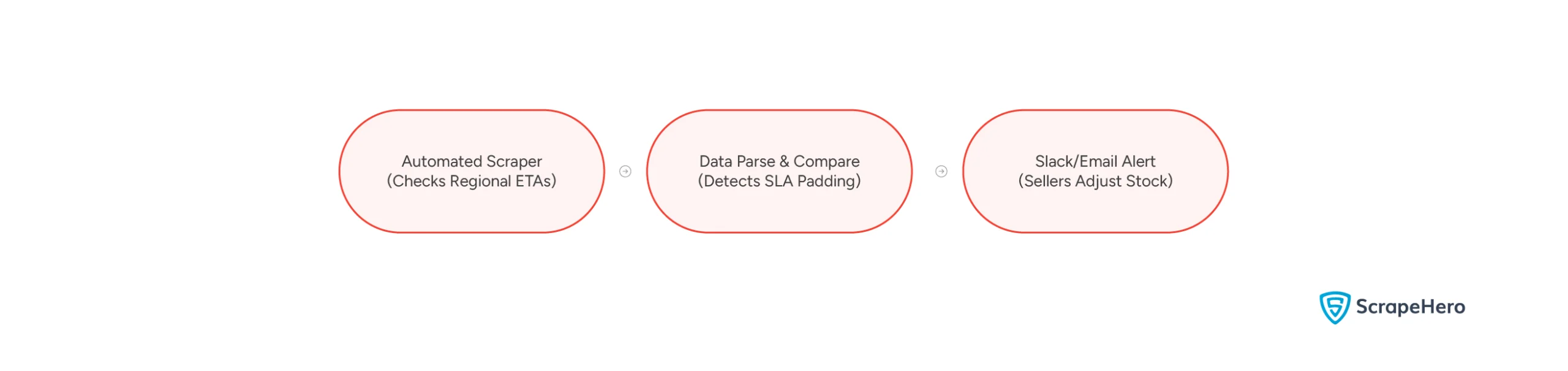
Here is how to structure a modern, automated alert pipeline:
- Regional Synthetic Requests: Deploy localized programmatic web scrapers (like the Selenium script detailed below) configured with specific, rotating destination postal codes.
- Baseline Comparison Engine: Feed the captured data into a central database to establish a rolling baseline of standard delivery speeds for those regions.
- Threshold Triggers: Set up alerting rules. For example, if an advertised delivery timeline increases by more than 48 hours for an ASIN in a high-volume zip code, fire an immediate notification.
- Operational Insight: When an alert triggers, it allows your logistics team to proactively reroute inventory to closer regional warehouses or adjust advertising spend away from regions plagued by carrier delays.
The Code to Monitor Delivery Promise Changes
The code shown in this tutorial scrapes delivery promises from an Amazon product page. This flowchart shows the code’s logic.
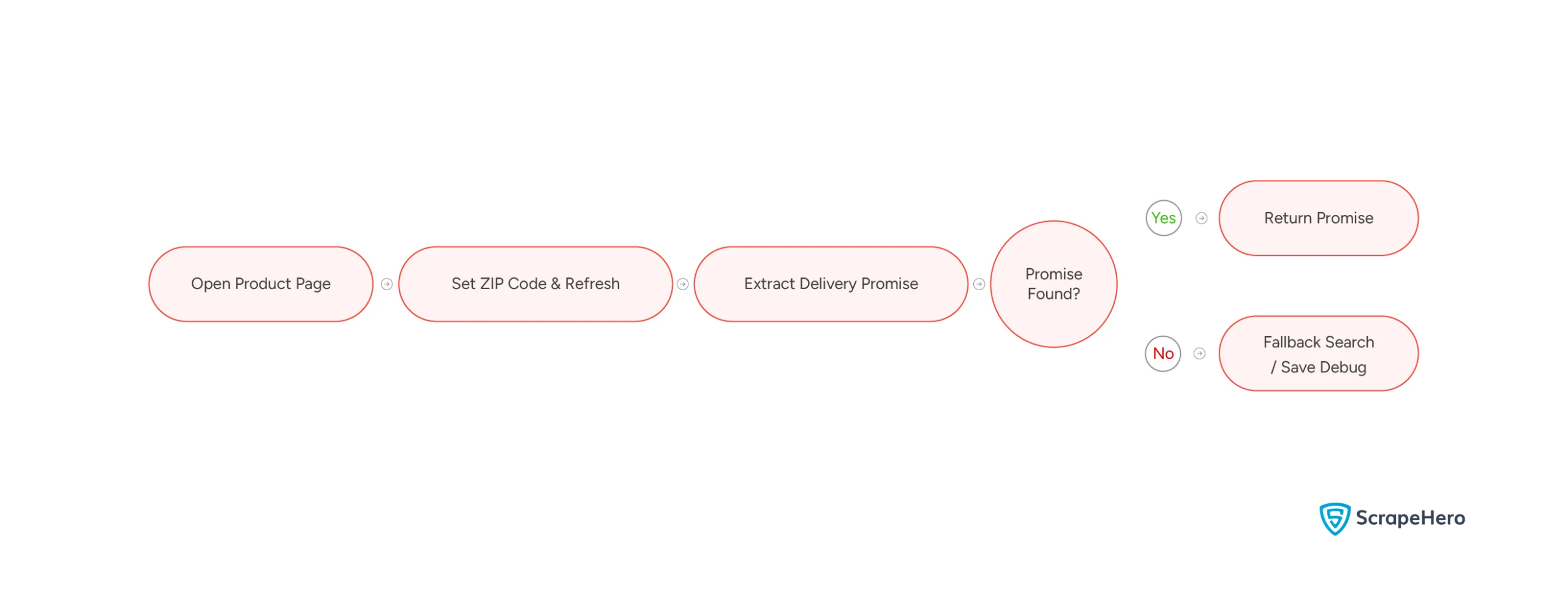
Note: While this strategy applies to platforms like Walmart and Target, their HTML structures vary. For this Python tutorial, we will use Amazon as our blueprint. To adapt this script for other marketplaces, simply apply the same Selenium logic using their specific CSS selectors.
Here’s the complete code:
import os
import time
from selenium import webdriver
from selenium.webdriver.common.by import By
from selenium.webdriver.support.ui import WebDriverWait
from selenium.webdriver.support import expected_conditions as EC
from selenium.webdriver.chrome.options import Options
def get_delivery_promise(url, zip_code="10001"):
chrome_options = Options()
chrome_options.add_argument("--headless=new")
chrome_options.add_argument("--disable-gpu")
chrome_options.add_argument("--no-sandbox")
chrome_options.add_argument("--window-size=1920,1080")
# Set a desktop user agent to load the correct version of the page
chrome_options.add_argument("user-agent=Mozilla/5.0 (Windows NT 10.0; Win64; x64) AppleWebKit/537.36 (KHTML, like Gecko) Chrome/120.0.0.0 Safari/537.36")
driver = webdriver.Chrome(options=chrome_options)
wait = WebDriverWait(driver, 15)
try:
print("Navigating to product page...")
driver.get(url)
time.sleep(3)
# Step 1: Open the location popover
print("Clicking location button...")
location_btn = wait.until(
EC.element_to_be_clickable((By.ID, "nav-global-location-slot"))
)
location_btn.click()
time.sleep(2)
# Step 2: Input the ZIP code
print(f"Entering ZIP code: {zip_code}...")
zip_input = wait.until(
EC.visibility_of_element_located((By.ID, "GLUXZipUpdateInput"))
)
zip_input.clear()
zip_input.send_keys(zip_code)
# Step 3: Click Apply
print("Clicking Apply...")
apply_btn = wait.until(
EC.element_to_be_clickable((By.CSS_SELECTOR, "#GLUXZipUpdate input"))
)
apply_btn.click()
time.sleep(3)
# Step 4: Handle "Done/Continue" confirmation button if present
try:
done_btn = WebDriverWait(driver, 5).until(
EC.element_to_be_clickable((By.CSS_SELECTOR, ".a-popover-footer input"))
)
print("Clicking Done/Continue...")
done_btn.click()
time.sleep(2)
except Exception:
print("No confirmation button clicked or page auto-refreshed.")
# Ensure page is refreshed to load location-specific data
print("Refreshing page to load local delivery info...")
driver.refresh()
time.sleep(3)
# Step 5: Retrieve delivery promise text
print("Extracting delivery promise...")
delivery_messages = []
try:
elements = driver.find_elements(By.CSS_SELECTOR, "[id*='DELIVERY_MESSAGE']")
for element in elements:
if element.is_displayed():
text = element.text.strip().replace("\n", " ")
if text and len(text) > 10 and text not in delivery_messages:
# Filter out generic return policy or help text if they get caught
if not any(k in text.lower() for k in ["select your preferred", "go to your orders", "shipping cost, delivery date"]):
delivery_messages.append(text)
except Exception:
pass
if delivery_messages:
# Clean up the output debug files if they exist from a previous failed run
script_dir = os.path.dirname(os.path.abspath(__file__))
for filename in ["promise_page.png", "promise_page.html"]:
filepath = os.path.join(script_dir, filename)
if os.path.exists(filepath):
try:
os.remove(filepath)
except Exception:
pass
return "Success! Promise(s) found:\n" + "\n".join([f"- {m}" for m in delivery_messages])
# Text-based fallback search
print("Primary selectors not found. Attempting text-based search...")
body_text = driver.find_element(By.TAG_NAME, "body").text
lines = body_text.split("\n")
for line in lines:
line_str = line.strip()
if any(k in line_str.lower() for k in ["delivery by", "arrives by", "get it by"]) and len(line_str) < 120:
return f"Success (from text search)! Promise: {line_str}"
# Save debug artifacts if not found
script_dir = os.path.dirname(os.path.abspath(__file__))
driver.save_screenshot(os.path.join(script_dir, "promise_page.png"))
with open(os.path.join(script_dir, "promise_page.html"), "w", encoding="utf-8") as f:
f.write(driver.page_source)
return f"Delivery promise not found on page. (Saved debug screenshot and HTML page source to '{script_dir}')"
except Exception as e:
# Save error screenshot to the script's directory for debugging
script_dir = os.path.dirname(os.path.abspath(__file__))
error_img_path = os.path.join(script_dir, "error_screenshot.png")
driver.save_screenshot(error_img_path)
return f"Error: {e} (Screenshot saved to '{error_img_path}')"
finally:
driver.quit()
if __name__ == '__main__':
url = "https://www.amazon.com/dp/B0BN72FYFG"
zip_code = "10001" # New York ZIP Code
print(f"Checking delivery promise for: {url}")
print(f"Using ZIP Code: {zip_code}")
result = get_delivery_promise(url, zip_code)
print(f"Result: {result}")
This Python script uses Selenium WebDriver to automate a web browser, navigate to an Amazon product page, update the delivery location using a ZIP code, and extract the estimated delivery date (the “delivery promise”). It is designed to run headlessly (in the background) and includes fallback logic and error debugging features.
Here is a step-by-step walkthrough of how the code works.
1. Imports and Dependencies
import os
import time
from selenium import webdriver
from selenium.webdriver.common.by import By
from selenium.webdriver.support.ui import WebDriverWait
from selenium.webdriver.support import expected_conditions as EC
from selenium.webdriver.chrome.options import Options
- os and time: Used for managing file paths (saving screenshots) and adding hard pauses (time.sleep) to let animations or page loads finish.
- webdriver: The core Selenium component that controls the Chrome browser.
- By, WebDriverWait, and expected_conditions (EC): Used together for explicit waits. Instead of guessing how long a page takes to load, the script dynamically waits until specific elements appear or become clickable.
2. Browser Configuration (Anti-Bot & Headless Setup)
Inside the get_delivery_promise function, Chrome options are configured before launching the browser:
chrome_options = Options()
chrome_options.add_argument("--headless=new")
chrome_options.add_argument("--disable-gpu")
chrome_options.add_argument("--no-sandbox")
chrome_options.add_argument("--window-size=1920,1080")
#Set a desktop user agent to load the correct version of the page
chrome_options.add_argument("user-agent=Mozilla/5.0 (Windows NT 10.0; Win64; x64) AppleWebKit/537.36 (KHTML, like Gecko) Chrome/120.0.0.0 Safari/537.36")
driver = webdriver.Chrome(options=chrome_options)
wait = WebDriverWait(driver, 15)- –headless=new: Runs Chrome in the background without opening a physical window.
- user-agent: Mimics a standard desktop browser. This is critical because e-commerce sites like Amazon often block default Selenium automated headers or serve them different page layouts.
- WebDriverWait(driver, 15): Configures a reusable wait object that will pause execution for up to 15 seconds when looking for elements before throwing an error.
3. Location Automation Steps
The script interacts with Amazon’s location modal to update the ZIP code.
Step 1: Open the Location Popover
driver.get(url)
time.sleep(3)
location_btn = wait.until(
EC.element_to_be_clickable((By.ID, "nav-global-location-slot"))
)
location_btn.click()
time.sleep(2)
The script loads the product URL and clicks the top-left location selector widget (#nav-global-location-slot) to open the ZIP code prompt modal.
Steps 2 & 3: Input ZIP Code and Apply
zip_input = wait.until(
EC.visibility_of_element_located((By.ID, "GLUXZipUpdateInput"))
)
zip_input.clear()
zip_input.send_keys(zip_code)
apply_btn = wait.until(
EC.element_to_be_clickable((By.CSS_SELECTOR, "#GLUXZipUpdate input"))
)
apply_btn.click()
time.sleep(3)
Once the modal appears, the script finds the text box (#GLUXZipUpdateInput), clears any existing text, types the new ZIP code (default: 10001), and clicks the “Apply” button.
Pro-Tip: How to Find HTML Selectors Using the “Inspect” Tool
Before you can tell a web scraper what to click or extract, you need to find the element’s exact identifier hidden in the website’s code. Here is the standard workflow using Google Chrome:
- Open Developer Tools: Navigate to the competitor’s product page. Right-click anywhere on the page and select Inspect (or press F12 / Cmd+Option+I on Mac). A panel showing the site’s underlying HTML will open.
- Activate the Selector Tool: In the top-left corner of the Developer Tools panel, click the small icon that looks like a cursor clicking a square (or press Ctrl+Shift+C).
- Hover and Click: Move your mouse over the actual web page and click the exact element you want to scrape (e.g., the ZIP code input box or the delivery date text).
- Extract the Locator: The Developer Tools will immediately highlight the corresponding HTML code for that element.
- Identify the attributes: Look closely at the highlighted line for attributes like id=”GLUXZipUpdateInput” or class=”a-color-success”.
- The Shortcut: Right-click the highlighted line of code, hover over Copy, and select Copy selector (for CSS) or Copy XPath. You can paste this value directly into your Selenium script!
Step 4: Handle Confirmation and Refresh
try:
done_btn = WebDriverWait(driver, 5).until(
EC.element_to_be_clickable((By.CSS_SELECTOR, ".a-popover-footer input"))
)
done_btn.click()
time.sleep(2)
except Exception:
print("No confirmation button clicked or page auto-refreshed.")
driver.refresh()
time.sleep(3)
- Amazon sometimes shows a “Done” or “Continue” confirmation button in the modal footer after changing locations. The script wraps this in a short 5-second try/except block because this button isn’t always present.
- driver.refresh() Reloads the product page so the actual pricing and delivery metrics update to match the newly submitted ZIP code.
4. Scraping the Delivery Promise
The script employs two distinct strategies to extract the shipping text:
Strategy A: Primary CSS Selectors
elements = driver.find_elements(By.CSS_SELECTOR, "[id*='DELIVERY_MESSAGE']")
for element in elements:
if element.is_displayed():
text = element.text.strip().replace("\n", " ")
if text and len(text) > 10 and text not in delivery_messages:
if not any(k in text.lower() for k in ["select your preferred", "go to your orders", "shipping cost, delivery date"]):
delivery_messages.append(text)
- It searches for any elements whose HTML IDs contain the substring DELIVERY_MESSAGE.
- It filters out hidden elements, extremely short snippets, or boilerplate layout text (like links to orders or help text).
- If successful, it cleans up older debugging files and returns the delivery message list.
Strategy B: Text-Based Fallback
body_text = driver.find_element(By.TAG_NAME, "body").text
lines = body_text.split("\n")
for line in lines:
line_str = line.strip()
if any(k in line_str.lower() for k in ["delivery by", "arrives by", "get it by"]) and len(line_str) < 120:
return f"Success (from text search)! Promise: {line_str}"
If the ID-based elements aren’t found (due to Amazon updating its layout), Strategy B downloads the entire text structure of the web page. It scans the page line-by-line looking for common phrases like “arrives by” or “delivery by”.
5. Error Handling and Debugging
Because web scraping elements can break due to minor UI tweaks, the code is heavily instrumented with safeguards:
# Save debug report if not found
script_dir = os.path.dirname(os.path.abspath(__file__))
driver.save_screenshot(os.path.join(script_dir, "promise_page.png"))
with open(os.path.join(script_dir, "promise_page.html"), "w", encoding="utf-8") as f:
f.write(driver.page_source)
- If the element is missing: The script captures a visual PNG screenshot (promise_page.png) and dumps the exact HTML layout (promise_page.html) to the local script folder so you can see what went wrong.
- except Exception as e: If a fatal error occurs (e.g., a timeout or unexpected popup), it captures an error_screenshot.png and returns the error trace.
- finally block: Ensures driver.quit() runs no matter what. This closes the hidden Chrome background processes so they don’t consume system memory after execution finishes.
Code Limitations
While the provided Selenium script is excellent for localized auditing, proof-of-concepts, or small-scale tracking, deploying it as a production-grade enterprise scraping comes with significant hurdles. Ecommerce platforms constantly evolve their defenses, meaning a basic browser automation script will face strict operational limits when trying to monitor these delivery promises data at scale.
The limitations of this code include:
- Anti-Bot Defenses: Platforms like Amazon use advanced networks that easily detect standard Selenium. Repeated execution risks CAPTCHAs or bans because standard tools fail to mask browser fingerprints.
- DOM Fragility: Scripts relying on hardcoded element IDs break during frequent marketplace UI updates. This causes immediate pipeline failures and requires constant maintenance to fix selectors.
- Resource Bottlenecks: Headless browsers consume massive CPU and RAM. Running parallel instances for high-volume scraping quickly crashes standard servers, making lightweight API requests significantly more efficient.
- IP Bans: E-commerce sites aggressively block data center IPs, yielding generic delivery data. Accurate scraping requires rotating residential proxies to route requests through real local IPs.
Wrapping Up: Why Use a Web Scraping Service
When transitioning from a local proof-of-concept tool to an enterprise-grade marketplace tracking program, infrastructure maintenance can quickly become a massive time sink. Instead of burning engineering cycles patching broken HTML selectors or troubleshooting IP bans, brands operating at scale typically shift this burden to a fully managed web scraping service like ScrapeHero.
By offloading your marketplace monitoring to an enterprise data provider, you bypass the structural bottlenecks of DIY scripts entirely:
- Zero Infrastructure Management: You don’t need to rent cloud servers, manage complex browser farms, or foot the bill for premium bandwidth.
- Built-In Anti-Bot and CAPTCHA Bypass: ScrapeHero’s global routing network natively handles advanced retailer bot walls (like Akamai or PerimeterX), ensuring your data pipelines pull clean metrics without hitting access blocks.
- Self-Healing Data Pipelines: When Amazon or Walmart silently updates their backend layout, ScrapeHero’s AI-powered automated checks detect the change and update the parsers on their end—meaning your monitoring dashboards never experience a lapse in data.
- High-Frequency Regional Tracking: Instead of checking a single postal code, you can scale your data request across thousands of rotating target ZIP codes simultaneously to get a true, unfiltered map of your regional marketplace promises.
DIY scrapers waste engineering time on maintenance. To protect margins, track Buy Box status, and audit SLAs across thousands of SKUs, you need stable data. ScrapeHero’s managed service eliminates operational headaches, delivering clean, structured data while keeping your team focused on core product features.
FAQs
How often you should monitor delivery promise changes across marketplaces depend on your role, operational volume, and the market. But the rule of thumb is to run it 4-12 hours under normal conditions and hourly during peak seasons.
When the scraper fails,
1. Start using backup methods, such as checking manually or using marketplace APIs1.
2. Determine causes (CAPTCHA block, website update, etc.) by checking the error logs
3. Update the code and restart the scraper
During the peak season, such as Prime Day, there is a high probability of delays due to bottlenecks in shipping hubs. Therefore, platforms often provide a 1-3 padding to reduce the risk of products getting delivered later than promised.