Google no longer allows you to access their search results without enabling JavaScript. That means you cannot simply use HTTP request-based methods for Google search scraping.
However, there are a couple of solutions:
- Ready-made scrapers such as the Google Search Results scraper on ScrapeHero Cloud
- Headless browsers such as Playwright
This tutorial discusses both of these methods.
Google Search Scraping: The No-Code Method
For a hassle-free method for Google Search data extraction, a no-code solution is often the best choice. You can use ScrapeHero Cloud’s Google Search Results Scraper. It eliminates the need for maintaining code, bypassing anti-bot measures, and handling infrastructure.
Steps to Scrape Google Search Results Without Code
1. Log in to your ScrapeHero Cloud account
2. Navigate to the Google Search Results Scraper in the ScrapeHero App Store
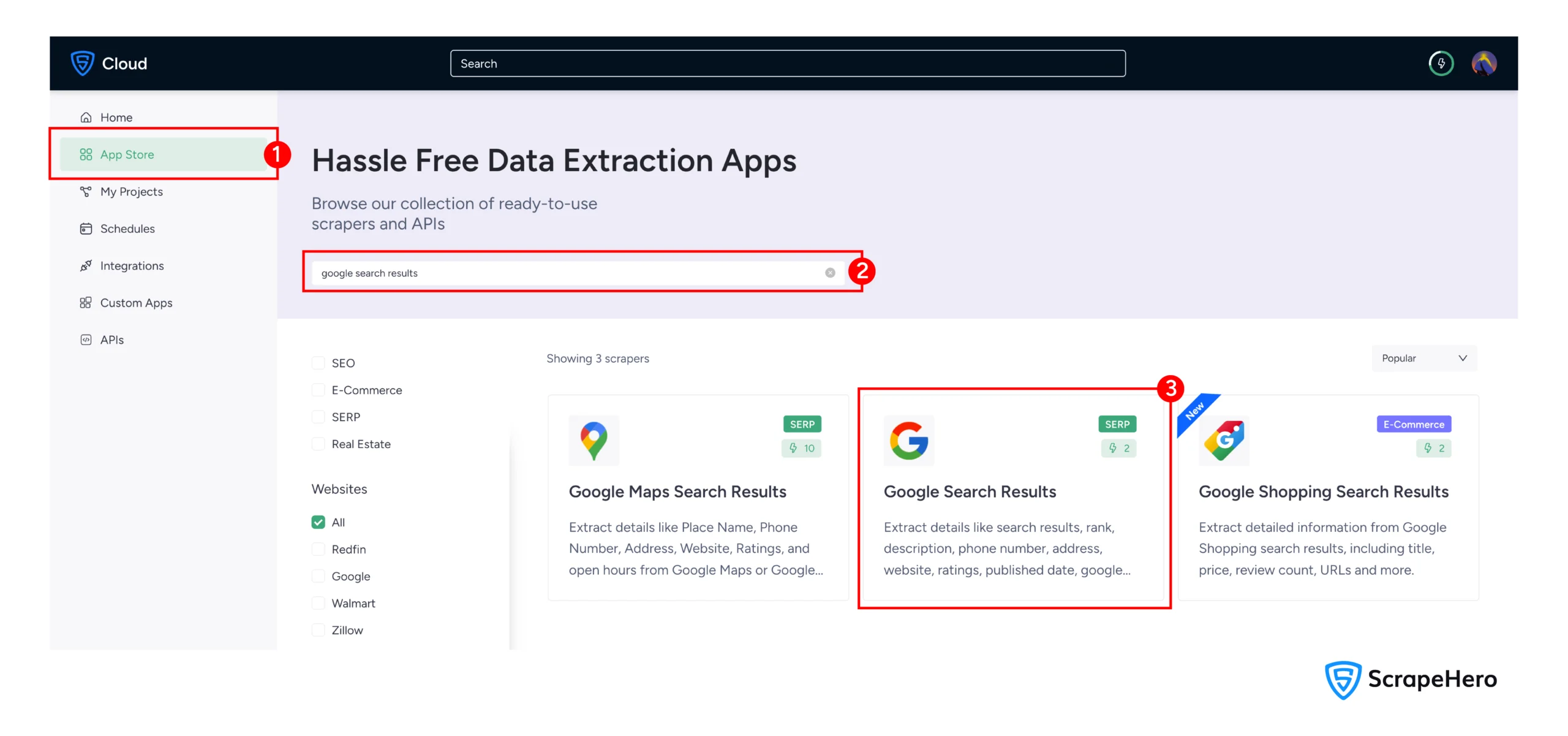
3. Click on “Create New Project”
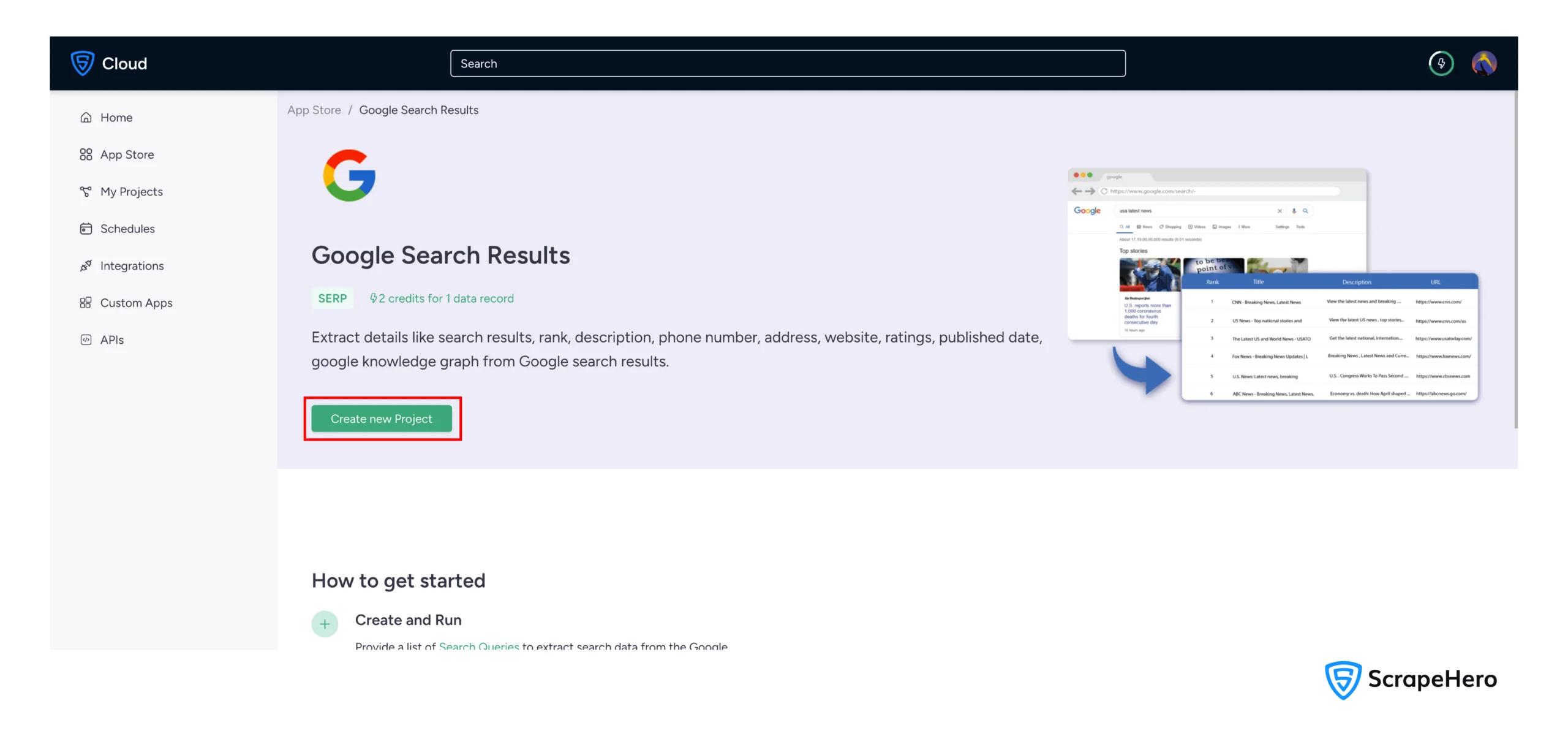
4. Enter project name and search queries
5. Click “Gather Data” to begin the data extraction process
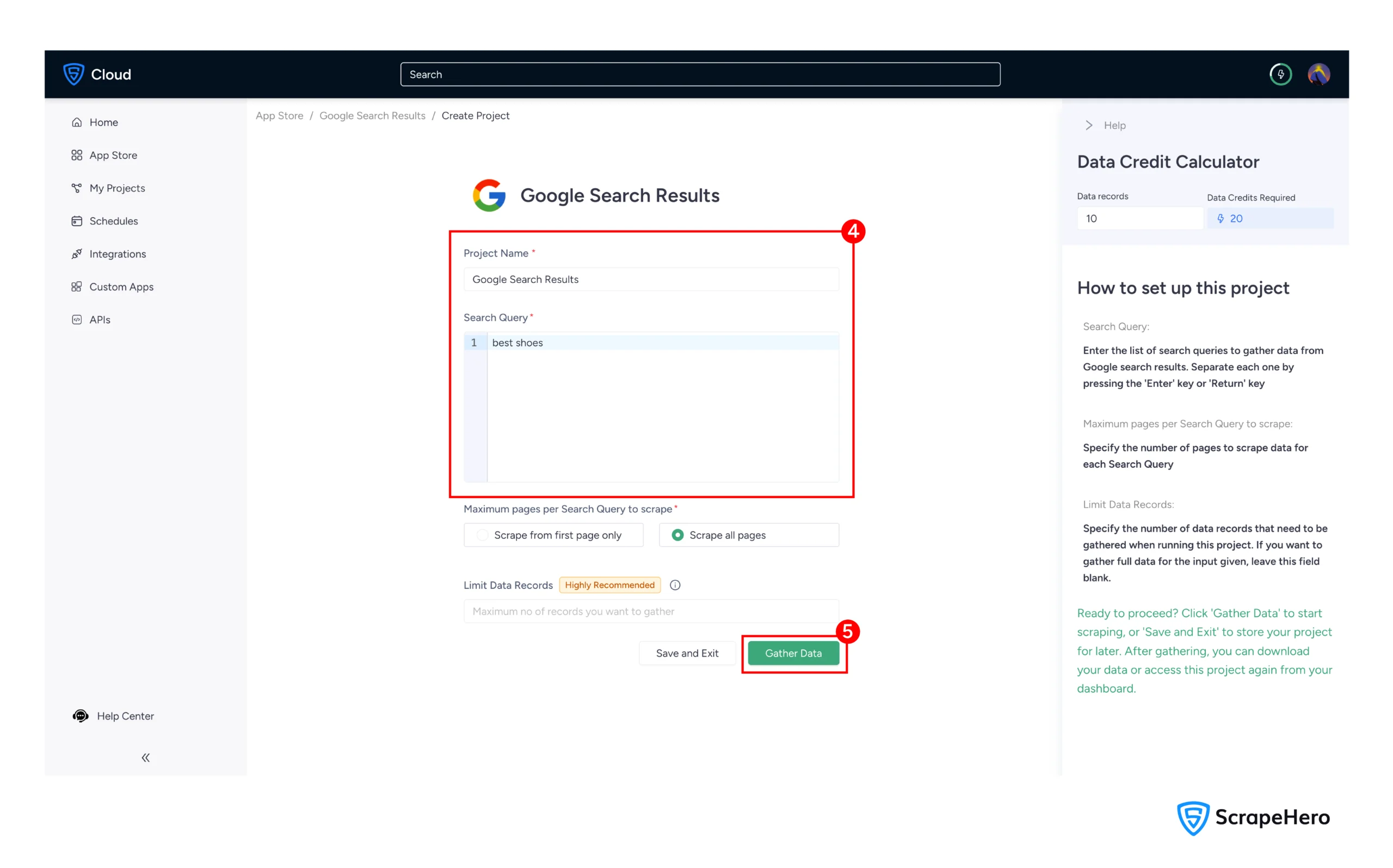
Once complete, download your data in your preferred format: CSV, JSON, or Excel.
With ScrapeHero paid plans, you also get access to these features:
- Cloud storage integration: Automatically send your scraped data to cloud services like Google Drive, S3, or Azure.
- Scheduling: Run your scrapes daily, weekly, or monthly to monitor trends over time.
- API integration: Access your data programmatically via an API for use in your own applications and dashboards.
Google Search Scraping: The Code-Based Method
If you want more flexibility and do not mind handling the coding and maintenance of a scraper, this detailed tutorial covers scraping Google search results with Python.
Setting Up the Environment
Before starting to write the code, you need to install the necessary Python library. The code uses Playwright, a modern browser automation library that can handle dynamic, JavaScript-heavy websites.
Install the Playwright library using PIP:
pip install playwright
Also install the Playwright browser.
playwright install
Data Scraped from Google Search Results
The provided code extracts specific data points from each result on the Google results page. Here is what it collects and how:
- Title: The blue, clickable headline of the search result, extracted from the h3 element with the class LC20lb.
- URL: The full hyperlink address, retrieved from the href attribute of the a tag with the class zReHs.
- Domain: The root website address (e.g., example.com), parsed from the full URL.
- Description: The snippet of text that summarizes the page content, taken from the div element with the class VwiC3b.
Writing the Code
If you want to get to work right away, here is the complete code to scrape a Google results page:
from playwright.sync_api import sync_playwright
import os, json
user_data_dir = os.path.join(os.getcwd(), "user_data")
if not os.path.exists(user_data_dir):
os.makedirs(user_data_dir)
with sync_playwright() as p:
user_agent="Mozilla/5.0 (Windows NT 10.0; Win64; x64) AppleWebKit/537.36 (KHTML, like Gecko) Chrome/120.0.0.0 Safari/537.36"
context = p.chromium.launch_persistent_context(
headless=False,
user_agent=user_agent,
user_data_dir=user_data_dir,
viewport={'width': 1920, 'height': 1080},
java_script_enabled=True,
locale='en-US',
timezone_id='America/New_York',
permissions=['geolocation'],
bypass_csp=True,
ignore_https_errors=True,
channel="msedge",
args=[
'--disable-blink-features=AutomationControlled',
'--disable-automation',
'--disable-infobars',
'--disable-dev-shm-usage',
'--no-sandbox',
'--disable-gpu',
'--disable-setuid-sandbox'
]
)
page = context.new_page()
page.set_extra_http_headers({
'Accept-Language': 'en-US,en;q=0.9',
'Accept': 'text/html,application/xhtml+xml,application/xml;q=0.9,image/webp,*/*;q=0.8',
'Accept-Encoding': 'gzip, deflate, br',
'Connection': 'keep-alive'
})
search_term = 'how to teach my cat to use laptop'
search_url = 'https://google.com'
page.goto(search_url)
page.wait_for_timeout(5000)
search_box = page.get_by_role('combobox',name='Search')
search_box.fill(f'{search_term}')
page.wait_for_timeout(1000)
search_box.press('Enter')
page.wait_for_selector('div.N54PNb')
for _ in range(5):
page.mouse.wheel(0, 1000)
page.wait_for_timeout(1000)
results = page.locator('div.N54PNb').all()
print("results fetched")
details = []
for result in results:
url = result.locator('a.zReHs').get_attribute('href')
domain = url.split('/')[2] if url else None
title = result.locator('h3.LC20lb').inner_text()
description = result.locator('div.VwiC3b').inner_text()
details.append(
{
'url':url,
'domain':domain,
'title':title,
'description':description
}
)
with open('search_results.json','w',encoding='utf') as f:
json.dump(details,f,ensure_ascii=False,indent=4)Code Walkthrough
Let us break down this code step by step to understand how Google search scraping is implemented.
Imports
First, the script imports the necessary libraries. Playwright is for browser automation, os handles file paths, and json saves the data.
from playwright.sync_api import sync_playwright
import os, jsonPersistent User Data Directory
To make the browser instance appear more like a real user and potentially avoid blocks, the script creates a persistent user data directory. This allows the browser to save cookies and cache, creating a consistent session across runs.
user_data_dir = os.path.join(os.getcwd(), "user_data")
if not os.path.exists(user_data_dir):
os.makedirs(user_data_dir)Launching the Browser
The sync_playwright context manager launches a Chromium browser with configuration that helps evade detection. It runs in headed mode (headless=False), sets a realistic user agent, and uses the persistent context. The arguments like –disable-blink-features=AutomationControlled help mask automation indicators.
with sync_playwright() as p:
user_agent="Mozilla/5.0 (Windows NT 10.0; Win64; x64) AppleWebKit/537.36 (KHTML, like Gecko) Chrome/120.0.0.0 Safari/537.36"
context = p.chromium.launch_persistent_context(
headless=False,
user_agent=user_agent,
user_data_dir=user_data_dir,
viewport={'width': 1920, 'height': 1080},
java_script_enabled=True,
locale='en-US',
timezone_id='America/New_York',
permissions=['geolocation'],
# Mask automation
bypass_csp=True,
ignore_https_errors=True,
channel="msedge",
args=[
'--disable-blink-features=AutomationControlled',
'--disable-dev-shm-usage',
'--no-sandbox',
'--disable-gpu',
'--disable-setuid-sandbox'
]
)
Setting HTTP Headers
Next, the code creates a new page within the browser context and sets extra HTTP headers to further mimic a browser request from an English-speaking user.
page = context.new_page()
page.set_extra_http_headers({
'Accept-Language': 'en-US,en;q=0.9',
'Accept': 'text/html,application/xhtml+xml,application/xml;q=0.9,image/webp,*/*;q=0.8',
'Accept-Encoding': 'gzip, deflate, br',
'Connection': 'keep-alive'
})
Navigating and Searching
The script defines the search query and navigates to Google’s homepage. It uses Playwright’s get_by_role() to find the search box by its ARIA role, fill() to enter the search term, and press() to submit it.
search_term = 'how to teach my cat to use laptop'
search_url = 'https://google.com'
page.goto(search_url)
page.wait_for_timeout(5000)
search_box = page.get_by_role('combobox',name='Search')
search_box.fill(f'{search_term}')
page.wait_for_timeout(1000)
search_box.press('Enter')Scrolling to Load Results
After initiating the search, the code waits for the results container (div.N54PNb) to appear. Google uses lazy-loading, so the code simulates scrolling five times to ensure more results are loaded.
page.wait_for_selector('div.N54PNb')
for _ in range(5):
page.mouse.wheel(0, 10000)
page.wait_for_timeout(1000)Extracting Results
With the page fully scrolled, the script locates all individual search result elements and loops through each one, extracting the title, URL, domain, and description using CSS selectors, then appending the data to a list.
results = page.locator('div.N54PNb').all()
print("results fetched")
details = []
for result in results:
url = result.locator('a.zReHs').get_attribute('href')
domain = url.split('/')[2] if url else None
title = result.locator('h3.LC20lb').inner_text()
description = result.locator('div.VwiC3b').inner_text()
details.append(
{
'url':url,
'domain':domain,
'title':title,
'description':description
}
)
Saving to JSON
Finally, the script writes all scraped data to a JSON file named search_results.json.
with open('search_results.json','w',encoding='utf') as f:
json.dump(details,f,ensure_ascii=False,indent=4)Code Limitations
While this code is a functional example, consider these limitations for production use:
- Google frequently changes the CSS classes of its HTML elements (like N54PNb, LC20lb). A small change by Google will break the scraper.
- Despite the stealth measures, Google’s advanced anti-bot systems may still detect and block the automated browser, leading to CAPTCHAs or IP bans, as the script does not rotate IP addresses.
What Has Changed in 2026
How Google’s Evolving SERP Is Impacting Scrapers
Over the past year, scraping Google Search results has become considerably more complex. From hands-on testing and production deployments, here are the most critical changes practitioners are dealing with right now.
AI Overviews Are Reshaping the SERP Structure
Google’s AI Overviews (the successor to the Search Generative Experience) now appear at the top of a large share of informational queries. This means organic results are pushed further down the page, and the AI summary block itself uses a completely different DOM structure than traditional results. If your scraper only targets div.N54PNb, you will miss this entire section. Extracting AI Overview content currently requires targeting separate containers and handling dynamic expand/collapse interactions.
TLS Fingerprinting Has Become a Real Blocker
Google’s bot detection has moved beyond simple user agent checking. In 2025 and into 2026, TLS fingerprinting has emerged as a primary detection method. Even a perfectly configured Playwright instance can be flagged if its TLS handshake profile does not match a real browser. Tools like Playwright paired with patches that spoof the TLS fingerprint (such as using a Chromium build that mimics real Chrome’s fingerprint) are now practically necessary for stable scraping at any meaningful scale.
People Also Ask and Related Searches Are Worth Capturing
Two often-overlooked sections of the SERP provide high-value data for SEO research and competitor analysis: the “People Also Ask” accordion and the “Related Searches” block at the bottom of the page. These require additional locators and interaction steps (clicking to expand PAA entries) but can give you a far more complete picture of a query’s landscape than organic results alone.
Practical Recommendation
For one-off or low-volume research, the Playwright-based code in this tutorial still works with some selector updates. For anything running daily at scale, a managed service like ScrapeHero Cloud is the more reliable path, simply because it absorbs the overhead of keeping up with Google’s infrastructure changes.
Wrapping Up: Why Use a Web Scraping Service
Building a custom scraper with Python and Playwright gives you a great learning experience and fine-grained control.
However, if your business relies on accurate, consistent, and large-scale Google Search data extraction, the maintenance overhead and risk of blocks are significant.
A professional web scraping service like ScrapeHero solves these problems by providing enterprise-grade data. ScrapeHero handles proxy rotation, CAPTCHAs, and changes in Google’s layout, allowing you to focus on analyzing the data rather than collecting it.
Connect with ScrapeHero to make data collection hassle free.
FAQs
The most common reason is that Google has updated its HTML and the CSS selectors in the code no longer target the correct elements. Inspect the current Google Search Results page in your browser’s developer tools, find the updated class names, and update the selectors in your script accordingly.
To improve robustness: implement random delays between actions, rotate user agents, use a pool of residential proxies, regularly monitor and update CSS selectors, and consider spoofing your TLS fingerprint to avoid detection at
The timezone_id and locale parameters in the Playwright configuration help simulate a geographic location, but for reliable localized results you generally need to combine those settings with residential proxies from the target region. IP address location still carries more weight than browser locale settings in determining which regional SERP Google serves.