How to Scrape Accounting Firm Locations from Google Maps into Google Sheets with n8n and ScrapeHero
Last updated:
A directory of accounting firms can help accounting software providers, payroll services, and business consultants find local firms and plan focused outreach.
Here’s how you can collect a list of accounting firms from Google Maps without writing any code, using n8n.
What Is n8n?
- n8n helps you build automations by connecting visual blocks instead of writing code.
- You work on a blank canvas where you place blocks called “nodes.”
- Each node has one specific job: read data, search for something, filter results, save data, and so on.
- If you connect the nodes in order with lines and run the automation, data flows through them one by one.
- The full connected chain is called a “workflow.”
- You can run this workflow anytime with one click or on an automated schedule.
Workflow Overview
- Reads a list of city names from a Google Sheet
- Searches Google Maps for “accounting firms” using ScrapeHero for each city
- Cleans up the results down to just the useful fields
- Saves everything into a new Google Sheet
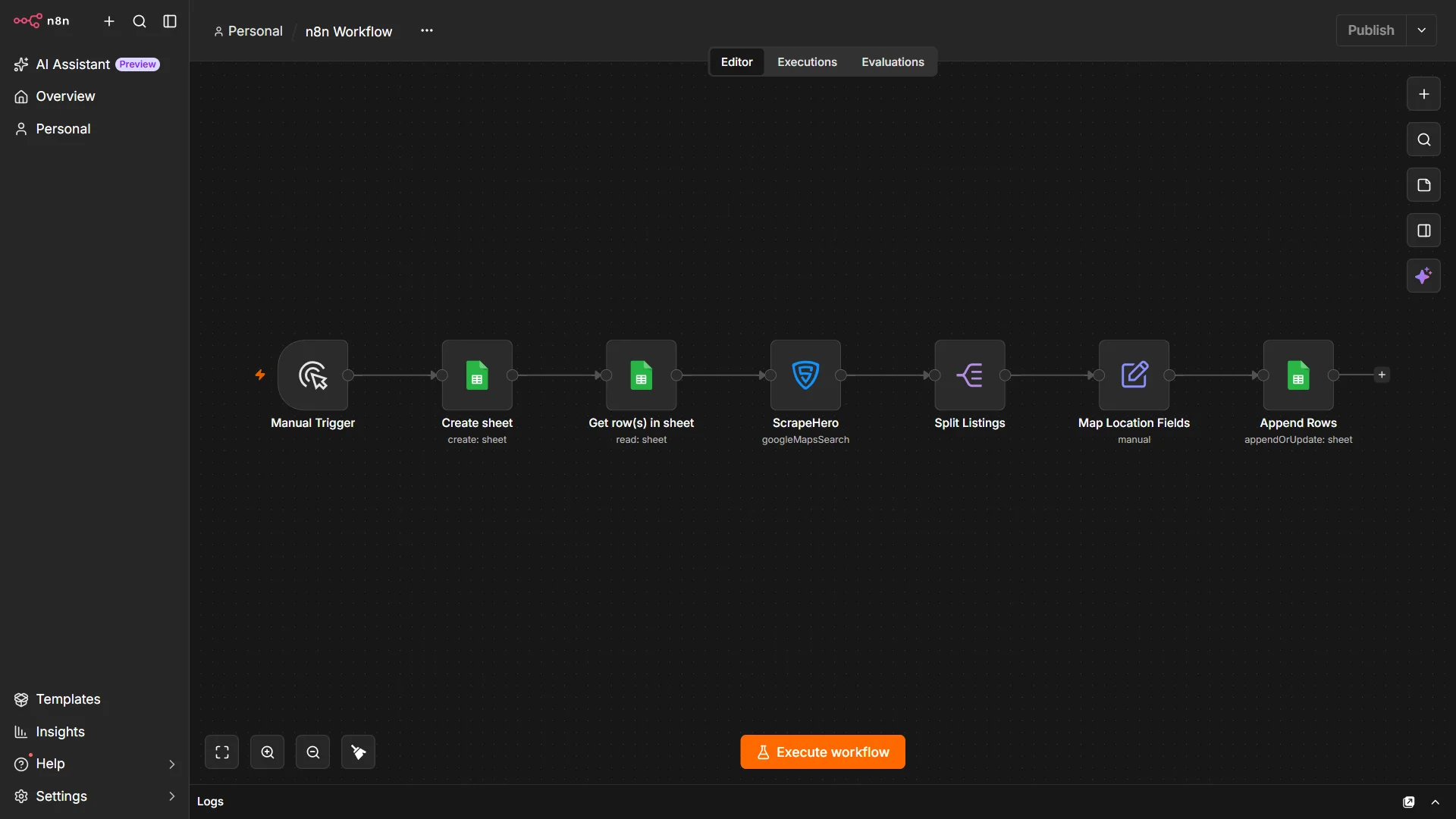
The chain of nodes, in order:
- Manual Trigger
- Google Sheets (Create)
- Google Sheets (Get Rows)
- ScrapeHero
- Split Out
- Edit Fields
- Google Sheets (Append)
Adding and Connecting a Node
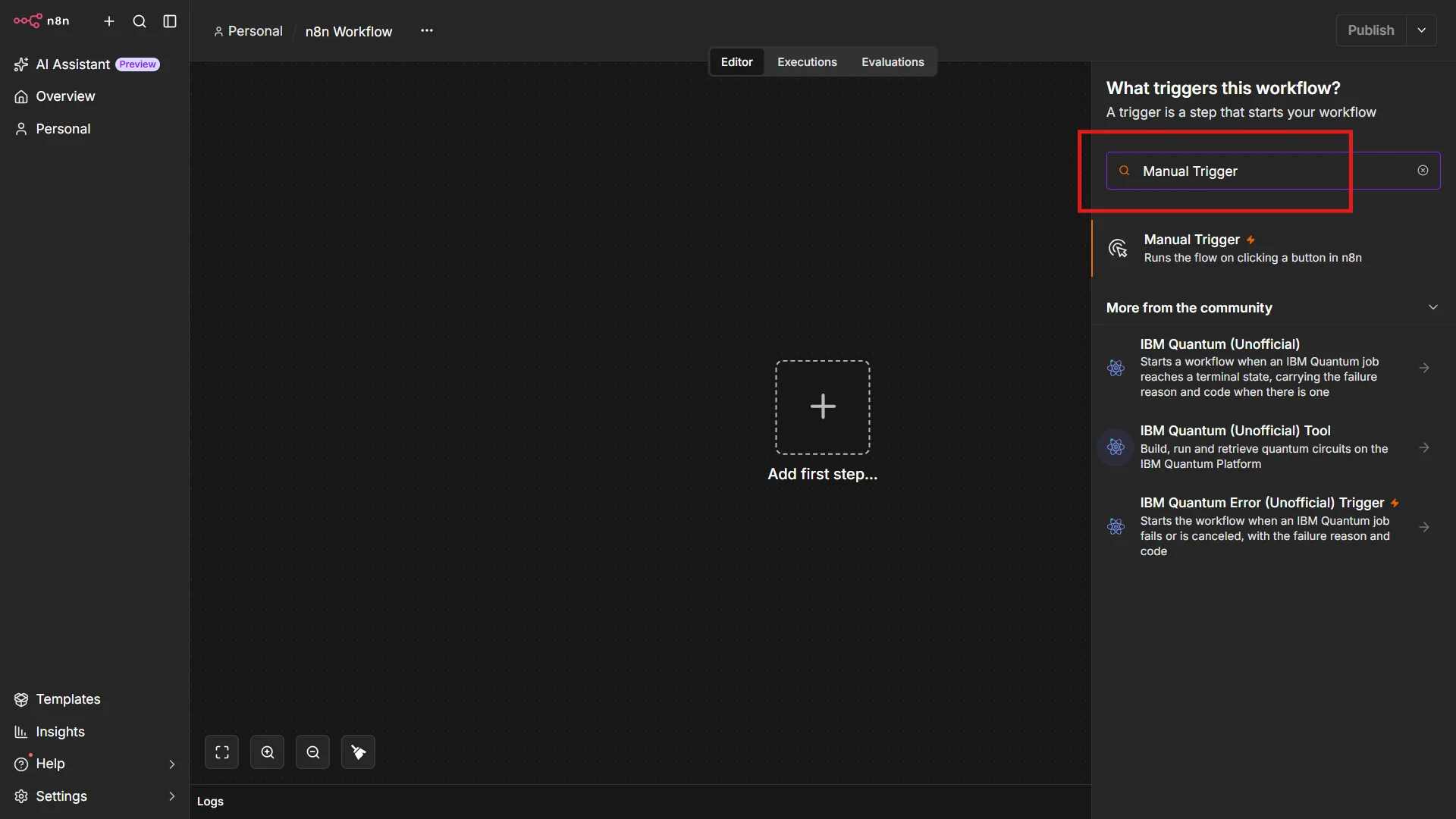
- Click the small “+” button on the canvas, or on the output side of the previous node if you already have one placed.
- Type the name of the node you want in the search panel that opens and click it from the list.
- Configure the node. When you close the configuration window, the node appears on the canvas as a box.
Note: If the node isn’t connected, drag a line from the small dot on the right edge of the previous node to the small dot on the left edge of the new one. This tells n8n the order to run things in.
What You Need
- An n8n account (free to sign up)
- A Google Sheet with a list of the cities you want to search
- Google Cloud credentials that let n8n connect to Google Sheets
- A ScrapeHero API key, which gives you access to the ScrapeHero Google Maps Scraper
Setting Up Your Credentials
n8n needs permission to access your Google Sheets and your ScrapeHero account. Creating “Credentials” saves a login or key that a node can use, so you don’t have to enter it every time.
- Google account: The Google nodes (Sheets, Gmail, Docs, etc.) require a Client ID and Client Secret from a Google Cloud project. Create these in the Google Cloud Console, then paste them into n8n’s Google Sheets credential screen. n8n’s guide to Google credentials walks through the full setup.
- ScrapeHero API key: The ScrapeHero node requires an API key. Sign up for a ScrapeHero account, then copy your API key from your dashboard as shown in ScrapeHero’s API introduction docs. Paste it into the ScrapeHero node’s credential screen in n8n.
Step 1: Add a Manual Trigger
- A Manual Trigger only runs when you click the “Run” button yourself, so you can run the workflow whenever you want.
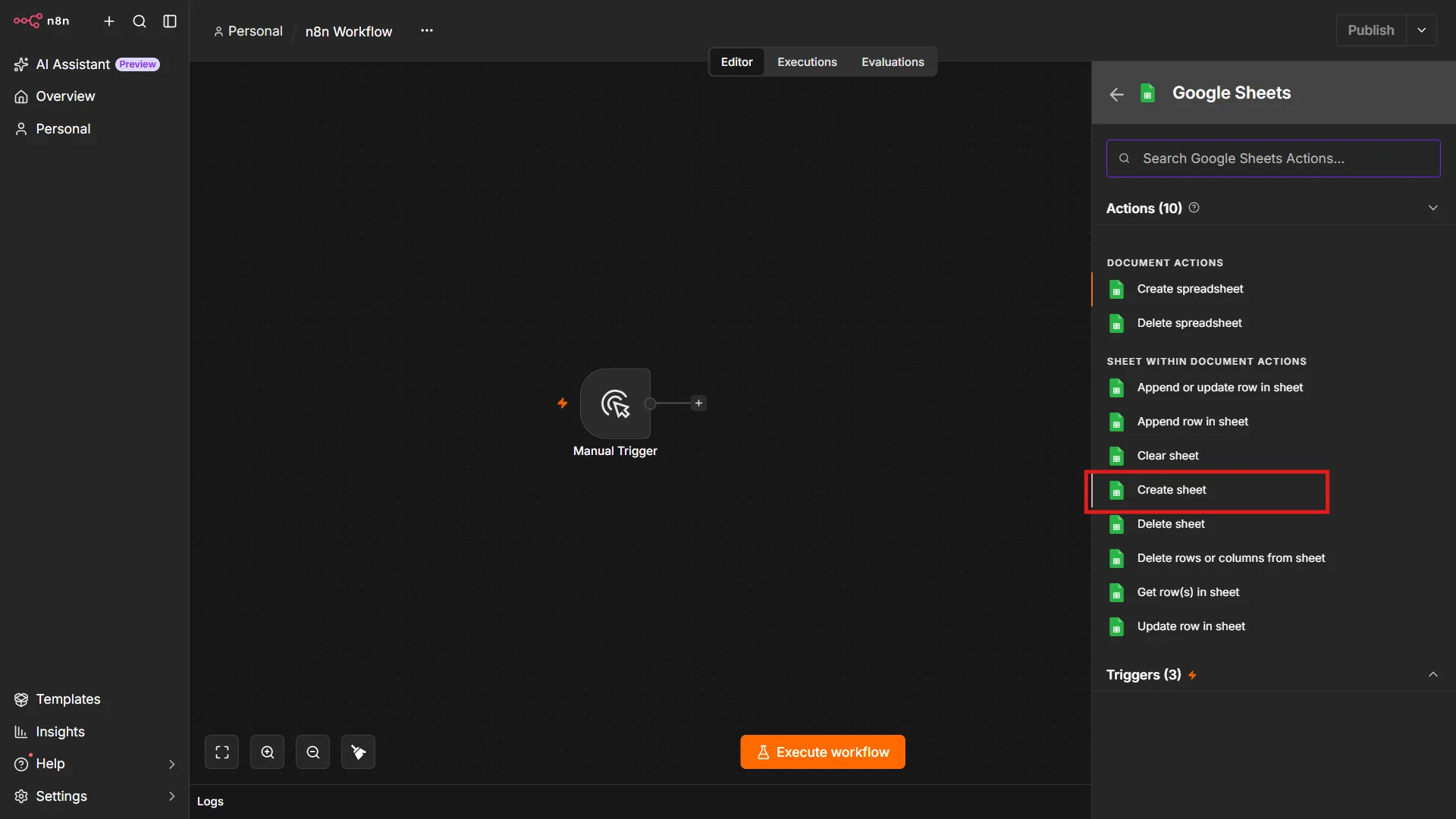
Step 2: Create a New Google Sheet
- Add a Google Sheets node with the “Create” sheet action.
- Select the Google credentials.
- Choose the document in which you want to create the sheet.
- Give the sheet a name.
Step 3: Read Your List of Locations
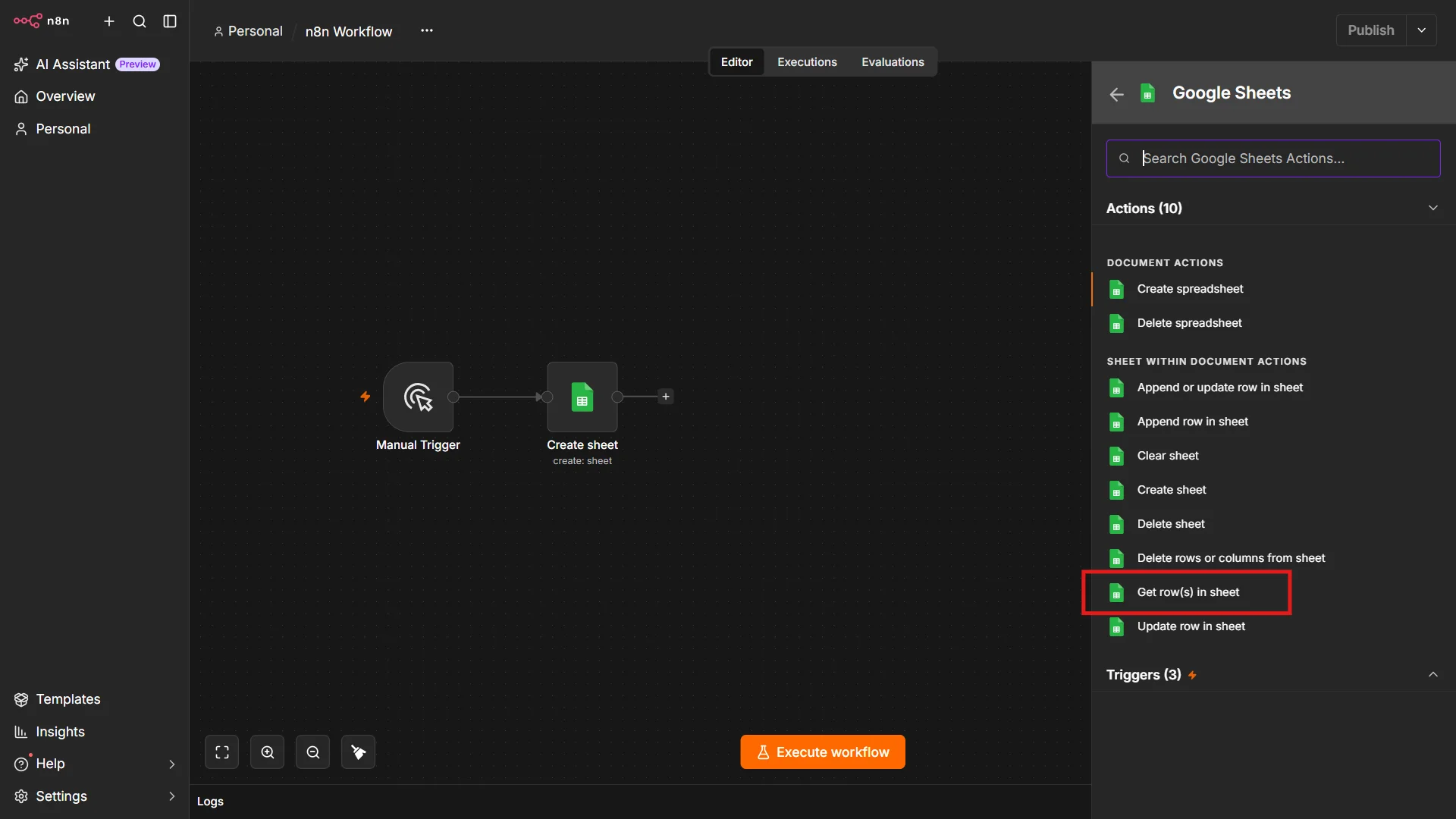
- Add a second Google Sheets node with the “Get Row(s)” sheet action.
- Select the Google credentials.
- Choose the document and the sheet containing the list of locations.
Step 4: Get Google Maps Listings
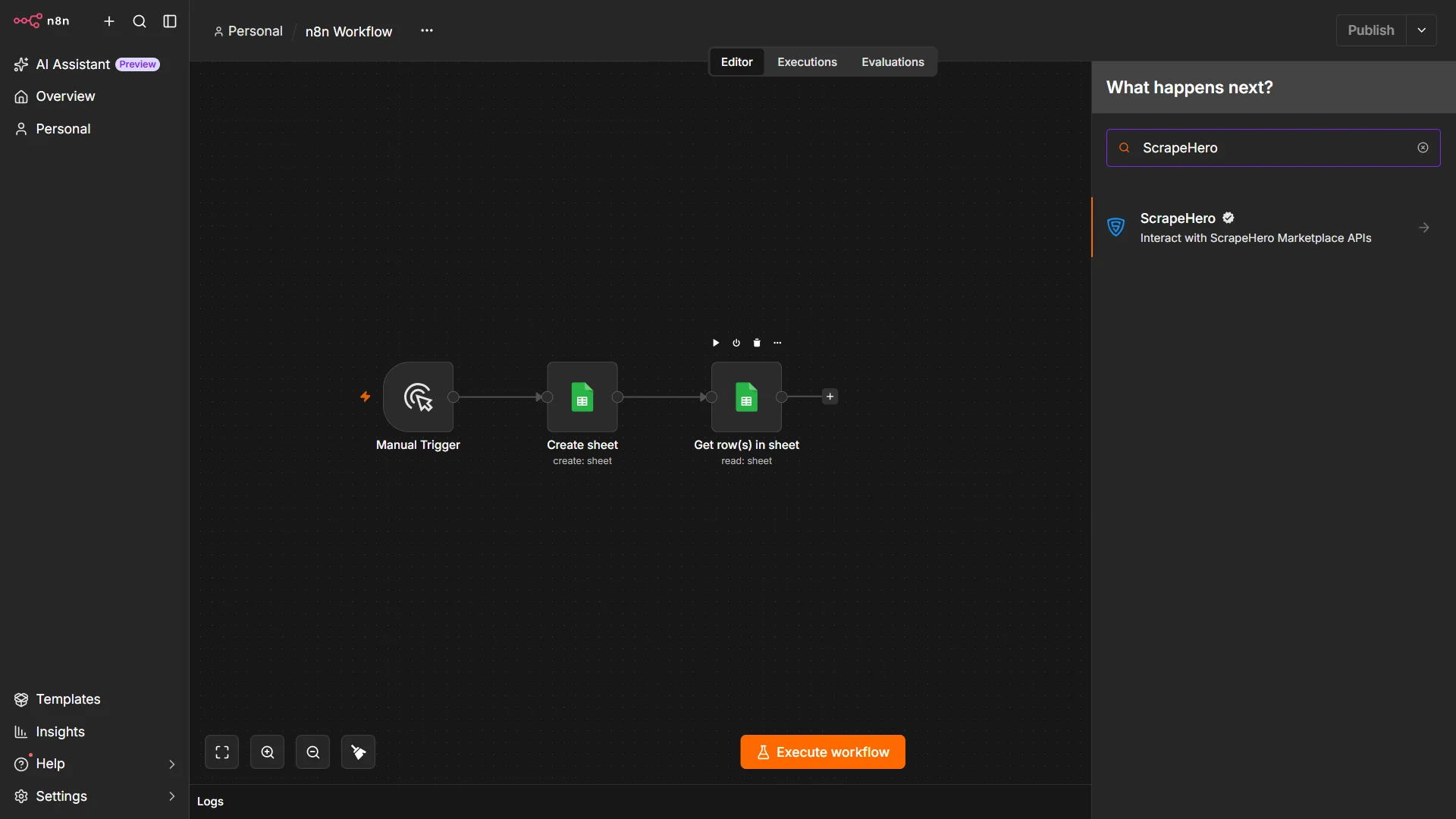
- Add the ScrapeHero node. You need to install the node before you can add it.
- Choose the ScrapeHero credentials containing the API key.
- Select the Google Maps Search API from the drop-down.
- Execute the previous nodes, then drag and drop the locations field from the output of the Google Sheets (Get Row(s)) node into the input field.
- Add “accounting firms in” in front of the new expression, so the search reads something like “accounting firms in Los Angeles”.
Step 5: Split the Results Into Individual Records
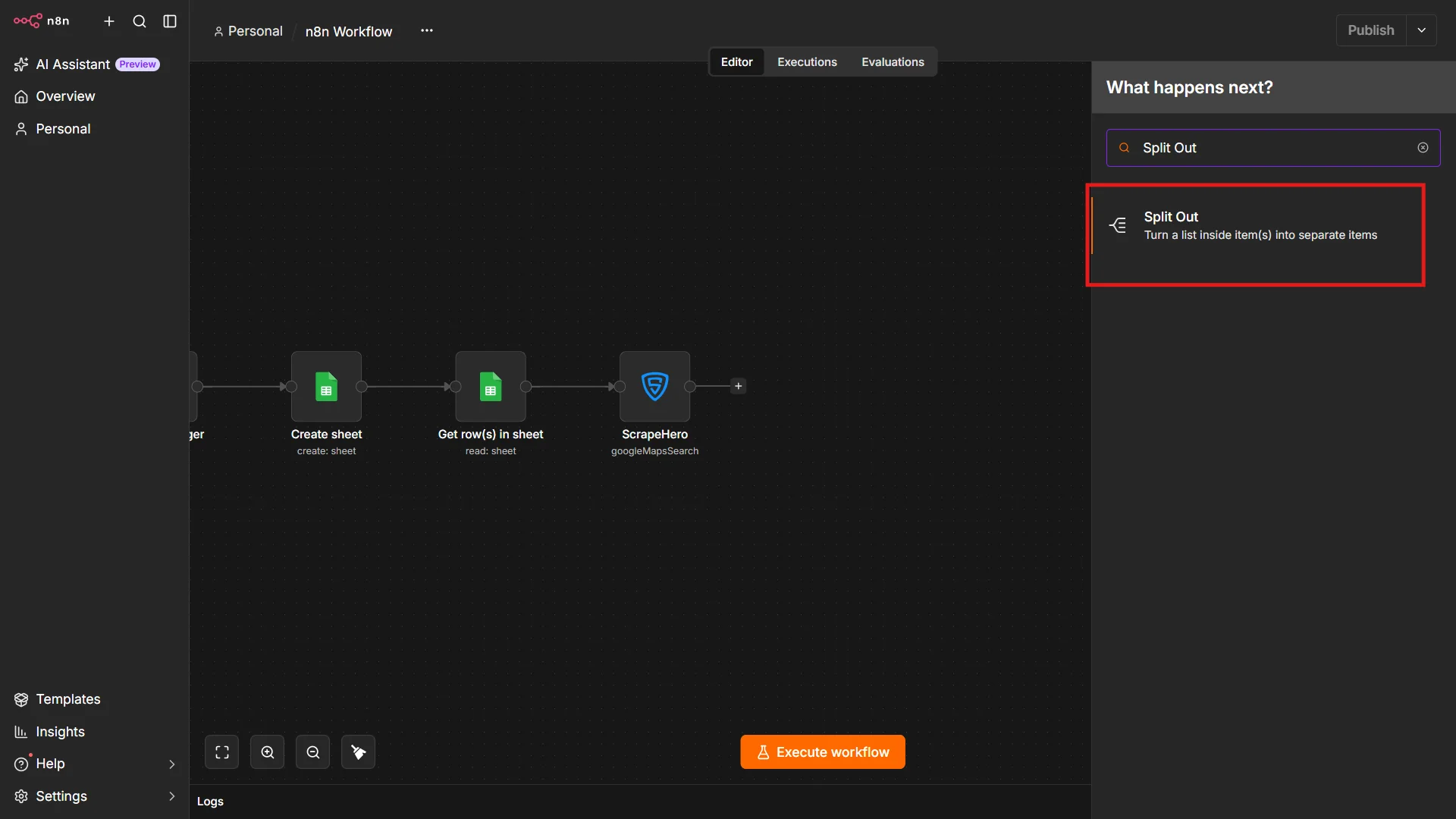
- The API bundles the results as the value of a single JSON field.
- Add a Split Out node to break that bundle apart.
- Drag and drop the JSON field containing the listings into the Fields to Split field. Each listing becomes its own item, so the next nodes can process them individually.
Step 6: Keep Only the Fields You Need
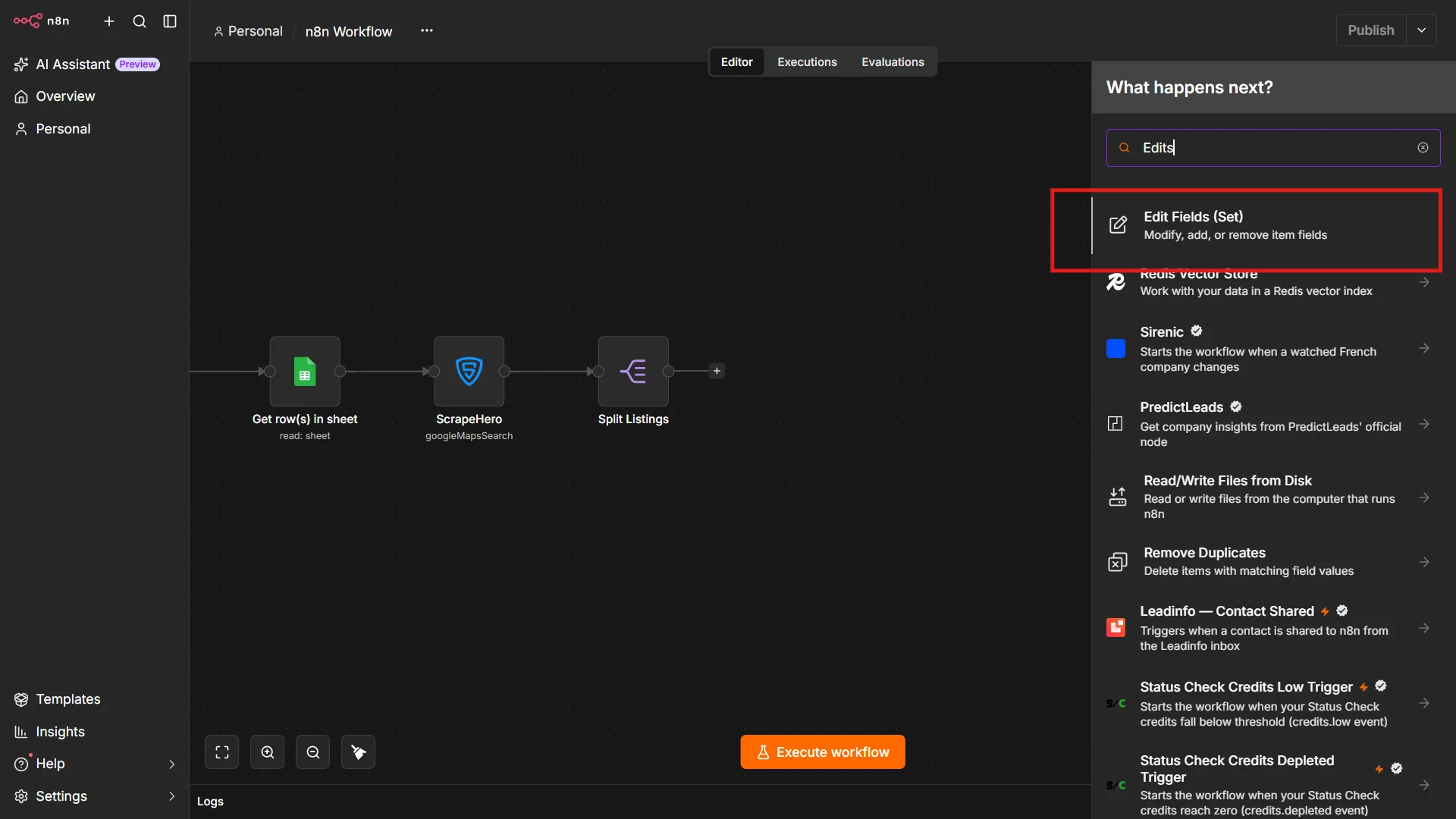
- Add an Edit Fields node to trim each record down to just the details you care about.
- Drag and drop the fields you want to keep.
- For accounting firm outreach, keep the name, address, phone number, website, rating, and review count.
Step 7: Save Everything to Google Sheets
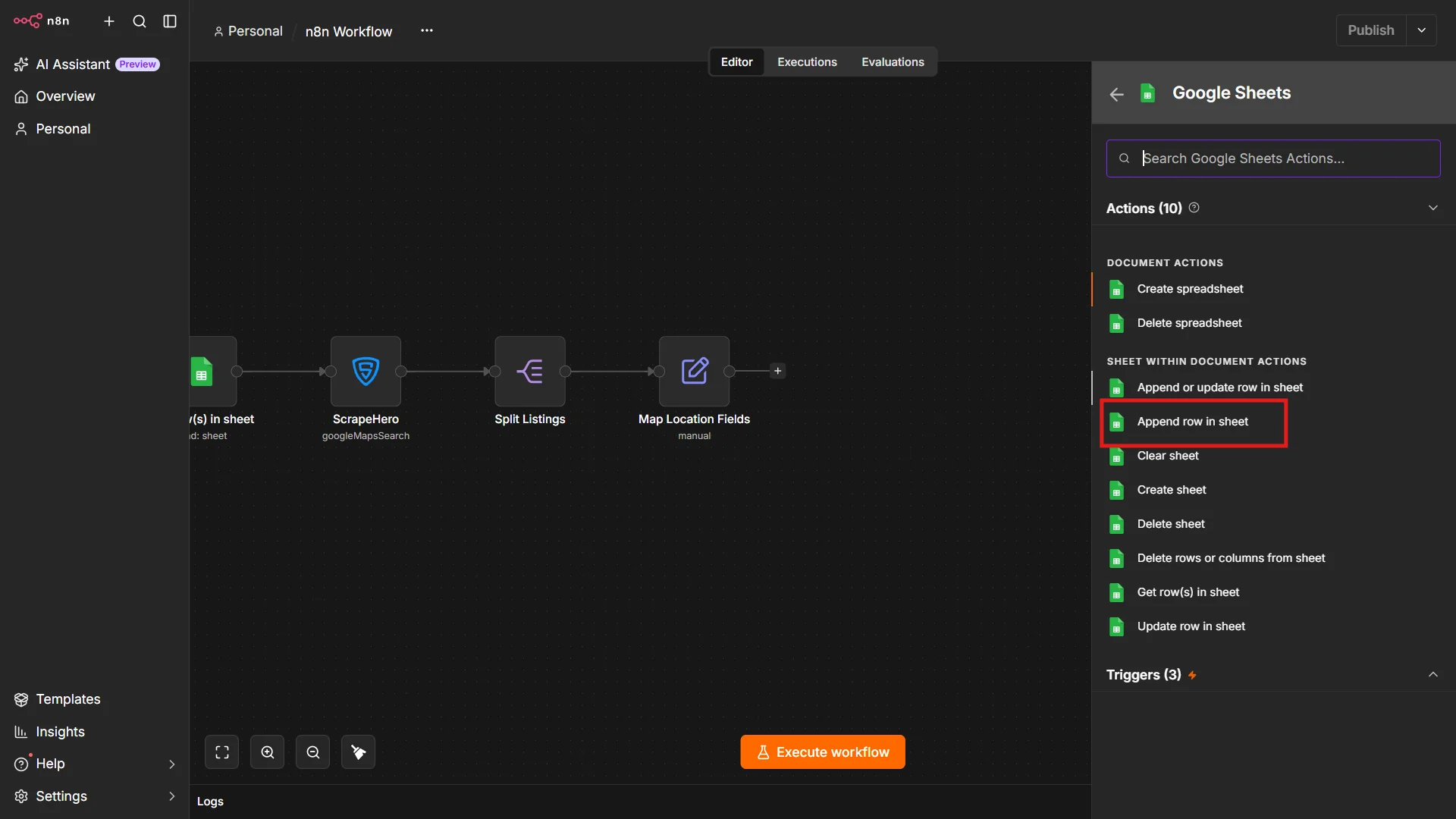
- Add one final Google Sheets node and select the “Append row in sheet” action.
- Select the Google credentials and the document and sheet where you want to save the data.
- Set the mapping option to “Map Columns Automatically,” so n8n creates columns in your sheet from the field names in Step 6.
Once the workflow runs, the empty sheet from Step 2 fills up with clean, organized accounting firm listings.
Use Cases
- Organize software sales territories: Group firm addresses by city or neighborhood, then use the public phone numbers and websites to prepare territory-specific outreach for accounting or tax software.
- Find potential payroll service partners: Build a local contact list of firms and use their listed websites and phone numbers to introduce a payroll service partnership.
- Plan in-person business development: Use listing addresses to map firms near your existing clients or events and arrange efficient local visits.
- Compare local listing visibility: Review ratings and review counts by area to see how firms present themselves on Maps and identify locations for further outreach or branch research.